
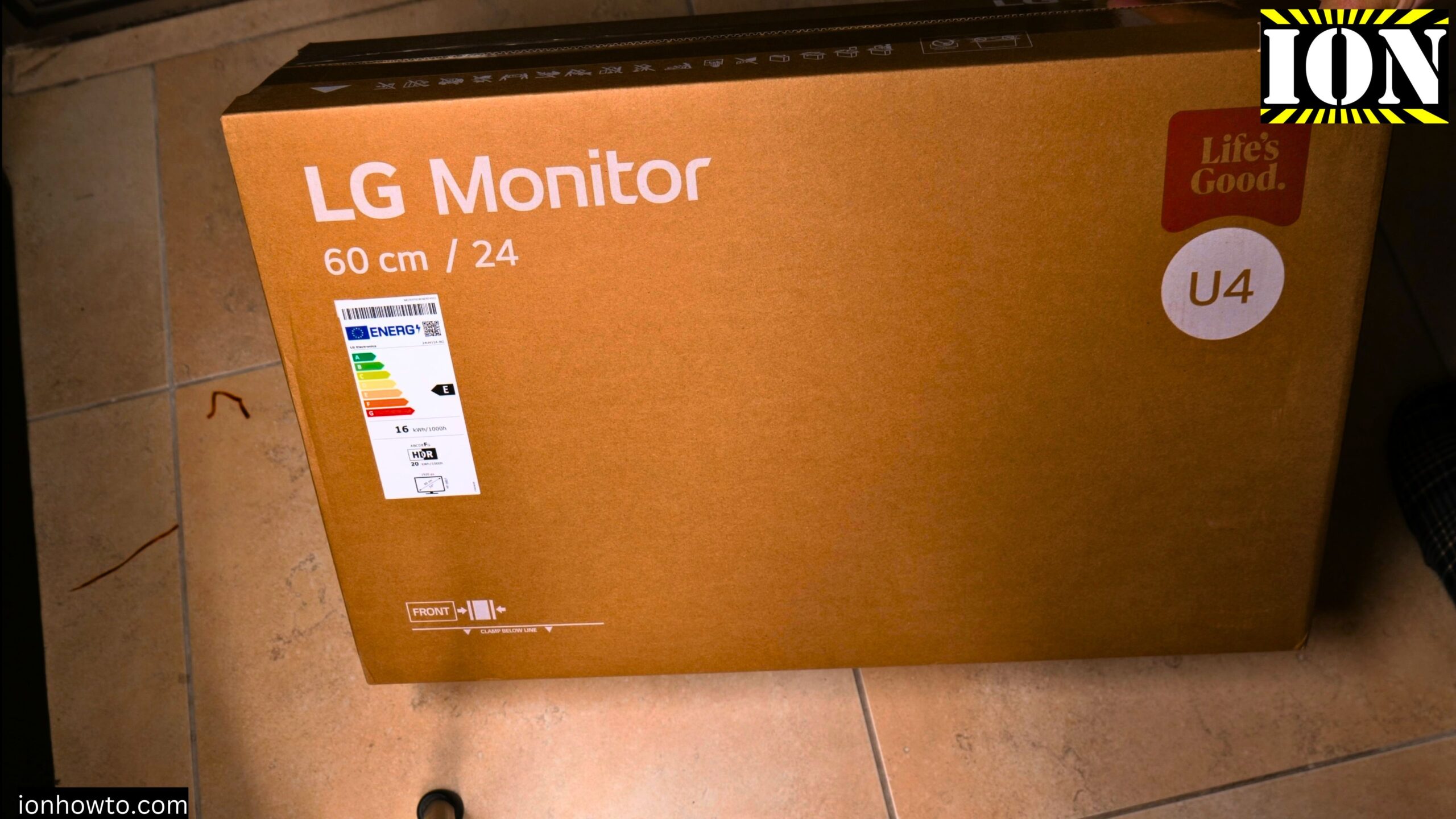
LG 24U411A-B 24 Inch Monitor Installed and IPS Panel Test.
Learn how to set up the LG 24U411A-B as part of a multi-monitor setup. I show you how this monitor looks next to older screens and how to test for dead or stuck pixels. This guide also covers using the monitor for video editing work.
The Setup: Three Monitors for Video Editing
I placed the new LG monitor in the middle of my desk. The left side has an older Xiaomi screen. The right side has an old Samsung screen. This creates a three monitor setup.
The middle LG screen is the main display. It looks better than the older screens, so it gets the most important work. The left Xiaomi screen holds panels and menus. The right Samsung screen shows the video clean feed for DaVinci Resolve.
A clean feed is a full-screen view of your video without any menus or interface elements in the way. It helps you see exactly what your video looks like.
Why Put the New Screen in the Middle
The LG monitor is newer than the other two. The technology is better. The colors look more vivid right out of the box. The Windows background simply looks nicer on the LG panel compared to the Xiaomi.
If you are adding one new monitor to an existing setup, put the new screen in the middle. Use your older screens as side displays for less important things like file folders, chat windows, or tool panels.
Price and Value
This LG monitor was bought during a Black Friday sale. The price was €79. For that price, you get a 24 inch IPS panel with Full HD resolution. That is good value for a basic monitor.
Regular prices may vary. But if you find this model on sale, it is worth considering as a main display or as an affordable addition to a multi-monitor setup.
How to Test for Dead or Stuck Pixels
It is always a good idea to test a new monitor for dead or stuck pixels. A dead pixel is black and never lights up. A stuck pixel shows one color all the time, usually red, green, or blue. One stuck pixel might not be enough to return a monitor. But if there are several, it becomes a problem.
Here is how to test your monitor.
Open a full-screen window on the monitor you want to test.
Display a solid white screen. Look for any dark spots.
Display a solid black screen. Look for any tiny bright dots.
Display a solid red screen. Look for any pixels that are not red.
Display a solid green screen. Look for any pixels that are not green.
Display a solid blue screen. Look for any pixels that are not blue.
On this LG monitor, all colors showed up correctly. White was white. Black was black. Red, green, and blue each filled the screen evenly. No dead or stuck pixels were visible.
How the IPS Panel Looks
IPS stands for In-Plane Switching. It is a type of LCD panel known for good color and wide viewing angles. The screen looks correct even when you look at it from the side.
In this setup, the LG monitor showed more vivid colors than the older Xiaomi screen. That could be because the panel technology is newer. It could also be because of different color settings out of the box. Either way, the LG panel looks good for everyday use.
Using an HDMI Switch
Behind the desk, there is an HDMI switch connected to the setup. This switch lets the monitor show video from either the computer or a camera. When recording videos, the screen can show what the camera sees. This makes it easier to check framing and focus.
Desk Setup and Cable Management
To get this triple monitor setup working, some cleaning was required. Old cables had to be removed. Things had to be rearranged. That is normal when adding a new screen to an existing desk. Take the time to route cables neatly. It makes the desk look better and helps you find the right cable later.
Quick Summary
Here are the key points from this setup.
Place the new LG monitor in the middle of your desk.
Use older screens on the sides for less important tasks.
Test for dead pixels with solid color screens.
White, black, red, green, and blue tests cover everything.
The LG panel shows more vivid colors than older monitors.
The monitor works well as a main display for video editing.
An HDMI switch can share the monitor between computer and camera.
Final Thoughts
The LG 24U411A-B is a solid budget monitor. The IPS panel looks good. Colors are vivid. For €79 on sale, it is hard to complain. As a main display in a three monitor setup, it handles the most important work while older screens handle the rest.
If you are setting up multiple monitors, put your best screen in front of you. Use the older or cheaper screens on the sides. They are fine for menus, timelines, or clean feeds where perfect color is not critical.
The pixel test showed no issues. The screen worked correctly right out of the box. If you bought this monitor for video editing, office work, or general use, it should serve you well.
If you have questions about connecting multiple monitors to your computer or setting up a clean feed in DaVinci Resolve, let me know. I can show you those steps too.


Leave a Reply