
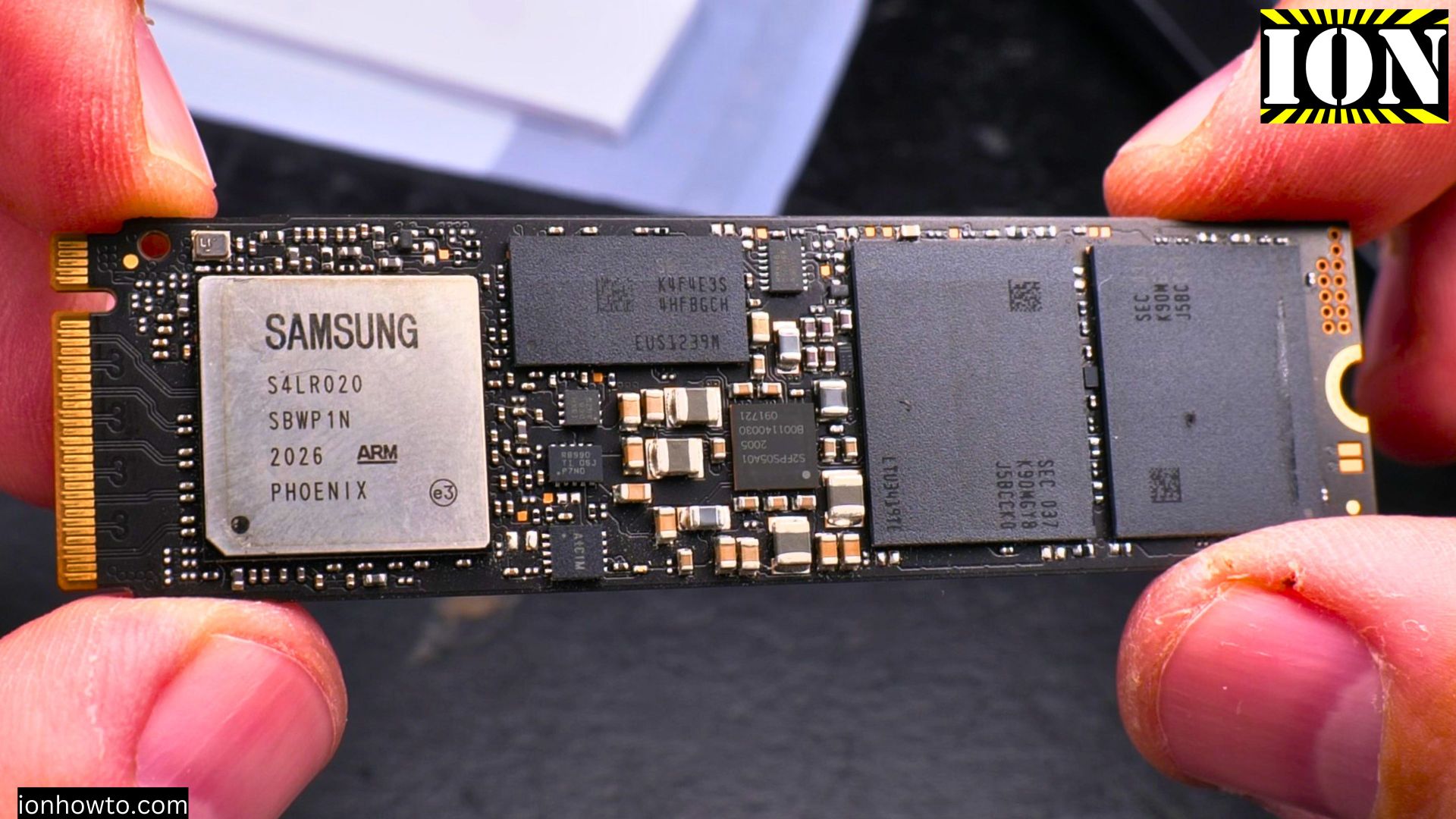
NVMe M.2 SSD Installation in Desktop PC.
How to Install an M.2 NVMe SSD in Your Desktop PC.
So you’ve got a new Seagate FireCuda M.2 SSD and you’re ready to speed up your computer. Installing it in a motherboard like the Asus Prime X570-P is one of the best upgrades you can do. It might look technical, but I’ll show you the process is actually pretty simple with the right steps. Let’s get your new drive up and running.
What You’ll Need Before You Start
First, let’s make sure you have everything. This saves a lot of last-minute searching.
- Your new M.2 SSD: In this case, the Seagate FireCuda PCIe 4.0 drive with its integrated heatsink.
- The correct screw: This is the most common snag. Your motherboard should have come with a small screw and a “standoff” (a little post) for the M.2 slot. They are tiny and easy to lose!
- Tools: A Phillips-head screwdriver for your PC case and a small screwdriver, often a Phillips #0 or a hex/star driver, for the M.2 screw itself.
- A clean, static-free workspace: Turn off your PC, unplug the power cable, and touch a metal part of the case to discharge any static electricity.
Pro Tip: If you can’t find the M.2 screw in your motherboard box, check the motherboard itself. Sometimes they are pre-installed in the M.2 slot. If it’s truly lost, you can buy a replacement M.2 screw kit online.
Step-by-Step Installation Guide
Follow these steps to install your drive safely and correctly.
Step 1: Open Your PC Case and Locate the M.2 Slot
Unplug all cables from your PC. Lay it on its side on a steady surface. Open the side panel (usually held by thumbscrews). Find the M.2 slots on your motherboard—they are horizontal slots, about an inch long, labeled “M.2” or “PCIe.” On the Asus Prime X570-P, you’ll find them above the main PCIe slot for the graphics card.
Step 2: Prepare the M.2 Slot
Locate the small standoff screw post for the length of your drive (most are “2280,” meaning 22mm wide and 80mm long). If the standoff isn’t in the right position, unscrew it and move it to the correct hole. Then, unscrew and remove the tiny mounting screw from the standoff and set it aside where you won’t lose it.
Step 3: Insert the M.2 SSD
Hold the FireCuda SSD by its edges. Notice the gold contacts have a small notch. Align this notch with the small bump inside the M.2 slot on the motherboard.
Insert the drive at a slight angle (about 30 degrees). Gently push it down until it sits flat. The small hole on the SSD should line up perfectly with the standoff post you prepared.
Step 4: Secure the SSD
Take the tiny M.2 screw you set aside and use your small screwdriver to secure the drive down. Don’t overtighten it—just a firm, gentle twist until the drive is no longer loose. The drive should now be lying flat and secure on the motherboard.
What to Do After Installing the Hardware
With the drive physically installed, the next steps happen when you turn your computer back on.
- Close up your PC. Reattach the side panel, plug all your cables (power, monitor, keyboard, mouse) back in, and power it on.
- Open Disk Management in Windows. Right-click the Windows Start button and select “Disk Management.” A pop-up window will appear asking you to initialize the new disk.
- Initialize the new drive. Select the new disk (it will be labeled as “Unknown” and “Unallocated”). Choose GPT (GUID Partition Table) and click OK. This is the modern standard.
- Format the drive. Right-click on the “Unallocated” space of the new drive and select “New Simple Volume.” Follow the wizard, using the default settings. Assign a drive letter (like D: or E:) and give it a name (like “Games” or “Storage”).
- You’re done! Your new Seagate FireCuda SSD is now ready to use. You can start installing games, transferring files, or using it as extra fast storage.
Troubleshooting: What If It Doesn’t Show Up?
If your new drive isn’t detected in Disk Management, don’t panic. Try these checks:
- Re-seat the drive: Power off, unplug, and double-check that the SSD is firmly and correctly inserted all the way into the slot.
- Check the BIOS: Restart your PC and enter the BIOS/UEFI (usually by pressing Delete or F2 as it boots). Look for storage or NVMe configuration settings and see if the drive is listed there. If it is, your Windows installation might need a driver.
- Motherboard manual: Some motherboards share bandwidth between M.2 slots and SATA ports. If a certain SATA port is used, an M.2 slot might be disabled. Check your Asus Prime X570-P manual to see if this applies.
Installing an M.2 SSD is a very satisfying upgrade. Taking your time, being careful with the small parts, and following these steps will get you that blazing-fast storage in no time.


Leave a Reply