
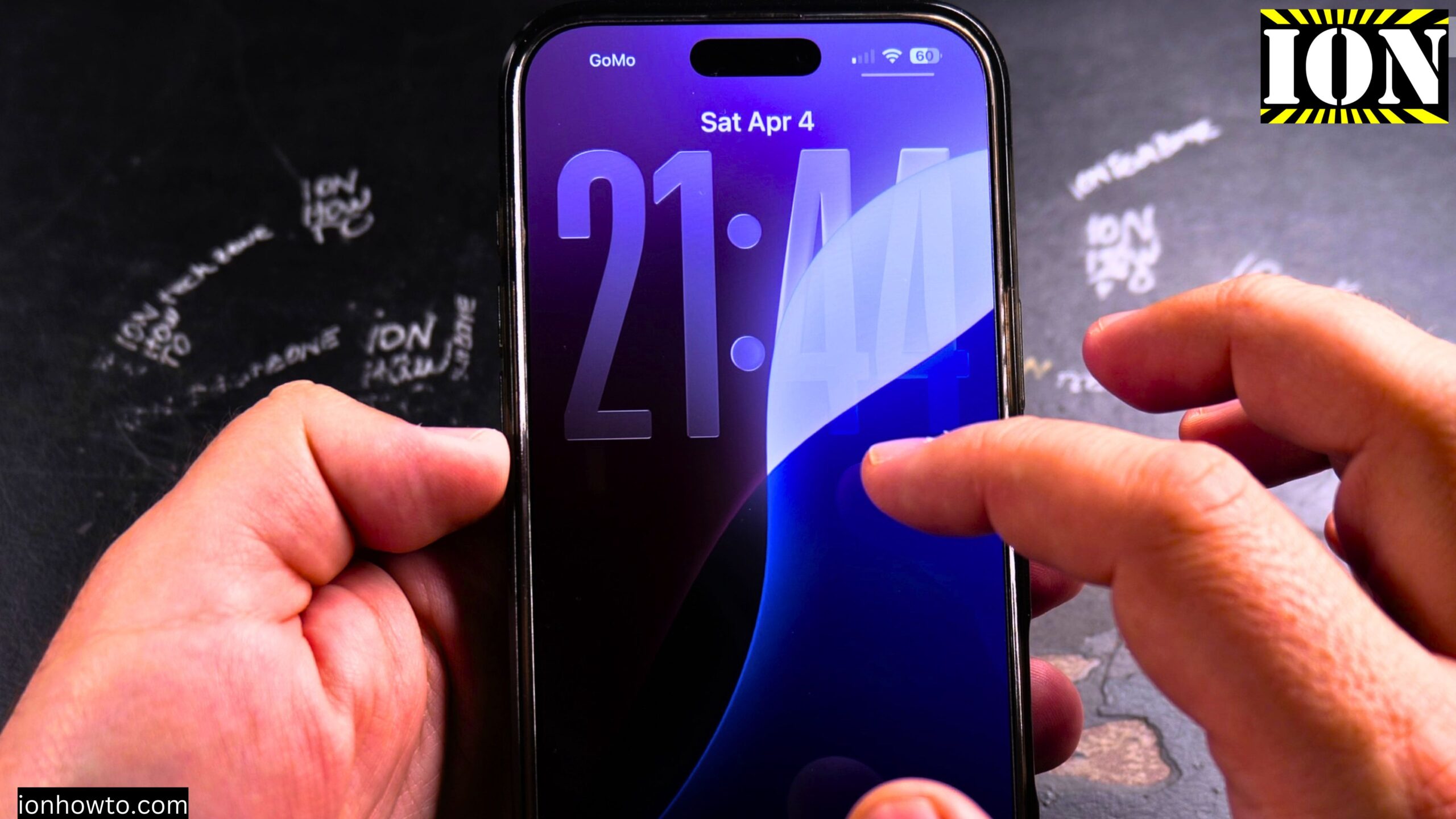
How to Set Up Face ID on iPhone 16 Pro Max Step-by-Step Guide.
Learn how to set up Face ID on your iPhone 16 Pro Max. Face ID is a fast and secure way to unlock your phone, sign in to apps, and make payments with Apple Pay.
Amazon links
As an Amazon Associate I earn from qualifying purchases:
- iPhone Accessories
- iPhone Charger
- iPhone Cases
- iPhone Screen protector
- iPhone Magsafe
- iPhone Wallet
- iPhone Usb c cable
I will show you this on an iPhone 16 Pro Max running iOS 18.3.2.
What is Face ID?
Face ID uses the TrueDepth camera system on the front of your iPhone to recognize your face. It works in the dark, works with hats and glasses, and is more secure than a passcode.
You can use Face ID for:
- Unlocking your iPhone
- Apple Pay payments
- App logins (banking apps, password managers, etc.)
- iTunes and App Store purchases
- Auto-filling passwords in Safari
Before you start
Make sure:
- Your face is not covered by a mask, scarf, or anything else
- Nothing is covering the front camera area (screen protector is fine as long as it is not blocking the camera)
- You are in a well-lit area (though Face ID works in the dark too)
How to set up Face ID for the first time
If you skipped Face ID setup when you first got your phone, here is how to set it up.
Step 1: Open Settings
Find the Settings app on your home screen (gray gear icon). Tap to open it.
Step 2: Tap on Face ID & Passcode
Scroll down until you see “”Face ID & Passcode.”” Tap on it.
Step 3: Enter your passcode
You will need to enter your iPhone passcode to access these settings.
Step 4: Tap “”Set Up Face ID””
If Face ID is not set up, you will see a button that says “”Set Up Face ID.”” Tap it.
Step 5: Follow the on-screen instructions
Your iPhone will guide you through the process.
What happens during Face ID setup
The setup process has two parts.
First scan:
- Hold your iPhone in front of your face, about 10-20 inches away
- Position your face inside the frame on the screen
- Move your head slowly in a circle
- The white lines on the screen will turn green as the camera scans
Second scan:
- After the first scan completes, you will do a second scan
- Move your head slowly in a circle again
- This helps Face ID learn your face from different angles
When it is done:
- You will see a message that Face ID is set up
- Your phone will ask which features you want to use Face ID for
How to choose what Face ID is used for
After setting up Face ID, you can choose which features use it.
Go to Settings > Face ID & Passcode. You will see toggles for:
- iPhone Unlock – Unlock your phone with your face
- Apple Pay – Make payments with your face
- iTunes & App Store – Make purchases without typing your password
- Password AutoFill – Fill in saved passwords with your face
Turn each toggle on or off based on what you want.
How to add an alternate appearance
Face ID lets you add an alternate appearance. This is useful if you have different looks, like wearing glasses sometimes and contacts other times.
Step 1: Go to Settings > Face ID & Passcode
Step 2: Enter your passcode
Step 3: Tap “”Set Up an Alternate Appearance””
Step 4: Follow the same face-scanning process as before
When to use alternate appearance:
- When you wear glasses and also wear contacts on other days
- When you sometimes wear a hat or head covering
- When your partner wants to unlock your phone (though this is not recommended for security)
- After a major hairstyle change
How to use Face ID with a mask
On iOS versions that support it, you can set up Face ID to work while wearing a mask.
Step 1: Go to Settings > Face ID & Passcode
Step 2: Enter your passcode
Step 3: Turn on “”Face ID with a Mask””
Step 4: You may need to scan your face again
Important: Face ID with a mask is less accurate than normal Face ID. It looks at the area around your eyes instead of your whole face.
How to reset or redo Face ID
If Face ID is not working well, you can reset it and set it up again.
Step 1: Go to Settings > Face ID & Passcode
Step 2: Enter your passcode
Step 3: Tap “”Reset Face ID””
Step 4: Tap “”Set Up Face ID”” to start over
Common Face ID problems and fixes
Face ID not working at all:
- Make sure nothing is covering the front camera (no stickers, no dirty screen protector)
- Check that you have a passcode set (Face ID requires a passcode as backup)
- Restart your iPhone
Face ID only works sometimes:
- Try setting up an alternate appearance
- Make sure you are holding the phone 10-20 inches from your face
- Clean the front camera area with a soft cloth
Face ID asks for passcode too often:
This is normal security behavior. Face ID will ask for your passcode:
- After 48 hours of not unlocking your phone
- After 5 unsuccessful Face ID attempts
- After you shut down your phone
- After you add or remove a face mask (if using that feature)
Does Face ID work in the dark?
Yes. Face ID uses infrared light to see your face. It works in complete darkness just as well as in bright light.
Does Face ID work with sunglasses?
It depends. Face ID works with most sunglasses. However, some sunglasses block infrared light. If your Face ID does not work with your sunglasses, try taking them off or add an alternate appearance without sunglasses.
Does Face ID work with hats and scarves?
Yes. Face ID looks at your eyes, nose, and mouth area. Hats and scarves that do not cover these areas usually work fine.
Face ID vs passcode – which is more secure?
Face ID is more secure than a passcode for most people. A passcode can be watched over your shoulder. Face ID requires your actual face.
But keep in mind:
- Law enforcement can require you to unlock your phone with Face ID (same as a passcode)
- A strong alphanumeric passcode can be more secure if you are worried about someone unlocking your phone while you are asleep (since they could hold it to your face)
Quick summary
To set up Face ID for the first time:
- Open Settings
- Tap Face ID & Passcode
- Enter your passcode
- Tap Set Up Face ID
- Follow the on-screen instructions (move your head slowly in a circle)
- Complete the second scan
- Choose which features to use Face ID for
To add an alternate appearance:
- Settings > Face ID & Passcode
- Enter your passcode
- Tap Set Up an Alternate Appearance
- Follow the scanning process
To reset Face ID and start over:
- Settings > Face ID & Passcode
- Enter your passcode
- Tap Reset Face ID
- Tap Set Up Face ID
Quick tips:
- Hold your phone 10-20 inches from your face
- Move your head slowly during setup
- Clean the front camera area if Face ID stops working
- Set up an alternate appearance for different looks
Thanks for reading. Now you can set up Face ID and unlock your iPhone just by looking at it.


Leave a Reply