
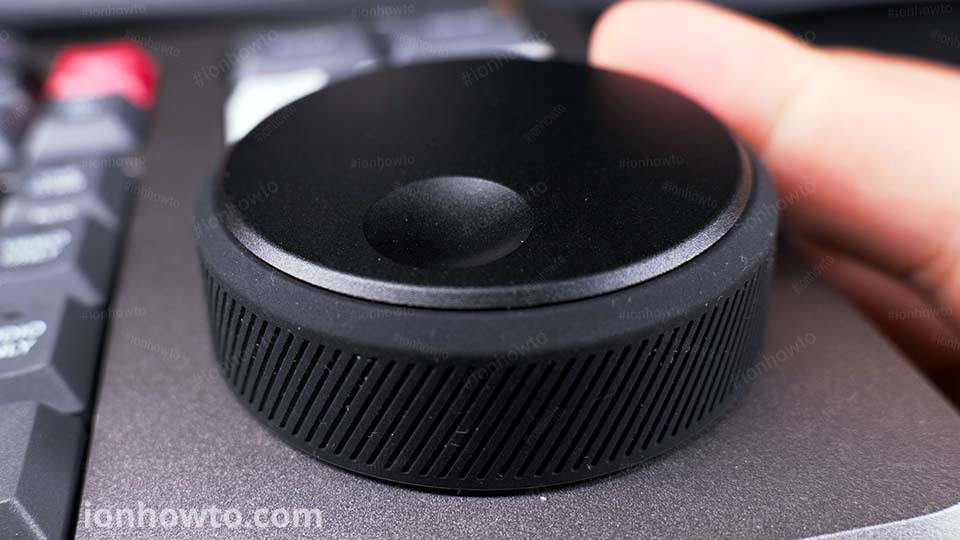
I show you how to generate proxies in DaVinci Resolve. If you’re experiencing slow laggy playback or need to collaborate with remote editors, this tutorial will show you how to create proxy media for smoother editing and easier file sharing.
Quick Steps and Scenarios Overview
| What You Need to Do | Quick Jump |
|---|---|
| Generate Proxies on the Cut Page | Jump to Step 1 |
| Editing Cut Page vs Edit Page | Jump to Step 2 |
Generating proxies is essential for efficient video editing, especially when working with high-resolution media. Proxies allow for real-time playback without the lag, making it easier to edit and review your project. Also, proxies are smaller in size, which makes it simpler to share files with collaborators or clients without compromising on quality.
How to Generate Proxies in DaVinci Resolve.
In the video I will show you how to generate proxies in DaVinci Resolve.
Generate Proxies on the Cut Page
You normally can’t generate proxies while on the Cut page. You have to switch to the edit page, select your media then generate proxies but there is a way to do it with a keyboard shortcut.
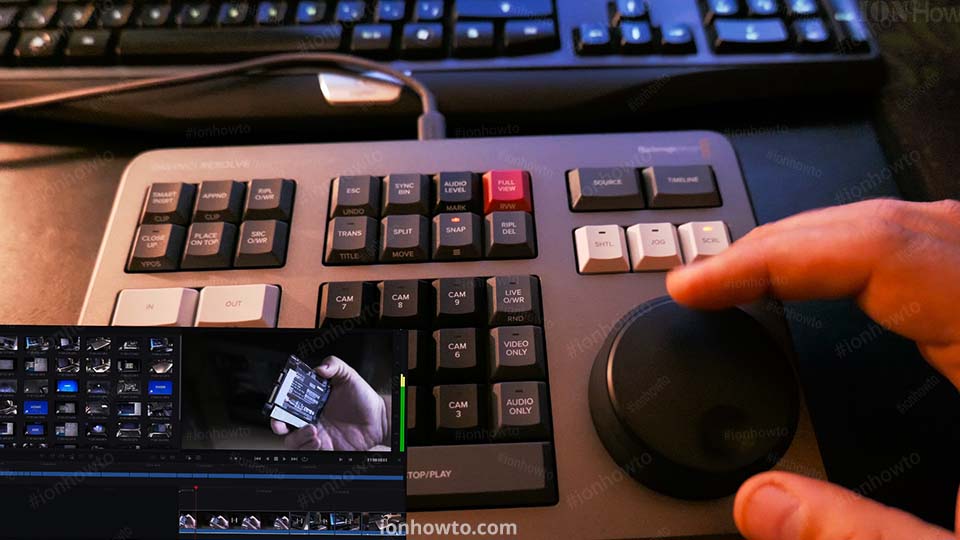
I like to have the audio sync and generate proxies as keyboard shortcuts to quickly sync the audio between the camera and external recorder and create the proxies for super smooth editing and scrolling thru the timeline with the DaVinci Resolve Speed Speed Editor keyboard.
With the keyboard shortcuts, you can do these steps faster.
Editing Cut Page vs Edit Page
How to access the Cut and Edit pages.
Import and edit media files.
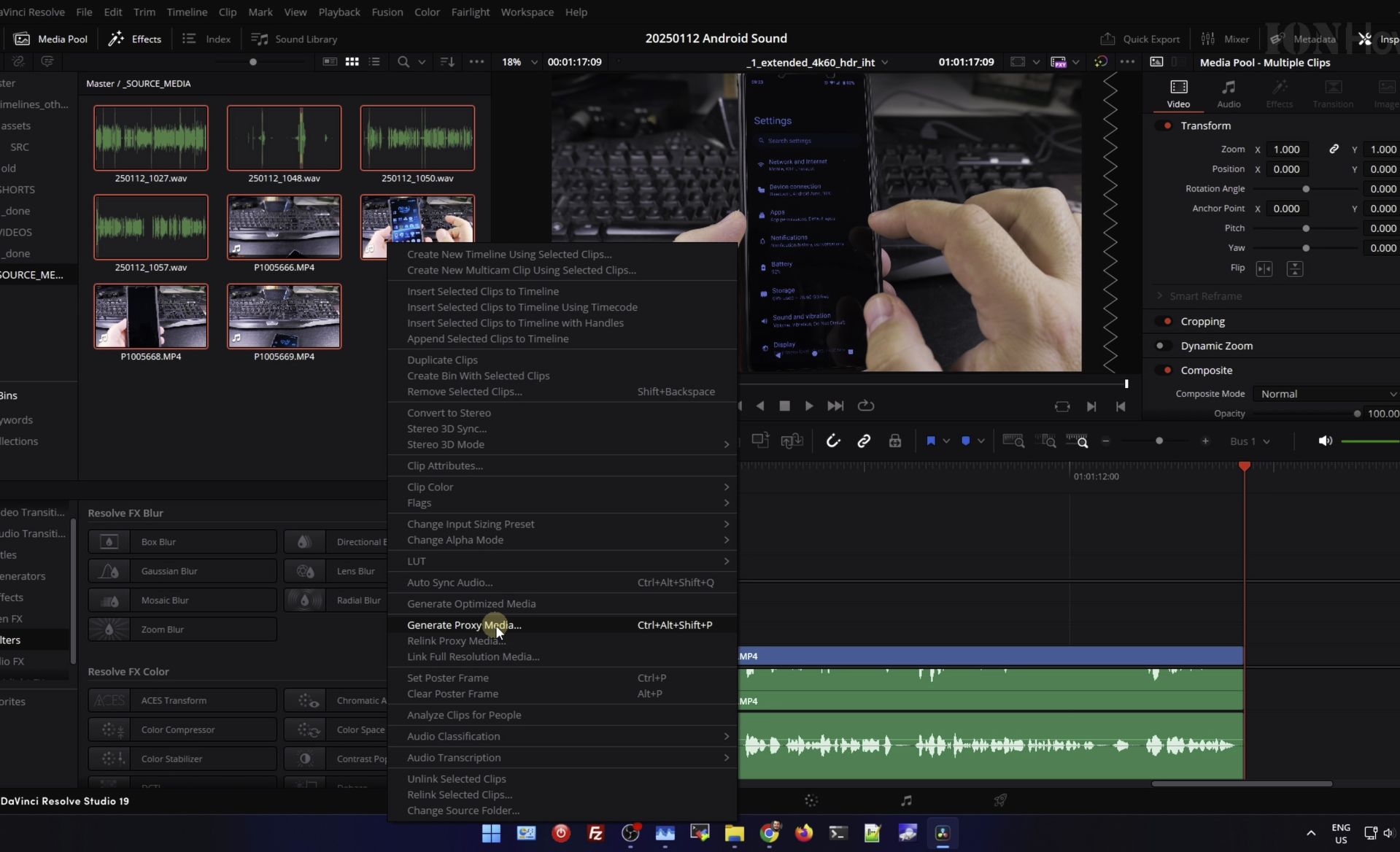
How to select the source files that need to be converted to proxy format.
Right-click and choose “Generate Proxy Media.
You can configure the proxy settings, including format and resolution.
Link or relink proxies in the media pool for seamless editing.
Helpful Tips
Check all labels, connections, and power ratings before starting so everything fits safely and securely. If any detail looks slightly different on your model, pause the embedded video above for a clear closeup view.
Related Guides
- How to Install and Activate DaVinci Resolve Studio 21 on MacBook Air M5 Using a Speed Editor Key (Full Guide) – If you purchased a Blackmagic Design DaVinci Resolve Speed Editor keyboard, the box includes a plastic activation card that…
- DaVinci Resolve Studio 21 Update – The DaVinci Resolve Studio 21 Update is Here.
- RTX5080 in PCIe 4.0 Motherboard Tests Furmark and DaVinci Resolve – If you are upgrading to an NVIDIA GeForce RTX 5080 and wondering if a PCIe 4.0 motherboard holds back performance…
- DaVinci Resolve Tutorials – Browse more tutorials and practical guides in this section.


Leave a Reply