
Setting Up Your Logitech MK270 on Windows 10 & 11.
Got a new Logitech MK270 wireless keyboard and mouse combo? This affordable set is a great way to add a full-size keyboard and mouse to your laptop or desktop. The setup is quick, and I’ll show you exactly how to get it working on both Windows 10 and Windows 11.
What’s in the Box
Before we start, let’s make sure you have everything:
- The full-size keyboard
- The wireless mouse
- A single USB receiver (often called a Unifying receiver)
- Documentation
- Batteries (usually included)
A handy tip: don’t lose that tiny USB receiver! The mouse has a special compartment inside the battery area where you can store it when not in use, which is a great feature.
Step 1: Install the Batteries
First, you need to power up your new gear.
For the Keyboard:
- Flip the keyboard over.
- Find the battery compartment latch and open it.
- Insert the two AA batteries as shown by the + and – symbols inside.
- Close the compartment.
For the Mouse:
- Flip the mouse over and push the latch to open the battery cover.
- Insert one AAA battery, matching the + and – signs.
- Close the cover.
Step 2: Connect the USB Receiver
This is the simplest part. Take the small USB receiver and plug it directly into an available USB port on your Windows 10 or Windows 11 PC or laptop.
It doesn’t need to be a special port – any USB-A port will work. For best results, plug it into a port on your computer itself, not into a USB hub, especially during setup.
Step 3: Turn On the Devices
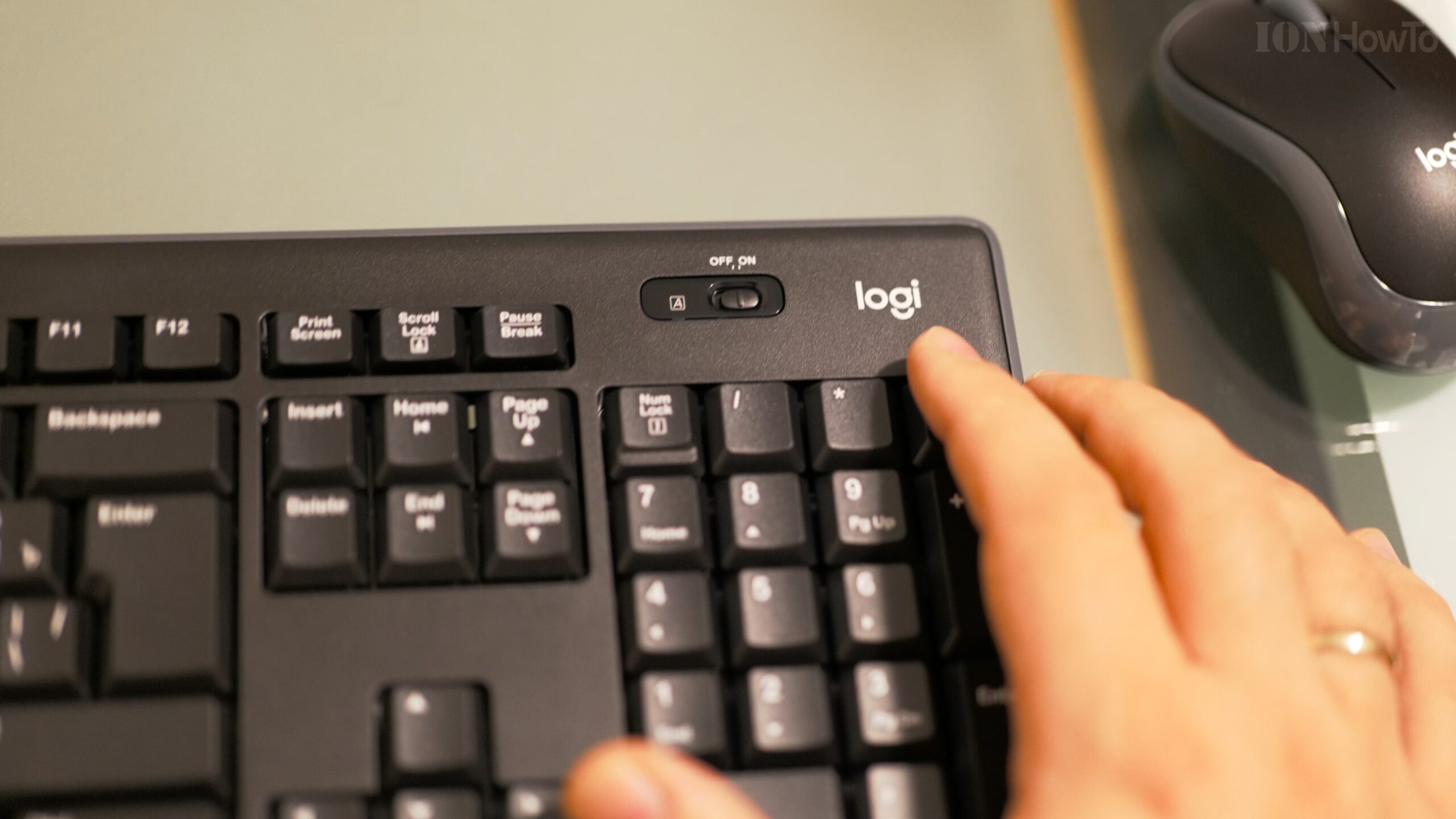
Now, switch on both the keyboard and mouse. You’ll find the power switches on the top edge of the keyboard and underneath the mouse.
- Slide the keyboard’s power switch to ON.
- Slide the mouse’s power switch to ON.
Step 4: Let Windows Do Its Thing
Once the receiver is plugged in and the devices are on, Windows will automatically recognize them. You should see a notification that it’s “Setting up a device” or “Installing driver.”
- For most users: This automatic process is all you need. After a few seconds, your mouse cursor should appear and move when you move the mouse. Try clicking and typing to test both devices.
- If they don’t work immediately: Don’t worry. Simply restart your computer with the receiver still plugged in. This almost always fixes any connection glitch.
Testing Your Setup
Once everything is connected, give it a full test:
- Mouse: Move the cursor, left-click, right-click, and try the scroll wheel.
- Keyboard: Open Notepad or a text field and type. Test special keys like the Windows key, volume controls, and mute button.
You’re all set! The Logitech MK270 is a classic plug-and-play device, and Windows handles the drivers automatically.
Troubleshooting Tips
If something isn’t working, try these steps:
- Check the batteries: Ensure they are inserted correctly and are not depleted.
- Check the power switches: It’s easy to forget to turn them ON.
- Try a different USB port: Unplug the receiver and plug it into another USB port on your computer.
- Restart your computer: This is the most reliable fix for many minor device issues.
- Minimize interference: Keep other wireless devices (like routers, phones, or other wireless peripherals) away from the receiver if you experience lag or dropouts.
Learn How to Use the MK270 with Other Devices
A cool bonus of this keyboard and mouse is their versatility. Because they use a standard wireless receiver, you can use them with more than just a Windows PC.
If you have a USB-C hub, you can plug the receiver into it and connect the hub to an Android phone that supports desktop mode (like Samsung Dex). This can turn your phone into a desktop-like experience with a big screen, keyboard, and mouse.
Enjoy your new, clutter-free setup.


Leave a Reply