
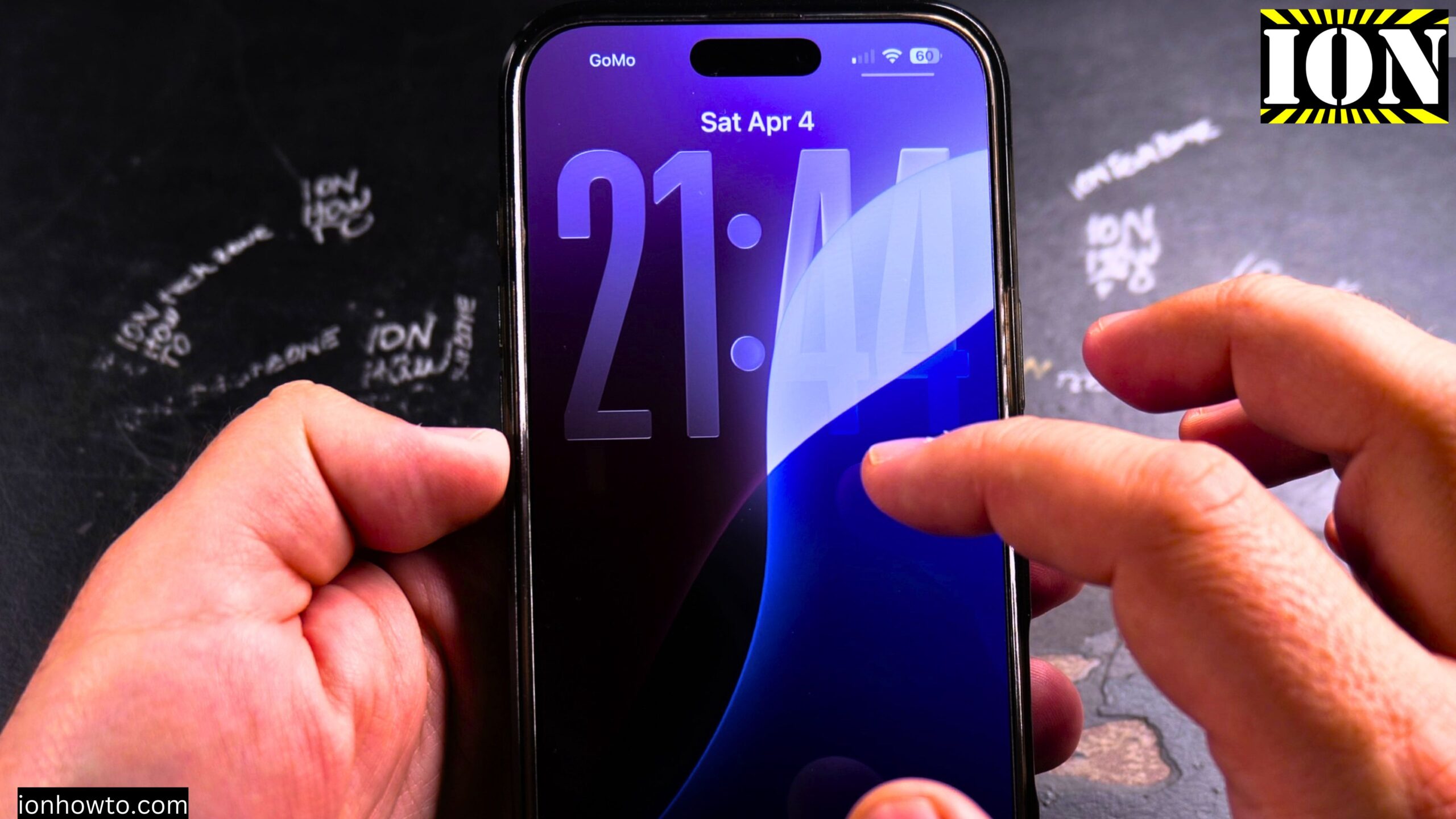
How to Turn Off the Parallax Effect on iPhone: Turn On Reduce Motion
Learn how to turn off the parallax effect on your iPhone. I show you the steps to turn on the Reduce Motion setting. This will stop the 3D-like movement on your home screen and make your icons stay still.
This was shown on iOS 26 on iPhone 16 Pro Max Titanium Black 256 GB version Global model A3296 – MYWV3ZD/A.
If you find the parallax effect on your iPhone distracting or if it makes you feel motion sick, this setting can help. Learn how to disable the home screen parallax effect to create a more stable look.
What Is the Parallax Effect
The parallax effect is the background, the desktop, the background of the home screen. The folders also change as you rotate the iPhone. It is more obvious when you see folders changing. It is almost like the reflection of the sun outside is changing because you are rotating the phone.
This is a simple effect on the display itself. It makes the screen look 3D.
If you want this off, you turn off the parallax effect. But turning off the parallax effect will also turn off the animations. This is how it works so far in iOS 26, iPhone 16 Pro Max.
How to Turn Off the Parallax Effect on iPhone Turn On Reduce Motion Video
Step 1: Open Settings
Go into the Settings app.
Step 2: Go to Accessibility
Go to Accessibility.
Step 3: Tap on Motion
Under Accessibility, look for Motion. Tap on Motion.
Step 4: Enable Reduce Motion
You have the option to Reduce Motion. Turn on Reduce Motion.
Once you reduce the motion, this effect that we saw before is not happening anymore. It is fixed now. There is no more of this effect as you move the window.
You could also have this effect on the wallpaper. It is not so obvious on some wallpapers, but that is now fixed. There is less motion.
What You Lose
You also do not have the animation of the folders as you open them. Now you do not have the animations on the apps as you open and close them.
This is the tradeoff. You do not have parallax and animations together.
Final Thoughts
I hope this helps you reduce the motion but also remove the parallax effect. This could be a little bit confusing sometimes.
Related Guides and Helpful Resources
If you found this guide helpful, check out these related step-by-step tutorials and category resources on ION HowTo:
- Disable iPhone eSIM Instead of Deleting: Learn how to temporarily toggle off an electronic SIM without deleting cellular plans.
- Turn Off Siri Caller Name Announcement: Silence Siri from announcing incoming caller names aloud through headphones.
- How to Remove an Apple AirTag Speaker: Step-by-step guide to silencing an AirTag for specialized anti-theft item tracking.
- Apple iPhone Guides: Explore our full collection of tutorials and step-by-step articles in this category.


Leave a Reply