
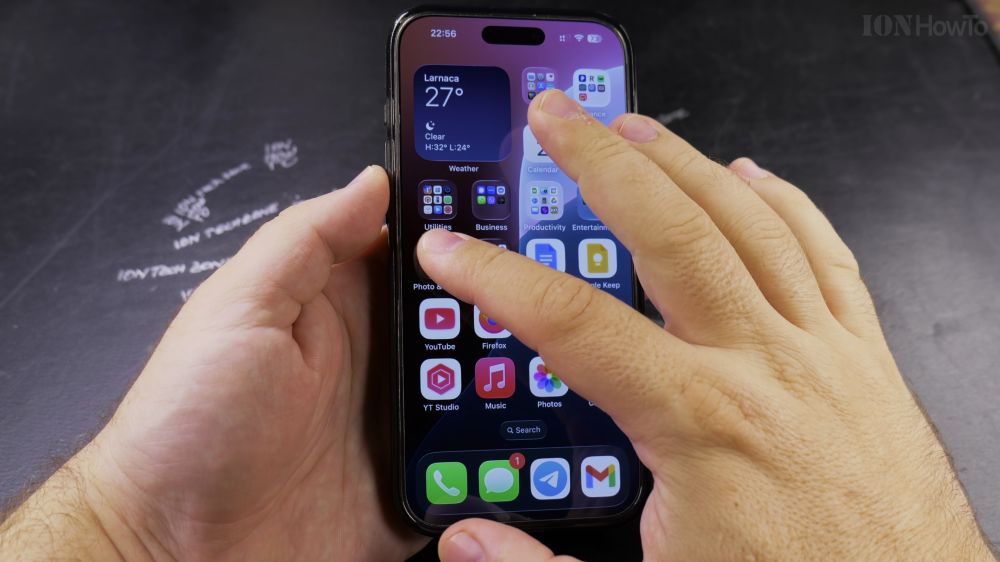
If you want to personalize your iPhone home screen with aesthetic designs or personal photos, Apple’s built-in Shortcuts app makes it simple. I’ll show you how to create custom app icon shortcuts in a few quick steps.
1. Open the Shortcuts App
Open the **Shortcuts** app on your iPhone. If you don’t see it, swipe down and search for Shortcuts.
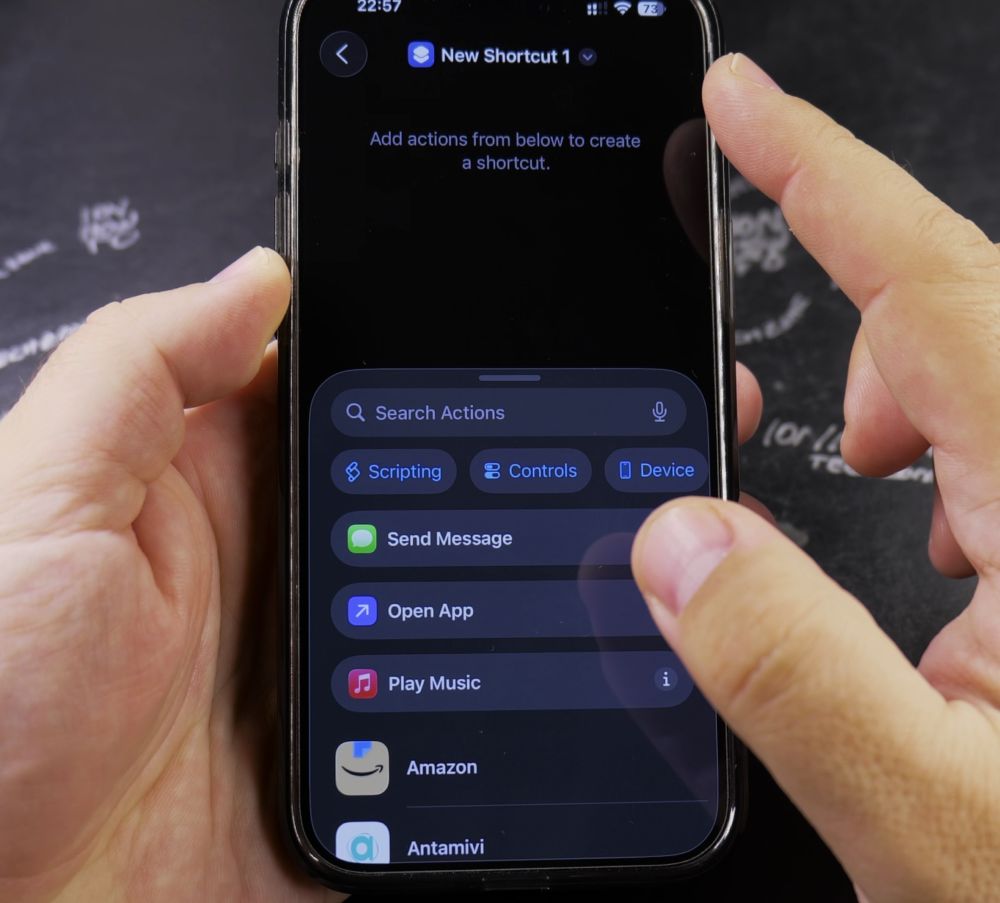
2. Create a New Shortcut
Tap the **+** (plus) icon in the top-right corner to start a new automated shortcut.
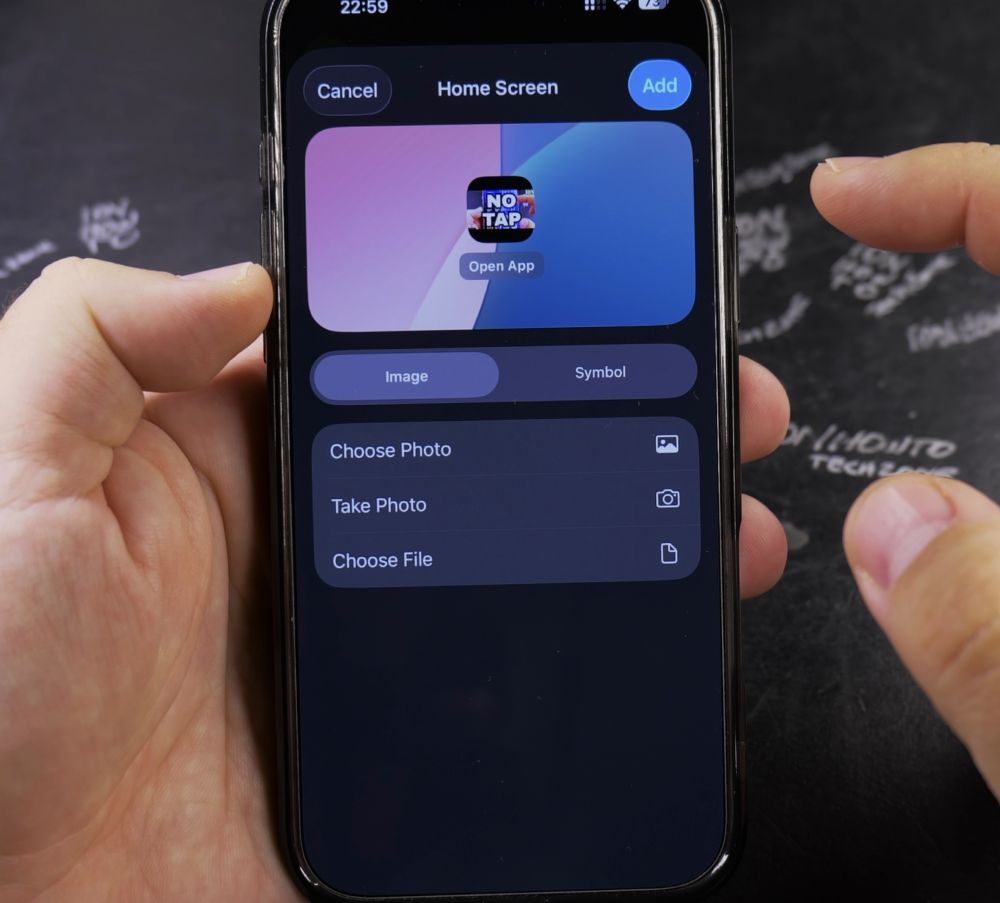
3. Add the Open App Action
Tap **Add Action**, type **Open App** in the search bar, and tap the scripting action named **Open App**.
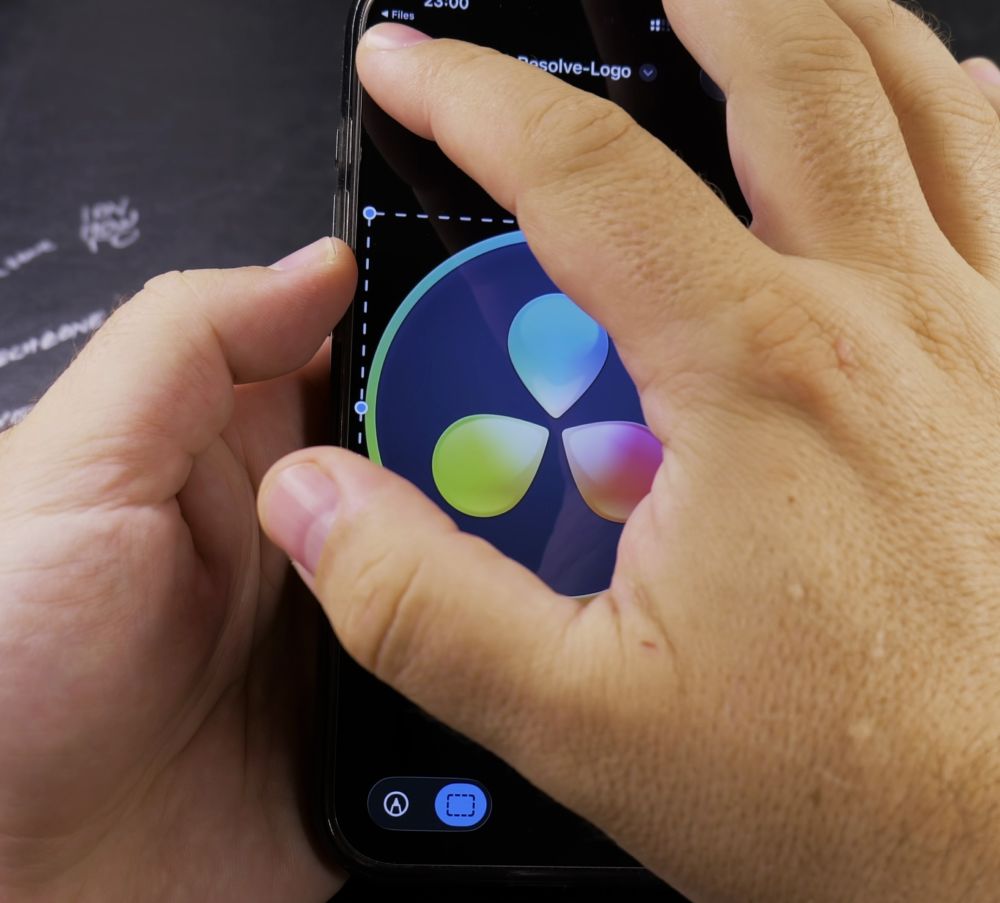
4. Select Your Desired App
Tap the blue highlighted **App** placeholder word and select the app you want to launch (for example, **Camera** or **Notes**).
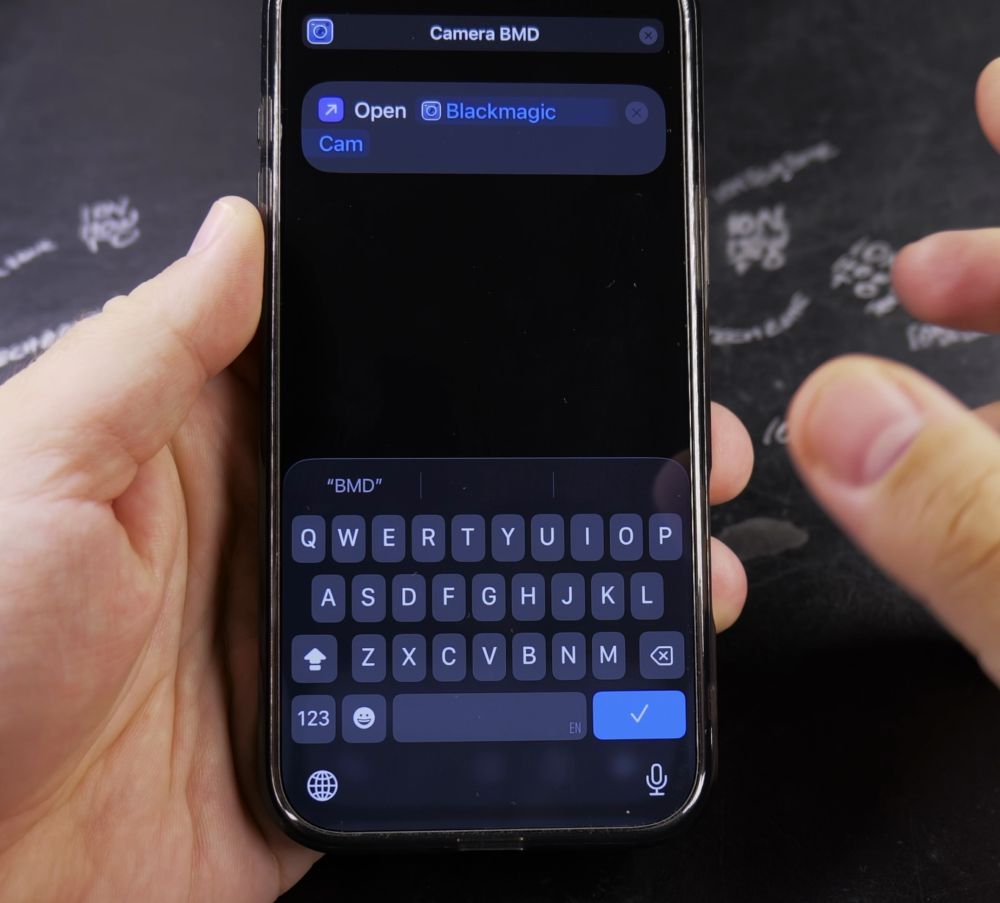
5. Add Shortcut to Home Screen
Tap the small drop-down arrow next to the shortcut title at the top, then tap **Add to Home Screen**.
6. Choose Your Custom Icon Image
Tap the small icon preview under Home Screen Name and Icon, tap **Choose Photo**, select any picture from your photo library, and tap **Add**.
Helpful Tips
Your original app still stays safe in your App Library. You can remove the original app icon from your home screen without uninstalling it so only your custom icon displays. For more home screen styling ideas, explore our iPhone Guides hub.


Leave a Reply