
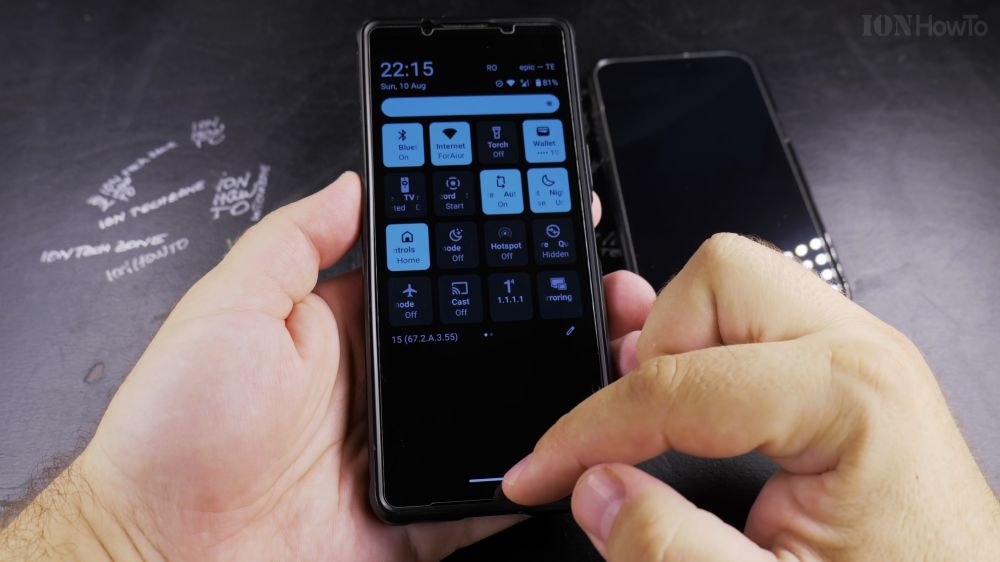
Adding a second phone line to your Android phone is easy without opening the SIM tray or handling plastic cards. I’ll show you how to scan a carrier QR code and set up an eSIM on Android in minutes.
1. Open Settings
Swipe down from the top of your screen and tap the gear icon to open **Settings**.
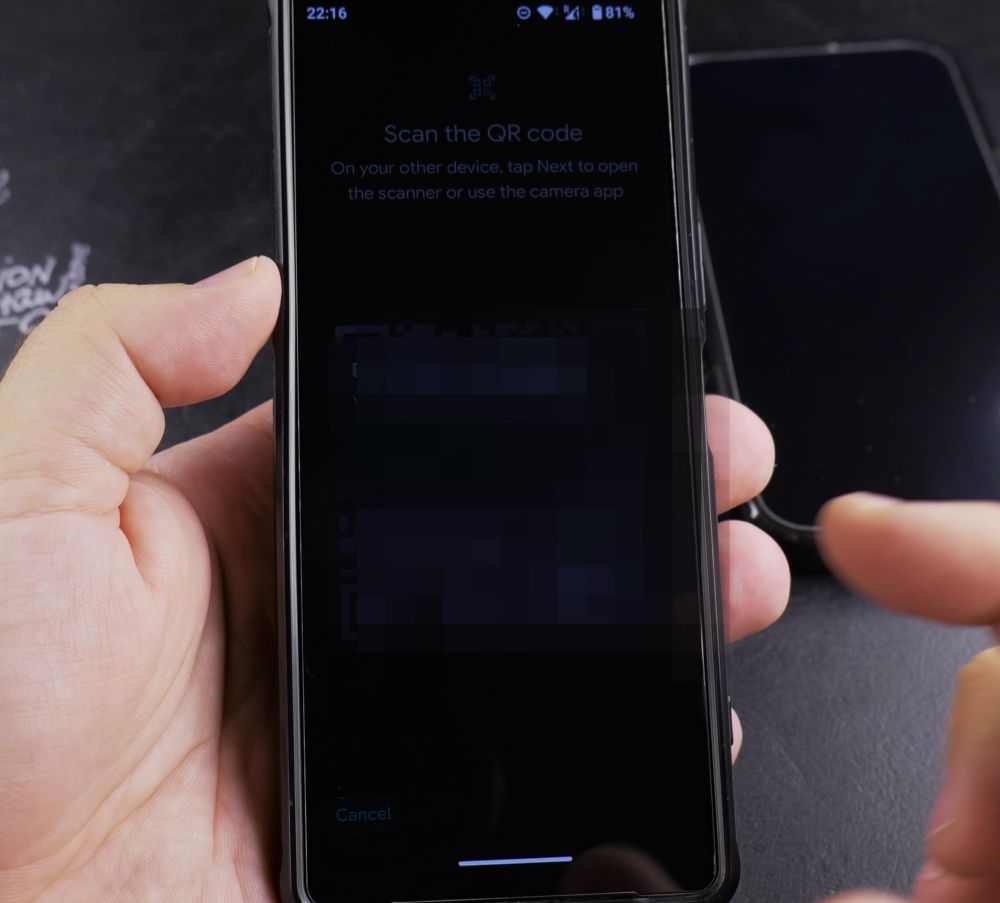
2. Tap Network & Internet
Tap **Network & internet**, then tap **SIMs**.
3. Tap Add SIM
Tap the **+ (Add SIM)** button next to the SIMs heading.
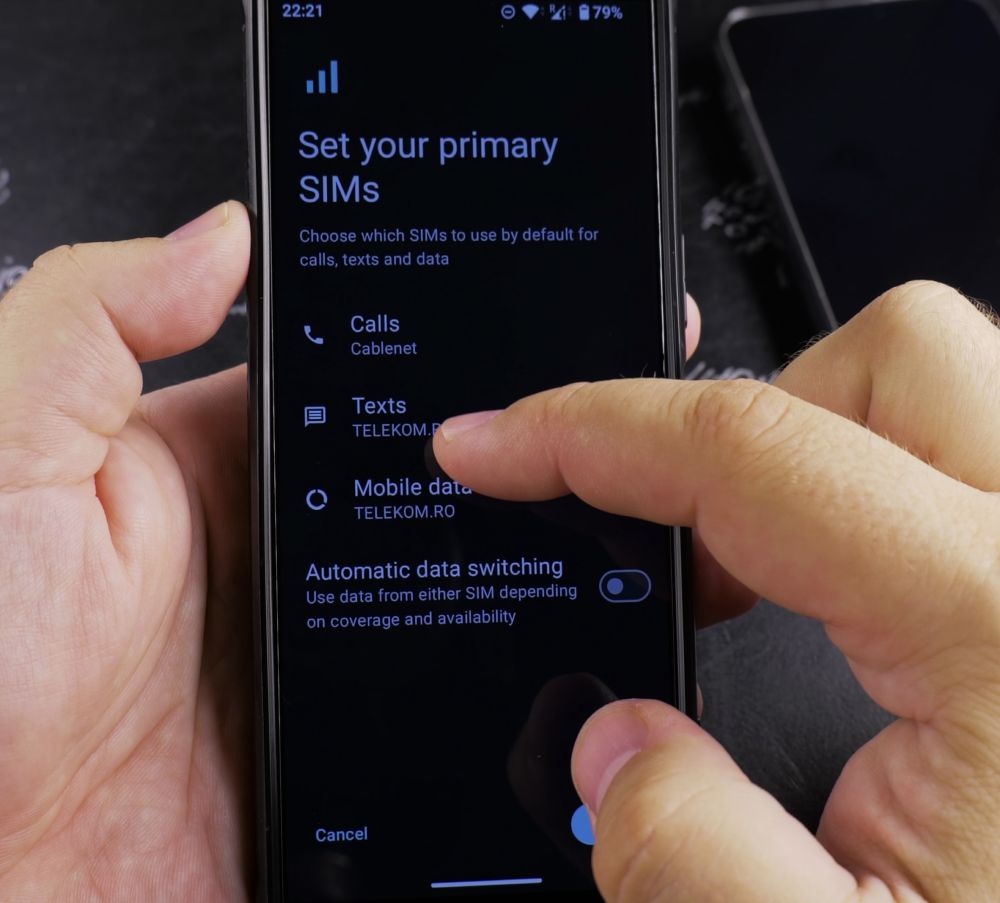
4. Choose Download a SIM
Tap **Download a SIM instead?** on the setup screen and tap **Next**.
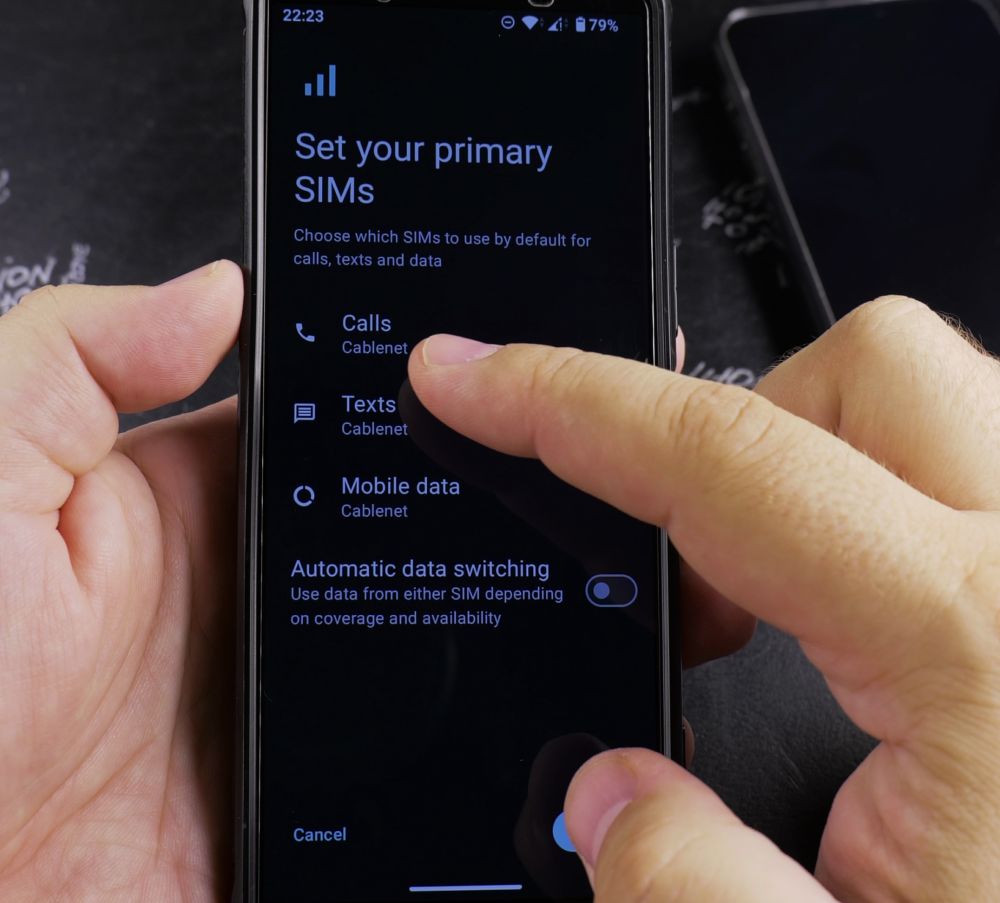
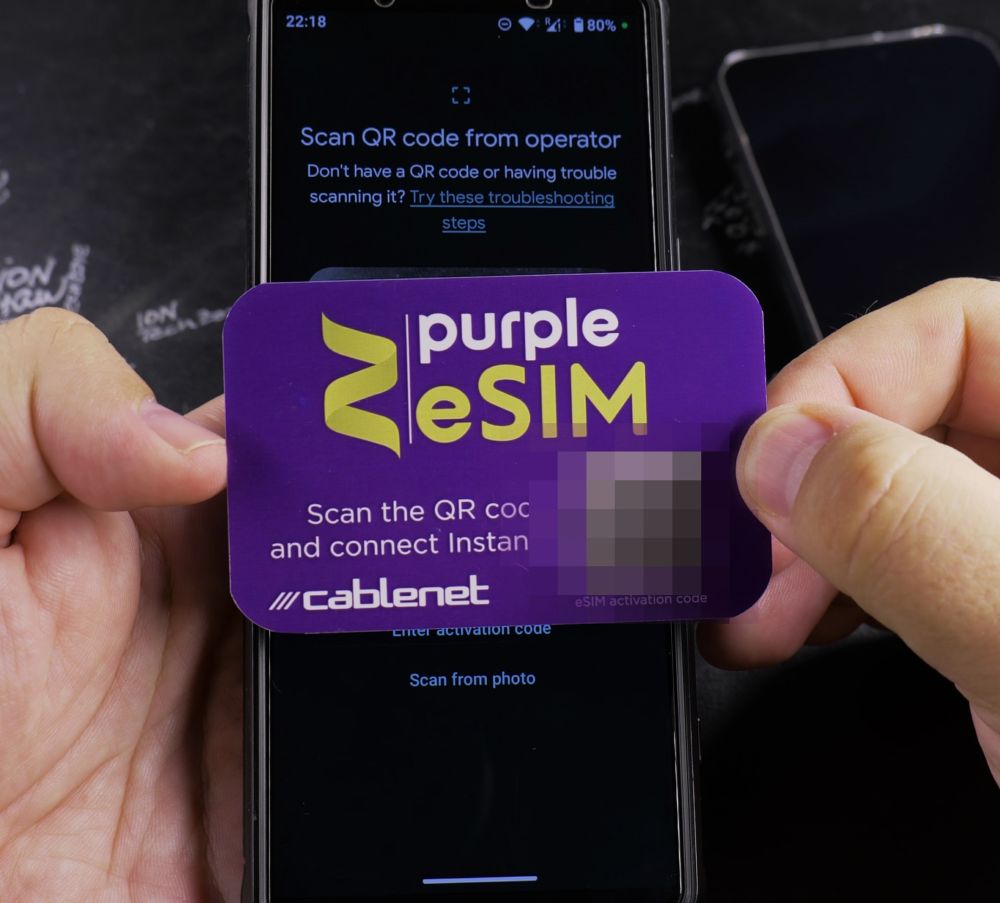
5. Scan Carrier QR Code
Point your camera at the QR code sent by your mobile carrier until the phone recognizes it, then tap **Download** to activate.
Helpful Tips
Make sure your phone is connected to Wi-Fi before scanning the QR code so Android can download the digital carrier profile files. For more cellular guides, visit our Android Guides hub.


Leave a Reply