
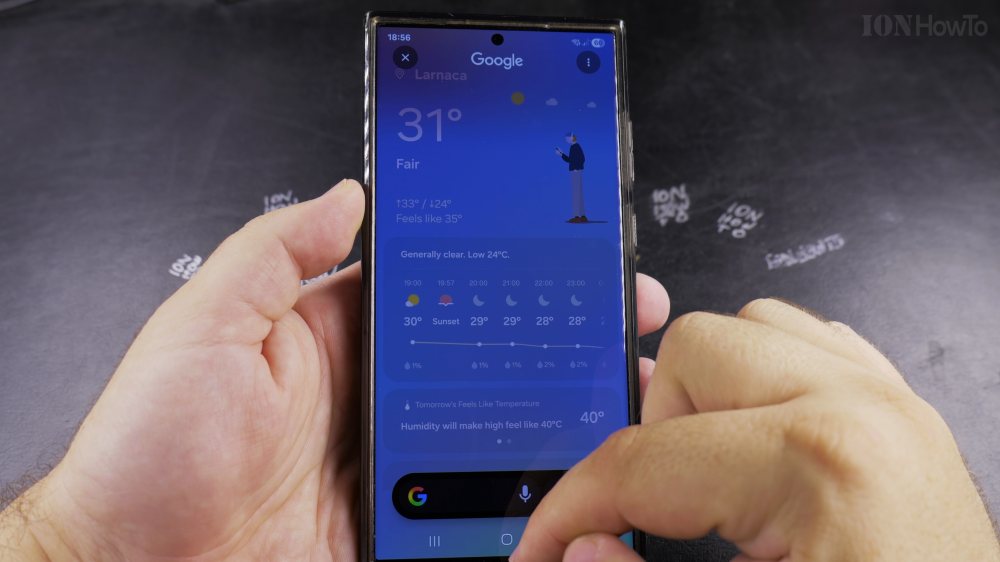
When navigation or delivery apps say location is unavailable, your phone’s master GPS switch or app permission is turned off. I’ll show you how to turn on Location services and set precise GPS permissions on Samsung Galaxy phones.
1. Open Quick Settings
Swipe down from the very top of your screen with two fingers to reveal the Quick settings panel.
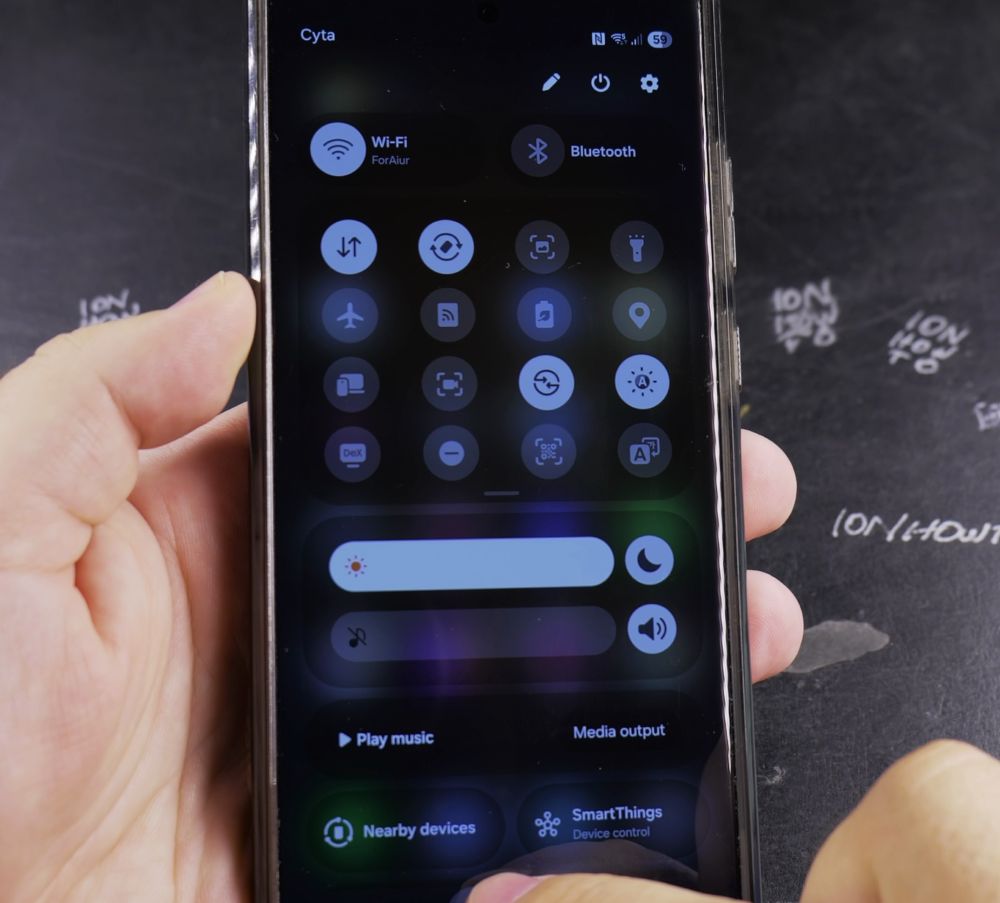
2. Tap Location
Find the **Location** button and tap it so it illuminates blue (On).
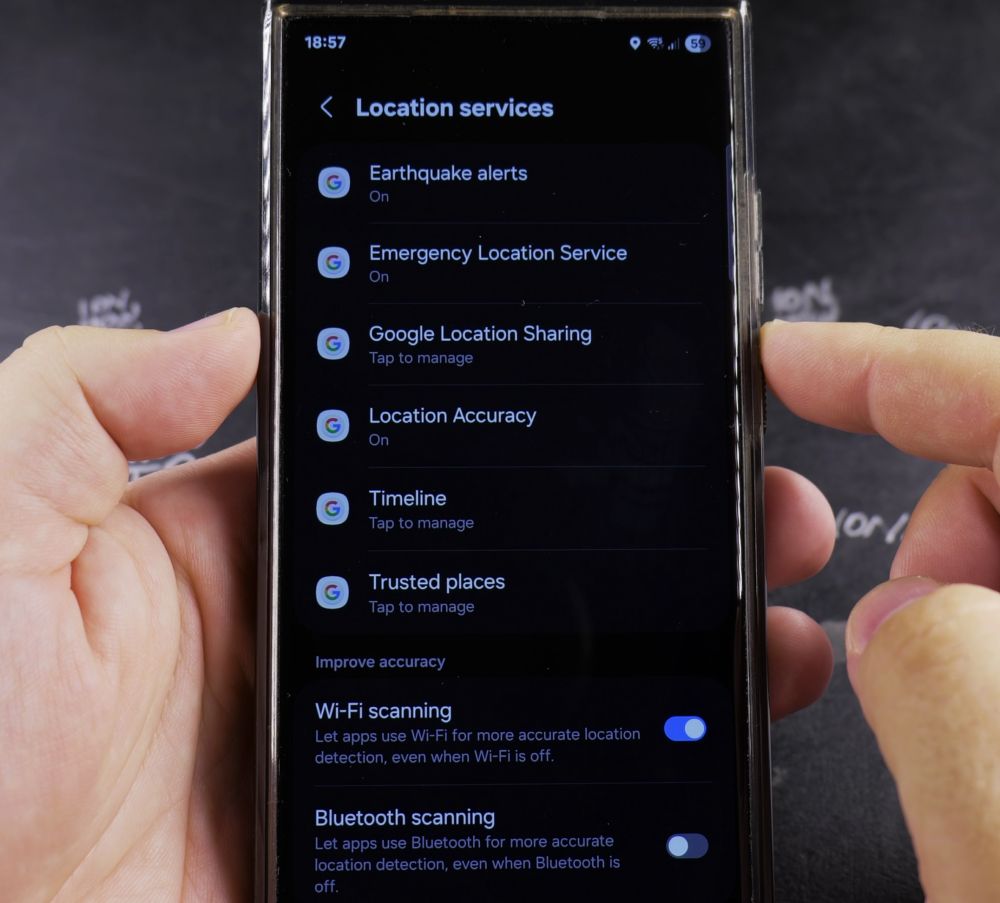
3. Open Full Location Settings
Press and hold the **Location** button to open its dedicated settings screen.
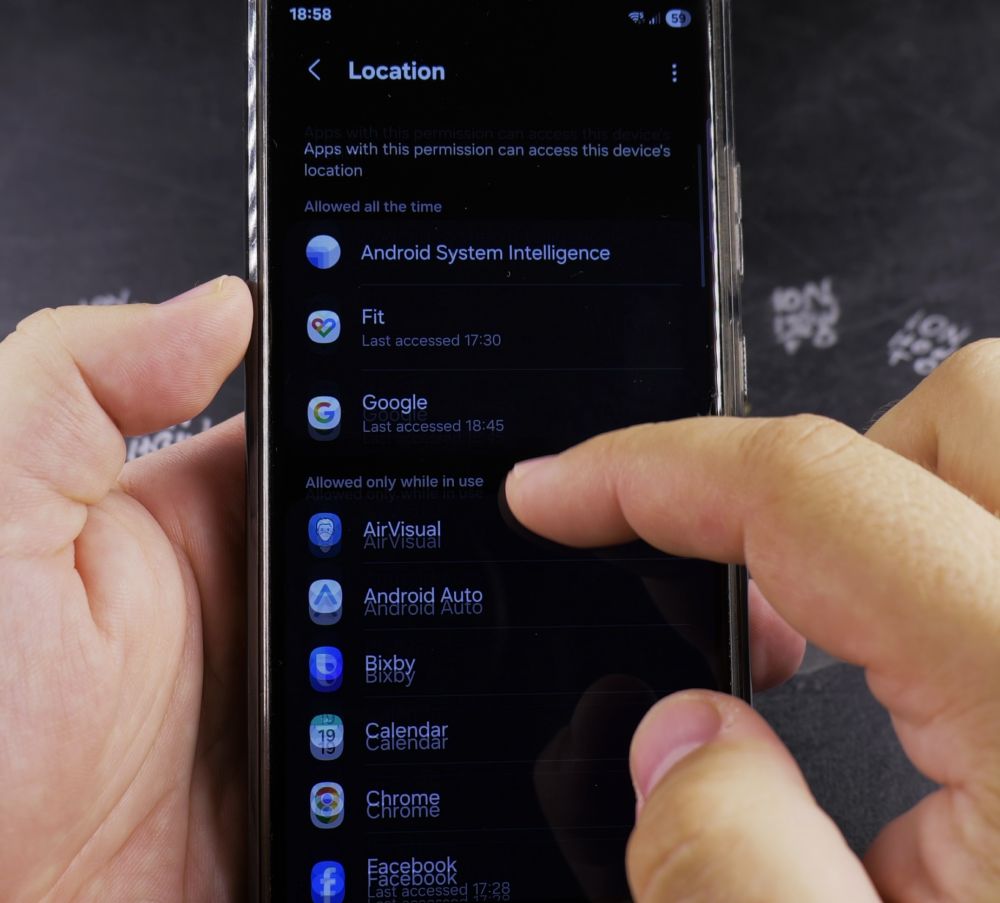
4. Check App Permissions
Tap **App permissions** to see which apps have access to your location.
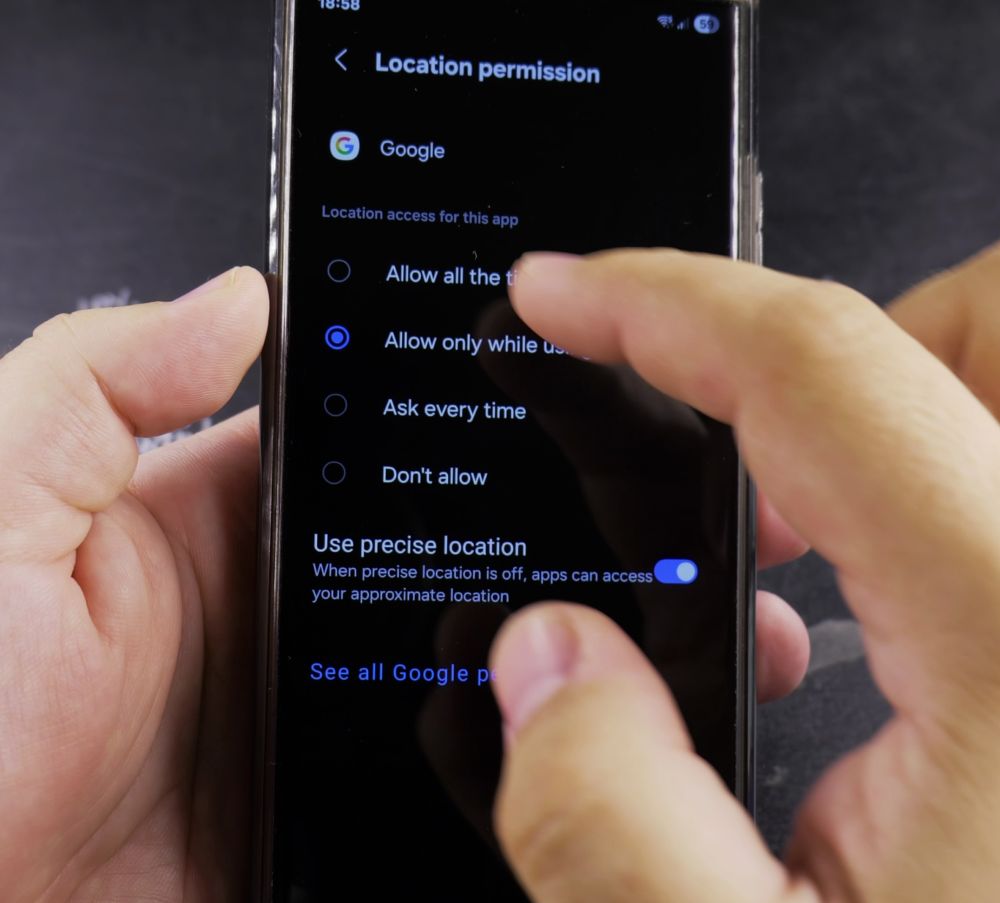
5. Set Precise GPS Access
Tap on your navigation app (like Google Maps), choose **Allow only while using the app**, and make sure **Use precise location** is turned **On**.
Helpful Tips
Keeping location set to ‘Allow only while using the app’ gives you accurate maps directions without draining your battery in the background. For more Samsung tips, visit our Samsung Guides hub.


Leave a Reply