
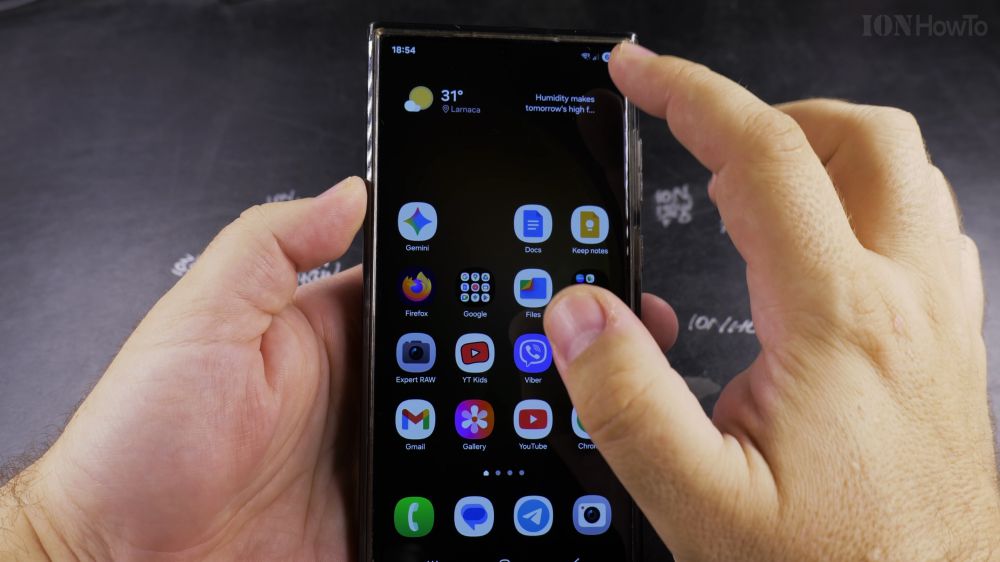
If you want complete privacy or your battery is running low, turning off your phone’s GPS stops all apps from seeing where you are. I’ll show you how to disable master Location services on Samsung Galaxy phones.
1. Swipe Down Quick Settings
Swipe down from the top of your screen with two fingers to open the full Quick panel.
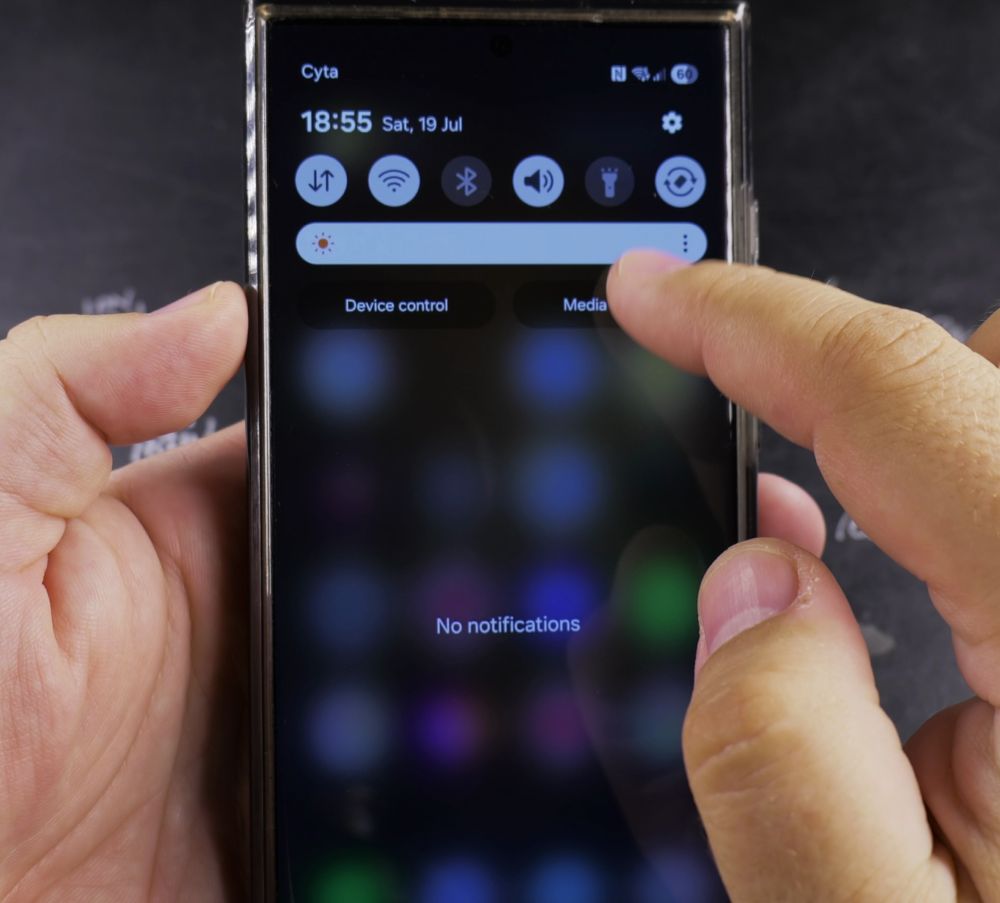
2. Tap the Location Button
Find the blue **Location** icon and tap it once so it turns gray (Off).
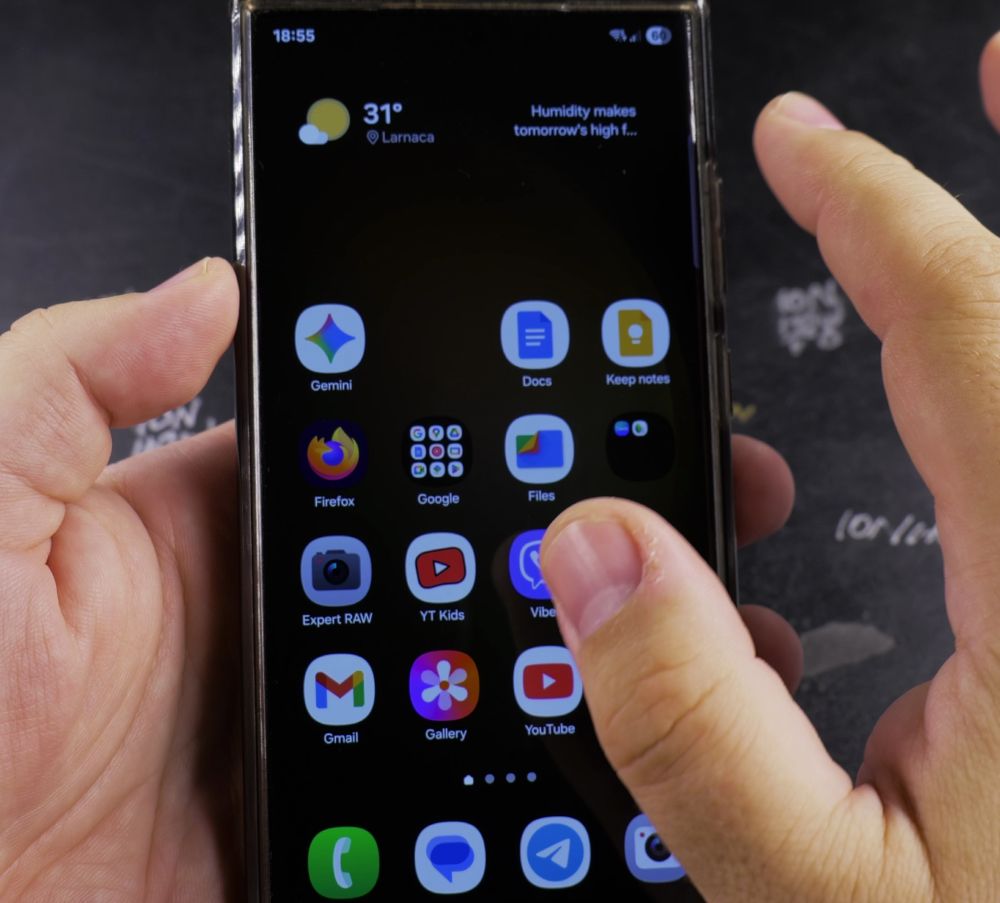
3. Alternative Settings Method
Open phone **Settings**, scroll down, and tap **Location**.
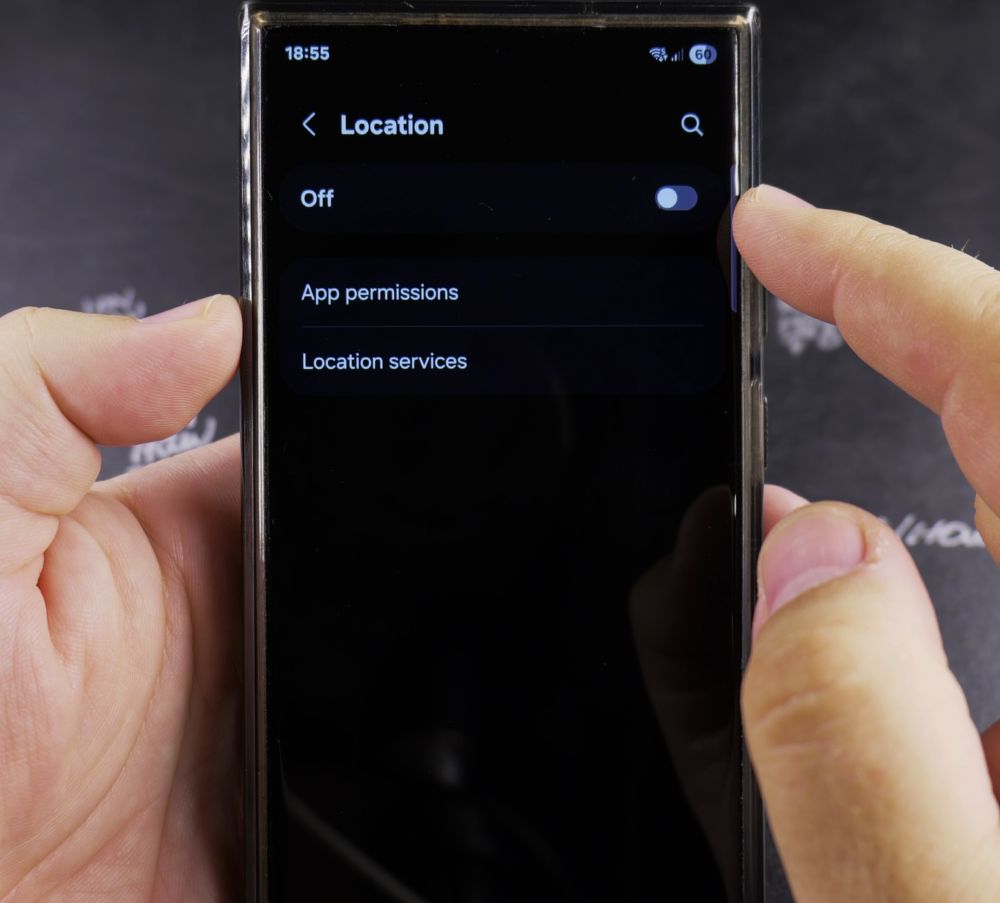
4. Turn Off the Master Switch
Toggle the switch at the very top of the Location screen to **Off**.
5. Confirm System Privacy
All GPS antennas, Wi-Fi location scanning, and Bluetooth beacons are now stopped device-wide.
Helpful Tips
Remember to toggle Location back on when using navigation apps like Google Maps or ordering rides through Uber. For more Samsung privacy advice, explore our Samsung Guides hub.


Leave a Reply