
Decorating your pictures with fun cutouts, speech bubbles, and emojis is quick and built right into your Samsung phone. I’ll show you how to add and resize stickers on your photos in just a few taps.
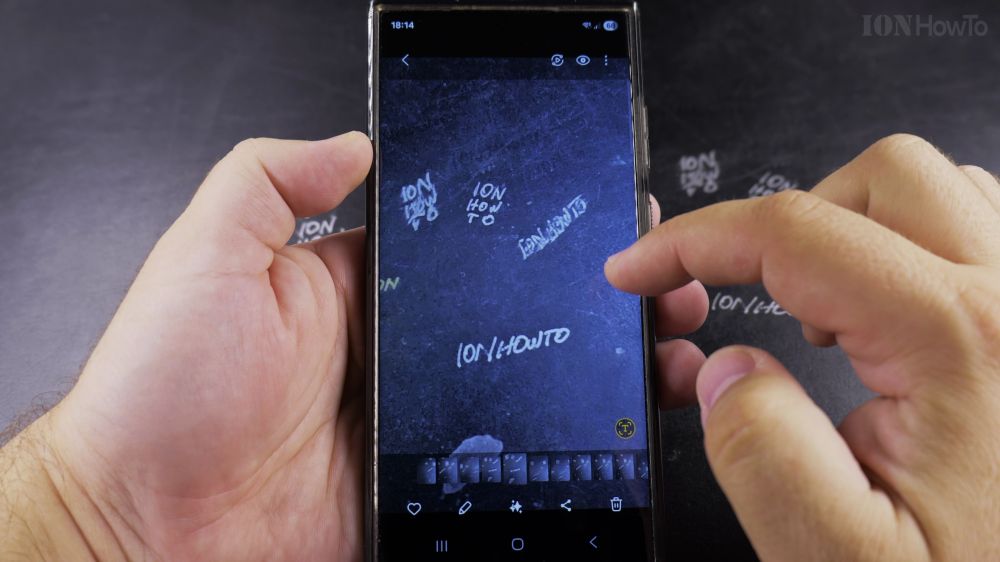
1. Open Your Photo
Open the **Gallery** app on your Samsung Galaxy phone and tap the picture you want to edit.
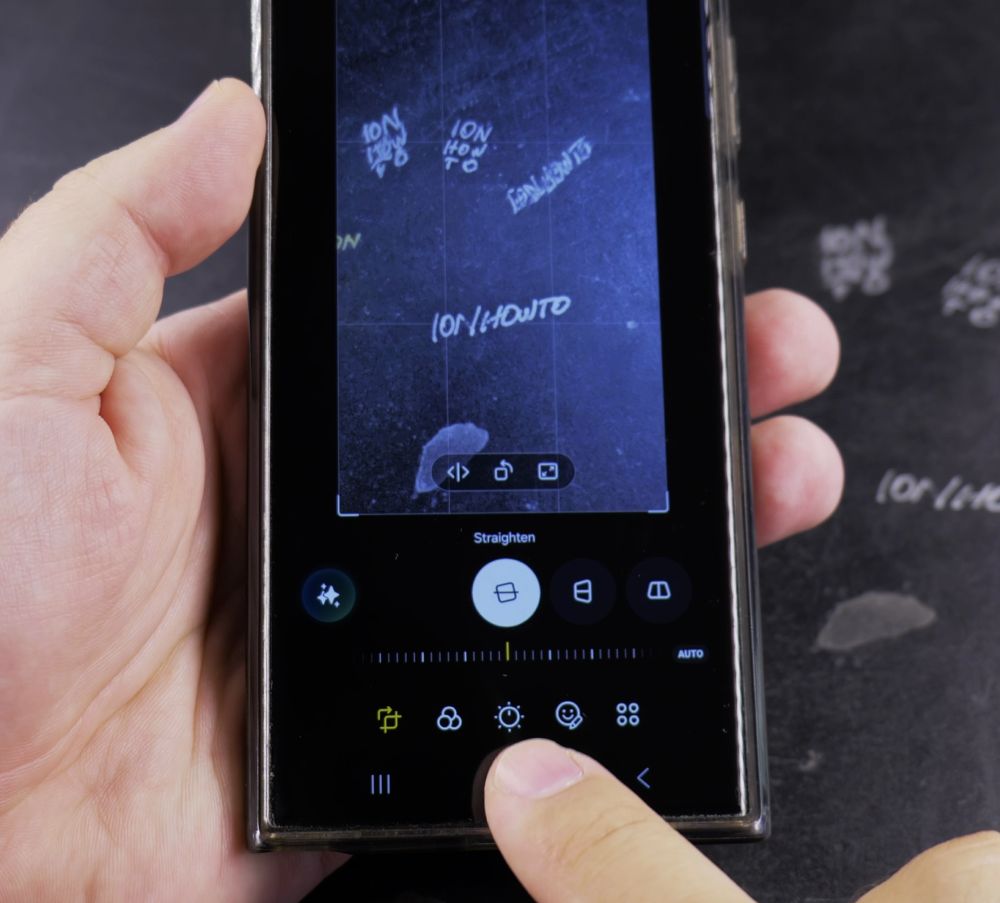
2. Tap the Pencil Icon
Tap the **pencil (Edit)** button at the bottom of the screen to open the photo editor.
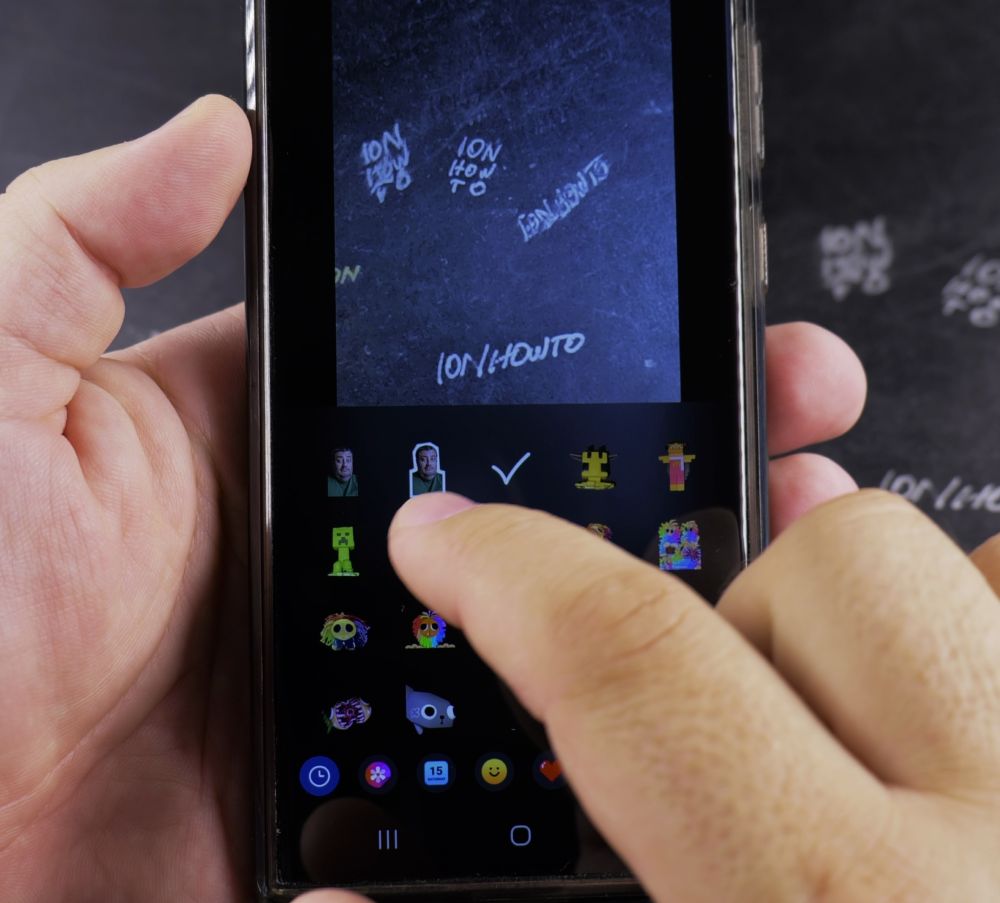
3. Tap the Smiley Face
Tap the **smiley face (Decorations)** icon in the bottom tool strip.
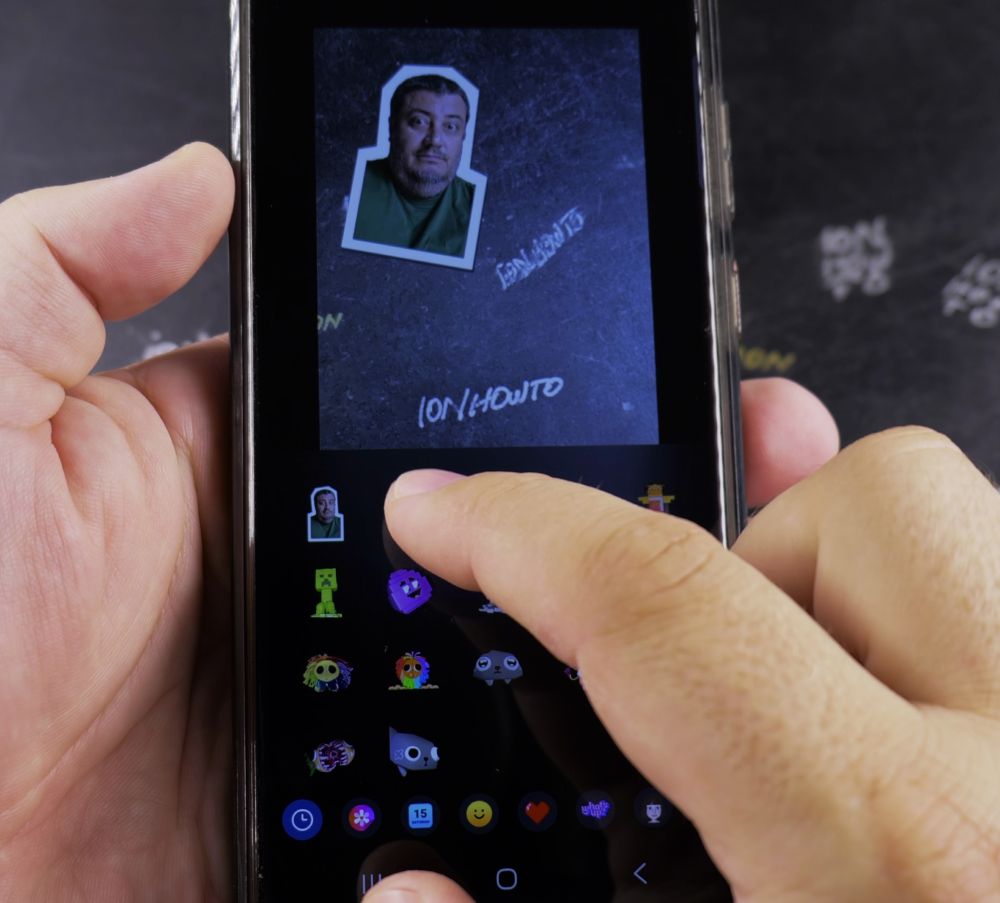
4. Select Stickers
Tap **Stickers** and browse through the categories (or tap the **Gallery** icon to use custom cutout stickers).
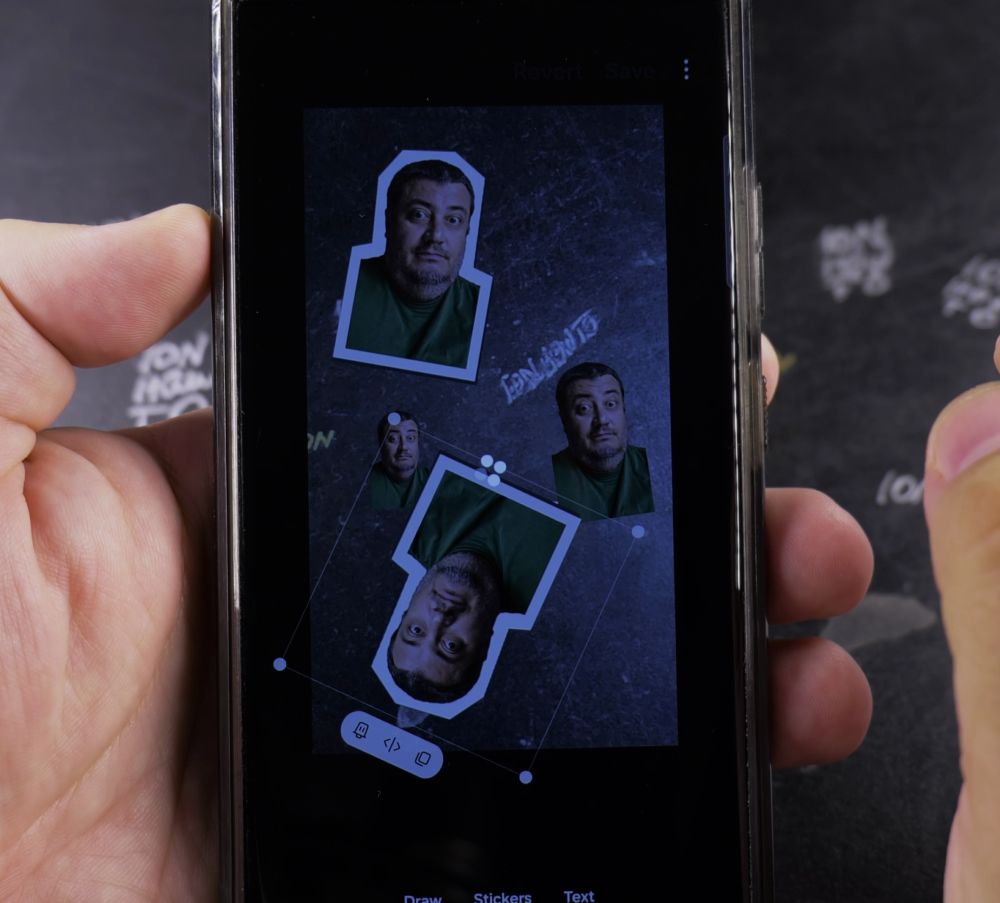
5. Resize and Save
Drag the corner handles to resize or rotate the sticker, position it on your photo, and tap **Save** in the top-right corner.
Helpful Tips
If you ever change your mind after saving, open the photo editor again and tap **Revert** to restore your original untouched picture. For more camera tips, visit our Samsung Guides hub.


Leave a Reply