
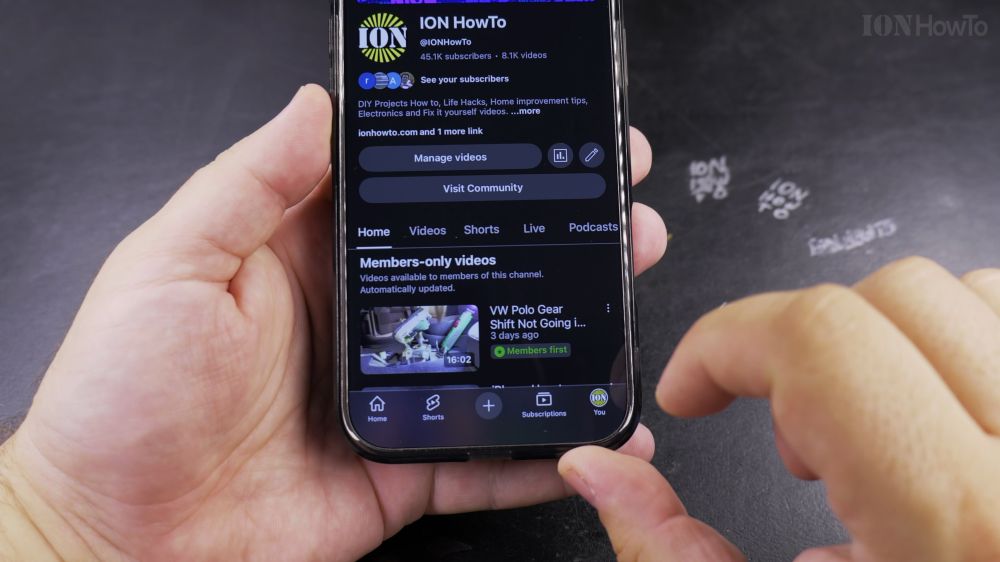
If certain YouTube videos show as unavailable or comments are locked, Restricted Mode is likely enabled on your account. I’ll show you how to disable Restricted Mode in the YouTube app on iPhone and Android in seconds.
1. Open YouTube
Tap the red **YouTube** app icon on your phone.
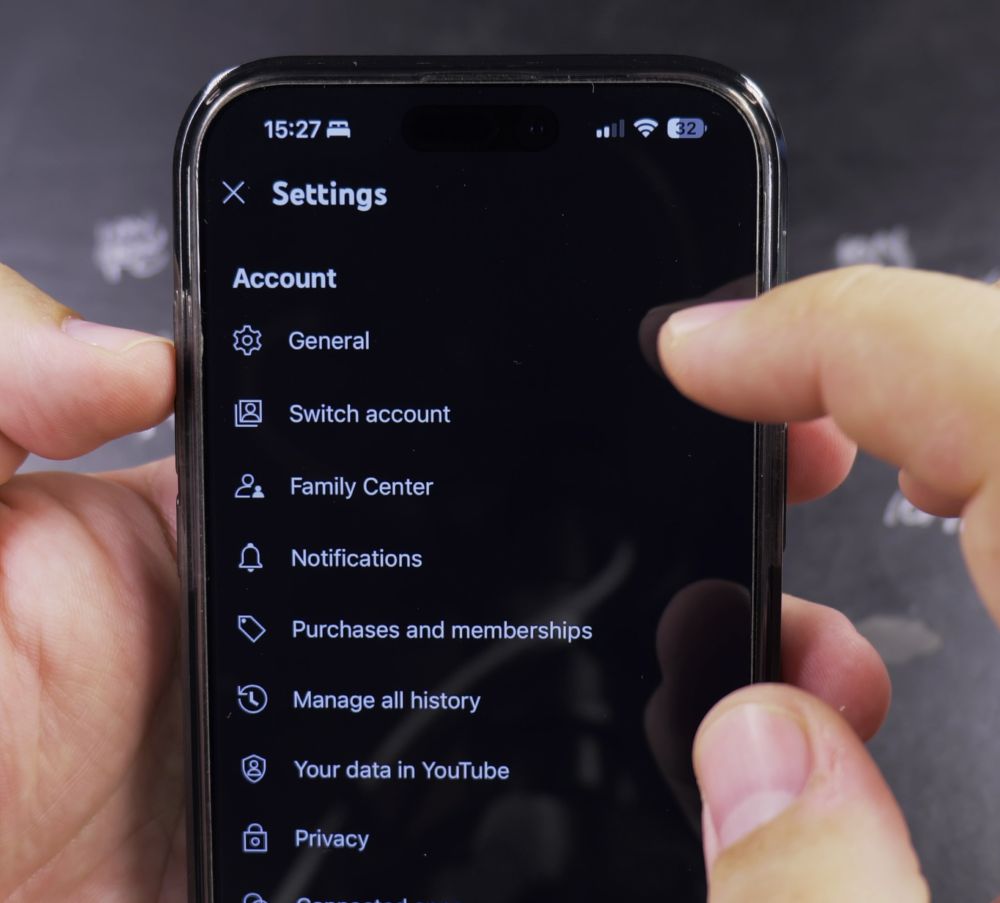
2. Tap Your Profile
In the bottom-right corner of the screen, tap the **You** tab (showing your avatar).
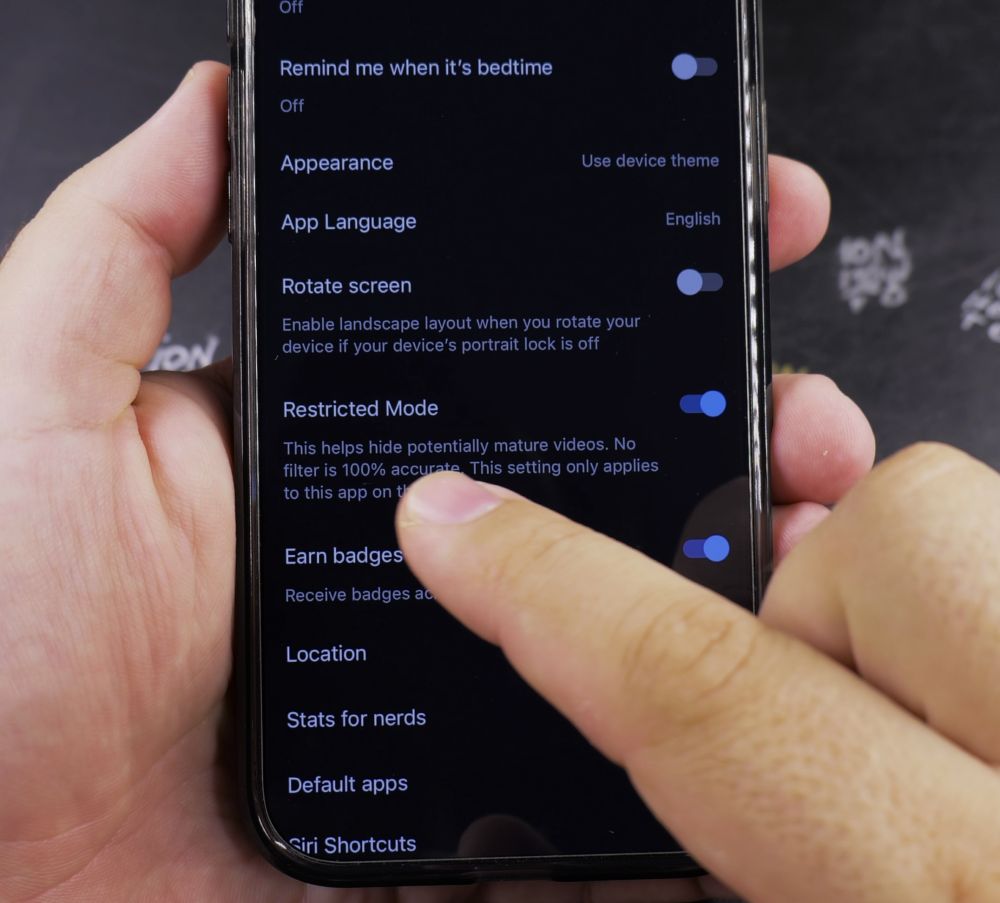
3. Tap the Settings Gear
Tap the **gear icon** in the top-right corner.
4. Tap General
Near the top of the settings list, tap **General**.
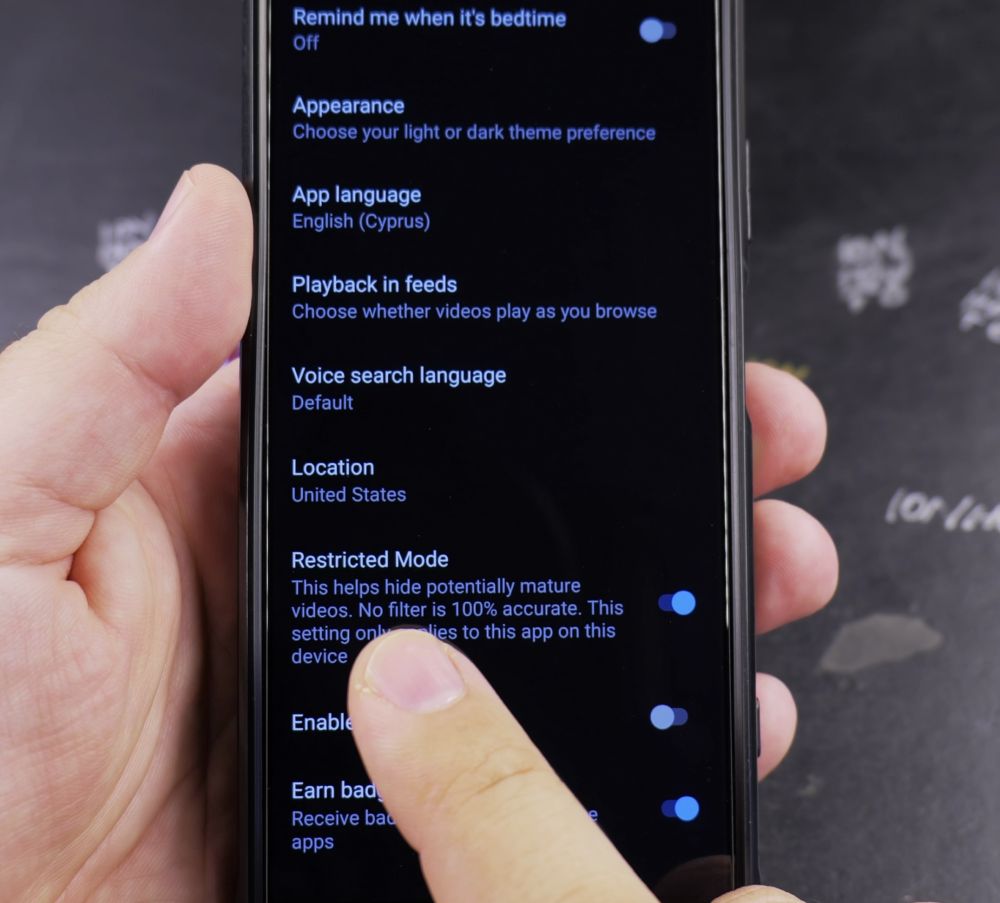
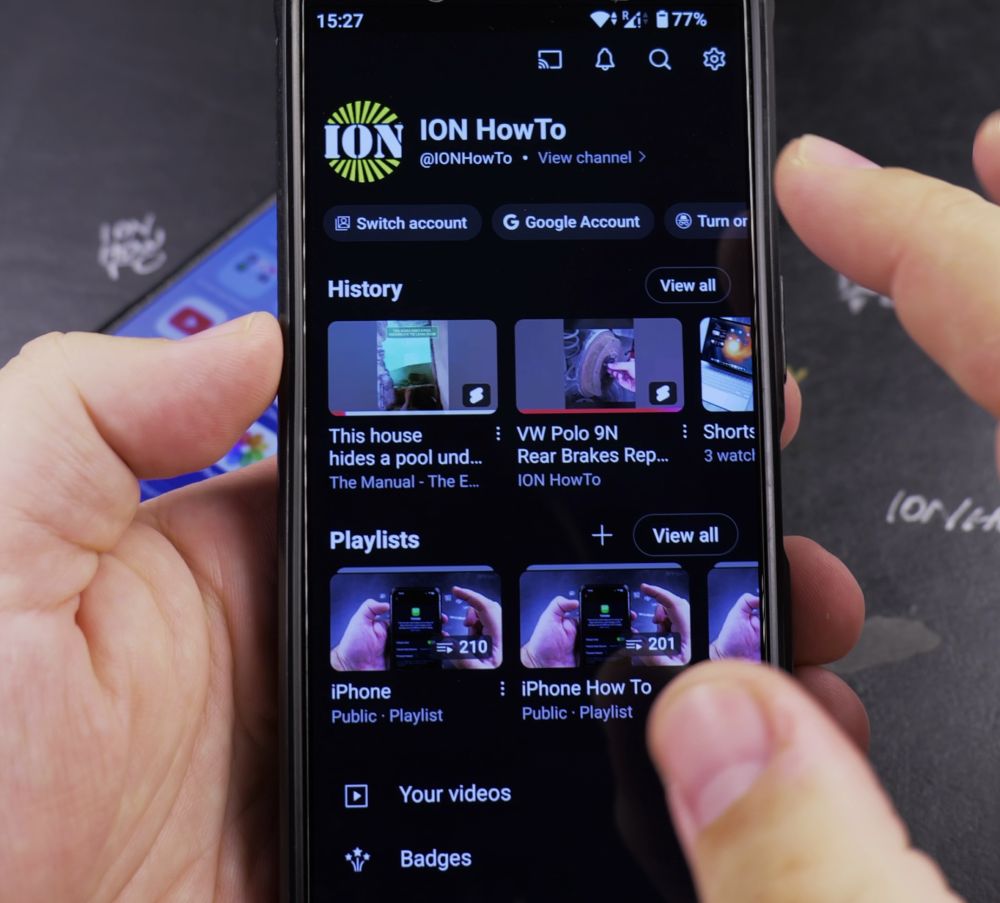
5. Turn Off Restricted Mode
Scroll down to **Restricted Mode** and tap the switch so it turns gray (**Off**). All hidden videos and comments will appear immediately.
Helpful Tips
Restricted Mode applies per device. If you also watch YouTube on an iPad or computer, turn the toggle off in each device’s browser or app. For more streaming tips, check out our Android Guides hub.


Leave a Reply