
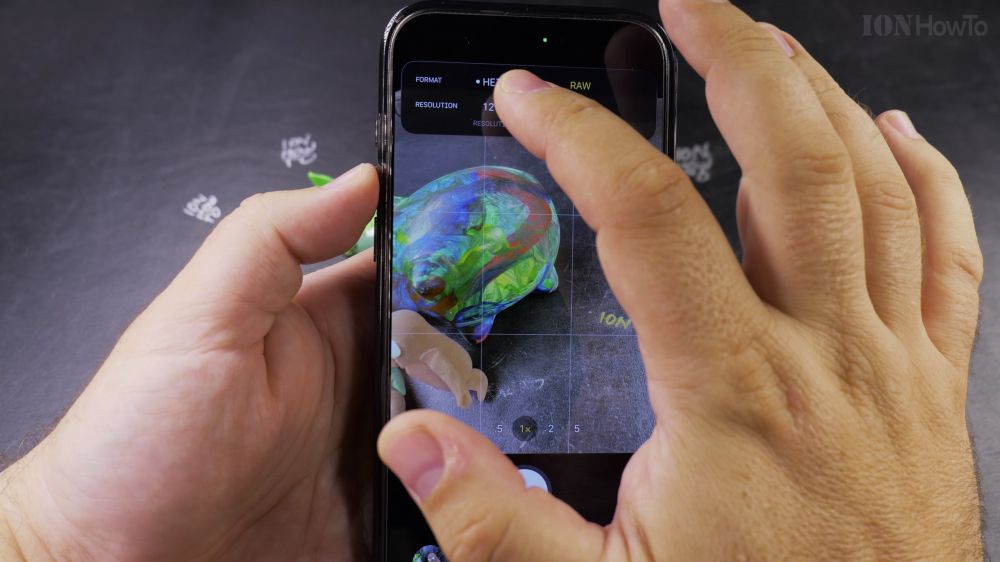
Choosing the right photo format on your iPhone ensures your pictures look stunning without filling up all your storage space. I’ll show you how to configure camera formats between HEIF, JPEG, and ProRAW in your iPhone settings.
1. Open Settings
Open the **Settings** app on your iPhone.
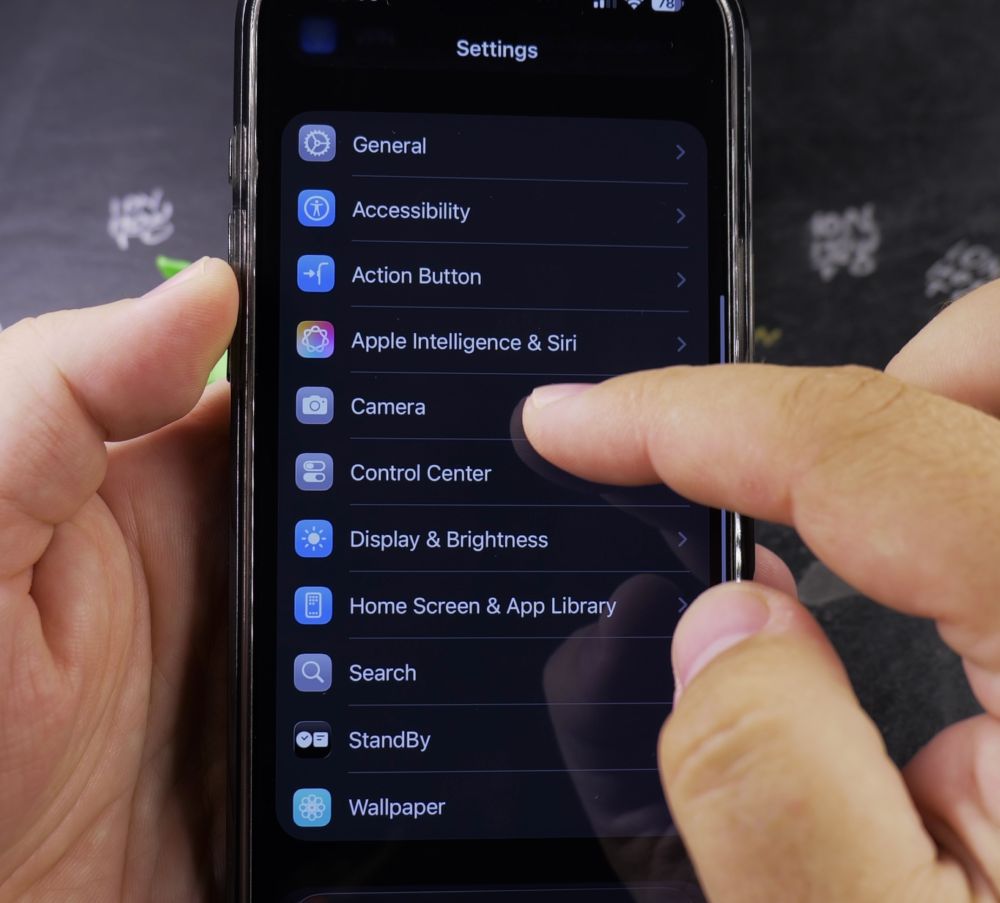
2. Tap Camera
Scroll down and tap **Camera**.
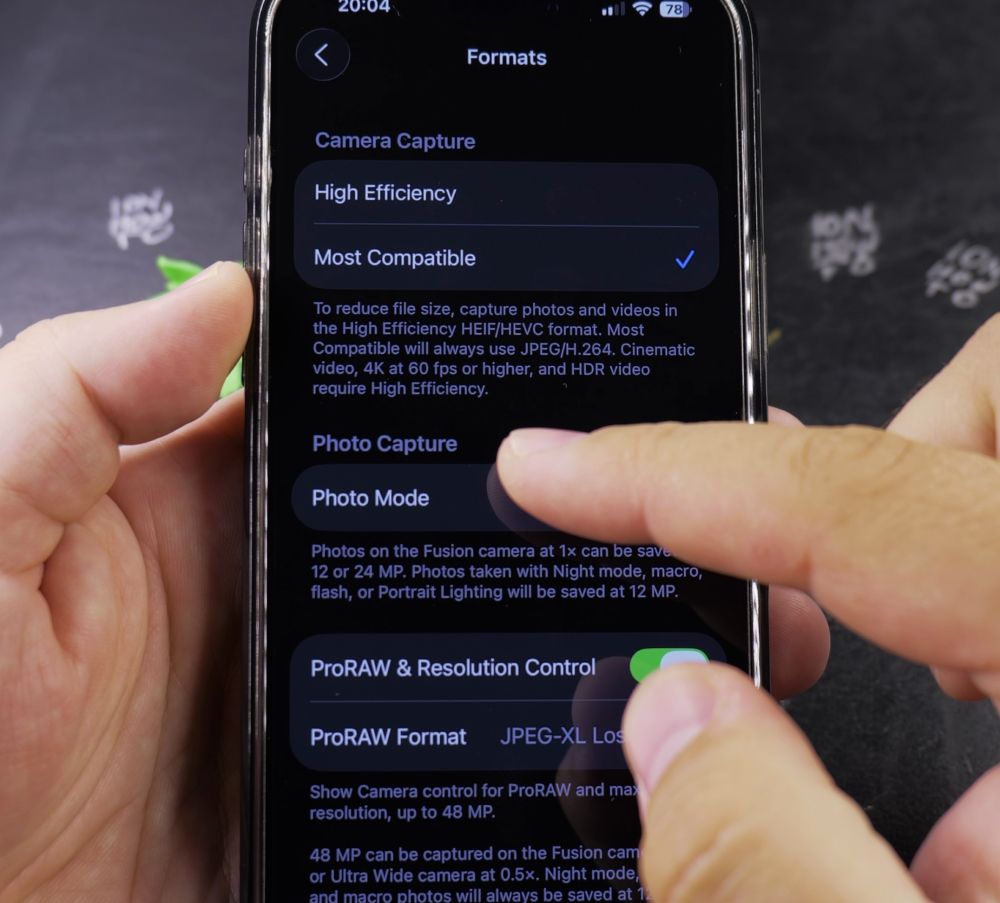
3. Tap Formats
At the very top of the list, tap **Formats**.
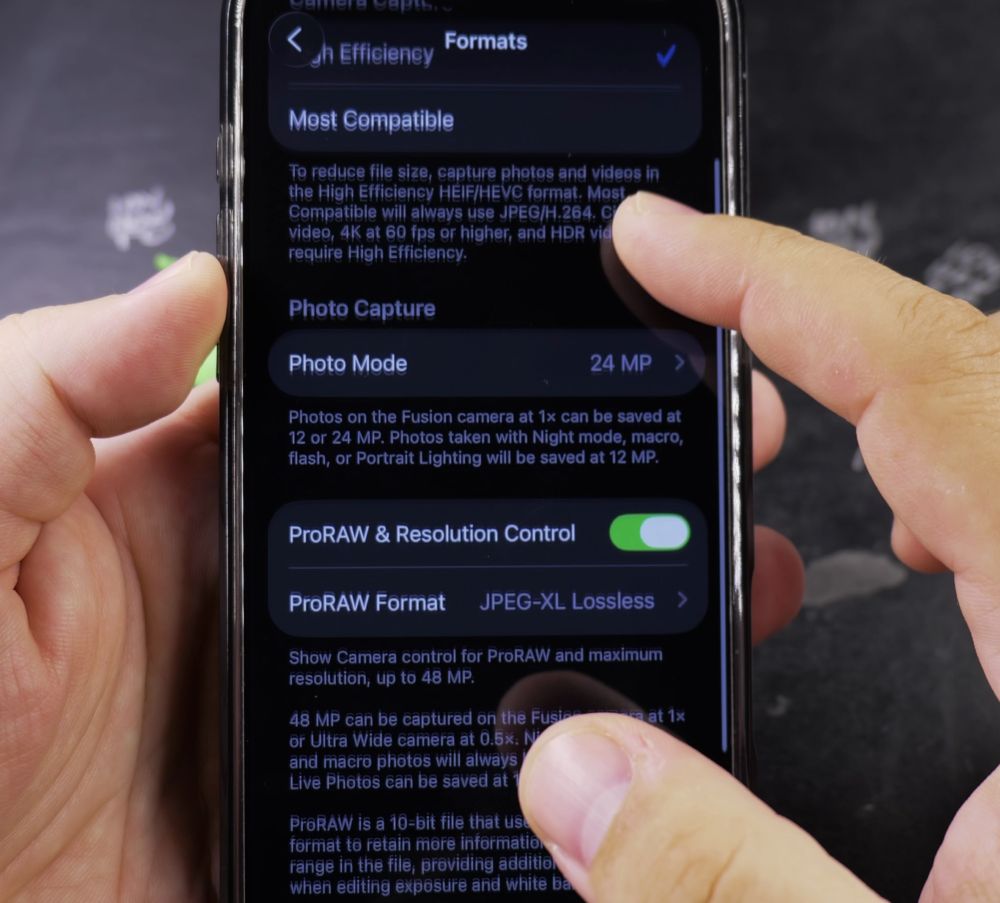
4. Choose Capture Format
Tap **High Efficiency** (HEIF) to save storage space, or tap **Most Compatible** (JPEG) if you frequently share images with Windows PCs.
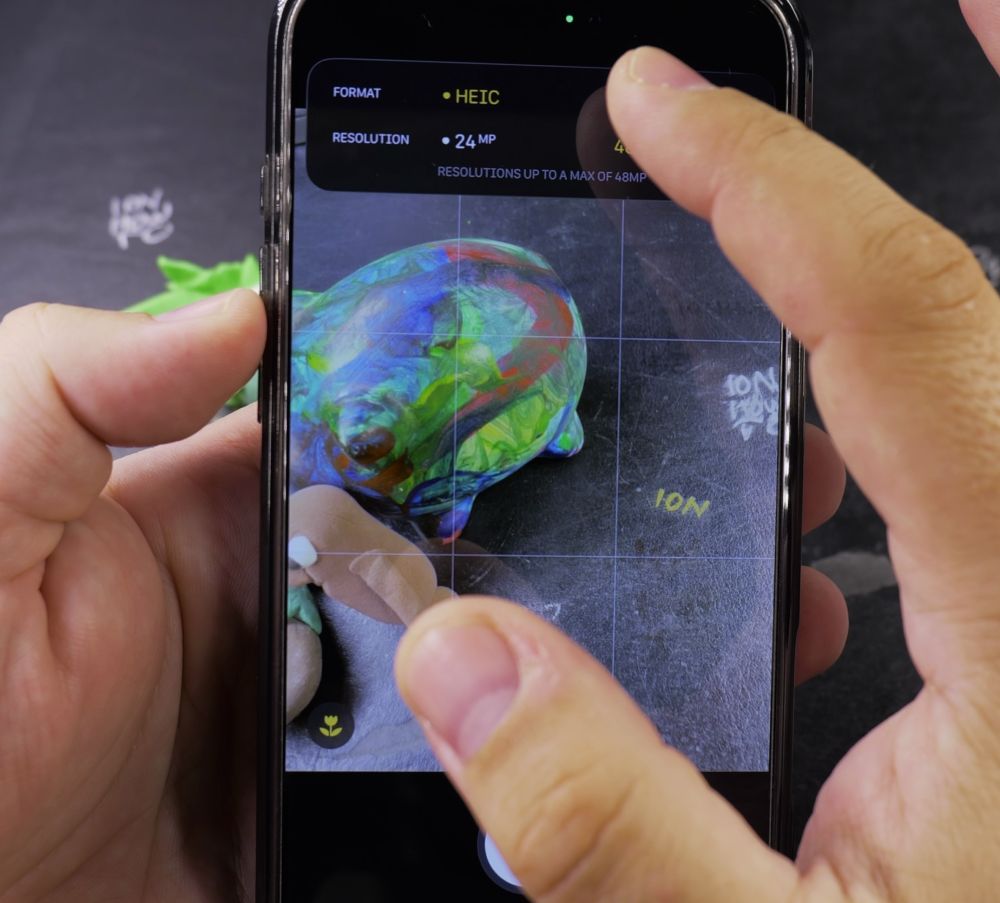
5. Enable ProRAW for Detail (Optional)
If you have an iPhone Pro model, toggle on **ProRAW & Resolution Control** to take ultra-detailed 48-megapixel images when you need maximum clarity.
Helpful Tips
48MP ProRAW photos take up roughly 75MB per picture compared to just 3MB for a standard HEIF photo. Keep ProRAW reserved for landscapes and portraits. For more camera advice, visit our iPhone Guides collection.


Leave a Reply