
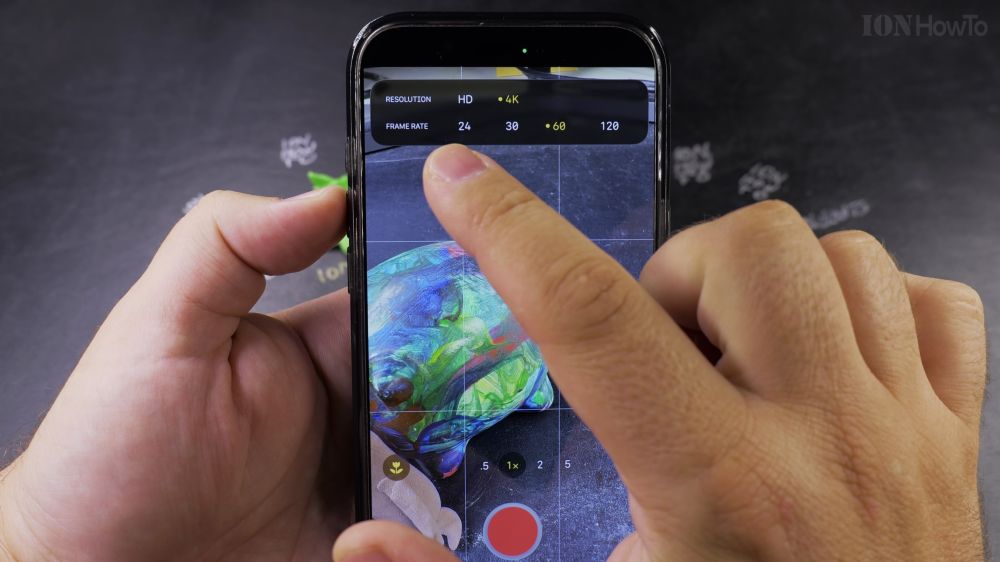
When shooting video on your iPhone, choosing the right color format determines If your footage looks vibrant instantly or requires color grading. I’ll show you how to choose between Dolby Vision HDR and Apple Log in your camera settings.
1. Open Settings
Open the **Settings** app on your iPhone.
2. Tap Camera
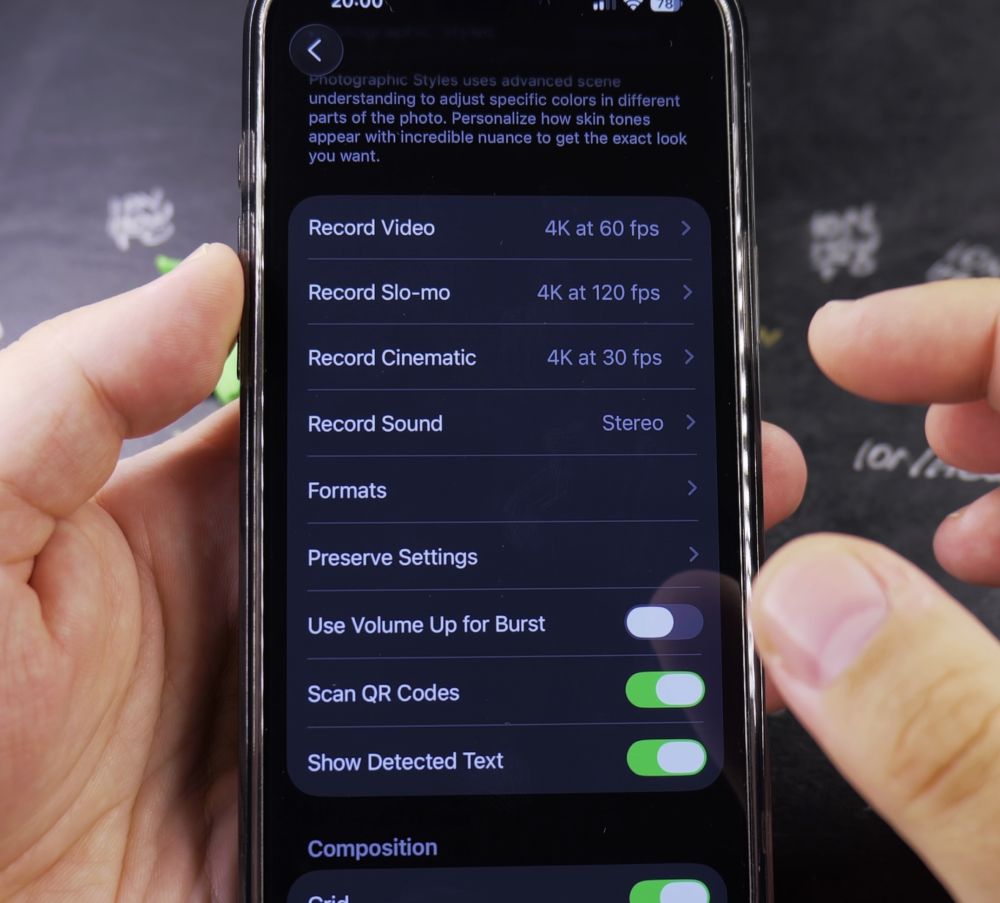
Scroll down and tap **Camera**, then tap **Record Video**.
3. Enable Dolby Vision HDR
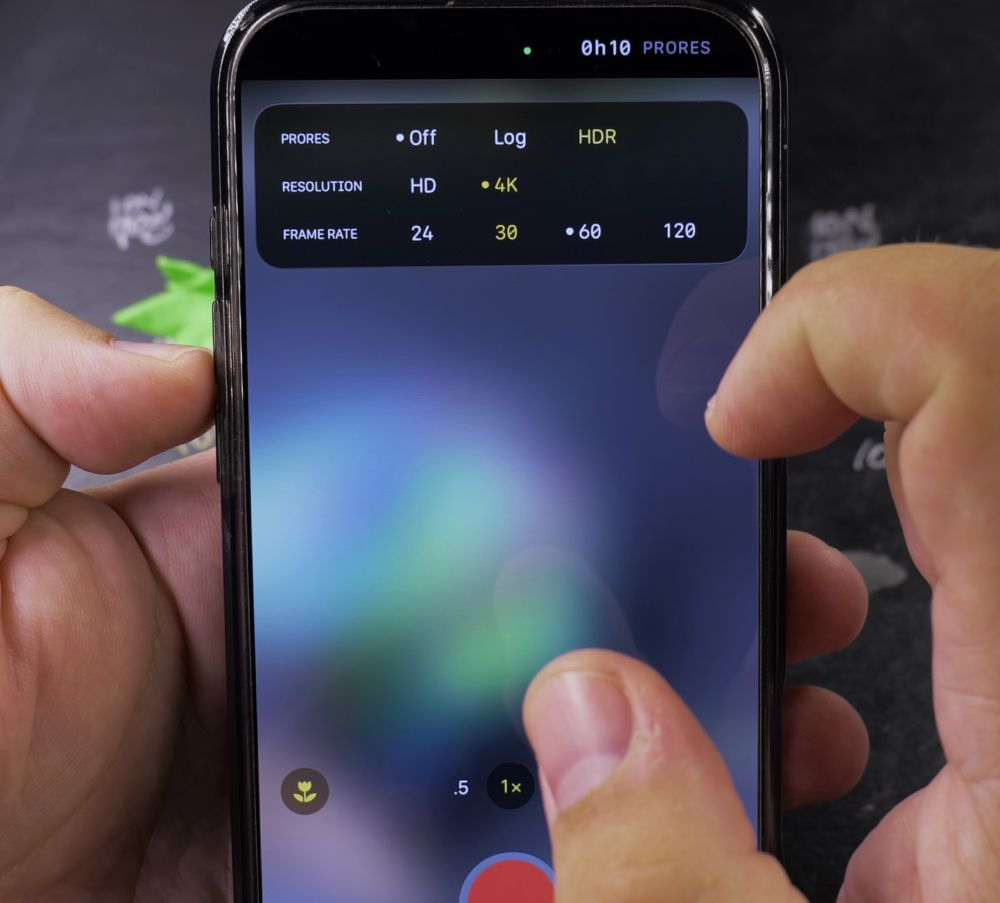
Toggle the switch next to **HDR Video** to **On** to record rich, high-contrast 10-bit Dolby Vision video that looks great on smart TVs.
4. Choose Apple Log (For Color Grading)
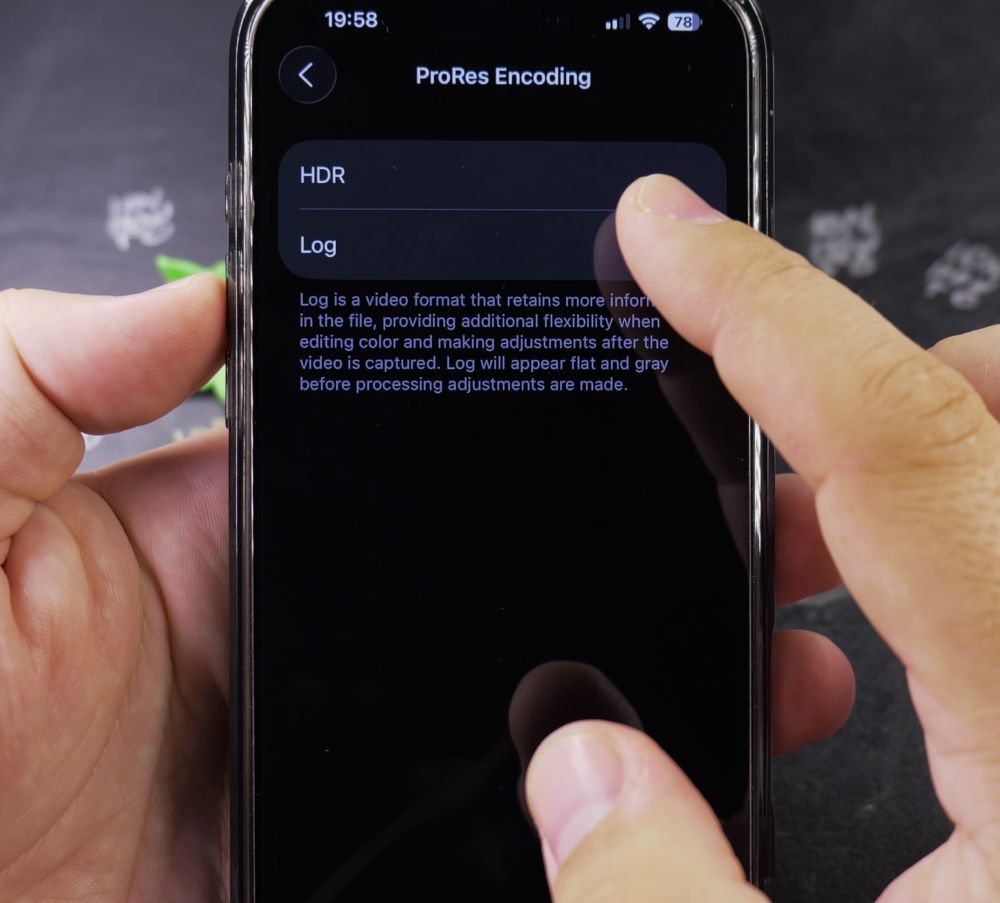
If you have an iPhone Pro model and edit videos in software like DaVinci Resolve or Final Cut, tap **Formats**, enable **Apple ProRes**, and select **Log** color profile.
5. Choose the Best Format for You
Keep HDR Video on for everyday family memories, and use Apple Log only when you plan to manually color grade each clip.
Helpful Tips
Apple Log footage appears gray and washed out straight out of camera until you apply a LUT or color grade it. For everyday clips, stick with standard Dolby Vision HDR. For more filmmaking tips, visit our iPhone Guides collection.


Leave a Reply