
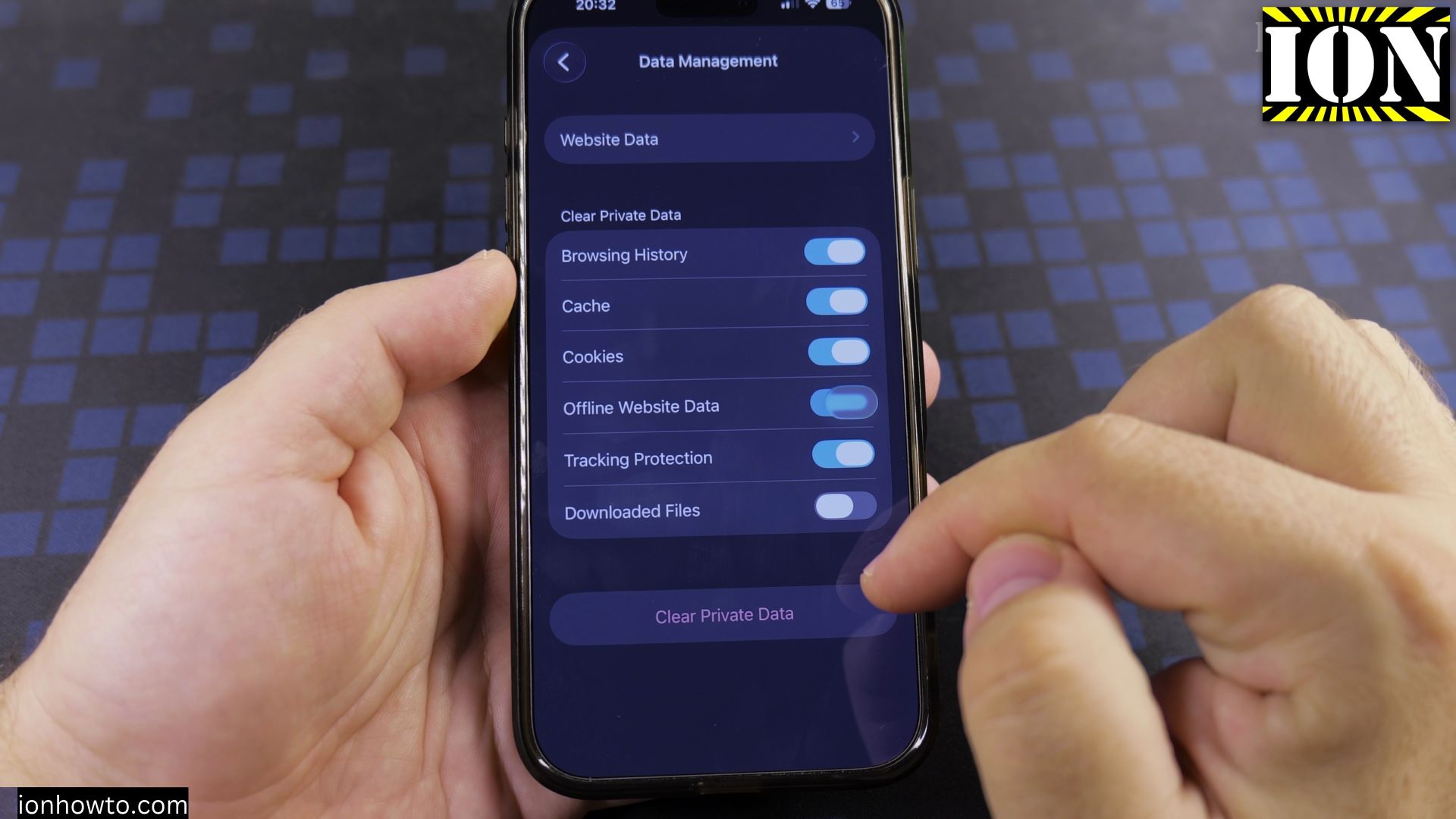
Webpages loading stale layouts or freezing inside Firefox on your iPhone usually clear up once old cached files are removed. In this simple video guide and written tutorial, learn how to clear cache inside Firefox Data Management while keeping cookies turned off if you want to stay signed into your accounts.
The short route
- Open the Firefox Three-Dot Menu and Tap Settings
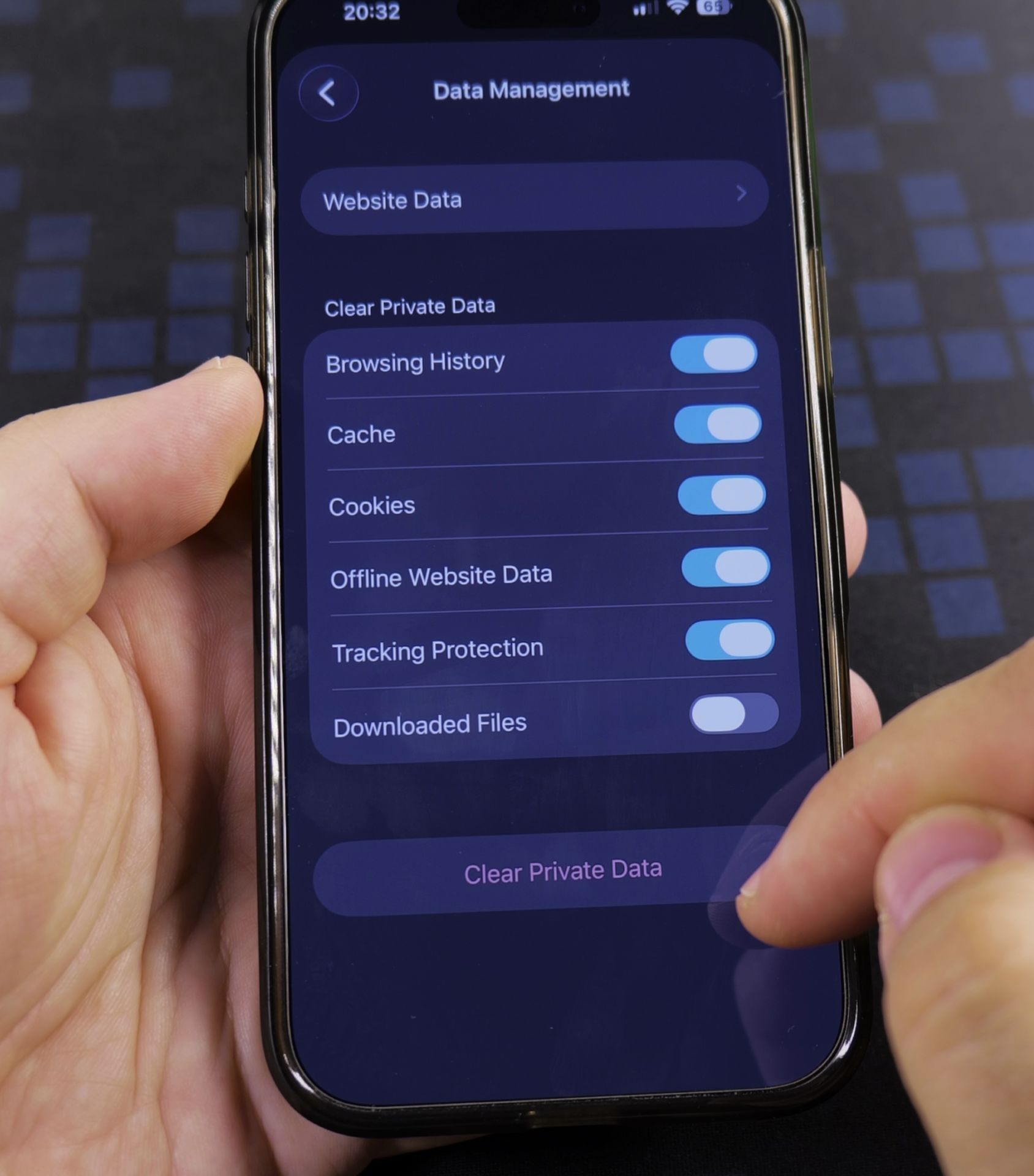
- Scroll Down to Data Management
- Inspect or Clear Individual Website Data if Needed
- Toggle Cache On and Leave Cookies Off to Keep Logins
- Tap Clear Private Data and Confirm OK
Recommended Amazon Gear and Accessories
Disclosure: This article contains Amazon affiliate links. As an Amazon Associate, we earn from qualifying purchases at no extra cost to you.
- iPhone Accessories
- iPhone Charger
- iPhone USB-C Cable
- iPhone MagSafe Accessories
- iPhone Case
- iPhone Screen Protector
1. Open the Firefox Three-Dot Menu and Tap Settings
Launch Firefox on your iPhone, tap the three-dot menu icon near the bottom corner, and select Settings from the popup menu.
2. Scroll Down to Data Management
Inside Firefox Settings, scroll down to the Privacy section and tap Data Management to view stored browsing data controls.
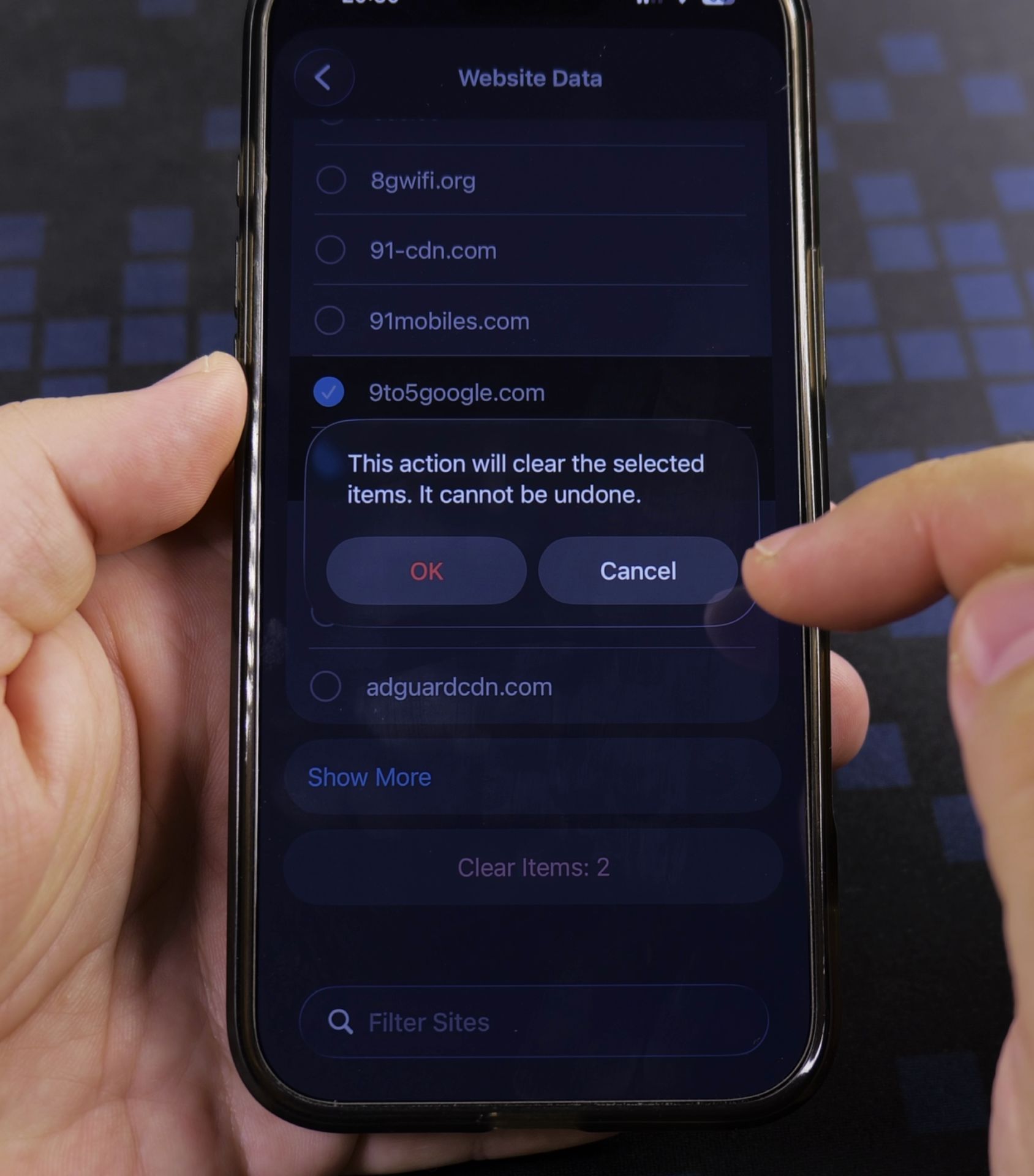
3. Inspect or Clear Individual Website Data if Needed
Tap Website Data at the top if only one site is misbehaving. You can remove selected domains or clear all saved site storage directly from this screen.
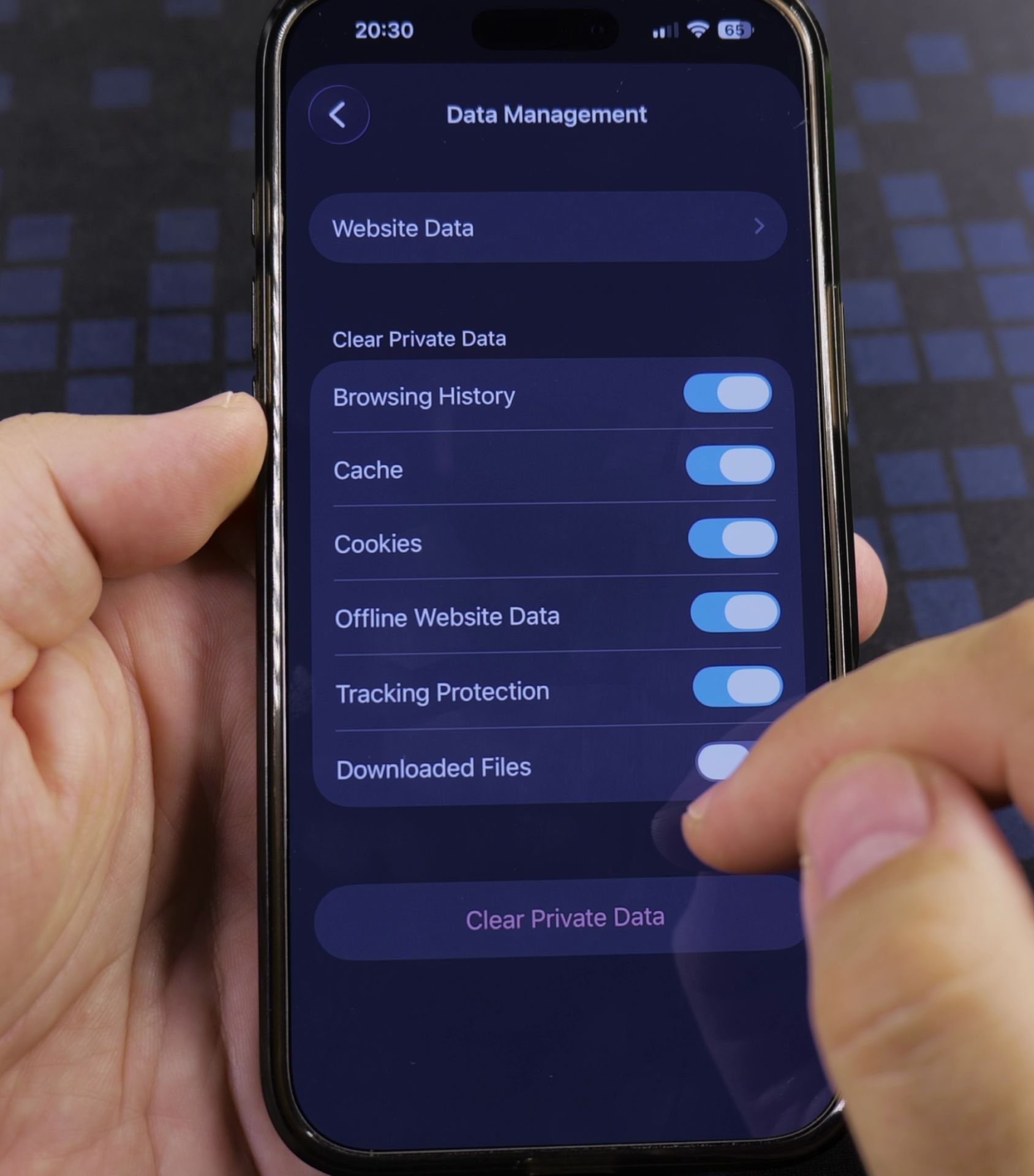
4. Toggle Cache On and Leave Cookies Off to Keep Logins
Return to Data Management and switch on the Cache toggle while turning off Cookies, Browsing History, and Downloaded Files if you want to fix broken pages without getting logged out everywhere.
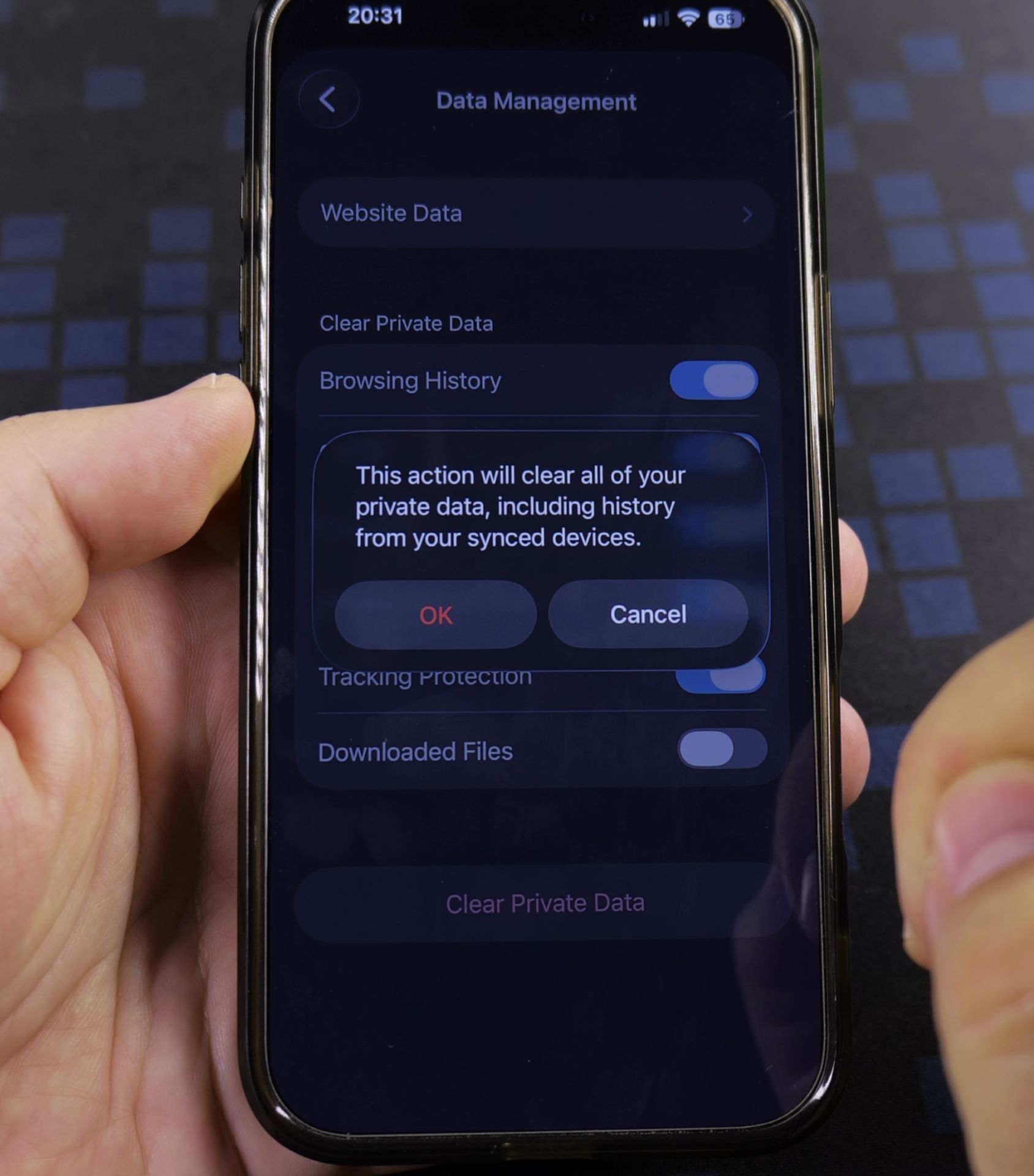
5. Tap Clear Private Data and Confirm OK
Tap Clear Private Data near the bottom of the screen and choose OK on the confirmation prompt to finish refreshing Firefox immediately.
Helpful Tips
- Turning off the Cookies switch before tapping Clear Private Data prevents accidental sign-outs.
- Clearing Firefox cache frees phone storage when heavy media sites accumulate large temporary files.
Related Guides
- How to Clear Browsing History in iPhone Safari – How to Clear Browsing History in iPhone Safari Browser.
- Reset All Settings on iPhone Without Losing Data – How to Reset All Settings on iPhone Without Losing Your Data.
- iPhone How-To Guides – Browse more tutorials and practical guides in this section.


Leave a Reply