
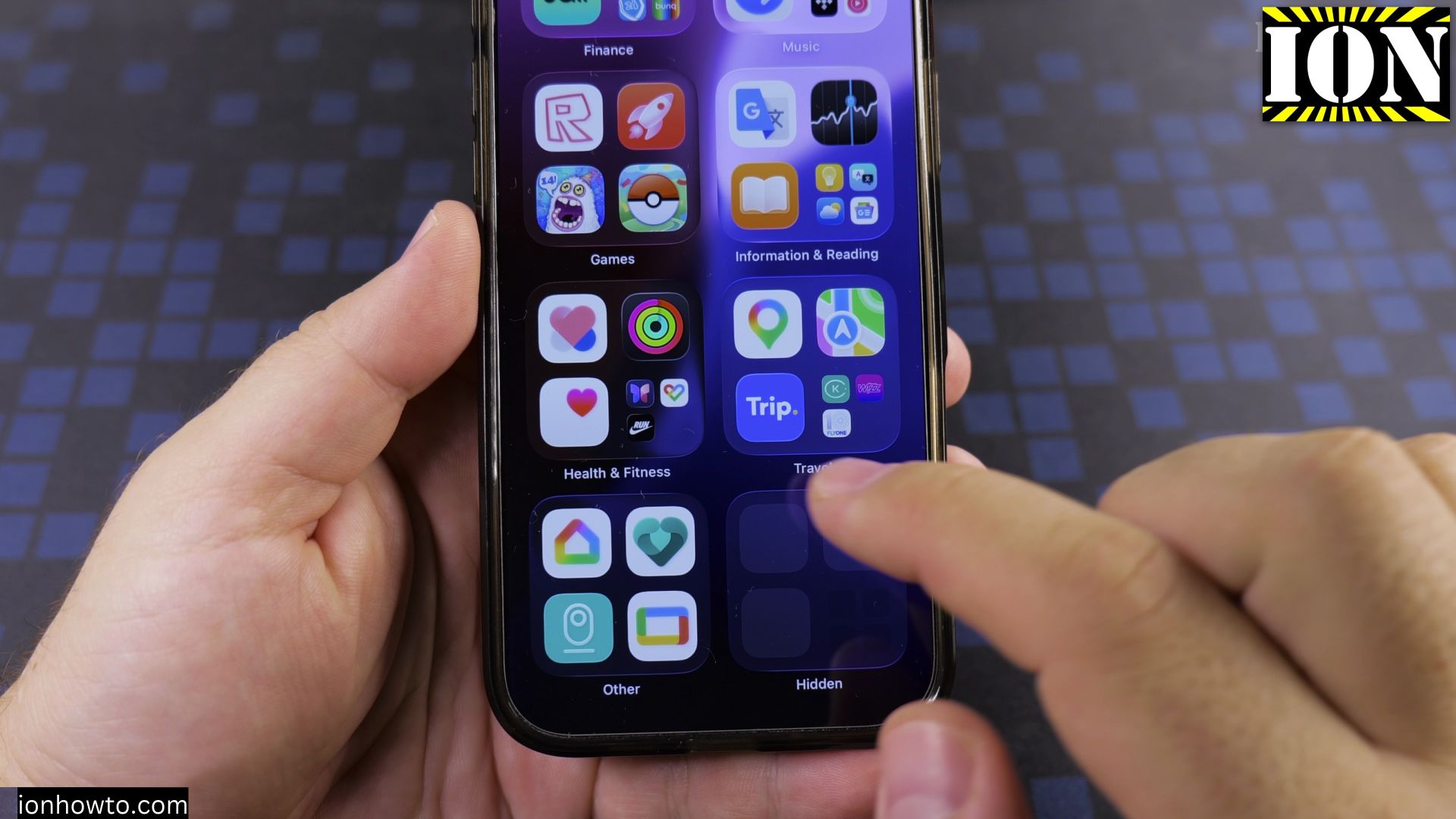
Apps set to Hide and Require Face ID disappear from your Home Screen and Spotlight Search, making them look completely uninstalled. Learn how to scroll to the locked Hidden folder at the bottom of your iPhone App Library and move any hidden app back to your Home Screen cleanly.
Jump straight to a step
- Swipe Right Across Pages to Open App Library
- Scroll to the Bottom and Unlock the Hidden Folder
- Long Press the Hidden App and Tap Don't Require Face ID
- Place the App Icon Back on Your Home Screen
Recommended Amazon Gear and Accessories
Disclosure: This article contains Amazon affiliate links. As an Amazon Associate, we earn from qualifying purchases at no extra cost to you.
- iPhone Accessories
- iPhone Charger
- iPhone USB-C Cable
- iPhone MagSafe Accessories
- iPhone Case
- iPhone Screen Protector
1. Swipe Right Across Pages to Open App Library
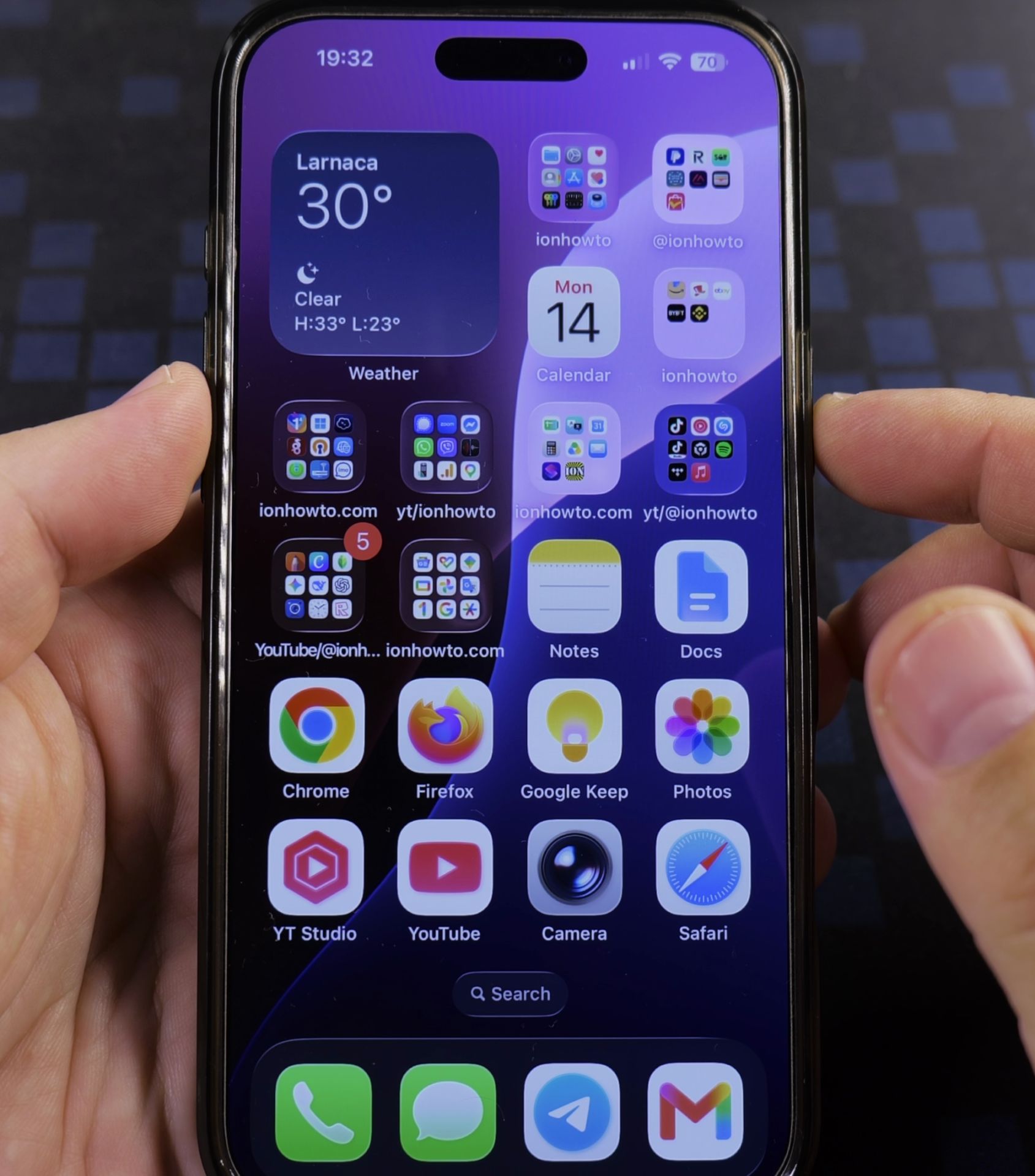
Swipe left from your rightmost Home Screen page until you reach the iPhone App Library showing categorized app folders.
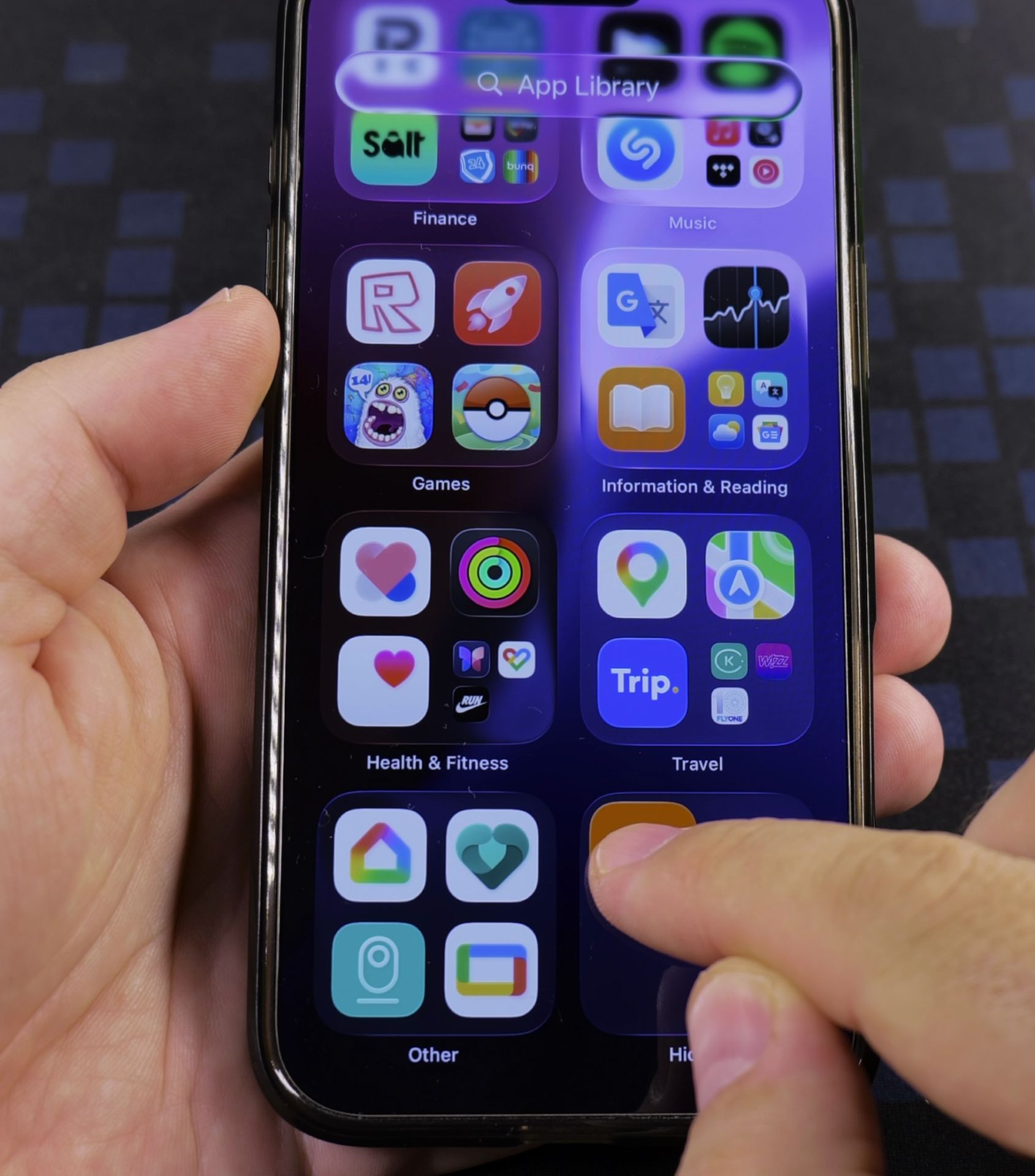
2. Scroll to the Bottom and Unlock the Hidden Folder
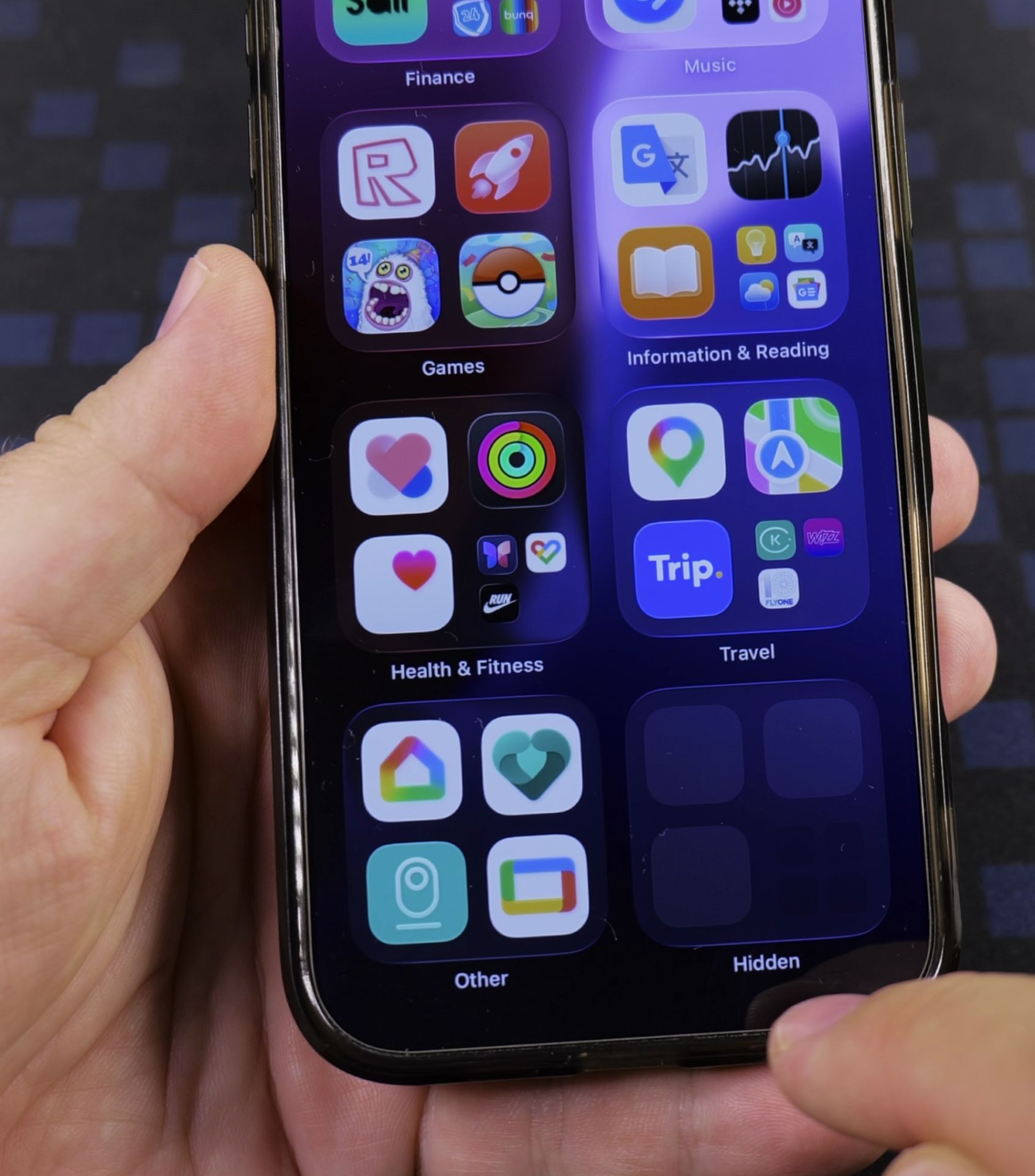
Scroll all the way down to the last folder labeled Hidden, tap it, and authenticate with Face ID or your passcode to reveal any hidden apps inside.
3. Long Press the Hidden App and Tap Don’t Require Face ID
Press and hold the hidden app icon inside the Hidden folder and choose Don’t Require Face ID (or Add to Home Screen if shown) to remove the lock and bring it back.
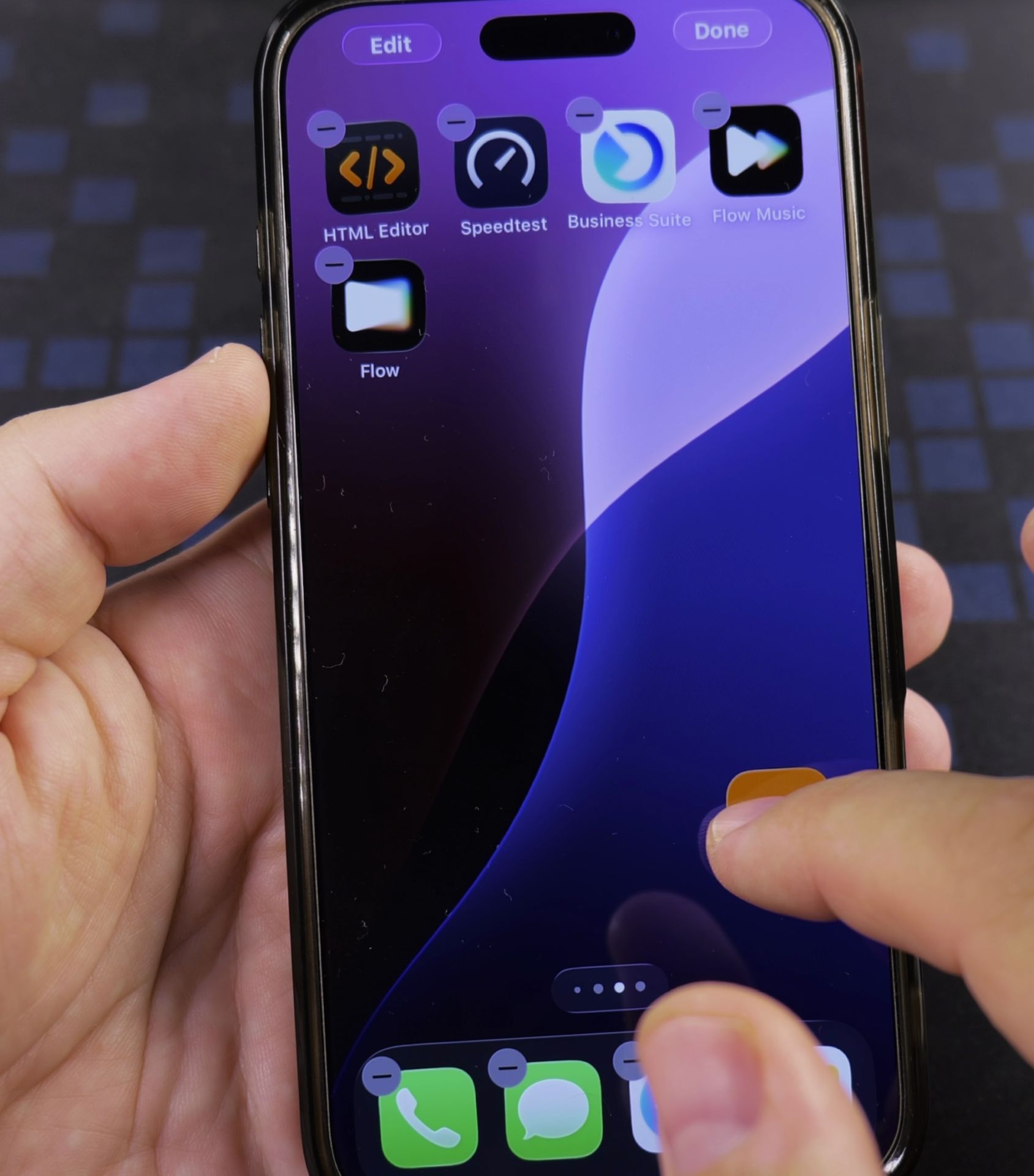
4. Place the App Icon Back on Your Home Screen
Once unhidden, the app appears on your Home Screen and works normally without Face ID prompts, while the Hidden folder stays visible as an empty folder in App Library for privacy.
Helpful Tips
- The Hidden folder always remains visible at the bottom of App Library even when empty so nobody knows if apps are hidden.
- You can drag the newly restored app back into any Home Screen folder or dock slot you prefer.
Related Guides
- How to Hide and Unhide Apps on iPad Home Screen – If you want a tidy iPad screen without rarely used apps crowding your wallpaper, you can hide them in your App Library.
- How to Hide and Unhide Pages on iPad Home Screen – If your iPad Home Screen is cluttered with too many pages of icons, you can hide entire screens without deleting any apps.
- How to Add an App Icon Back to the Home Screen on iPhone – If an application icon disappeared from your iPhone Home Screen even though the app is still installed on your device, it is…
- iPhone How-To Guides – Browse more tutorials and practical guides in this section.


Leave a Reply