
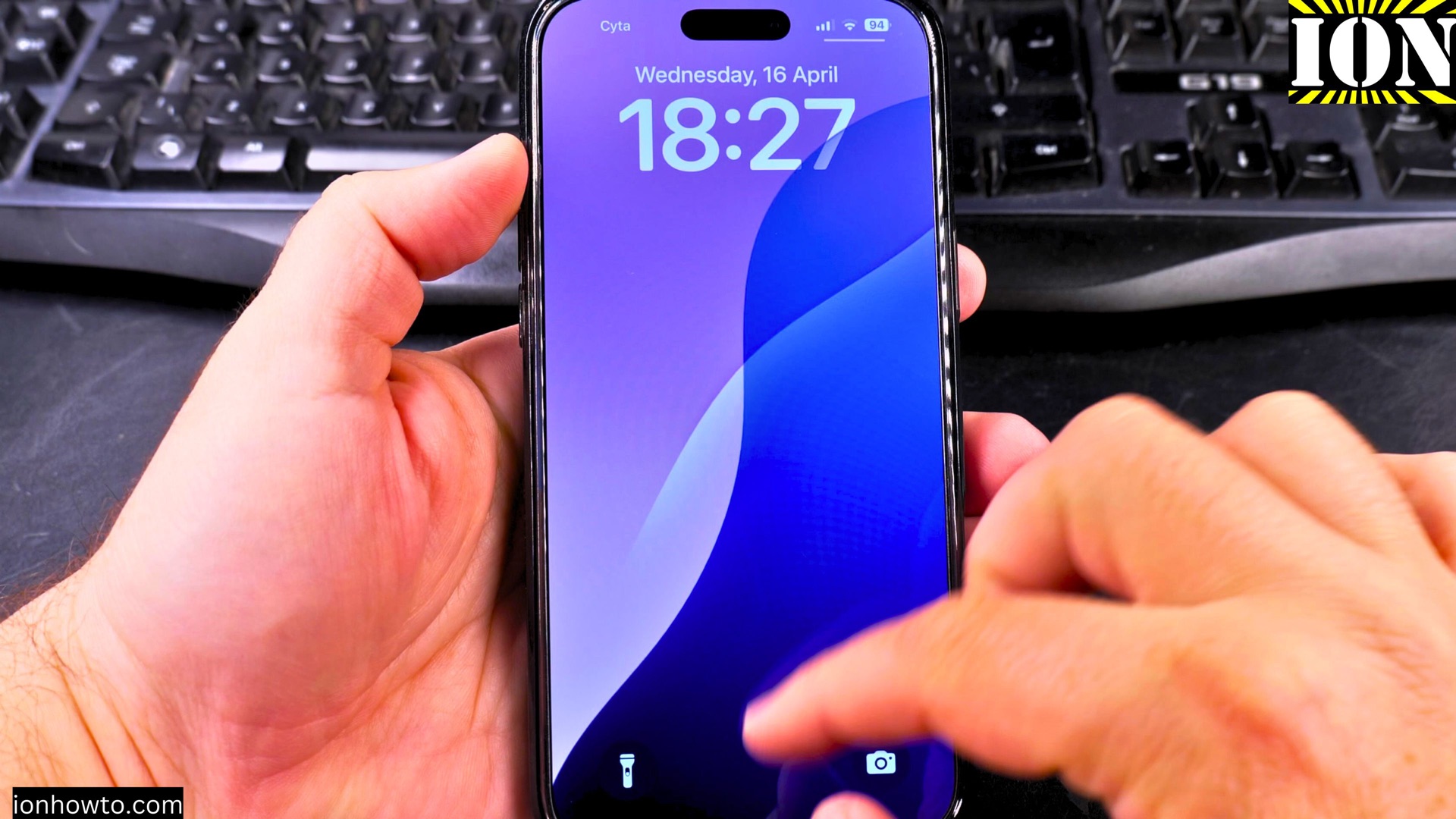
If you prefer the classic light look or just want to switch back from dark mode, here’s how to disable it across your iPhone or for specific apps.
Amazon links
As an Amazon Associate I earn from qualifying purchases:
- iPhone Accessories
- iPhone Charger
- iPhone Cases
- iPhone Screen protector
- iPhone Magsafe
- iPhone Wallet
- iPhone Usb c cable
How to Turn Off Dark Mode or Dark Theme on iPhone.
Quick Steps and Scenarios Overview
| What You Need to Do | Quick Jump |
|---|---|
| Turning Off Dark Mode System-Wide | Jump to Step 1 |
| Disabling Automatic Dark Mode | Jump to Step 2 |
| Switching Individual Apps Back to Light Mode | Jump to Step 3 |
| Setting Up Automatic Light Mode | Jump to Step 4 |
| Quick Control Center Toggle | Jump to Step 5 |
Demo done on:
iOS 18.4.1 | iPhone 16 Pro Max Titanium Black (256GB)
Global Model A3296 – MYWV3ZD/A
1. Turning Off Dark Mode System-Wide
To switch your entire iPhone back to light mode:
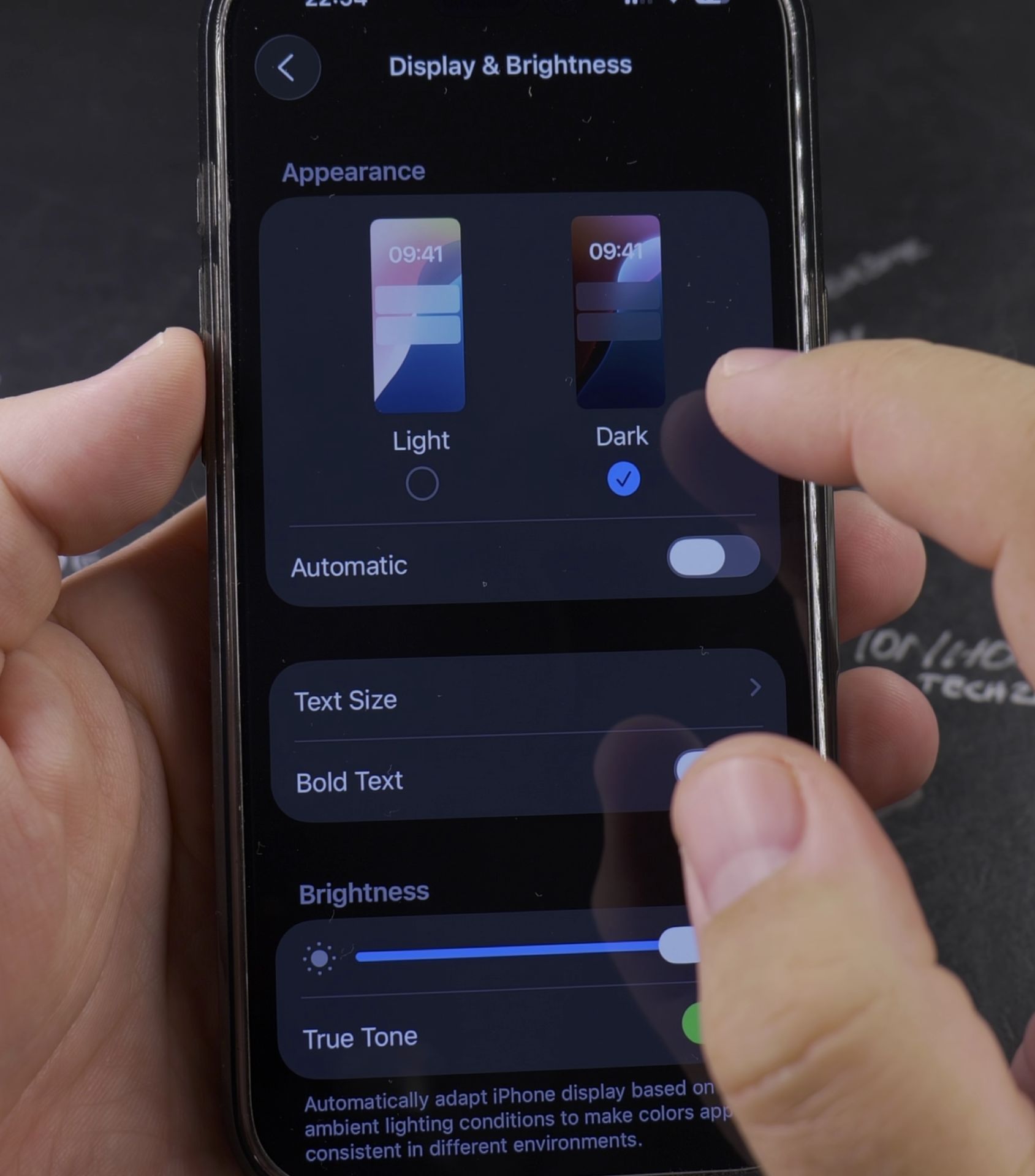
- Open the Settings app
- Tap Display & Brightness
- Under Appearance, select Light
This will immediately change all supported apps and system menus back to the light theme.
2. Disabling Automatic Dark Mode
If you want to keep light mode on permanently:
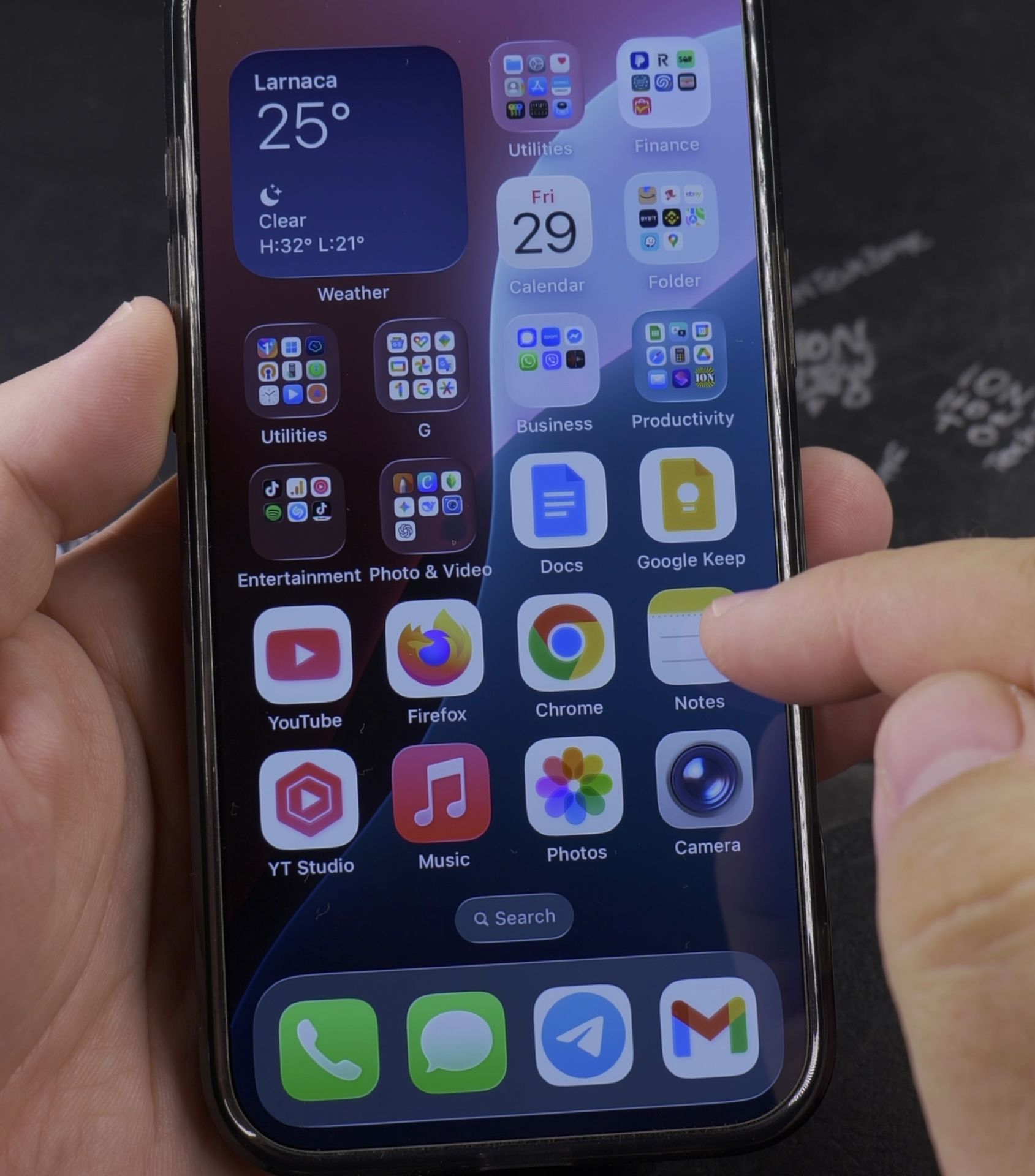
- Go to Settings > Display & Brightness
- Tap Automatic
- Turn off the toggle for Automatic
Your iPhone will now stay in light mode until you manually change it.
3. Switching Individual Apps Back to Light Mode
Some apps let you control their theme separately:
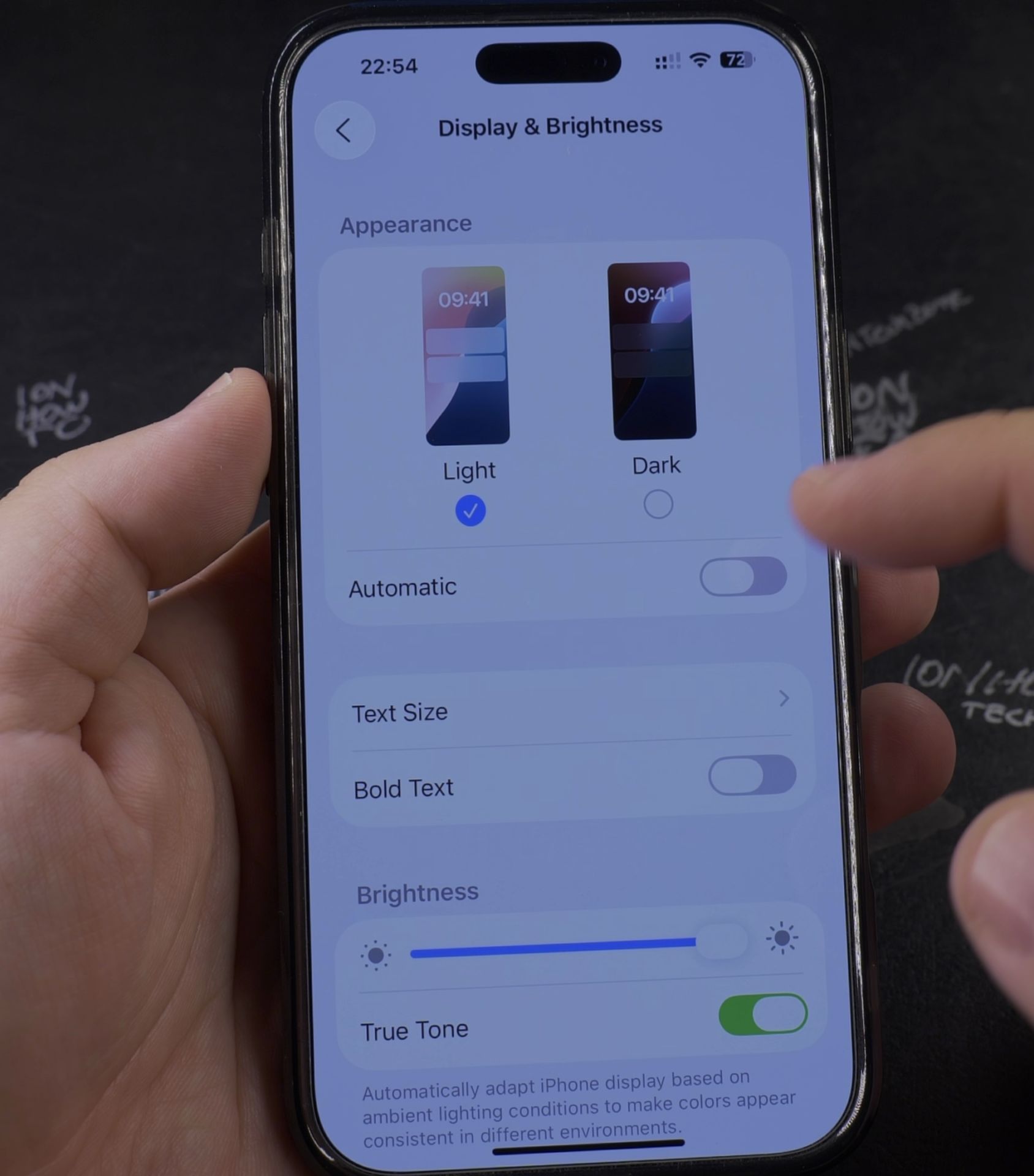
For Apps That Follow System Settings (Mail, Messages, etc.):
These will automatically match whatever you set in Display & Brightness
For Apps With Independent Controls:
- Instagram: Profile > Menu > Settings > Theme > Light
- Facebook: Menu > Settings > Dark Mode > Off
- YouTube: Tap your profile > Appearance > Light theme
4. Setting Up Automatic Light Mode
If you only want dark mode at certain times:
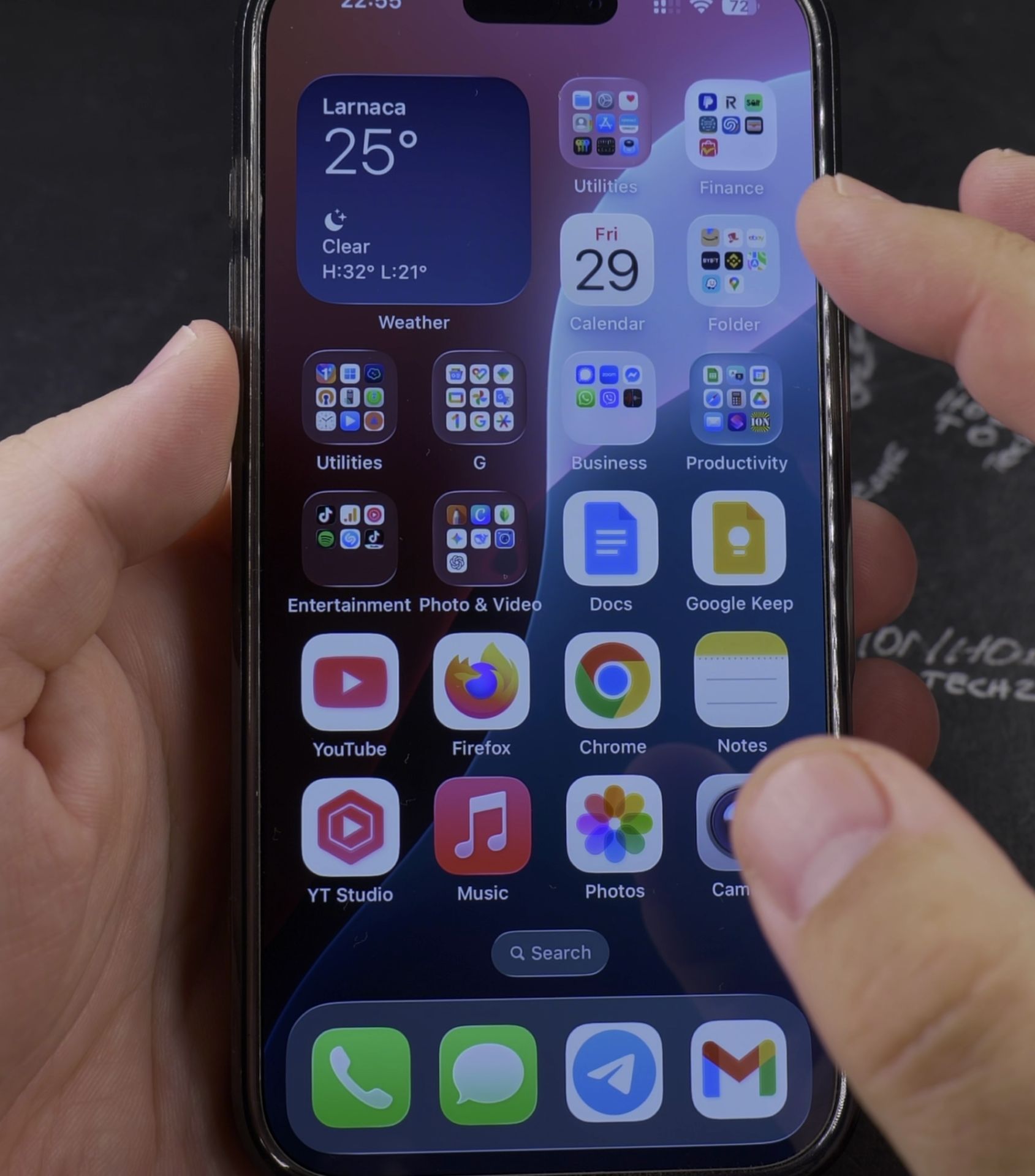
- Go to Settings > Display & Brightness
- Tap Automatic
- Choose Custom Schedule
- Set your preferred hours for light mode (like 7 AM to 7 PM)
5. Quick Control Center Toggle
For faster switching:
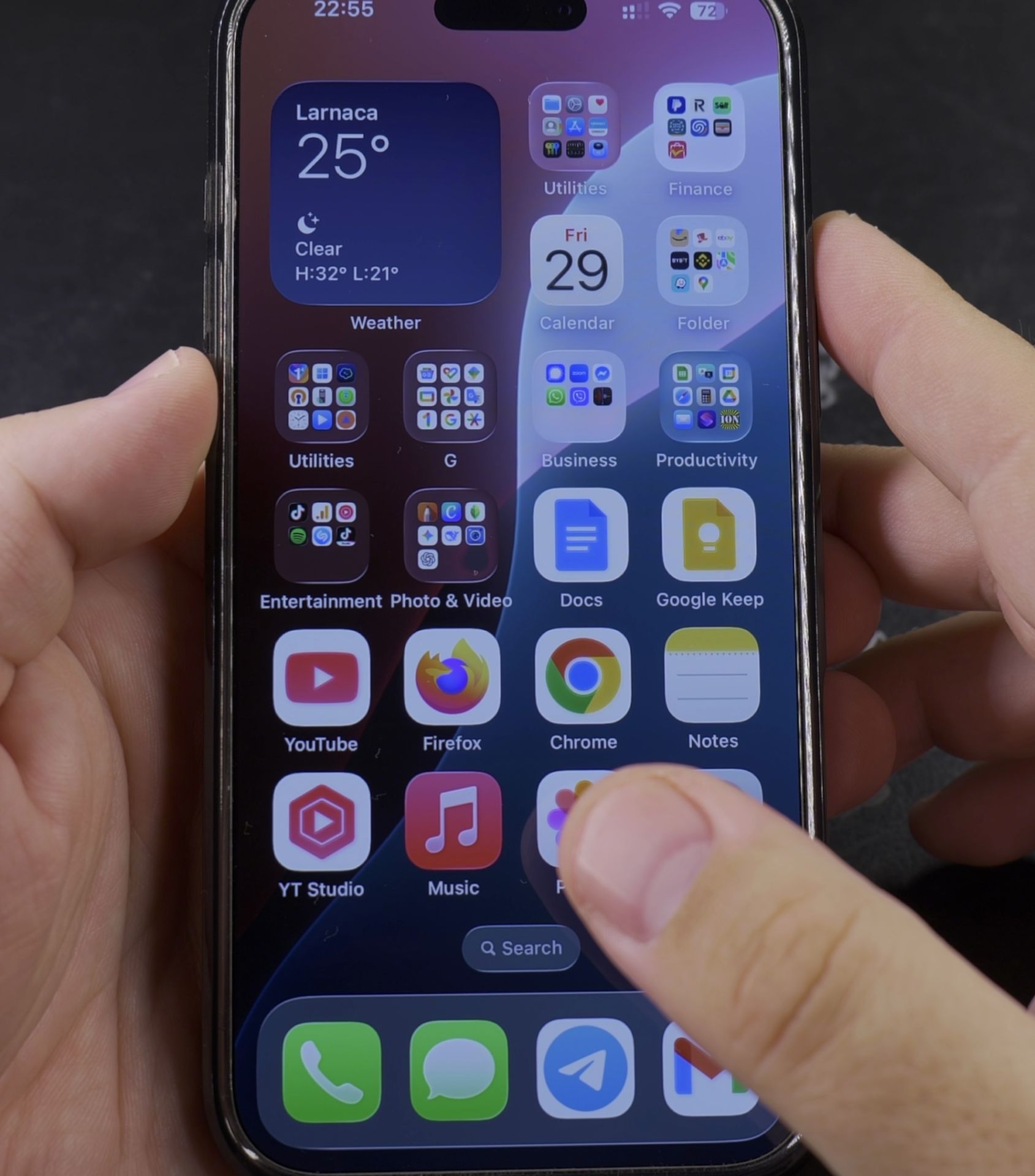
- Swipe down from top-right to open Control Center
- If you added Dark Mode to Control Center, tap it to toggle between light/dark
- (To remove this button: Settings > Control Center > Remove Dark Mode)
Troubleshooting Tips
- If an app stays dark, check its individual settings
- Restart your iPhone if changes aren’t applying properly
- Some websites may need to be refreshed to show light mode
Want to keep light mode on all the time? Just set it to Light and turn off Automatic. Have any questions about display settings? Ask in the comments below!
Helpful Tips
Take your time and check the screen carefully after each tap so you can confirm the setting changed as expected. If an option appears in a slightly different spot on your device, watch the embedded video above for a closer look.
Related Guides
- How to Prevent Airplane Mode from Being Turned On While Your iPhone Is Locked – When a thief steals an iPhone, their first instinct is to swipe down the Control Center and toggle on Airplane Mode so the…
- Turn Off Focus Mode on iPhone – How to Turn Off Focus Mode on iPhone 16 Pro Max iOS 18.5.
- Enable Do Not Disturb Focus Mode Silent on iPhone – How to Enable Do Not Disturb Focus Mode and Silent on iPhone.
- iPhone How-To Guides – Browse more tutorials and practical guides in this section.


Leave a Reply