
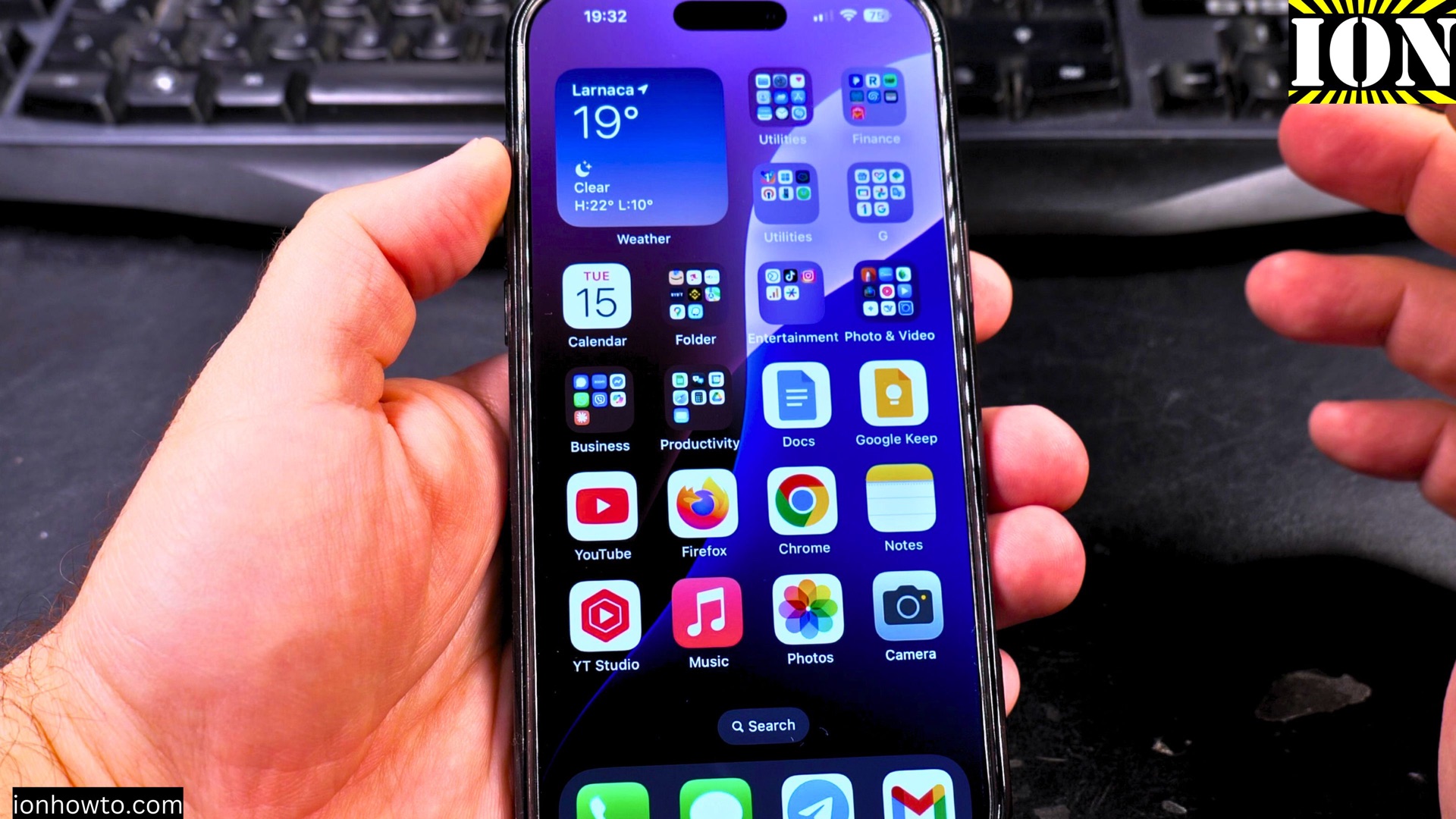
Do you want to give your Telegram notifications a fresh new sound? If you’re tired of the default tone or just want to make certain chats stand out, customizing your alerts is easy. This is how to change Telegram notification sounds on your iPhone.
Amazon links
As an Amazon Associate I earn from qualifying purchases:
- iPhone Accessories
- iPhone Charger
- iPhone Cases
- iPhone Screen protector
- iPhone Magsafe
- iPhone Wallet
- iPhone Usb c cable
How to Change Telegram Notification Sound on iPhone.
Quick Steps and Scenarios Overview
| What You Need to Do | Quick Jump |
|---|---|
| Change the Default Notification Sound for All Telegram Messages | Jump to Step 1 |
| Set Custom Notification Sounds for Specific Chats | Jump to Step 2 |
| Need Help? | Jump to Step 3 |
Tested on iOS 18.4.1 with iPhone 16 Pro Max Titanium Black (256GB, Global Model A3296 – MYWV3ZD/A).
Change the Default Notification Sound for All Telegram Messages
If you want all your Telegram notifications to have a unique sound, follow these steps:
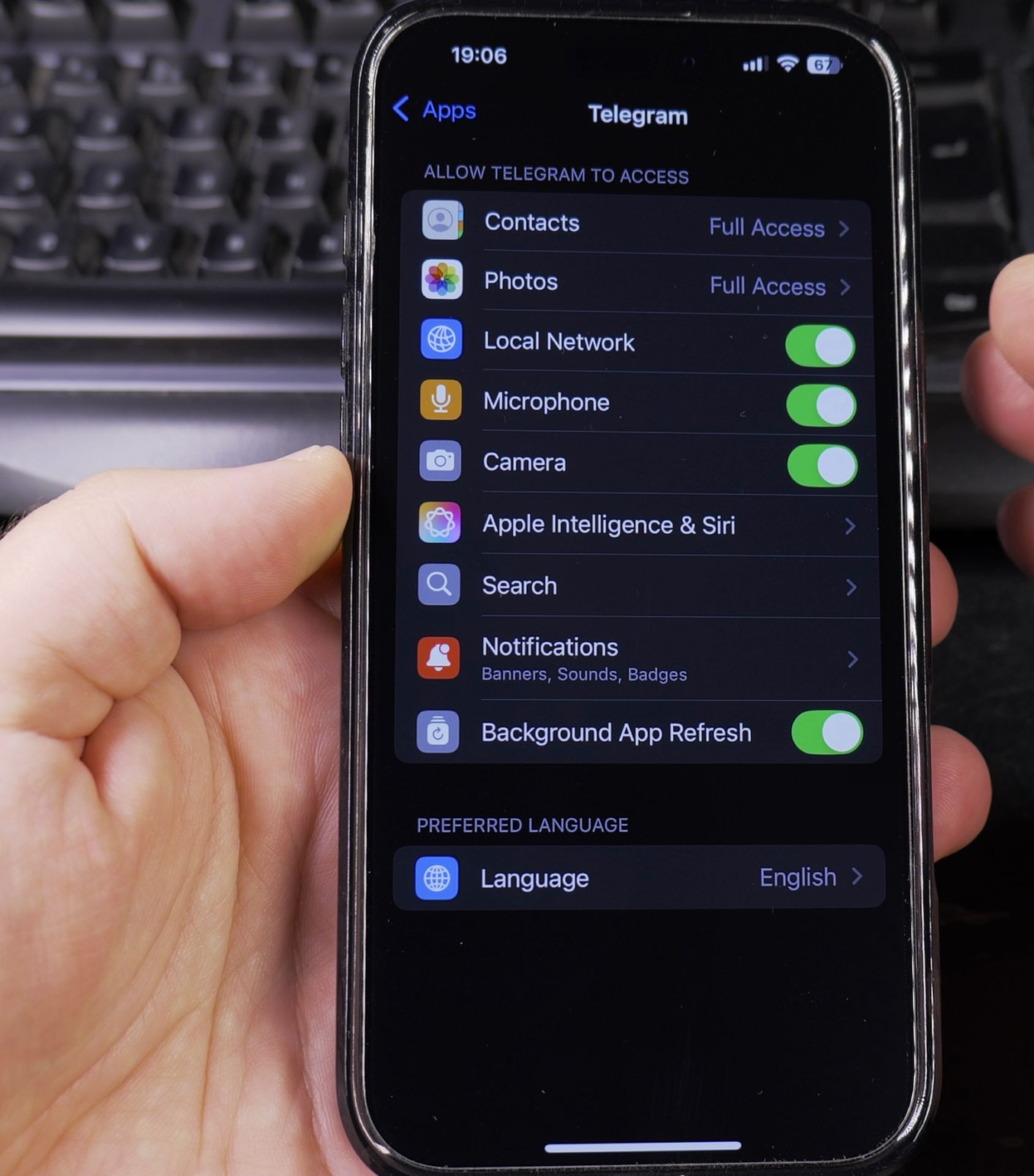
- Open Telegram and go to Settings (the gear icon in the bottom right).
- Tap Notifications and Sounds.
- Under Message Notifications, tap Sound.
- Choose a new tone from the list.
- Exit the menu and now your new default sound is set.
This is great if you want Telegram alerts to stand out from other app notifications.
Set Custom Notification Sounds for Specific Chats
Want different sounds for different chats? Maybe a special tone for your best friend’s messages or a work alert for important group chats? Here’s how:
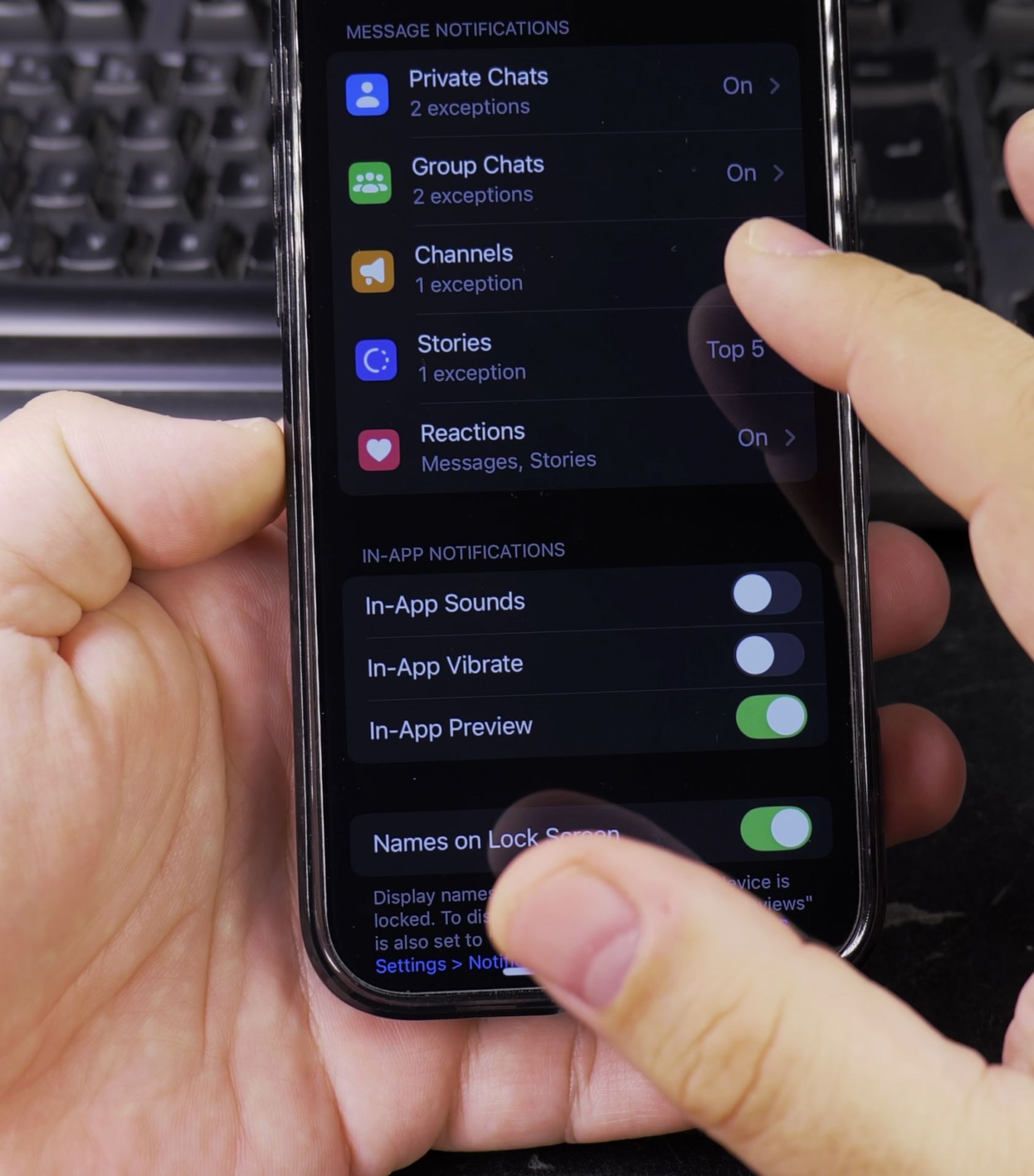
- Open the chat you want to customize.
- Tap the contact or group name at the top.
- Select Notification Settings.
- Tap Sound and pick a unique tone.
- Press Back to save and this chat will have its own notification sound.
You can also mute specific chats here if you don’t want constant notifications from a busy group.
Need Help?
If you have any questions about Telegram notifications or other iPhone settings, drop a comment below! I’ll do my best to help.
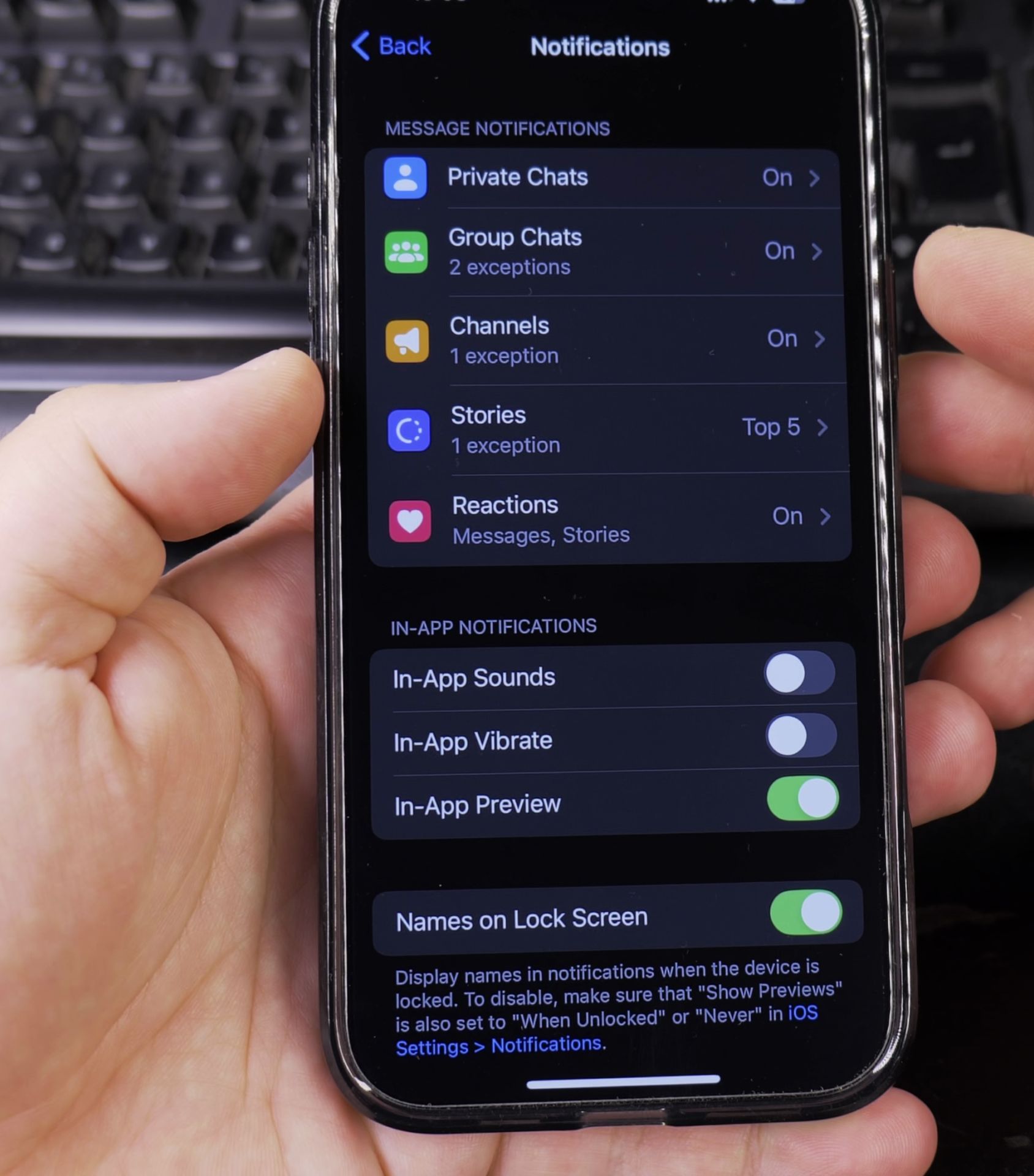
Thanks for reading, and if you found this guide useful, feel free to share it with others who might need it. Stay tuned for more simple iPhone tips!
Helpful Tips
Take your time and check the screen carefully after each tap so you can confirm the setting changed as expected. If an option appears in a slightly different spot on your device, watch the embedded video above for a closer look.
Related Guides
- How to Change Gmail Notification Sound on iPhone – How to Change Gmail Notification Sound on iPhone.
- How to Change WhatsApp Notification Sound on iPhone – If you have the same old WhatsApp notification sound?
- Get the Best Sound Quality in iPhone Apple Music – How to Get the Best Sound Quality in Apple Music on iPhone.
- iPhone How-To Guides – Browse more tutorials and practical guides in this section.


Leave a Reply