
Amazon links
As an Amazon Associate I earn from qualifying purchases:
- iPhone Accessories
- iPhone Charger
- iPhone Cases
- iPhone Screen protector
- iPhone Magsafe
- iPhone Wallet
- iPhone Usb c cable
Tired of the same old alarm tone? Your iPhone lets you customize alarm sounds to anything from gentle chimes to your favorite song. Here’s how to set the perfect wake-up call.
iPhone How to Change Alarm Sound.
Quick Steps and Scenarios Overview
| What You Need to Do | Quick Jump |
|---|---|
| How to Change to a Built-in Alarm Sound | Jump to Step 1 |
| Open the Clock app | Jump to Step 1 |
| Tap the Alarm tab at the bottom | Jump to Step 2 |
| Tap Edit on an existing alarm | Jump to Step 3 |
| Tap Sound | Jump to Step 4 |
| Browse through the available tones (like Radar | Jump to Step 5 |
This guide works on all iPhones including the iPhone 16 Pro Max (iOS 18.4.1) and older models.
How to Change to a Built-in Alarm Sound
1. Open the Clock app
Open the Clock app.
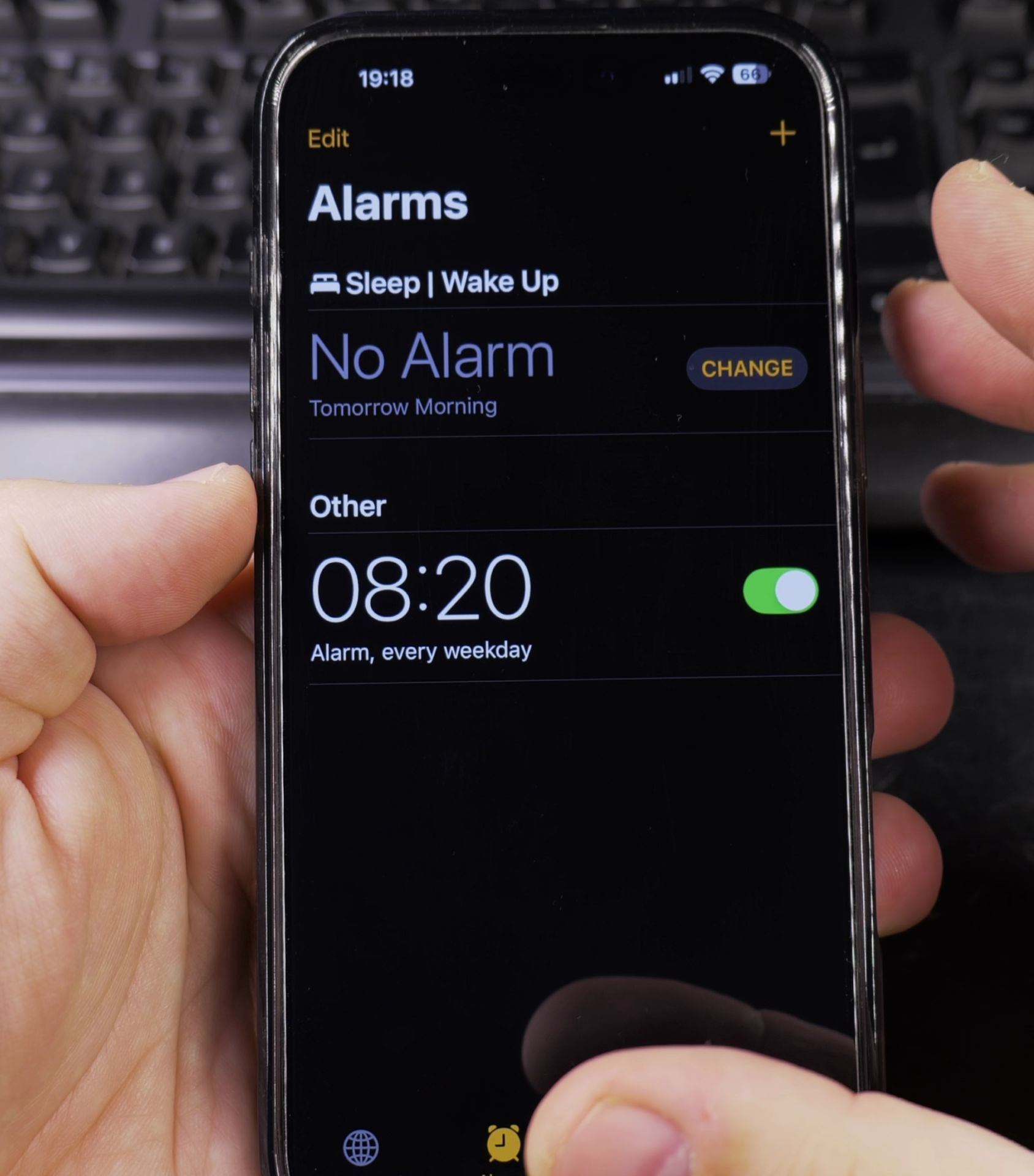
2. Tap the Alarm tab at the bottom
Tap the Alarm tab at the bottom.
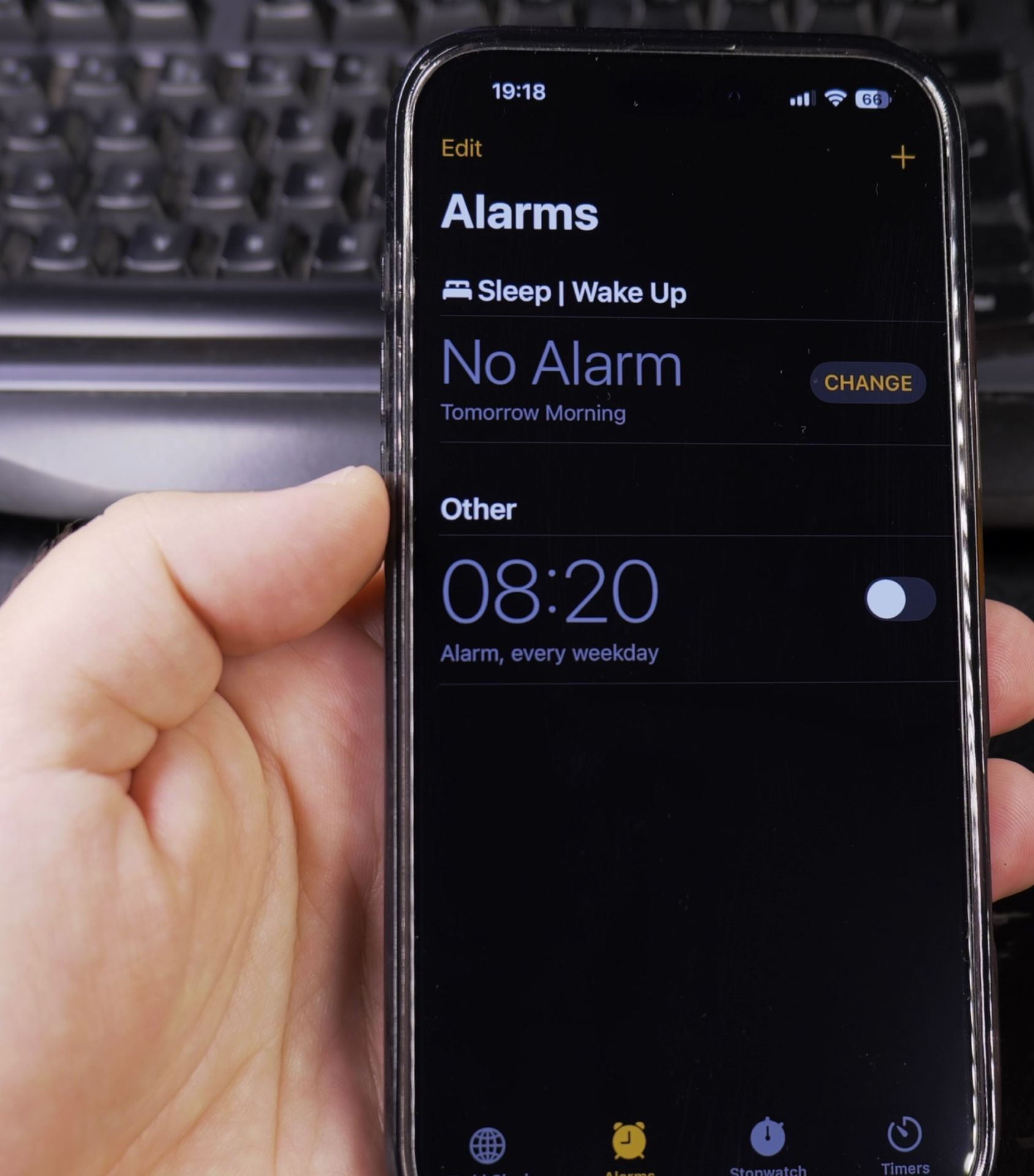
3. Tap Edit on an existing alarm
Tap Edit on an existing alarm or the + to create a new one.
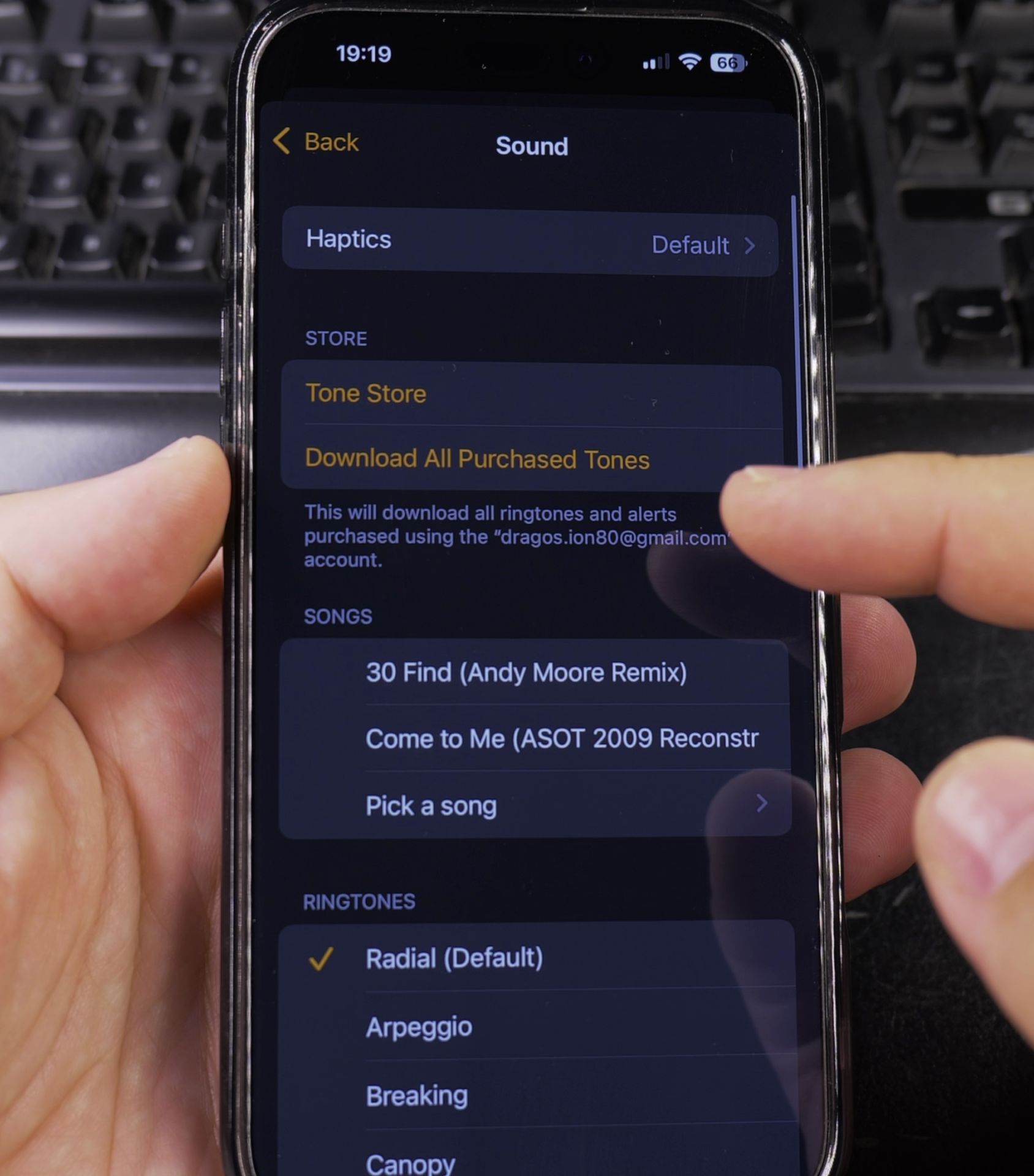
4. Tap Sound
Tap Sound.
5. Browse through the available tones (like Radar
Browse through the available tones (like Radar, Marimba, or Slow Rise).
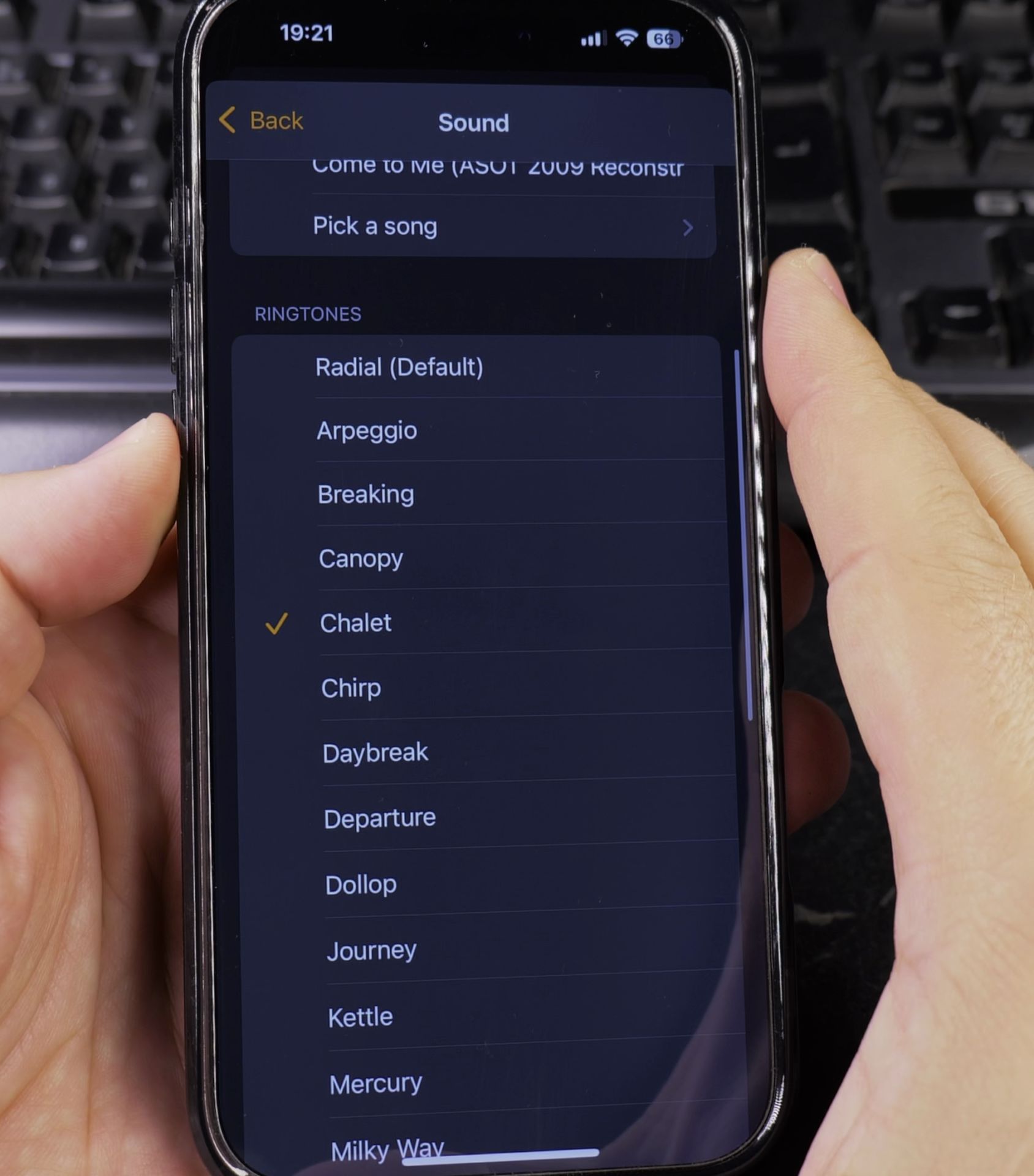
6. Tap any sound to preview it
Tap any sound to preview it.
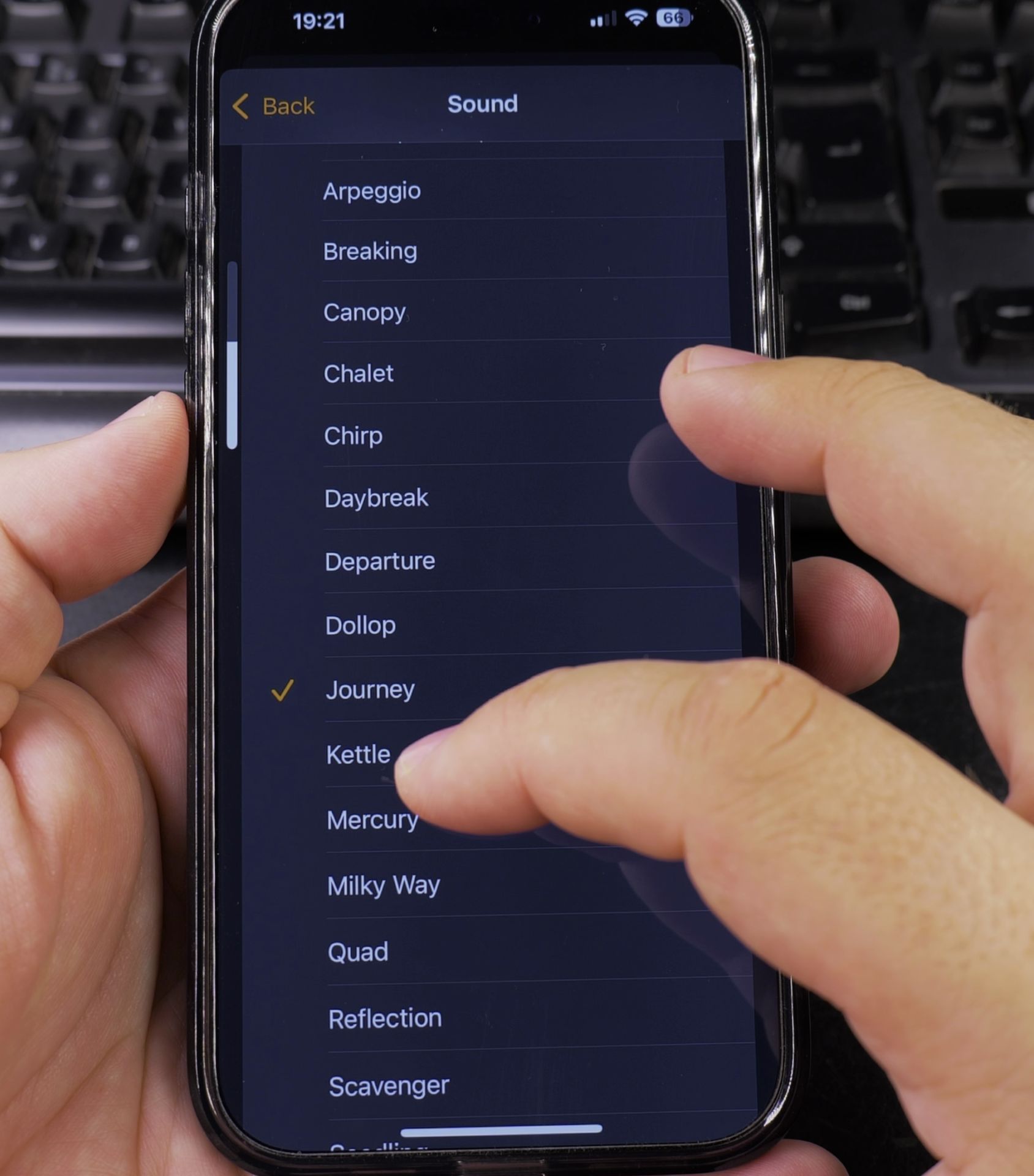
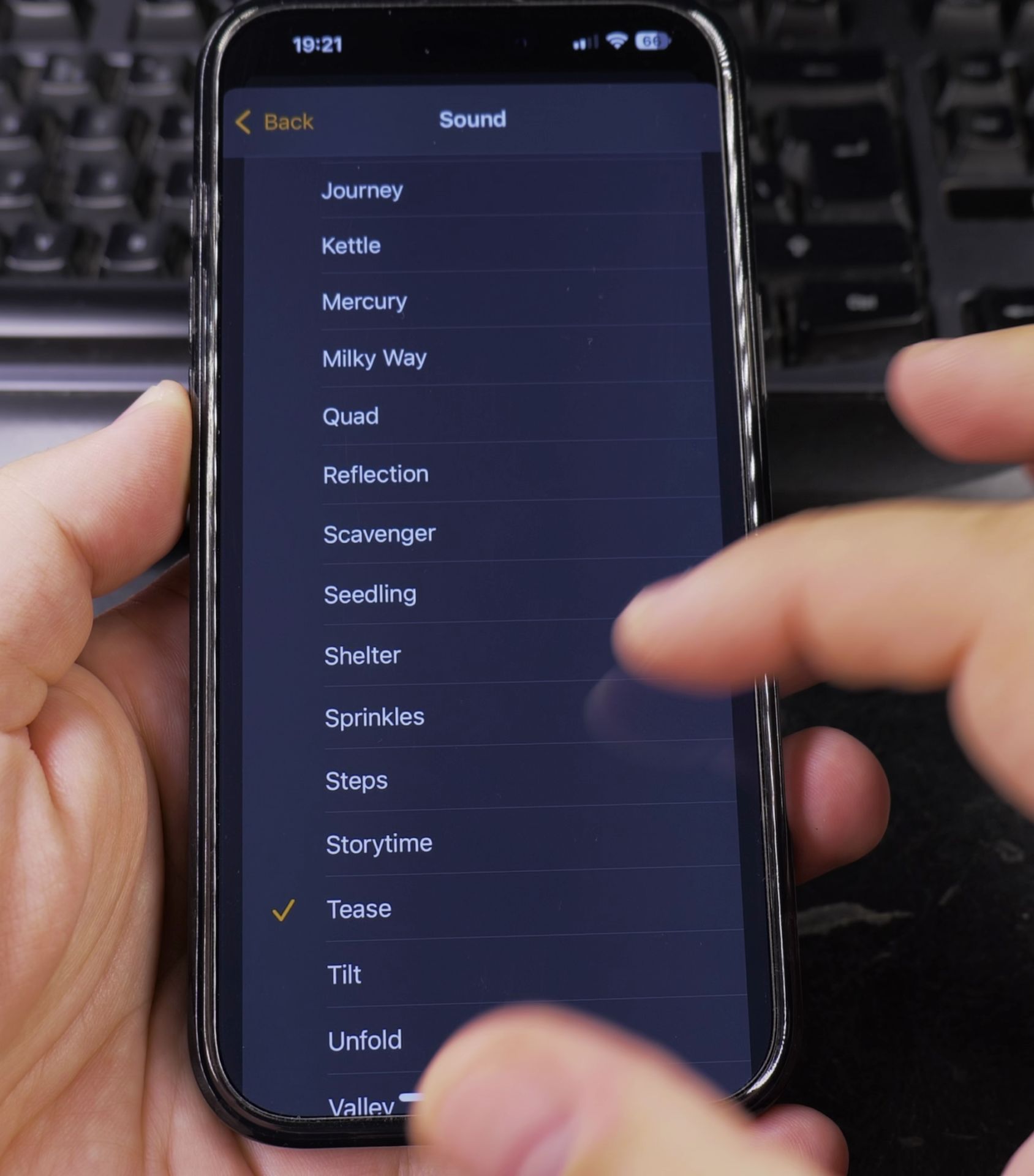
7. Select your preferred tone
Select your preferred tone.
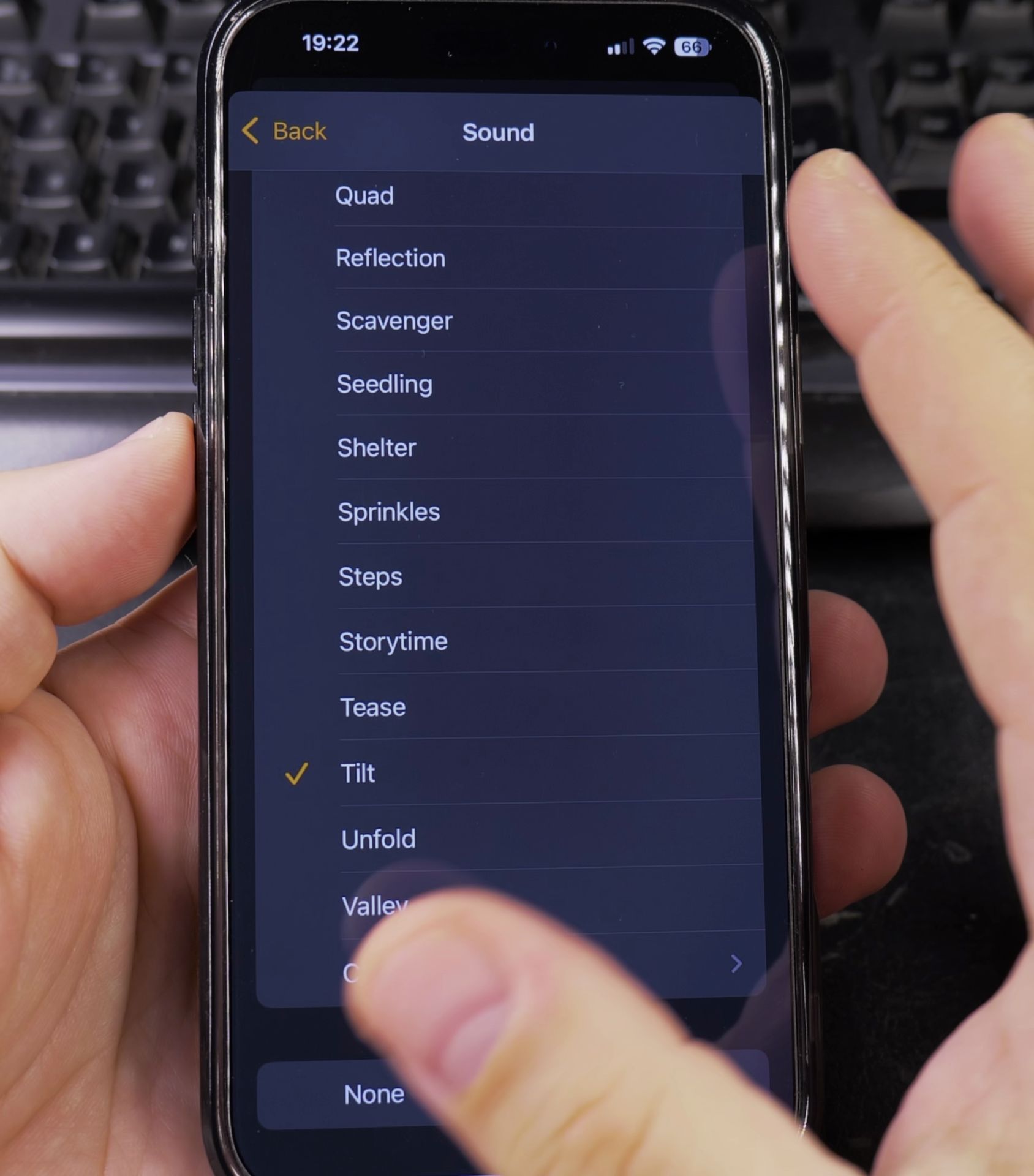
8. Tap Back then Save
Tap Back then Save.
How to Use a Song as Your Alarm
Want to wake up to your favorite track?
- Follow steps 1-4 above to reach the Sound menu
- Scroll to the very top and tap Pick a Song
- Select Songs, Artists, or Playlists
- Choose your wanted song
- Tap Back then Save
Note: The song must be downloaded to your device (not streaming-only)
How to Make Your Alarm Louder
For heavy sleepers:
- While setting your alarm, press the Volume Up button on your iPhone’s side
- Or go to Settings > Sounds & Haptics and adjust the volume slider
- Choose louder built-in tones like Radar or Signal
Setting Different Sounds for Multiple Alarms
Create unique tones for different purposes:
- Create a new alarm or edit an existing one
- Tap Sound
- Select a different tone for each alarm
- Give each alarm a distinct label (like “Workday” or “Weekend”)
Helpful Alarm Tips
- Test your alarm volume before relying on it
- Place your phone on a hard surface to amplify the sound
- The vibration feature helps when sound is off
- “Bedtime” alarms in the Health app offer gentler wake-up options
Now you can say goodbye to jarring default alarms and hello to personalized wake-up calls. If you prefer soothing melodies or energetic beats, your iPhone can handle it.
Having trouble with alarm sounds? Make sure your phone isn’t on silent mode and that the alarm volume is turned up.
Which alarm sound did you choose? Let us know your favorite in the comments!
Helpful Tips
Take your time and check the screen carefully after each tap so you can confirm the setting changed as expected. If an option appears in a slightly different spot on your device, watch the embedded video above for a closer look.
Related Guides
- How to Stop Your Other Devices Ringing When You Get a Call on iPhone – If your iPad, Mac, and Apple Watch all ring simultaneously every time someone calls your phone, you can silence them easily.
- How to Disable Siri Announce Calls on iPhone (Stop Caller Name Announcements) – Having Siri speak the name of an incoming caller out loud through your iPhone speaker or connected Bluetooth headphones can…
- Phone Calls on iPad Using iPhone – How to Make Phone Calls on a Wi-Fi Only iPad Using Your iPhone.
- iPhone How-To Guides – Browse more tutorials and practical guides in this section.


Leave a Reply