
Amazon links
As an Amazon Associate I earn from qualifying purchases:
- iPhone Accessories
- iPhone Charger
- iPhone Cases
- iPhone Screen protector
- iPhone Magsafe
- iPhone Wallet
- iPhone Usb c cable
Learn how to activate Siri and set up voice commands on your iPhone. I’ll show you how to enable Siri, customize its settings, and use it effectively.
How to Turn On Siri on iPhone.
Quick Steps and Scenarios Overview
| What You Need to Do | Quick Jump |
|---|---|
| How to Enable Siri on Your iPhone | Jump to Step 1 |
| How to Use Siri | Jump to Step 2 |
| What Siri Can Do For You | Jump to Step 3 |
| How to Customize Siri | Jump to Step 4 |
| Privacy Considerations | Jump to Step 5 |
Demo performed on iOS 18.4.1 with iPhone 16 Pro Max Titanium Black 256GB (Global model A3296 – MYWV3ZD/A)
How to Enable Siri on Your iPhone
Follow these steps to turn on Siri:
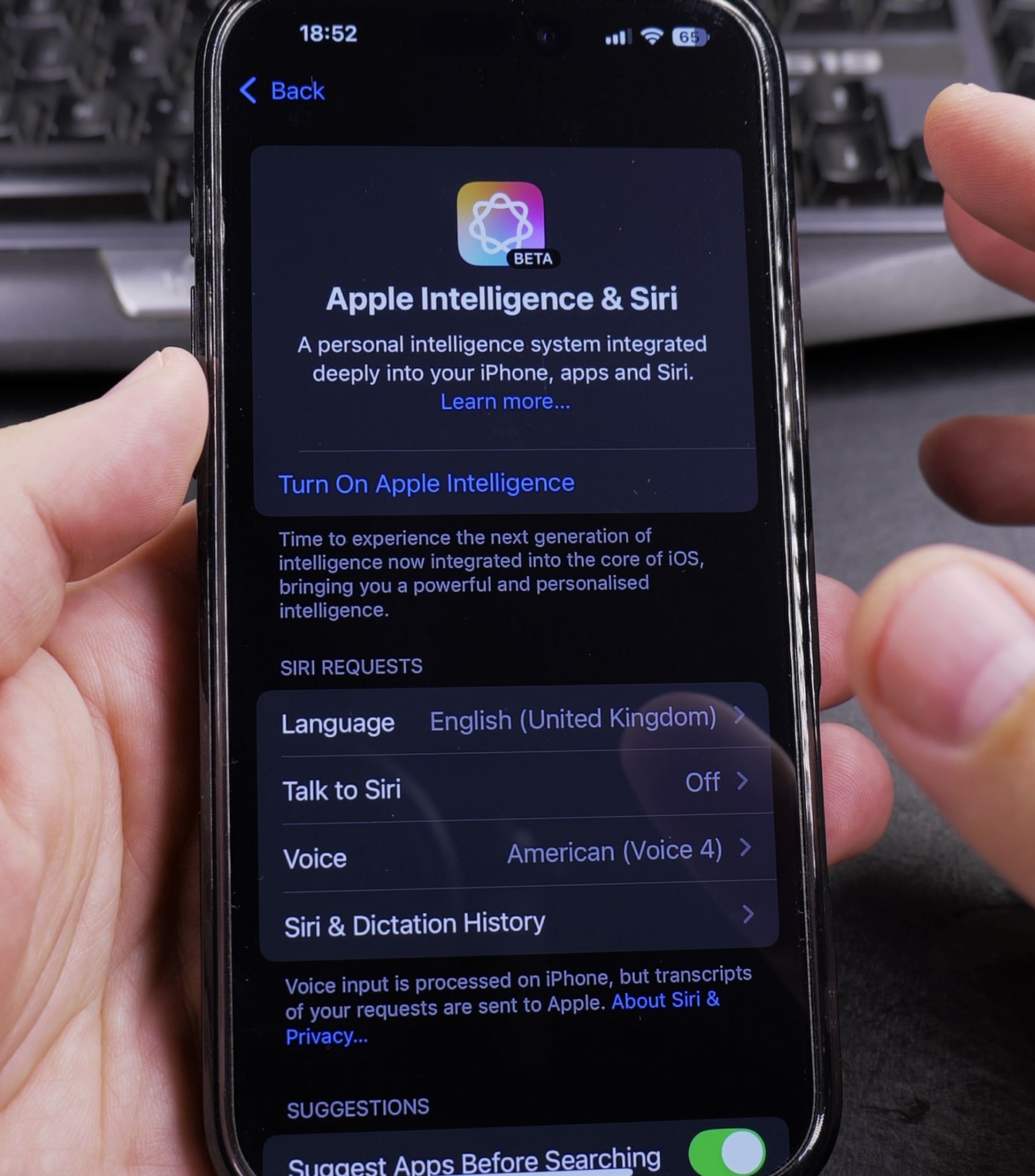
- Open Settings on your iPhone
- Scroll down and tap Siri & Search
- Toggle on Listen for “Hey Siri”
- Toggle on Press Side Button for Siri
- Follow the on-screen setup to train Siri to recognize your voice
How to Use Siri
Learn the different ways to activate Siri:
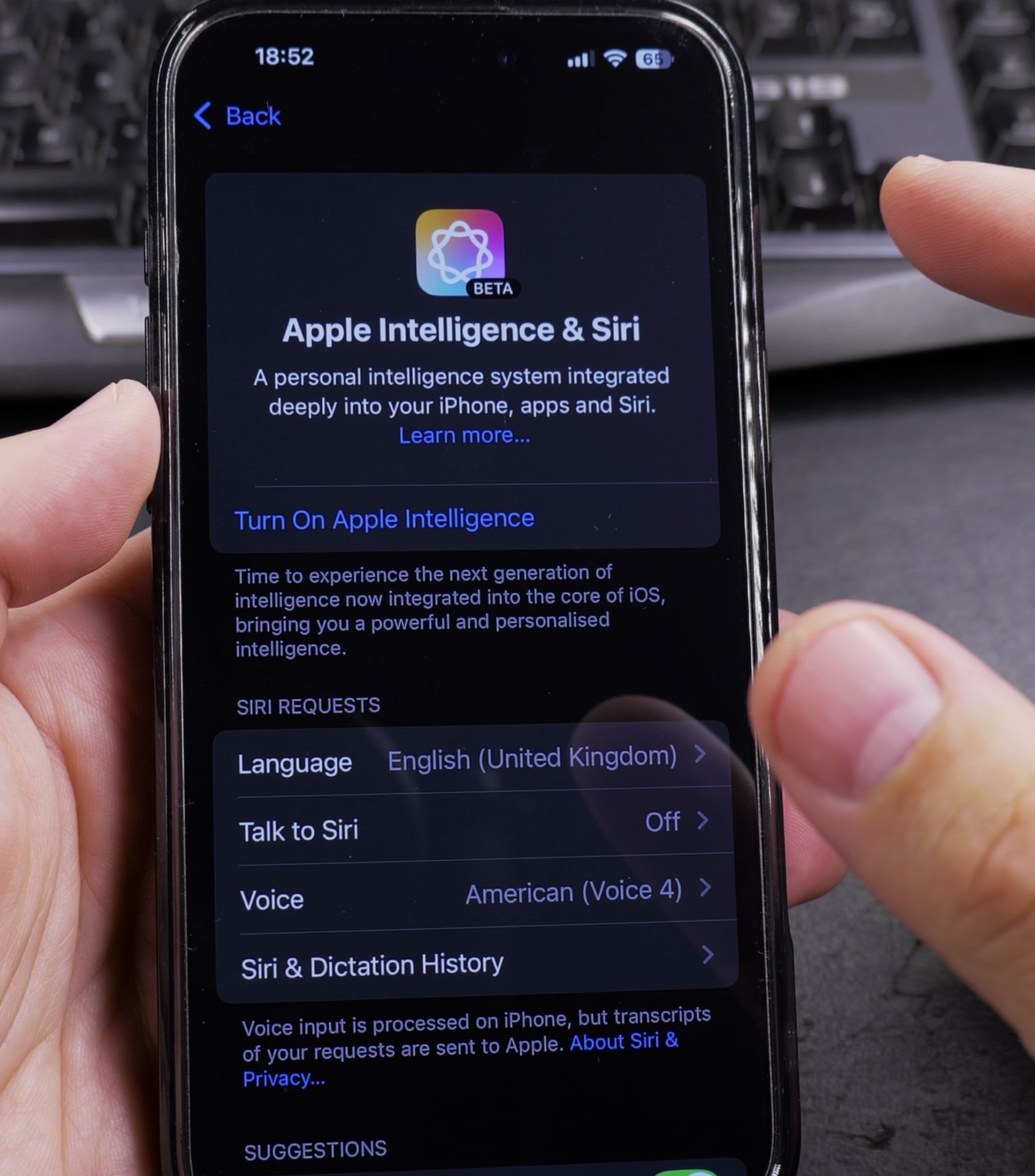
- Say “Hey Siri” (when enabled)
- Press and hold the side button
- For newer models, simply say “Siri” (no “Hey” needed)
What Siri Can Do For You
Discover useful Siri commands:
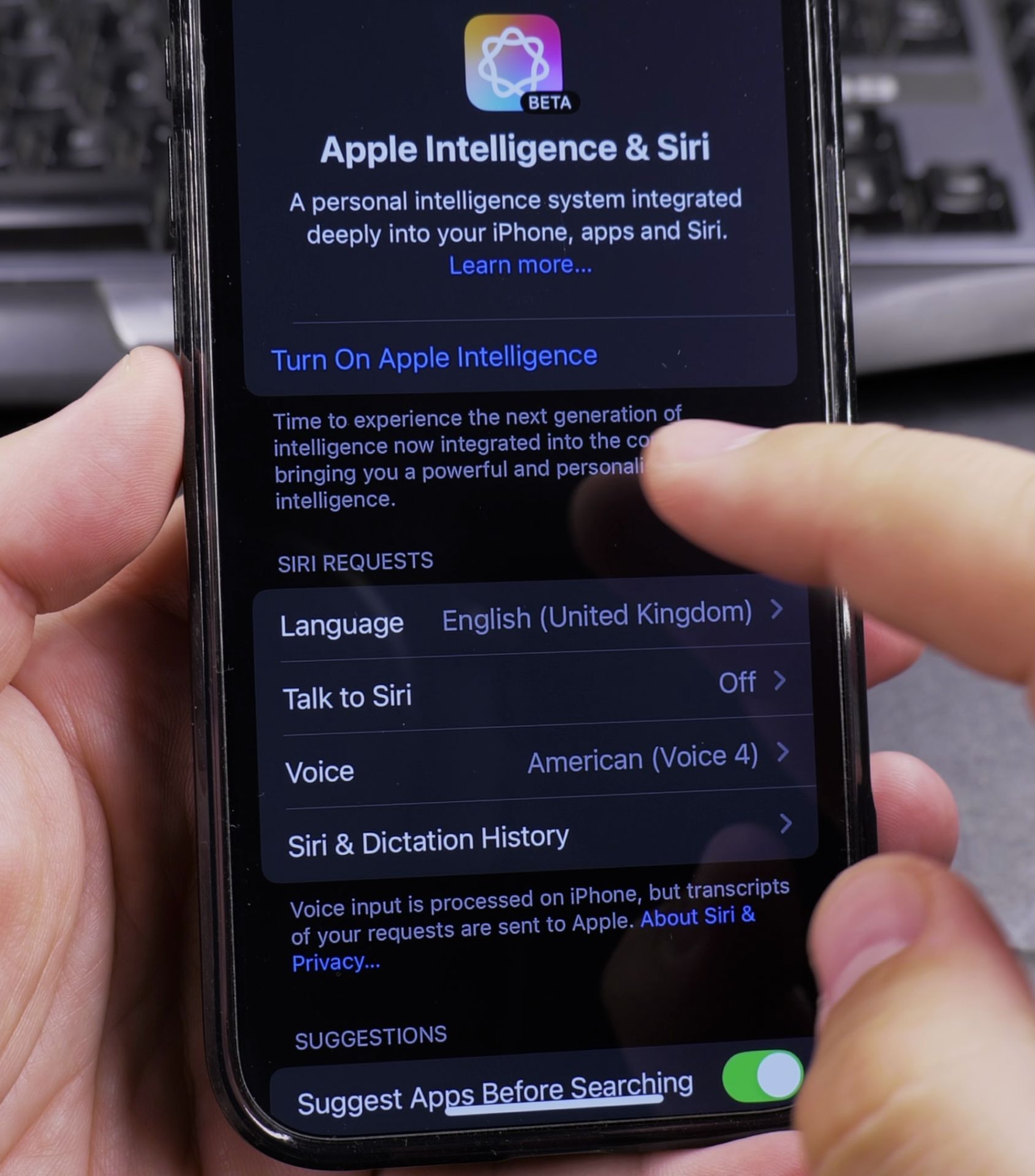
- “Set a timer for 10 minutes”
- “Remind me to call Mom at 5pm”
- “Send a message to John saying I’ll be late”
- “What’s the weather today?”
- “Play my workout playlist”
- “Navigate home”
How to Customize Siri
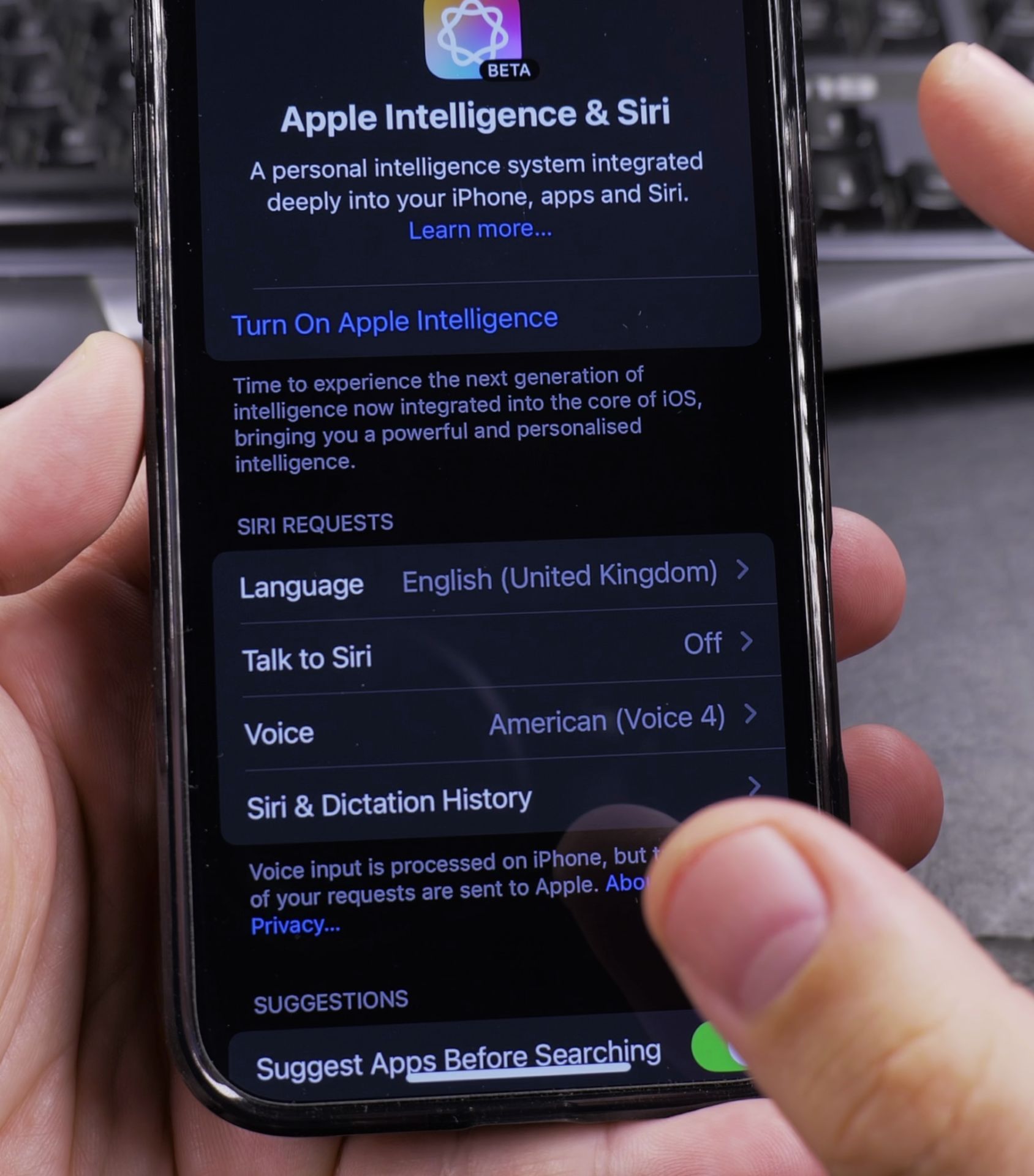
Change Siri’s Voice
- Go to Settings > Siri & Search
- Tap Siri Voice
- Choose your preferred voice style and accent
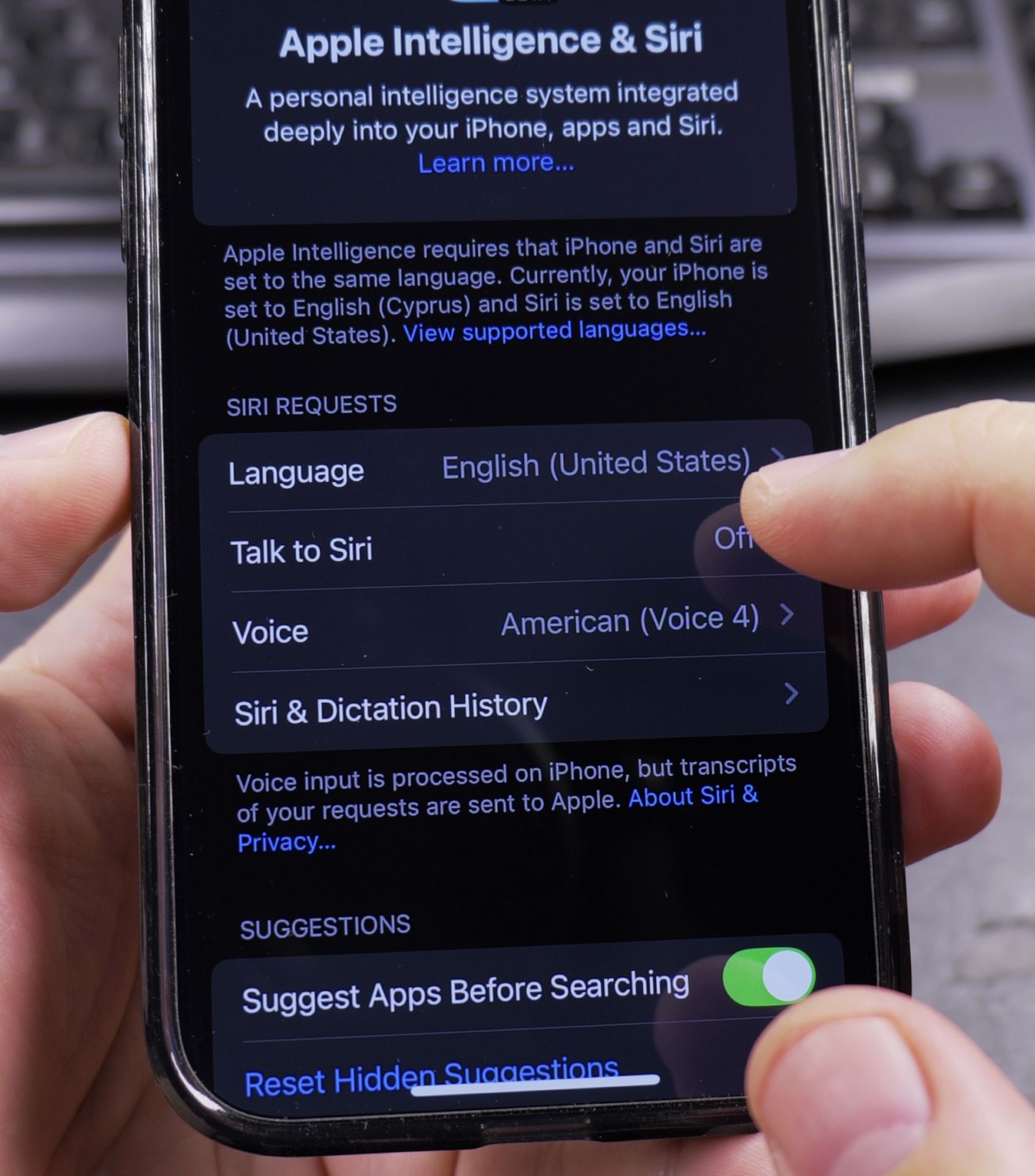
Change Siri’s Language
- Go to Settings > Siri & Search
- Tap Language
- Select your preferred language
Privacy Considerations
Learn how to manage Siri’s data collection:
- Go to Settings > Privacy & Security > Analytics & Improvements
- Toggle off Improve Siri & Dictation to limit data sharing
- Review Settings > Siri & Search > Siri History to delete recordings
Troubleshooting Tips
If Siri isn’t working properly:
- Check your internet connection
- Make sure “Hey Siri” is enabled in settings
- Restart your iPhone
- Check for iOS updates in Settings > General > Software Update
Now that you’ve set up Siri, try using it for daily tasks to get comfortable with voice commands. Start with simple requests and gradually try more complex ones as you become familiar with how Siri works.
Helpful Tips
Take your time and check the screen carefully after each tap so you can confirm the setting changed as expected. If an option appears in a slightly different spot on your device, watch the embedded video above for a closer look.
Related Guides
- How to Disable Siri Announce Calls on iPhone (Stop Caller Name Announcements) – Having Siri speak the name of an incoming caller out loud through your iPhone speaker or connected Bluetooth headphones can…
- Enable ChatGPT With Siri on iPhone – How to Enable ChatGPT With Siri on iPhone Apple Intelligence.
- How to Disable Siri on iPhone – Learn how to completely turn off Siri and stop all Siri-related features on your iPhone.
- iPhone How-To Guides – Browse more tutorials and practical guides in this section.


Leave a Reply