
Amazon links
As an Amazon Associate I earn from qualifying purchases:
- iPhone Accessories
- iPhone Charger
- iPhone Cases
- iPhone Screen protector
- iPhone Magsafe
- iPhone Wallet
- iPhone Usb c cable
Learn how to delete apps from your iPhone or simply hide them from your Home Screen without uninstalling them. I’ll show you the difference between removing and deleting apps, plus how to organize your iPhone Home Screen for a cleaner look.
How to Remove Apps From Your iPhone Home Screen.
Quick Steps and Scenarios Overview
| What You Need to Do | Quick Jump |
|---|---|
| How to Delete Apps From Your iPhone | Jump to Step 1 |
| How to Remove Apps From Home Screen Without Deleting | Jump to Step 2 |
| How to Hide Apps on iPhone | Jump to Step 3 |
| Remove vs Delete: What's the Difference? | Jump to Step 4 |
| Tips for Organizing Your iPhone Home Screen | Jump to Step 5 |
| How to Reinstall Deleted Apps | Jump to Step 6 |
Demonstrated on iOS 18.4.1 with iPhone 16 Pro Max Titanium Black 256GB (Global Model A3296 – MYWV3ZD/A).
How to Delete Apps From Your iPhone
If you want to completely uninstall an app to free up space:
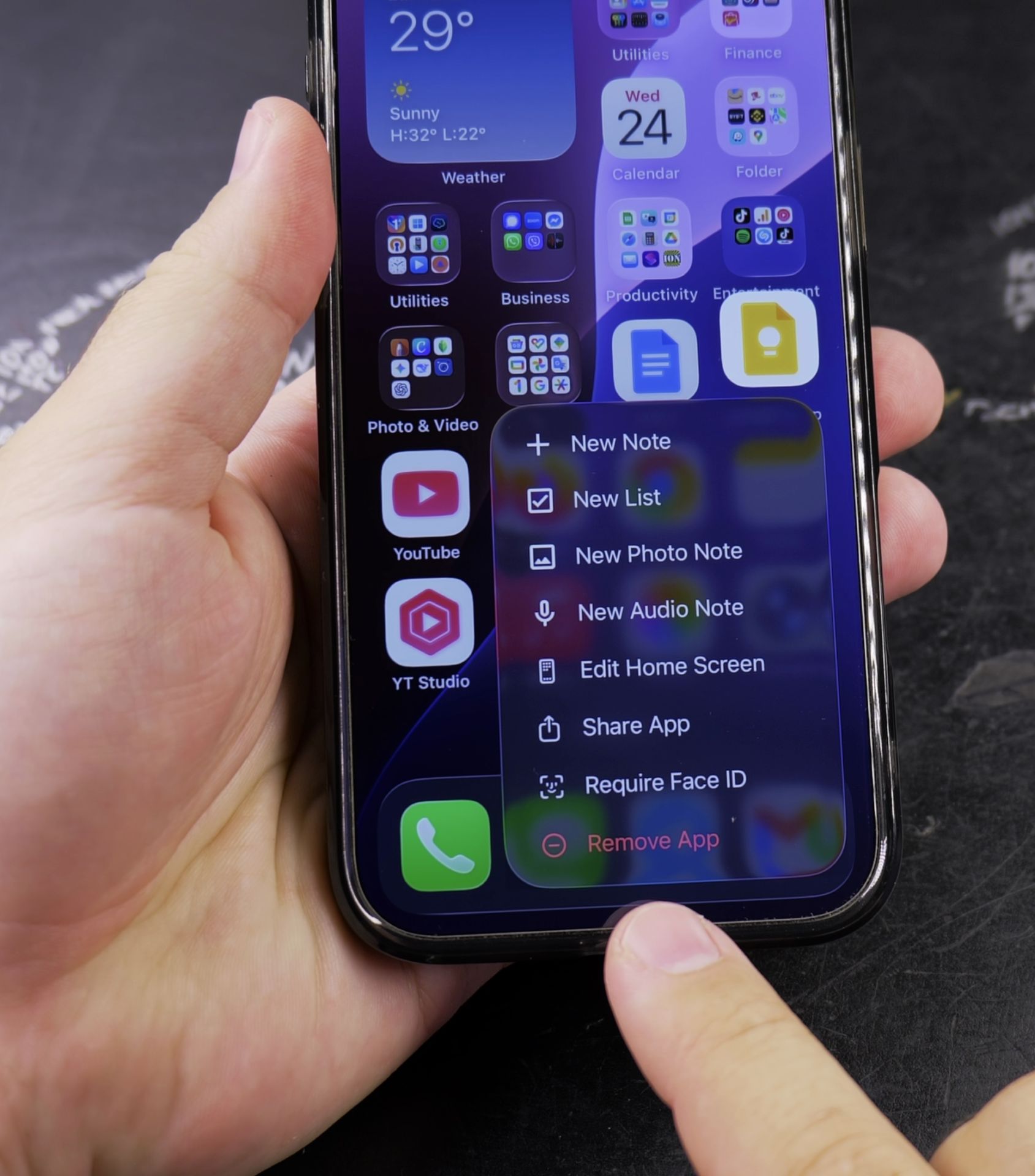
- Press and hold the app icon on your Home Screen
- Tap Remove App from the menu that appears
- Select Delete App to uninstall it completely
- Confirm by tapping Delete
The app will be removed from both your Home Screen and your iPhone’s storage.
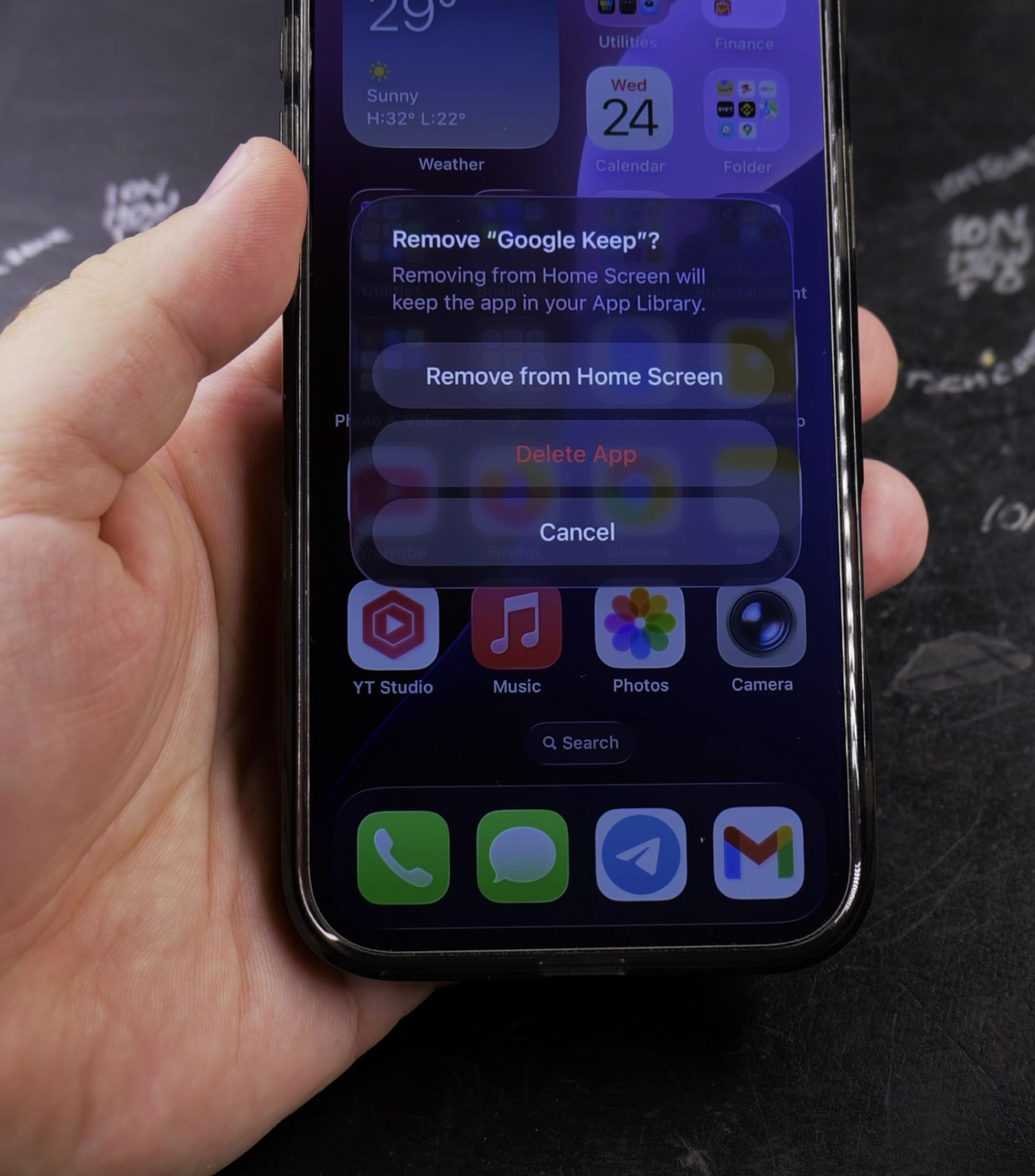
How to Remove Apps From Home Screen Without Deleting
If you want to keep the app but remove it from your Home Screen:
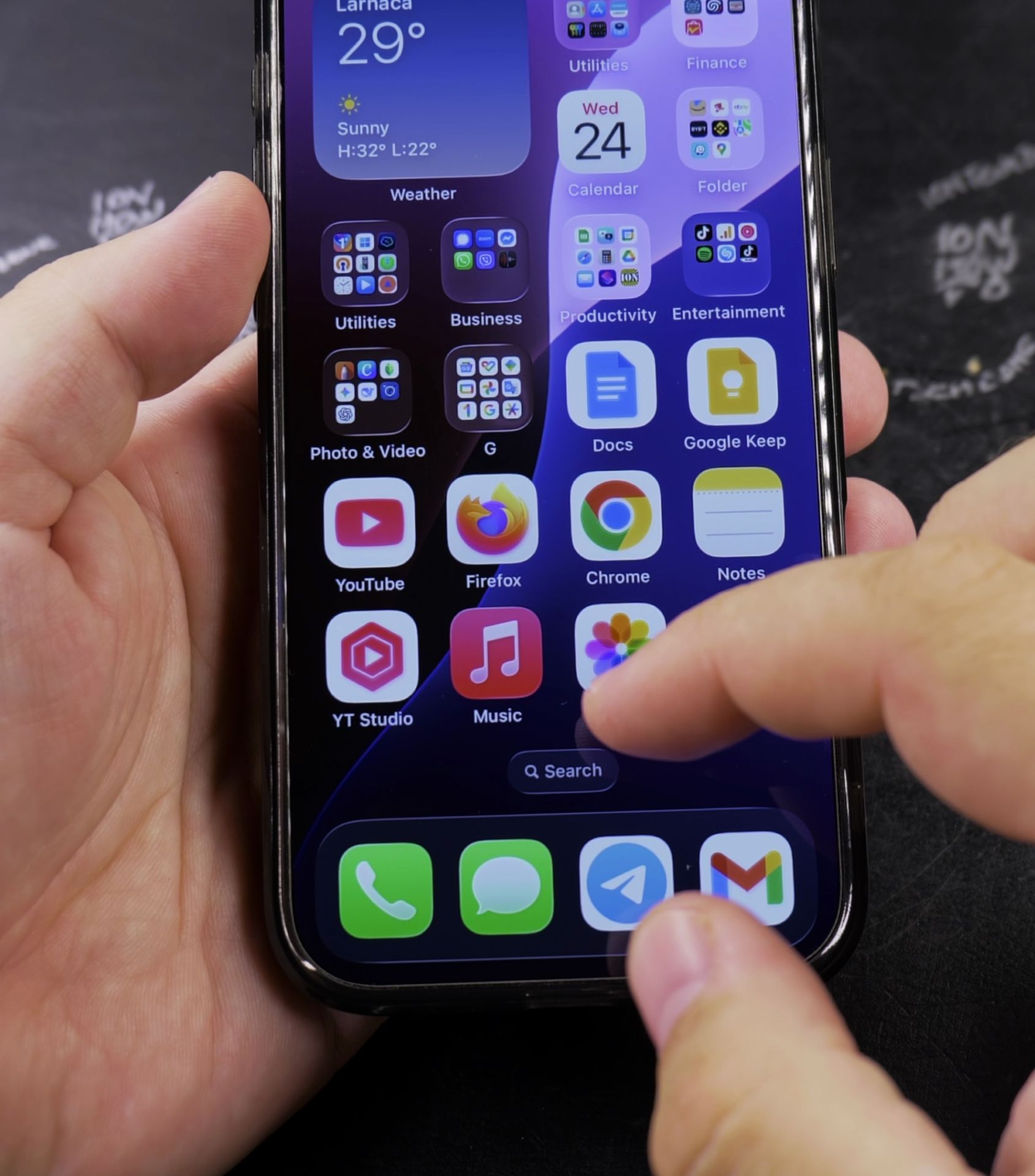
- Press and hold the app icon
- Tap Remove App
- Choose Remove from Home Screen
The app will still be available in your App Library (swipe left past your last Home Screen to find it) but won’t clutter your main screens.
How to Hide Apps on iPhone
For apps you can’t delete (like Apple’s built-in apps):
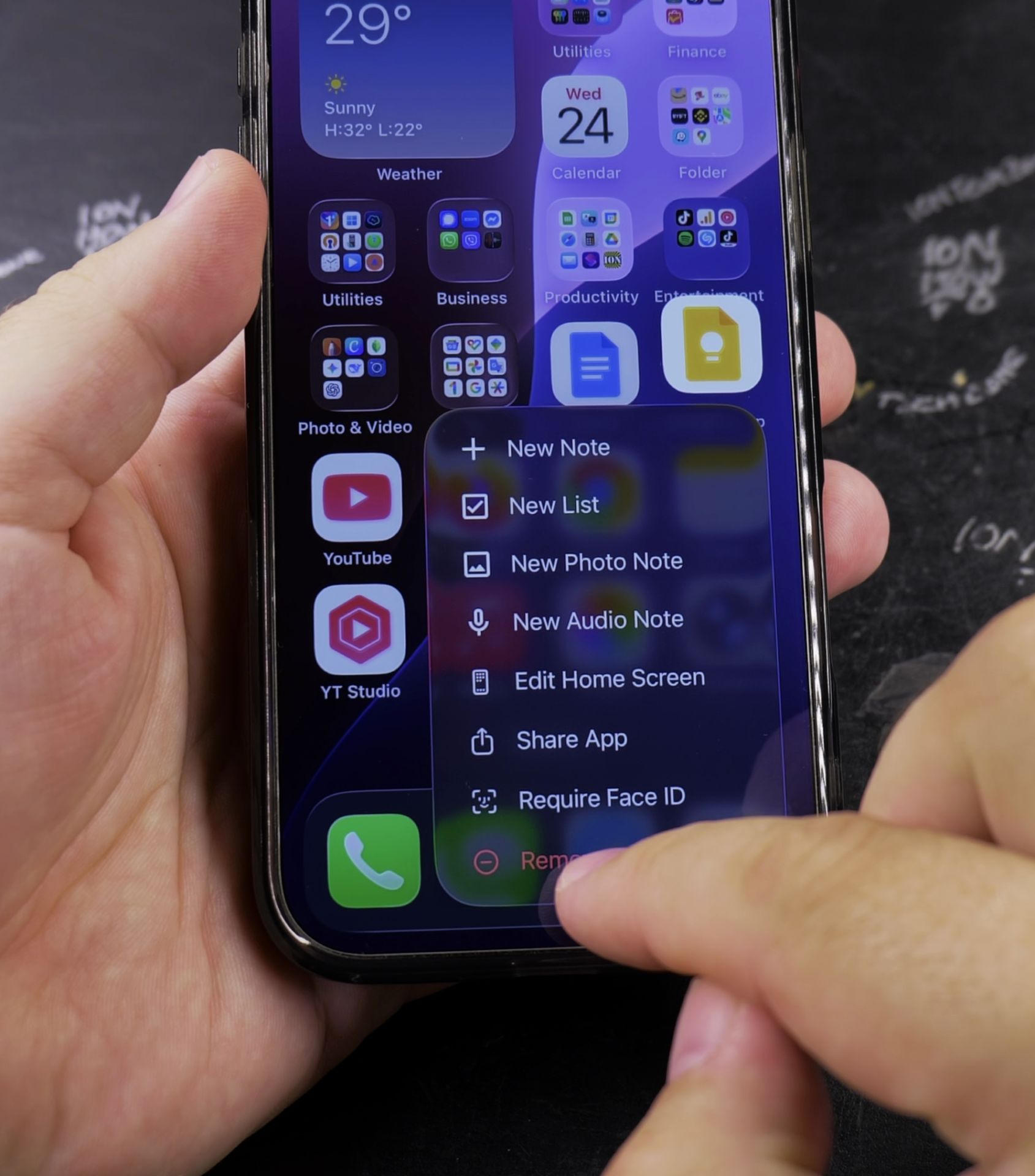
- Press and hold the app icon
- Tap Remove App
- Select Move to App Library
These apps will remain installed but hidden from your Home Screen.
Remove vs Delete: What’s the Difference?
- Remove from Home Screen: App stays installed and accessible in App Library
- Delete App: Completely uninstalls the app and its data from your iPhone
Tips for Organizing Your iPhone Home Screen
- Use folders – Group similar apps together by dragging one app onto another
- Hide less-used apps – Move them to App Library to reduce clutter
- Customize your layout – Press and hold an empty space on Home Screen to enter jiggle mode, then drag apps to rearrange
- Use multiple pages – Spread apps across different Home Screens for better organization
How to Reinstall Deleted Apps
If you change your mind about a deleted app:
- Open the App Store
- Tap your profile icon
- Go to Purchased
- Find the app and tap the download icon
Final Thoughts
If you want to completely delete apps or just tidy up your Home Screen, these methods give you full control over your iPhone’s layout. Remember that removing apps from your Home Screen keeps them accessible in the App Library, while deleting removes them completely.
If you found this guide helpful, let me know in the comments!
Helpful Tips
Take your time and check the screen carefully after each tap so you can confirm the setting changed as expected. If an option appears in a slightly different spot on your device, watch the embedded video above for a closer look.
Related Guides
- How to Add an App Icon Back to the Home Screen on iPhone – If an application icon disappeared from your iPhone Home Screen even though the app is still installed on your device, it is…
- Remove Website Shortcut from iPhone Home Screen – How to Remove Website Shortcuts from iPhone Home Screen iOS 18.5.
- Add Website Shortcut to iPhone Home Screen – How to Add a Website Shortcut to iPhone Home Screen iOS 18.5.
- iPhone How-To Guides – Browse more tutorials and practical guides in this section.


Leave a Reply