

Amazon links
As an Amazon Associate I earn from qualifying purchases:
- iPhone Accessories
- iPhone Charger
- iPhone Cases
- iPhone Screen protector
- iPhone Magsafe
- iPhone Wallet
- iPhone Usb c cable
Learn the fastest ways to select multiple photos in your iPhone’s Photos app. If you want to share, delete, or organize many pictures at once, these methods will save you time.
How to Select Multiple Photos on iPhone Quickly.
Quick Steps and Scenarios Overview
| What You Need to Do | Quick Jump |
|---|---|
| The Basic Selection Method | Jump to Step 1 |
| How to Select Photos in a Row Quickly | Jump to Step 2 |
| How to Select All Photos on iPhone | Jump to Step 3 |
| Selecting Non-Adjacent Photos | Jump to Step 4 |
| Using Search to Group Photos First | Jump to Step 5 |
| Quick Deselecting Tip | Jump to Step 6 |
Demonstrated on iOS 18.4.1 with iPhone 16 Pro Max Titanium Black 256GB (Global Model A3296 – MYWV3ZD/A).
The Basic Selection Method
Here’s how to select multiple photos the standard way:
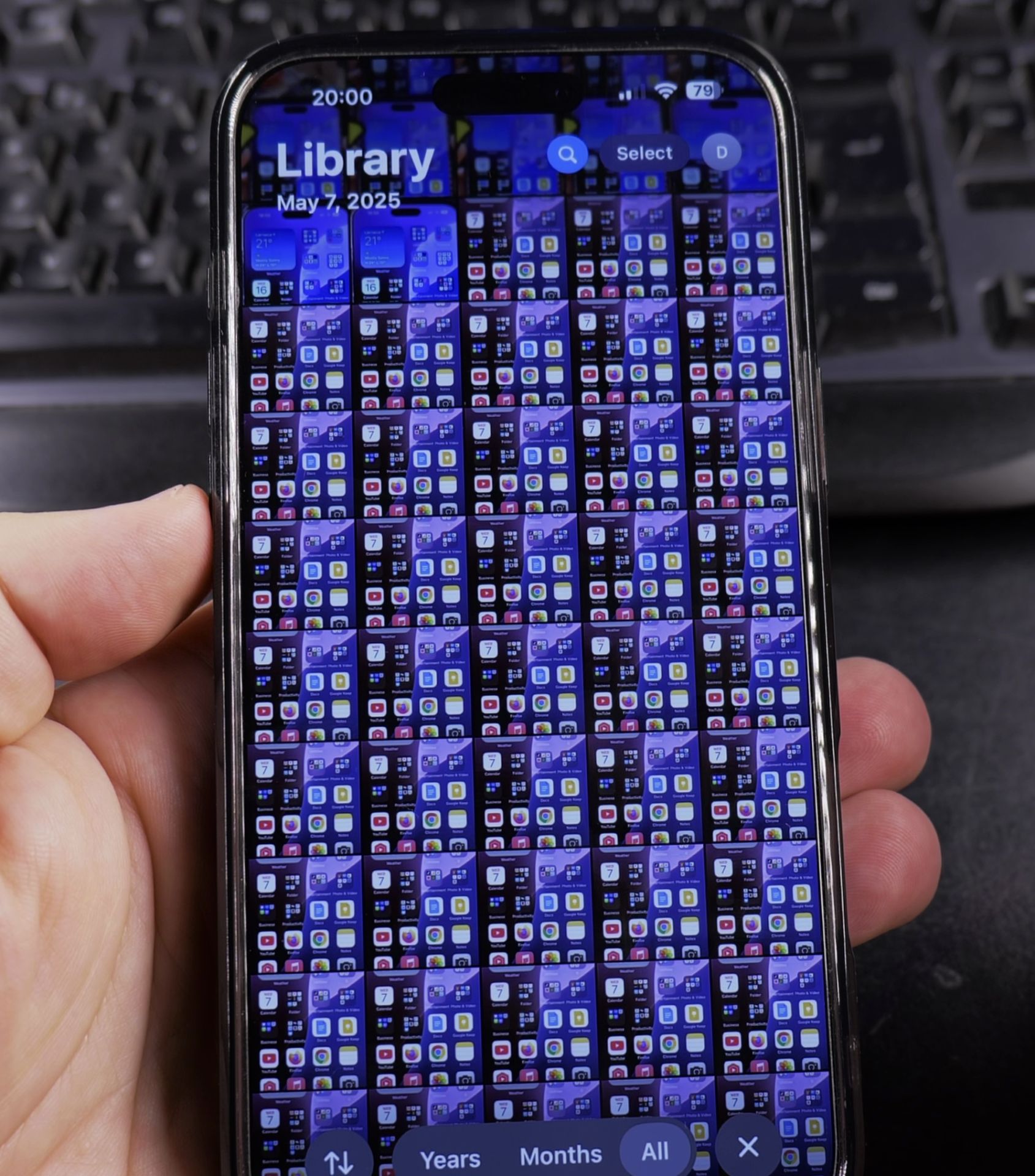
- Open the Photos app and go to the album you want
- Tap Select in the top right corner
- Tap each photo you want to select (they’ll get a blue checkmark)
- When finished, choose what to do (share, delete, etc.)
How to Select Photos in a Row Quickly
For selecting many consecutive photos:
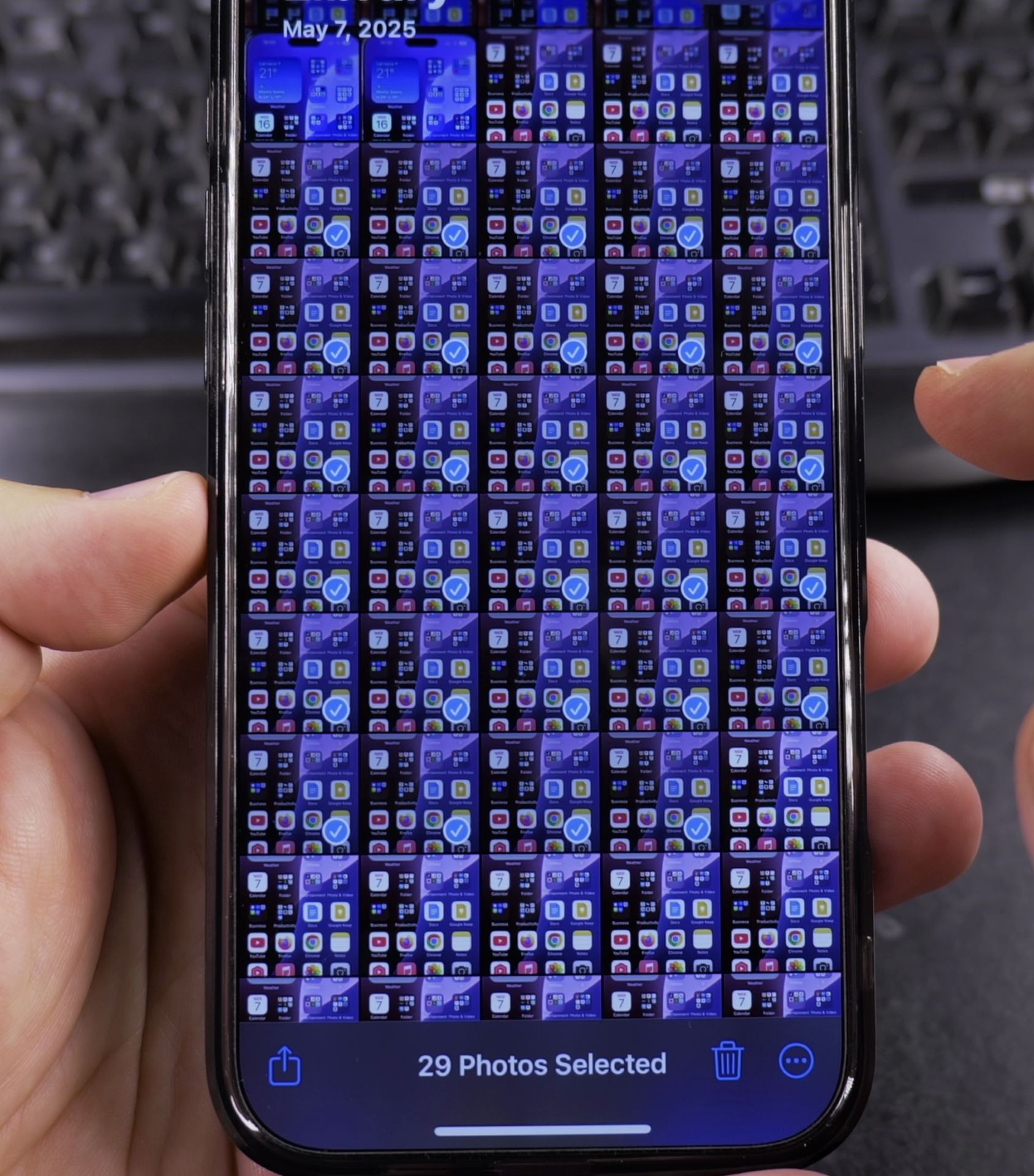
- Tap Select in the top right
- Tap the first photo you want
- Without lifting your finger, drag across the photos you want to select
- Lift your finger when done
This lets you select entire rows or columns in one smooth motion.
How to Select All Photos on iPhone
The “Select All” option appears in some views:
- Open an album or search results
- Tap Select in top right
- If available, tap Select All in the top left
- If not available, use the drag method above
Note: “Select All” only appears in certain views like Recently Added or search results.
Selecting Non-Adjacent Photos
To pick photos that aren’t next to each other:
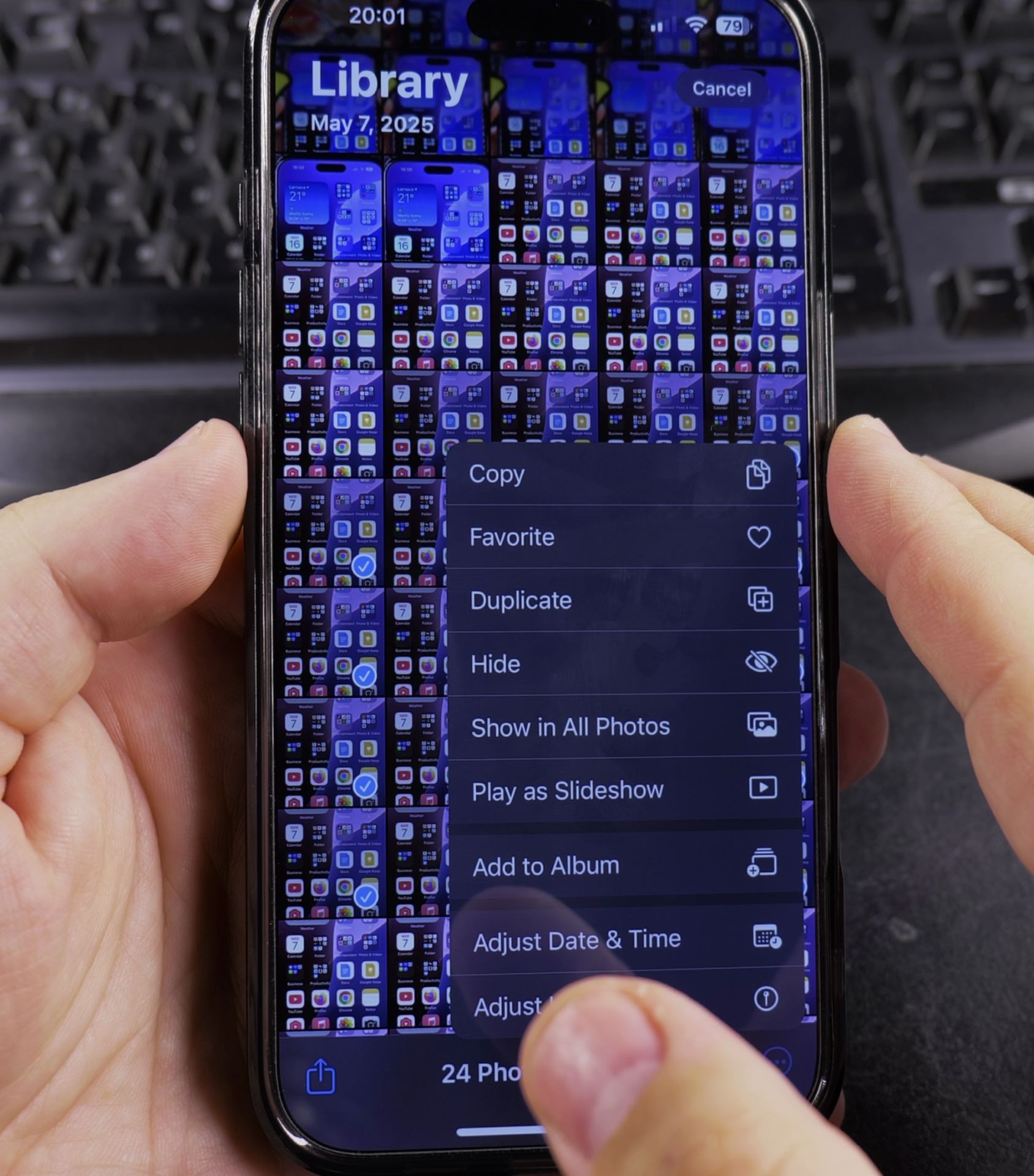
- Tap Select in top right
- Tap each photo you want while holding your iPhone steady
- The photos will stay selected as you scroll
- You can select hundreds this way
Using Search to Group Photos First
If photos are scattered across your library:

- Tap the Search tab in Photos
- Type a keyword like “beach” or “December”
- Now use any selection method above on the grouped results
Quick Deselecting Tip
Made a mistake? Here’s how to fix it:
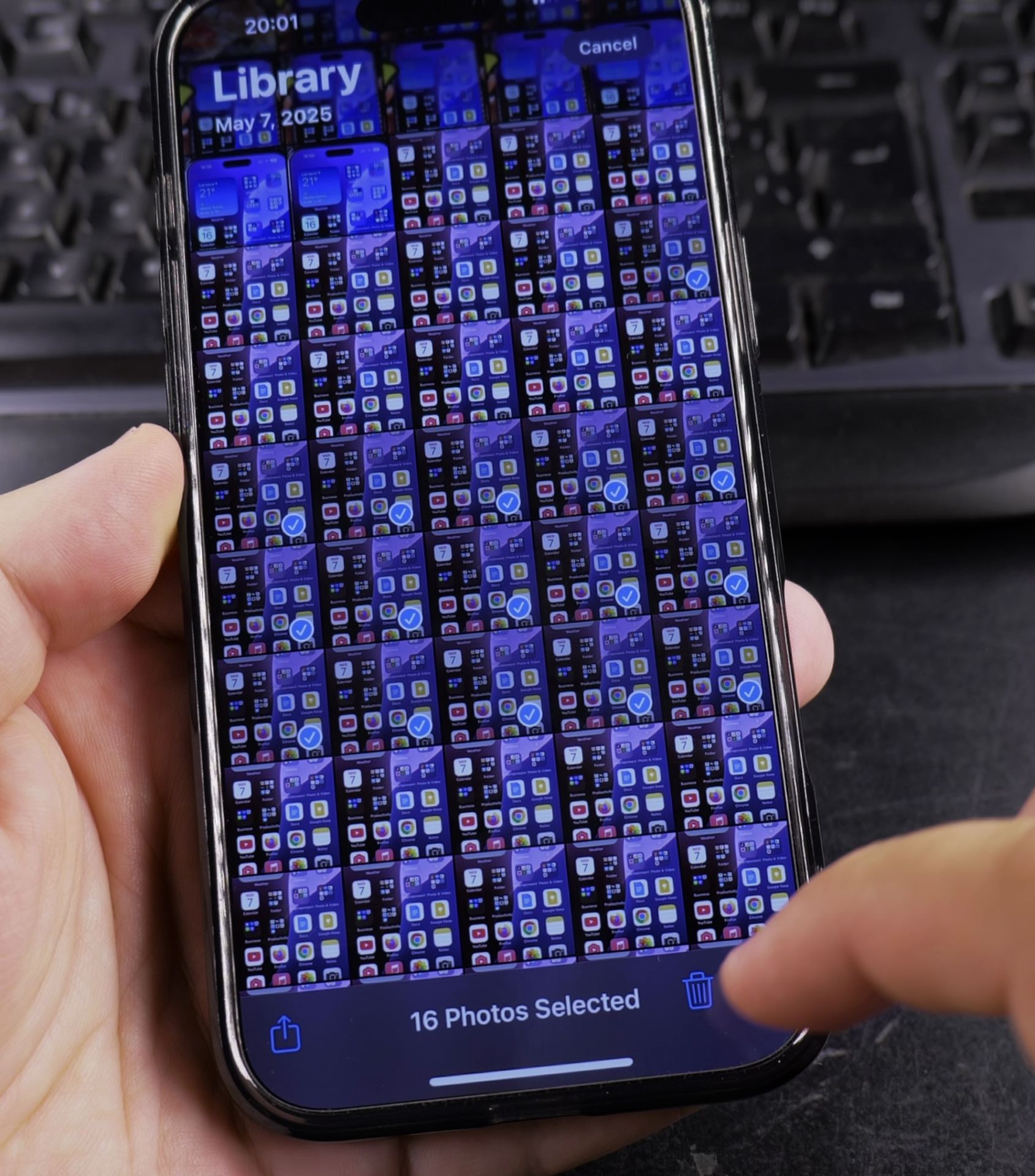
- To deselect one photo: Tap it again
- To deselect all: Tap Cancel in top left
Why These Methods Matter
Selecting photos quickly helps when you want to:
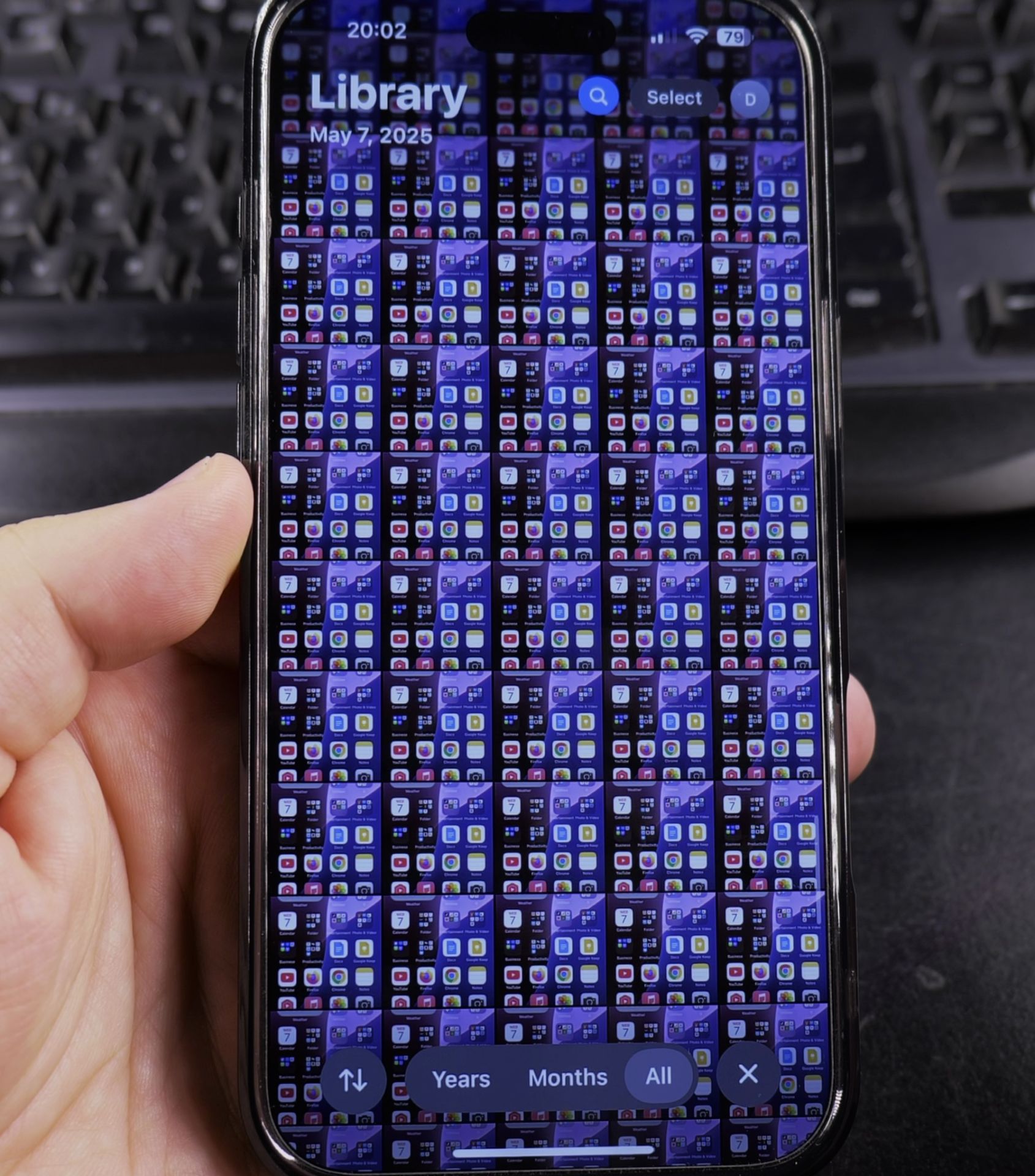
- Share multiple vacation pictures at once
- Delete hundreds of old screenshots
- Create albums from existing photos
- Free up storage space by removing duplicates
Final Thoughts
Now you know all the best ways to select multiple photos on iPhone. The drag-to-select method is especially useful for choosing large numbers of pictures quickly. Remember that using search first can help gather similar photos before selecting them.
If you found these tips helpful, let me know in the comments!
Helpful Tips
Take your time and check the screen carefully after each tap so you can confirm the setting changed as expected. If an option appears in a slightly different spot on your device, watch the embedded video above for a closer look.
Related Guides
- Delete Multiple Photos on iPhone – How to Delete Multiple Photos on iPhone Fast.
- iPhone How-To Guides – Browse more tutorials and practical guides in this section.


Leave a Reply