
Amazon links
As an Amazon Associate I earn from qualifying purchases:
- iPhone Accessories
- iPhone Charger
- iPhone Cases
- iPhone Screen protector
- iPhone Magsafe
- iPhone Wallet
- iPhone Usb c cable
Learn how to use the iPhone Measure app to measure objects accurately. The Measure app turns your iPhone into a handy tool for checking lengths, heights, and distances. I’ll show you the steps to get the most out of this feature.
Quick Steps and Scenarios Overview
| What You Need to Do | Quick Jump |
|---|---|
| How to Open the Measure App | Jump to Step 1 |
| Find the app | Jump to Step 1 |
| Open it – Tap to Open | Jump to Step 2 |
| Allow camera access – The app needs | Jump to Step 3 |
| How to Measure Length or Distance | Jump to Step 2 |
| Point your camera – Aim | Jump to Step 4 |
Demonstrated on iOS 18.5 with iPhone 16 Pro Max Titanium Black 256 GB version Global model A3296 – MYWV3ZD/A
If you need to measure a room, furniture, or any object, the iPhone Measure app can help. You’ll see how to use augmented reality (AR) to get precise measurements. Learn how to measure height, width, and even rectangular shapes easily.
Learn how to save your measurements and tips for better accuracy. If you’ve been looking for a way to measure without a tape measure, this guide will help. The iPhone Measure app is useful for DIY projects, home improvement, or quick measurements on the go.
How to Open the Measure App
1. Find the app
Find the app – Look for the Measure app on your iPhone (it has a ruler icon).
2. Open it – Tap to Open
Open it – Tap to Open the app.
3. Allow camera access – The app needs
Allow camera access – The app needs your camera to work, so grant permission if prompted.
How to Measure Length or Distance
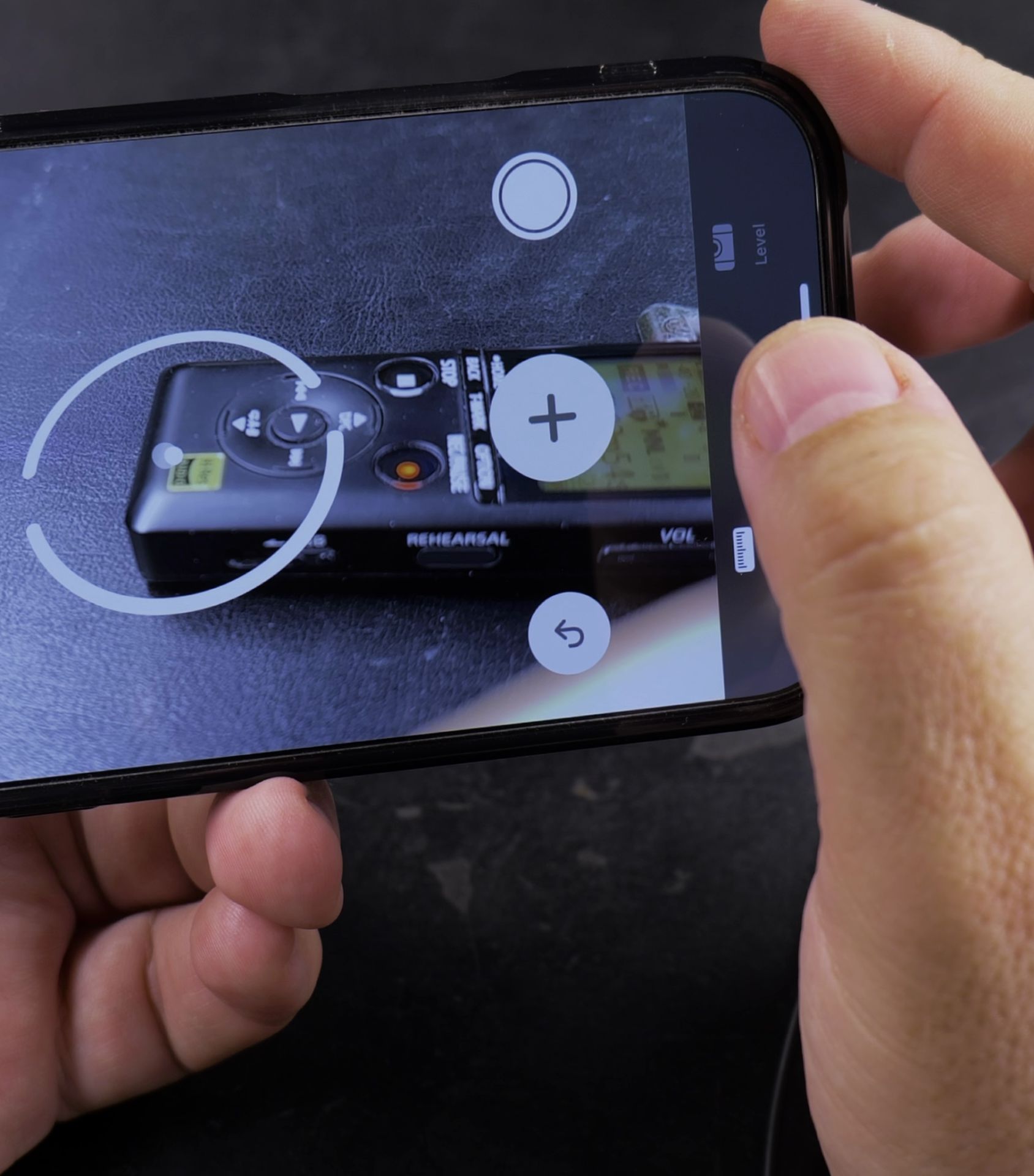
4. Point your camera – Aim
Point your camera – Aim at the object you want to measure.
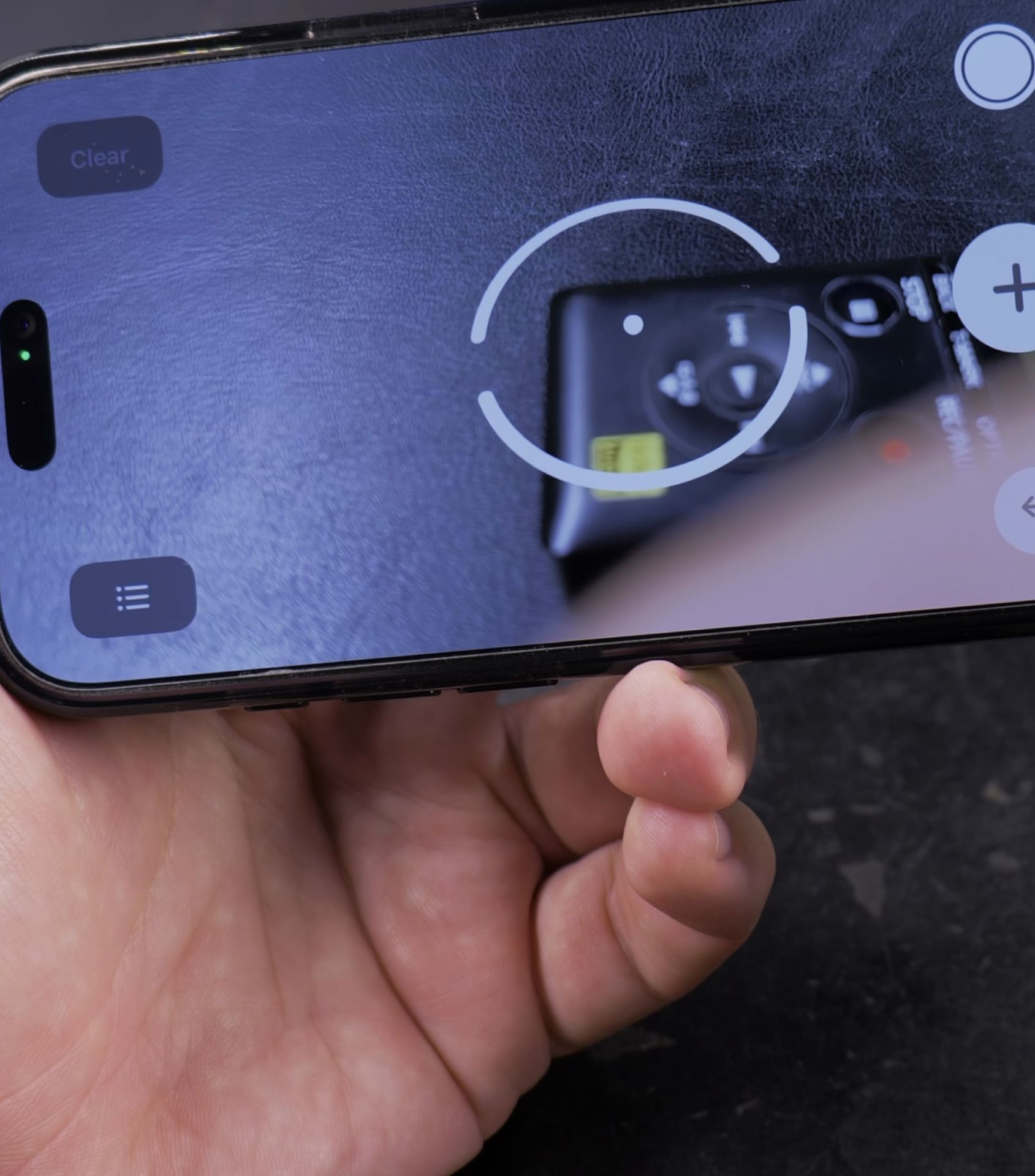
5. Tap the (+) button – Place
Tap the (+) button – Place a starting point where the measurement should begin.
6. Move your phone – Drag the point
Move your phone – Drag the point to the end of the object.
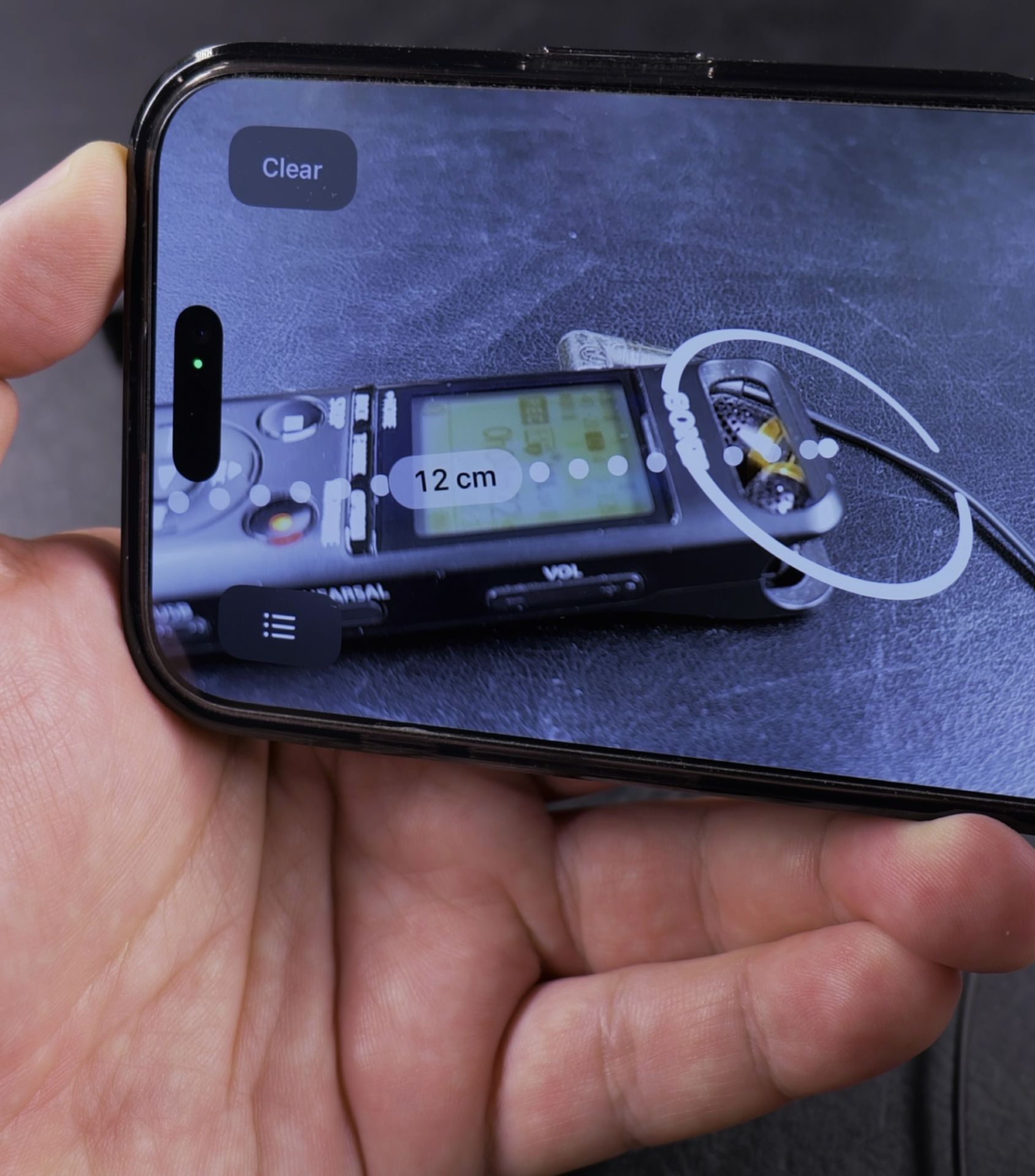
7. Tap (+) again – This sets
Tap (+) again – This sets the endpoint and shows the measurement.
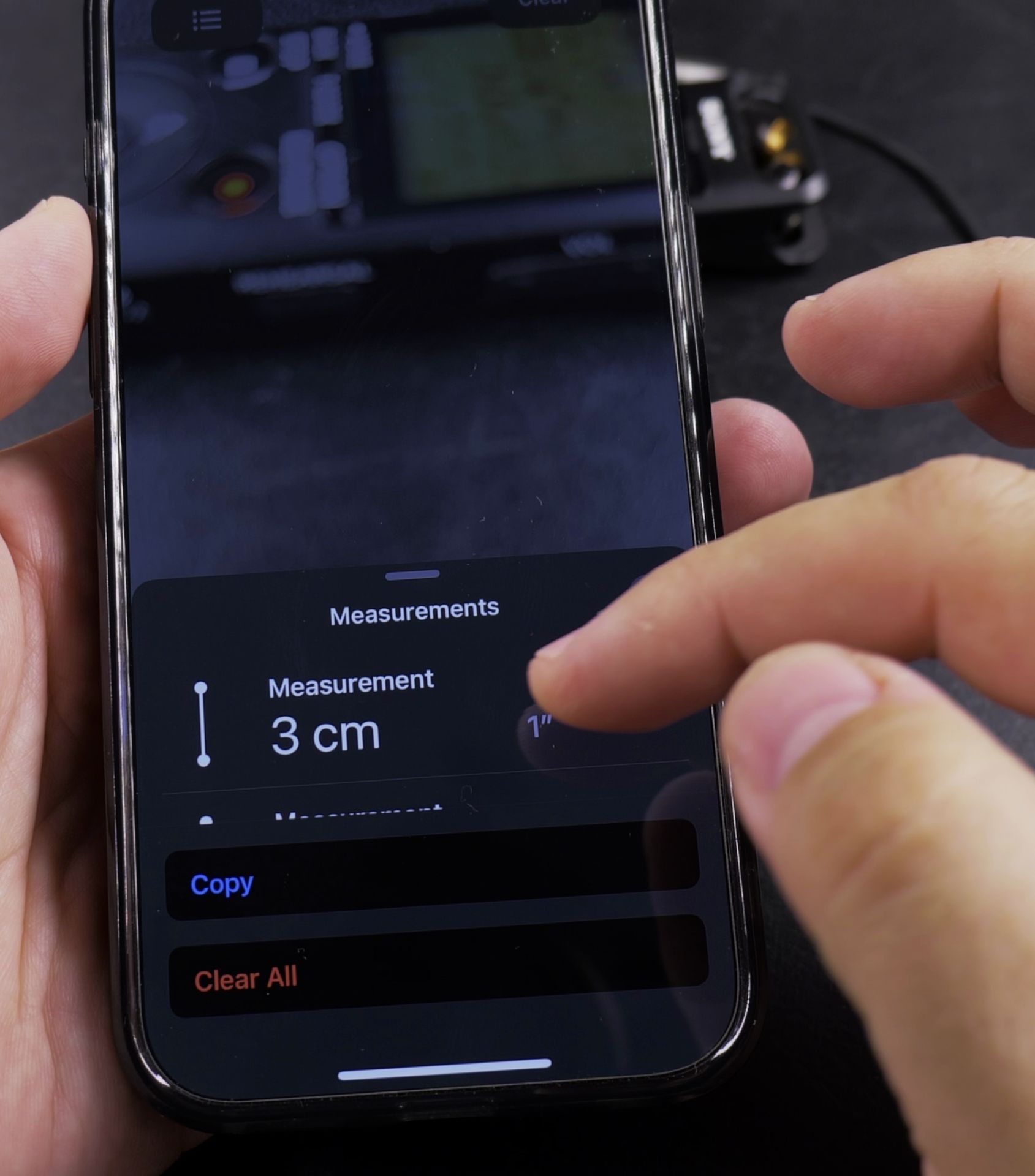
The measurement will appear on the screen in inches or centimeters, depending on your settings.
How to Measure a Rectangle
If you’re measuring something rectangular (like a table or picture frame), the app can detect the shape and measure it automatically.
- Position your iPhone – Point the camera at the rectangular object.
- Wait for a yellow outline – The app will detect the shape.
- Tap the (+) button – The app will display the length and width.
How to Measure Height
8. Point your camera – Aim
Point your camera – Aim at the base of the object (like a person or door).
9. Wait for the app to detect
Wait for the app to detect – A line will appear from the ground up.
10. View the height – The measurement
View the height – The measurement will show automatically.
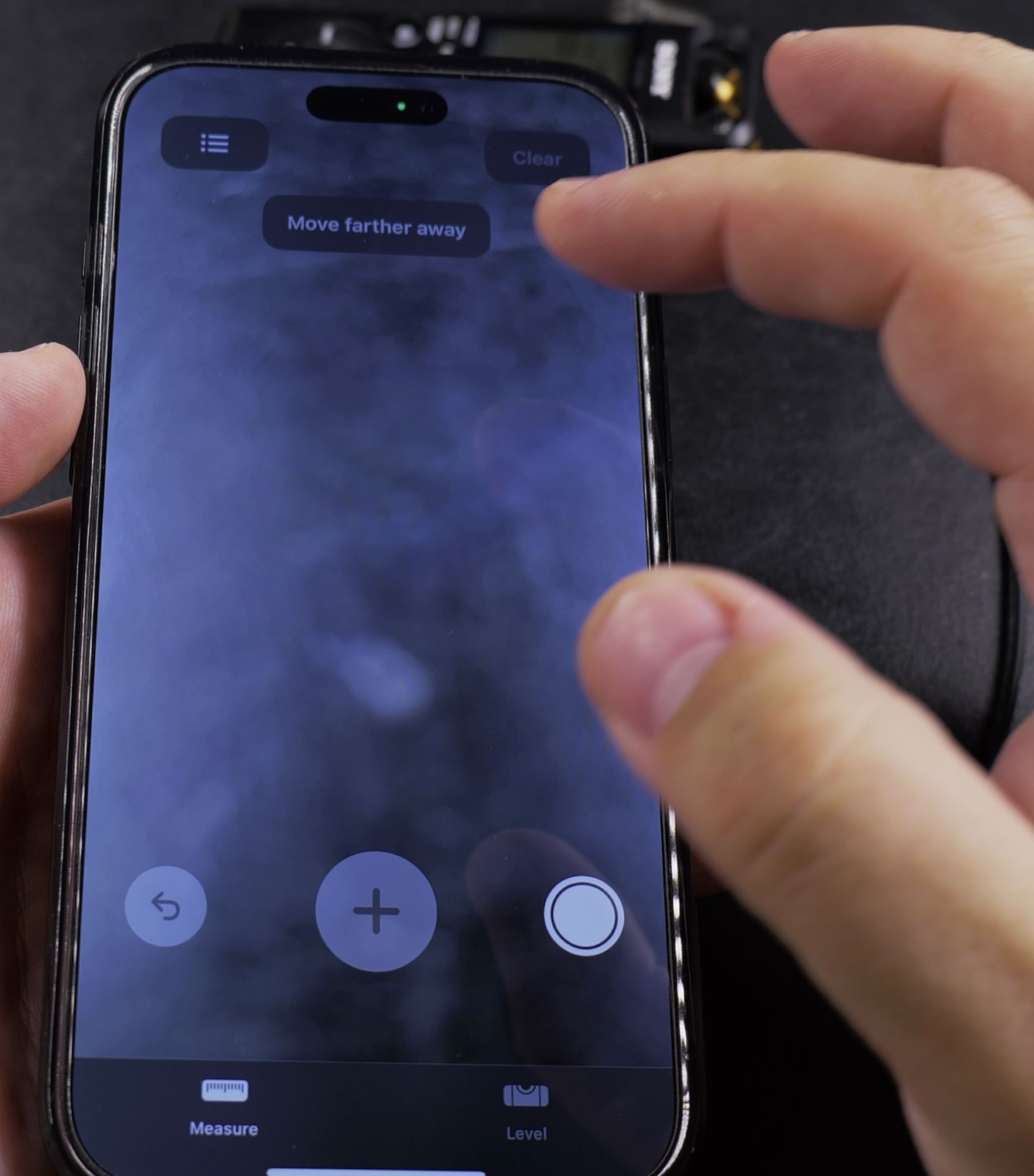
Tips for Better Accuracy
- Use good lighting – Dim light can make measurements less precise.
- Avoid shaky hands – Hold your iPhone steady for the best results.
- Move slowly – Let the app detect surfaces properly before measuring.
- Measure twice – Double-check for consistency.
How to Save Measurements
11. Take a screenshot – Press the Side
Take a screenshot – Press the Side + Volume Up buttons.
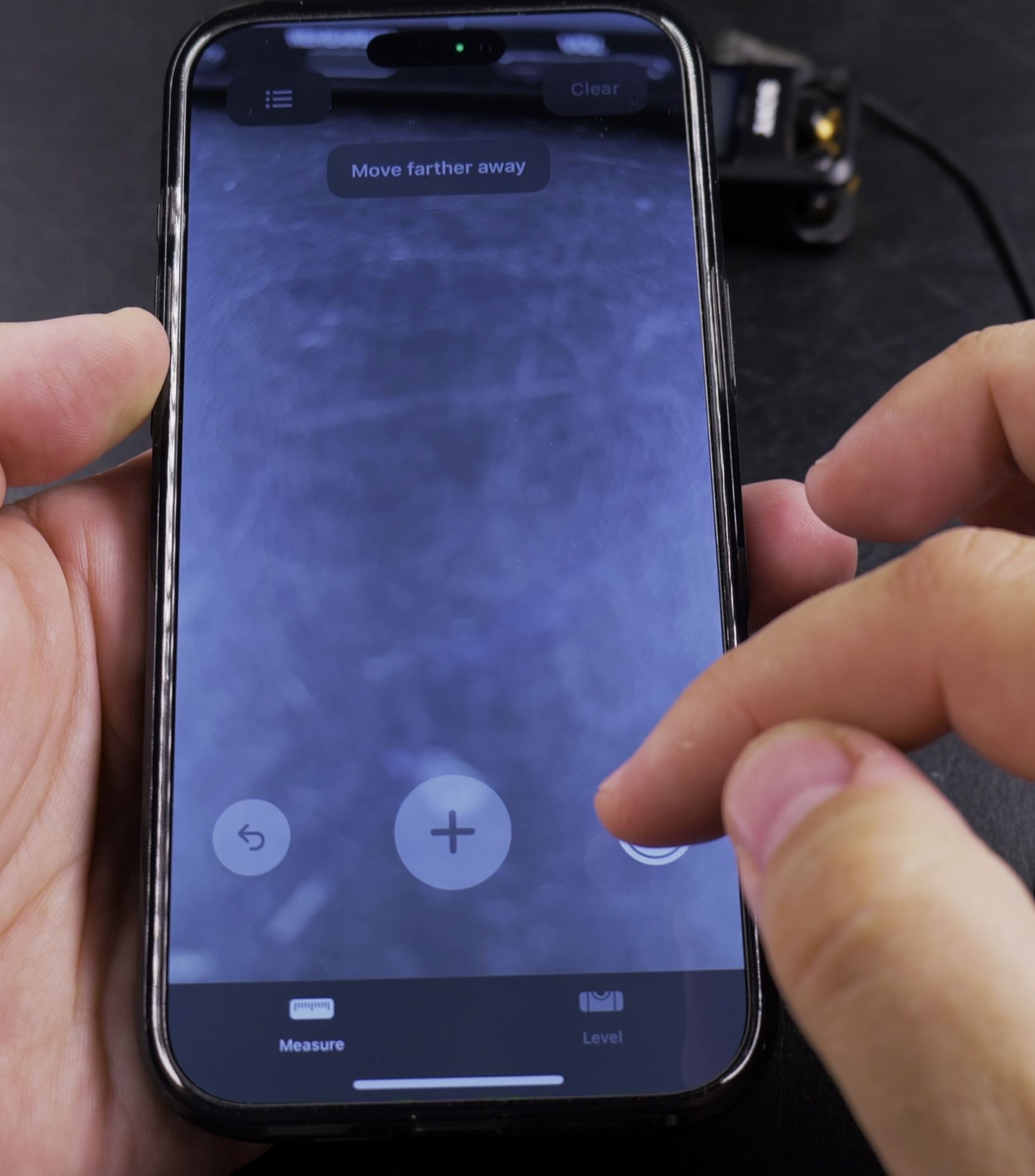
12. Use the Notes app – Open Notes
Use the Notes app – Open Notes, create a new note, and paste the screenshot.
13. Add labels – Write down what
Add labels – Write down what the measurement is for.
Final Thoughts
The iPhone Measure app is a great tool for quick measurements without a tape measure. It’s not perfect for super precise tasks, but it works well for everyday use. Try it out next time you need to check a size!
Need more help? Drop a comment below, and I’ll do my best to answer. Happy measuring!
Helpful Tips
Take your time and check the screen carefully after each tap so you can confirm the setting changed as expected. If an option appears in a slightly different spot on your device, watch the embedded video above for a closer look.
Related Guides
- iPhone How-To Guides – Browse more tutorials and practical guides in this section.


Leave a Reply