
Amazon links
As an Amazon Associate I earn from qualifying purchases:
- iPhone Accessories
- iPhone Charger
- iPhone Cases
- iPhone Screen protector
- iPhone Magsafe
- iPhone Wallet
- iPhone Usb c cable
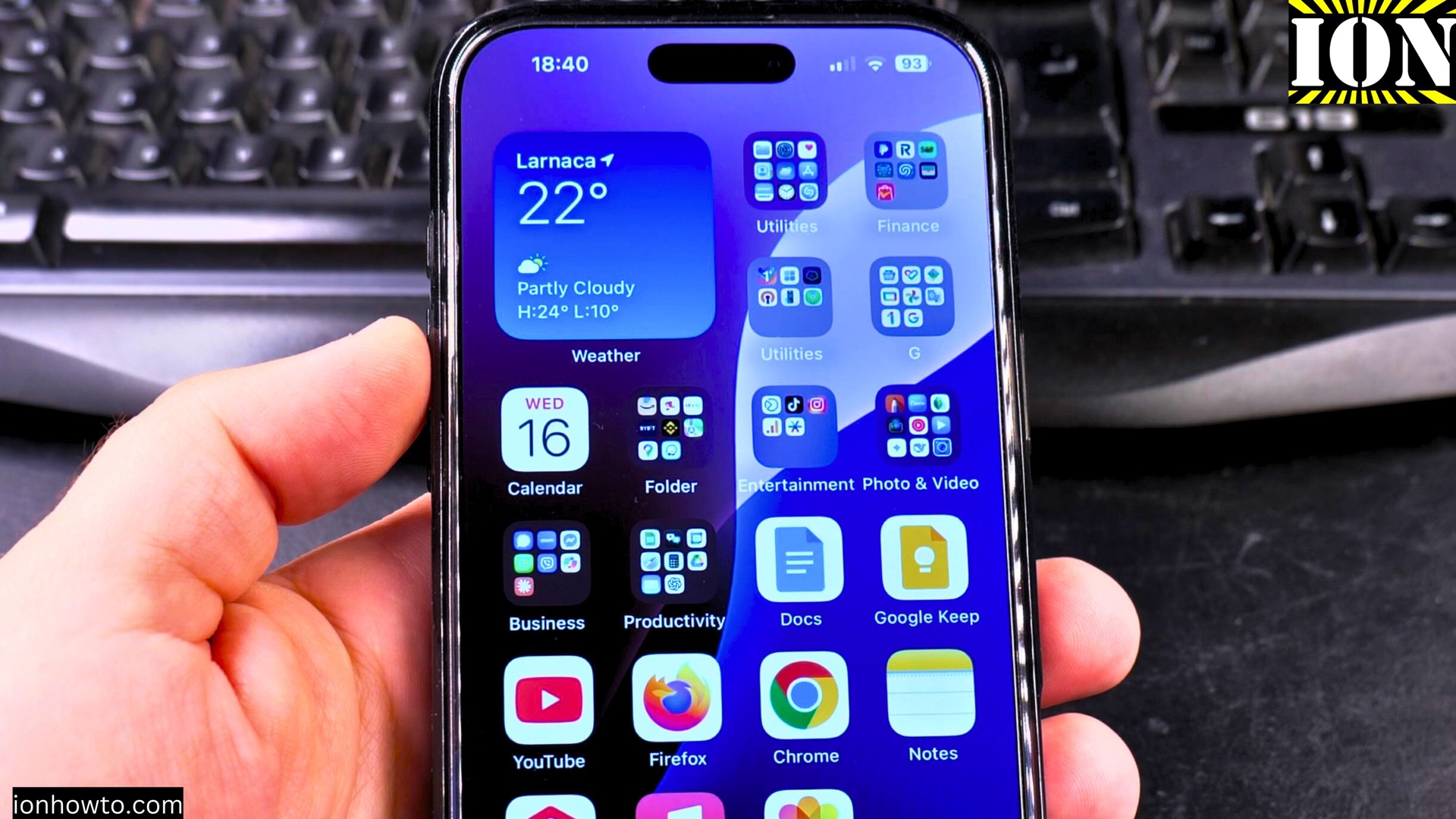
Learn how to remove website shortcuts from your iPhone 16 Pro Max home screen in iOS 18.5. If you’ve added web shortcuts you no longer use, I’ll show you how to clean them up quickly.
How to Remove Website Shortcut From iPhone Home Screen.
Quick Steps and Scenarios Overview
| What You Need to Do | Quick Jump |
|---|---|
| Steps to Remove Website Shortcuts | Jump to Step 1 |
| How to Remove Multiple Shortcuts | Jump to Step 2 |
| What You Should Know | Jump to Step 3 |
| How to Re-add a Shortcut Later | Jump to Step 4 |
| Open the website in Safari | Jump to Step 1 |
| Tap the Share button | Jump to Step 2 |
Demonstrated on iOS 18.5 with iPhone 16 Pro Max Titanium Black 256 GB version Global model A3296 – MYWV3ZD/A
Steps to Remove Website Shortcuts
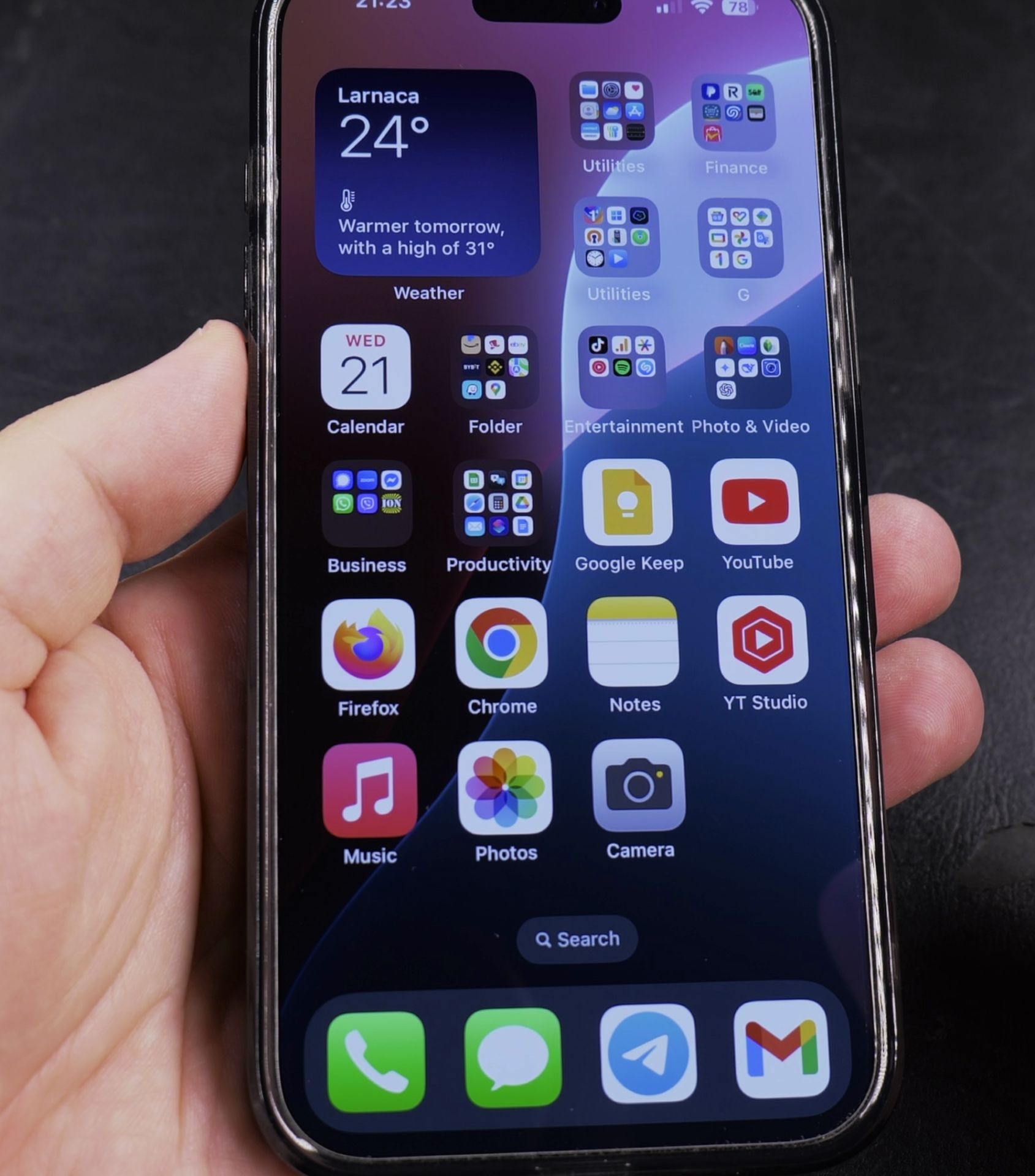
1. Find the Shortcut on Your Home Screen
- Unlock your iPhone
- Go to the home screen page containing the website shortcut
- Find the specific web shortcut you want to remove
2. Enter Edit Mode
- Press and hold the website shortcut icon
- Wait for the quick action menu to appear
- Select Remove Shortcut
3. Confirm Deletion
- Tap Remove in the confirmation pop-up
- The shortcut will immediately disappear from your home screen
How to Remove Multiple Shortcuts
1. Enter Jiggle Mode
- Press and hold any empty space on your home screen
- Wait for icons to start jiggling
- Tap the minus (-) icon on each shortcut you want to remove
2. Delete Shortcuts
- Select Remove Shortcut for each one
- Press your home button or swipe up to exit edit mode when finished
What You Should Know
- Removing a shortcut doesn’t delete the actual website
- You can always add the shortcut back later
- This only removes the icon from your home screen
- Your browsing history and bookmarks remain unaffected
How to Re-add a Shortcut Later
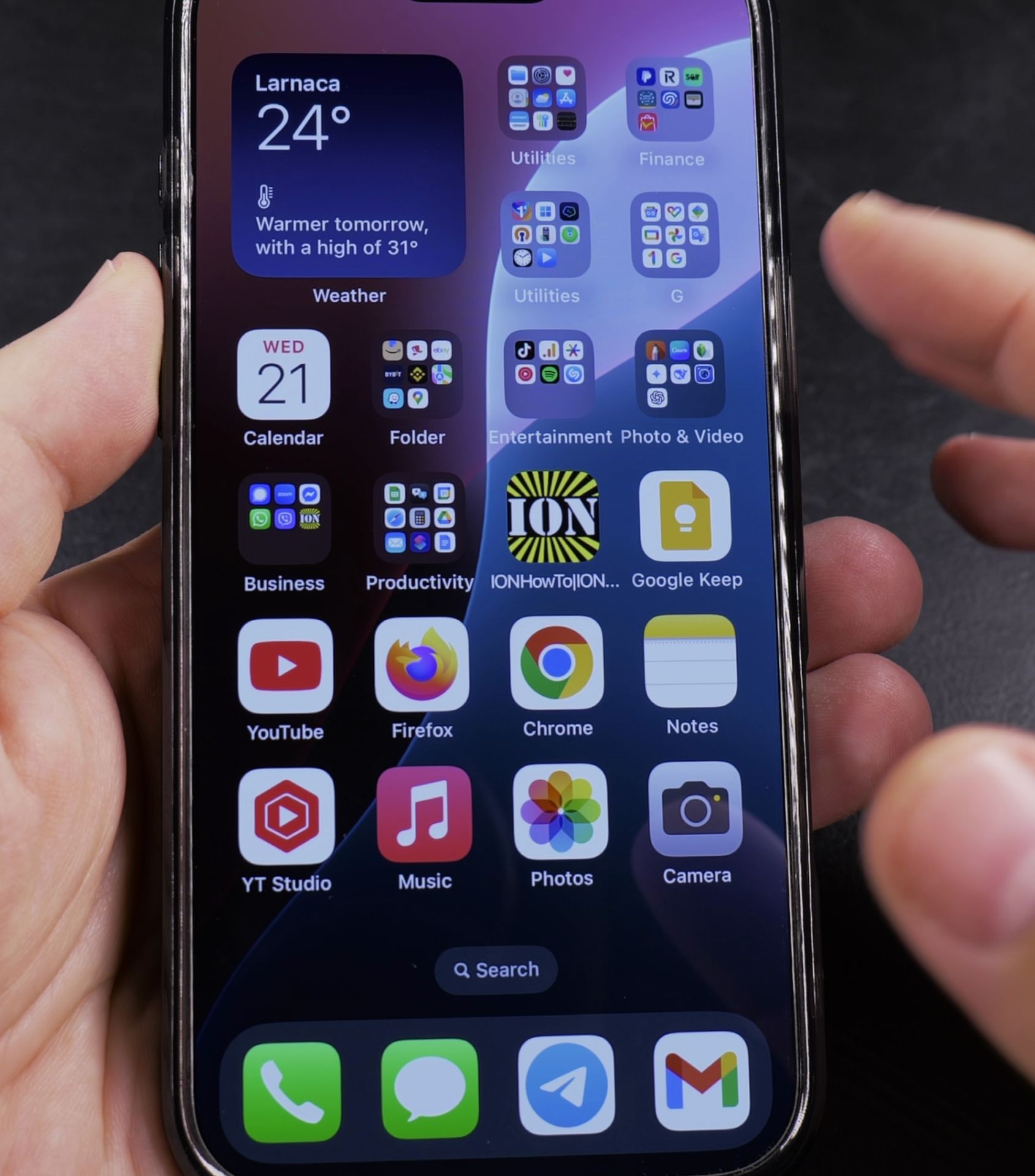
1. Open the website in Safari
Open the website in Safari.
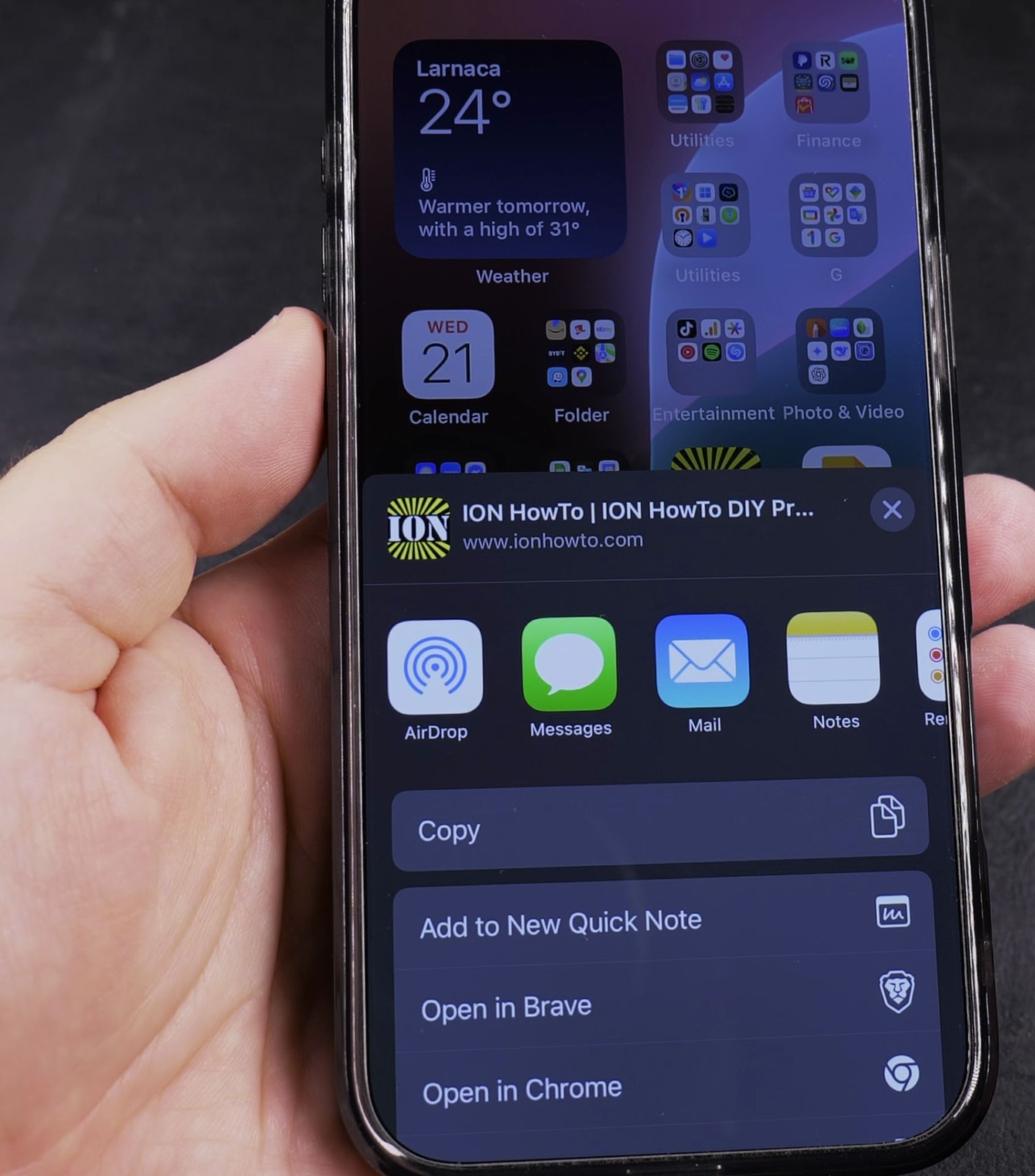
2. Tap the Share button
Tap the Share button.
3. Select “Add to Home Screen”
Select “Add to Home Screen”.
4. Customize the name if needed
Customize the name if needed.
5. Tap Add
Tap Add.
Tips for Managing Shortcuts
- Organize similar shortcuts into folders
- Keep frequently used web apps on your first home screen
- Review your shortcuts monthly to remove unused ones
- Consider replacing shortcuts with Safari bookmarks for less-cluttered access
That’s all there is to it! Now you can keep your iPhone home screen clean and organized by removing website shortcuts you no longer need. If you found this guide helpful, you might want to check out our other iOS organization tips.
Helpful Tips
Take your time and check the screen carefully after each tap so you can confirm the setting changed as expected. If an option appears in a slightly different spot on your device, watch the embedded video above for a closer look.
Related Guides
- iPhone How to Show App Labels Customize Home Screen – If the names beneath your iPhone app icons disappeared after updating, your icons were switched to the large view.
- How to Add an App Icon Back to the Home Screen on iPhone – If an application icon disappeared from your iPhone Home Screen even though the app is still installed on your device, it is…
- Add Apps to iPhone Home Screen – How to Add Apps to Your iPhone Home Screen.
- iPhone How-To Guides – Browse more tutorials and practical guides in this section.


Leave a Reply