
Learn how to switch your Android phone to charging-only mode when connected via USB. I’ll show you how to prevent file transfers while keeping charging functionality intact.
Amazon links
As an Amazon Associate I earn from qualifying purchases:
- Phone Cases
- Mobile Tripods
- Usb-c charger
- Usb-c cable
- Docking stations
- Wireless car chargers
- Wireless charger stand
- SIM card removal tool
- SIM card holder
Quick Steps and Scenarios Overview
| What You Need to Do | Quick Jump |
|---|---|
| Why Disable USB File Transfer? | Jump to Step 1 |
| How to Disable File Transfer Mode | Jump to Step 2 |
| How to Set Default USB Behavior | Jump to Step 3 |
| Verifying the Setting Worked | Jump to Step 4 |
| Security Considerations | Jump to Step 5 |
Demonstrated on Sony Xperia 1V running Android 15
Why Disable USB File Transfer?
Turning off data transfer helps:
- Protect your files on public computers
- Prevent malware from infected PCs
- Charge safely at public stations
- Avoid accidental file access by others
How to Disable File Transfer Mode
Step 1: Connect Your Phone via USB
- Use a USB cable to connect to a computer
- Wait for the USB connection notification
Step 2: Change to Charging-Only Mode
- Swipe down from the top of your screen
- Look for the “Charging this device via USB” notification
- Tap the notification to view USB options
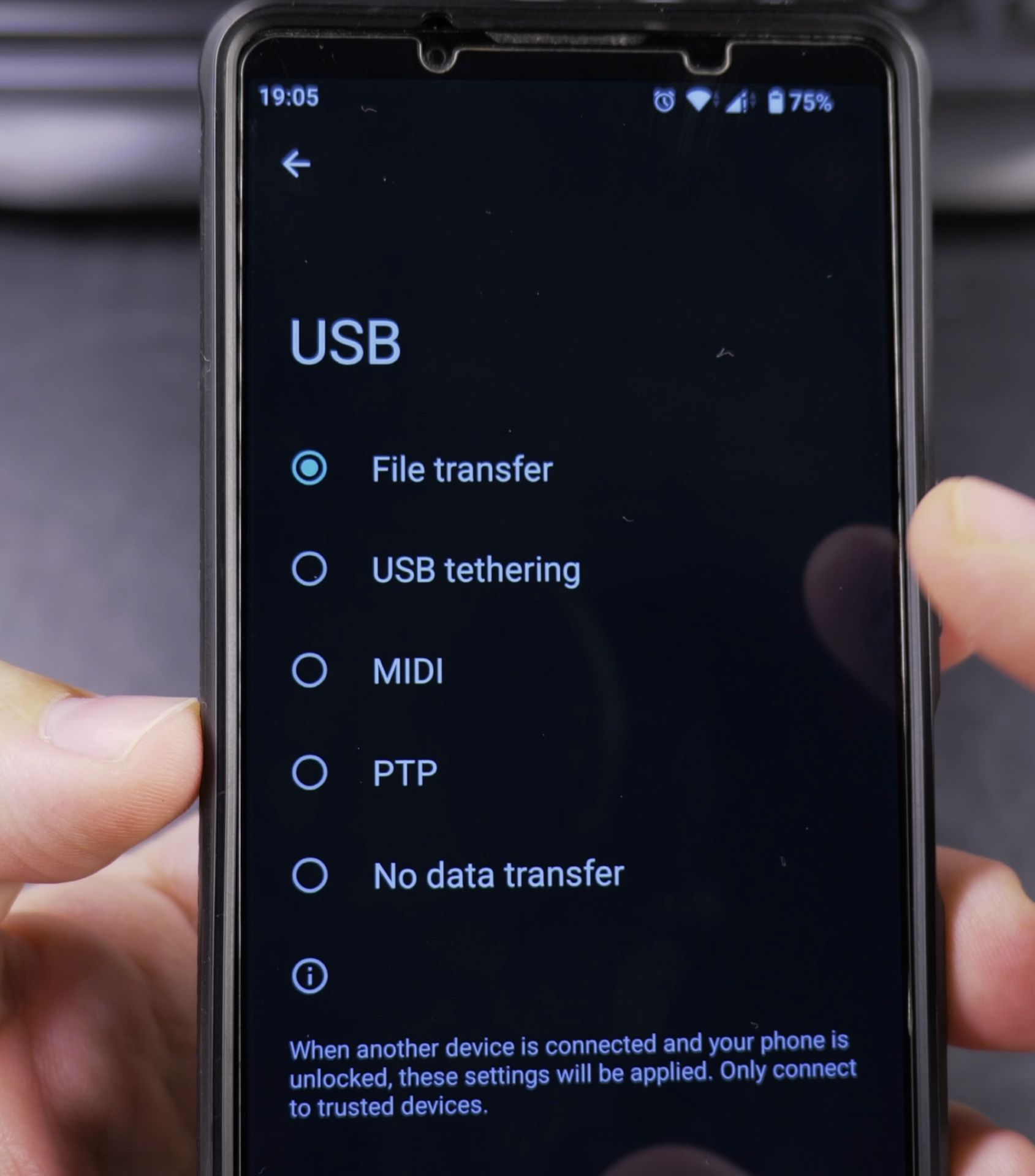
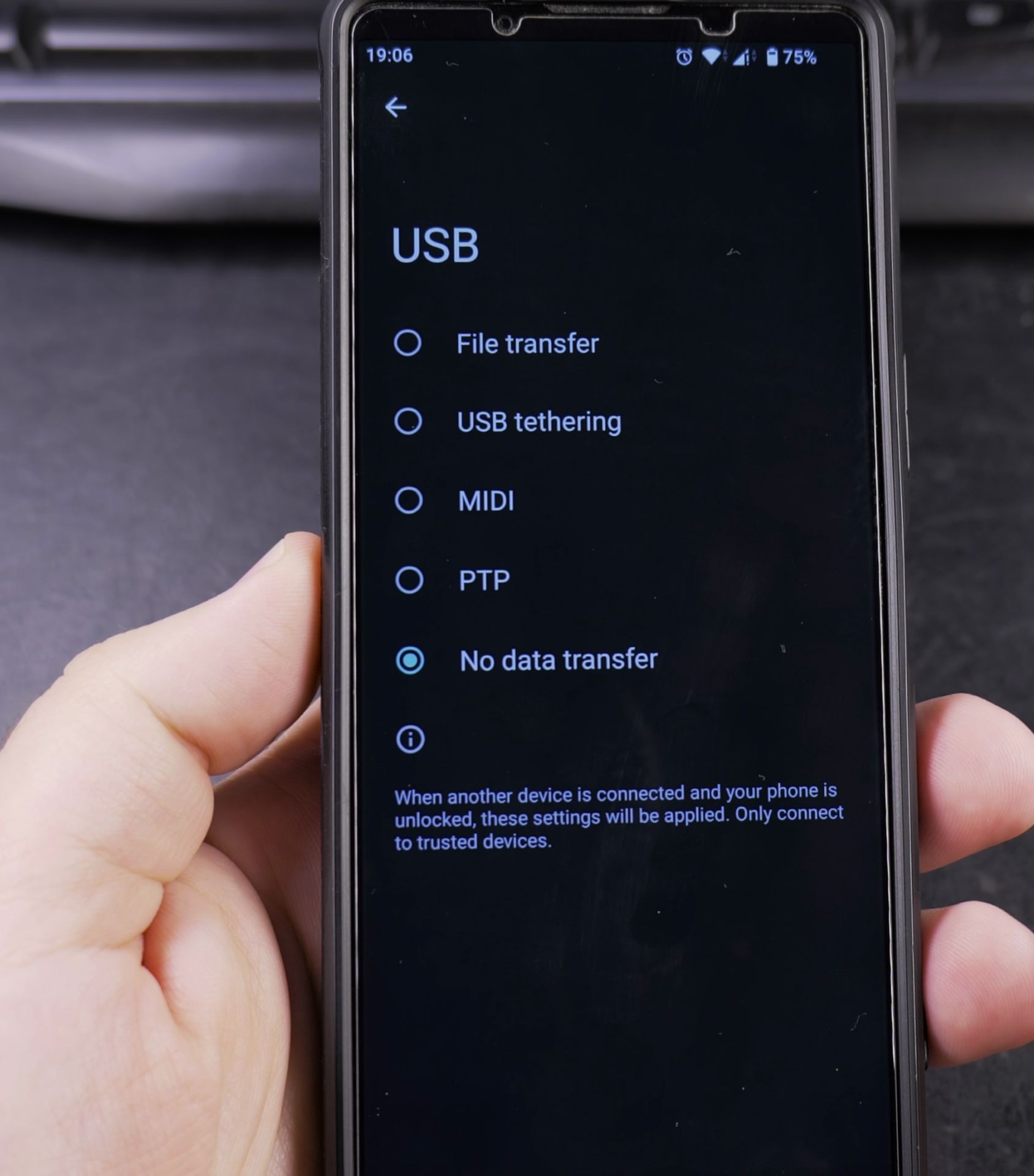
- Select “No data transfer” or “Charge only”
Alternative method:
- Go to Settings > Connected devices
- Tap “USB”
- Choose “No data transfer”
How to Set Default USB Behavior
For permanent charging-only mode:
- Enable Developer options (tap Build Number 7 times in About phone)
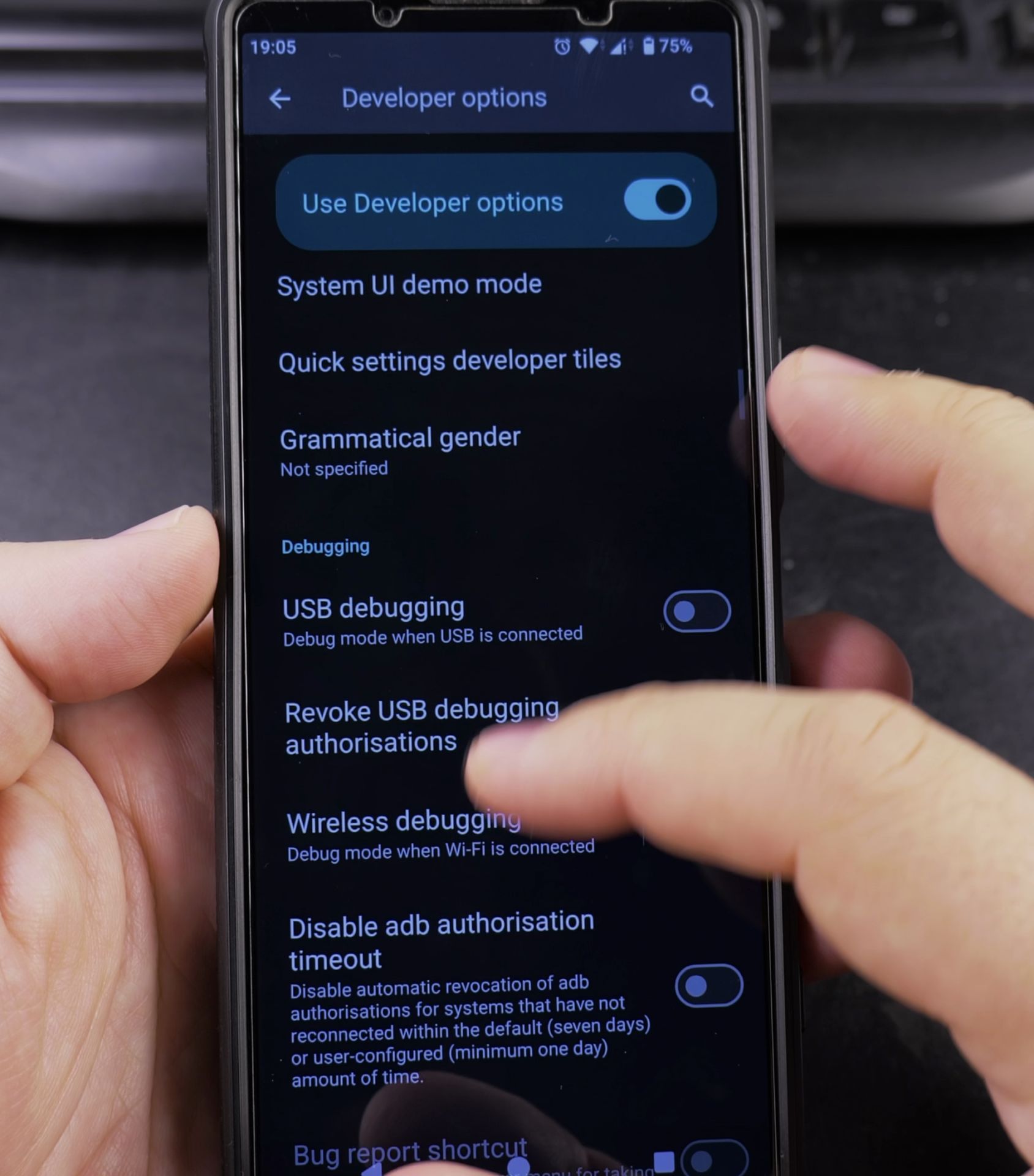
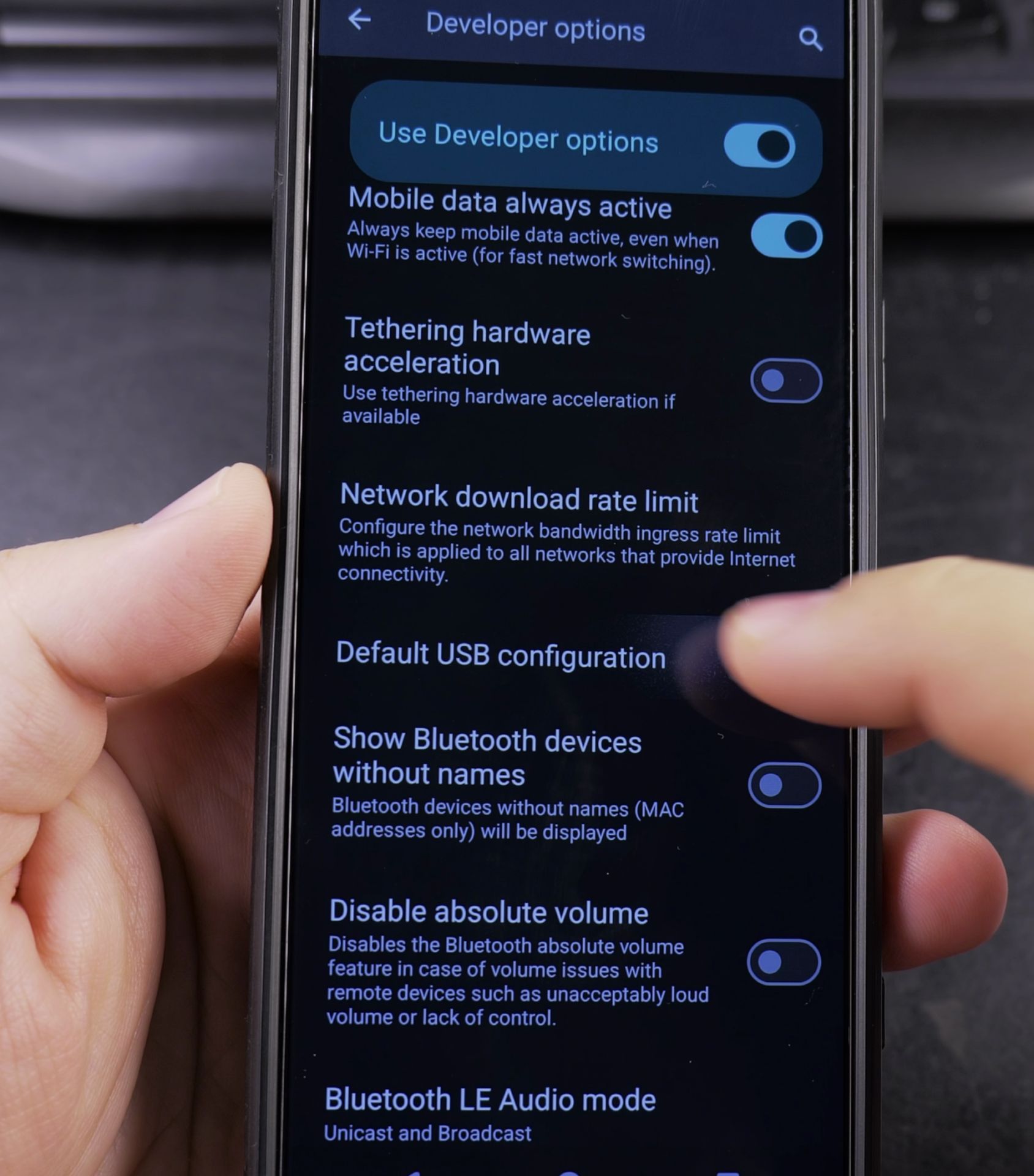
- Go to Developer options
- Find “Default USB configuration”
- Select “No data transfer”
Verifying the Setting Worked
- Check your computer – the phone shouldn’t appear
- Your phone should only show charging status
- No file transfer options should be available
Troubleshooting Common Issues
If you can’t disable data transfer:
- Try a different USB cable (some are charge-only)
- Restart both devices
- Check for Android updates
- Try different USB ports on the computer
- Reset USB preferences in Settings
When to Use This Setting
Switch to charging-only when:
- Using airport/coffee shop charging stations
- Connecting to public computers
- Leaving your phone with repair shops
- Wanting to charge faster without data overhead
- Preventing unauthorized file access
Security Considerations
Remember:
- This setting resets after each disconnect
- Developer options method makes it more permanent
- Some malware can still potentially access data
- For maximum security, avoid unknown USB ports
Final Thoughts
Disabling USB data transfer is an easy way to protect your files while maintaining charging capability. The steps work across most Android devices including Google Pixel, Samsung Galaxy, and Sony Xperia models.
For best security, consider setting “No data transfer” as your default USB configuration in Developer options. This way your phone will always start in charge-only mode.
Have questions about securing your Android device’s USB connection? Let me know in the comments!
Helpful Tips
Take your time and check the screen carefully after each tap so you can confirm the setting changed as expected. If an option appears in a slightly different spot on your device, watch the embedded video above for a closer look.
Related Guides
- Set Default USB Mode File Transfer on Samsung Android – How to Set Default USB Mode to File Transfer on Samsung Galaxy.
- Enable USB File Transfer on Android – How to Enable USB File Transfer on Android Devices.
- Set Default File Transfer Mode on Android – How to Set Default File Transfer Mode on Android: USB to PC Guide.
- Android & Mobile Guides – Browse more tutorials and practical guides in this section.


Leave a Reply