

Learn how to clear your clipboard history on Samsung Galaxy phones to protect sensitive information and free up space. I’ll show you how to manage copied items in your clipboard.
Amazon links
As an Amazon Associate I earn from qualifying purchases:
- Phone Cases
- Mobile Tripods
- Usb-c charger
- Usb-c cable
- Docking stations
- Wireless car chargers
- Wireless charger stand
- SIM card removal tool
- SIM card holder
Quick Steps and Scenarios Overview
| What You Need to Do | Quick Jump |
|---|---|
| What is the Clipboard? | Jump to Step 1 |
| How to Access Clipboard History | Jump to Step 2 |
| Open any text field (like Messages | Jump to Step 1 |
| Long-press in the text area | Jump to Step 2 |
| Tap "Clipboard" from the menu | Jump to Step 3 |
| View your recent copied items | Jump to Step 4 |
Demonstrated on Samsung Galaxy S23 Ultra running Android 14 with OneUI 6.1
What is the Clipboard?
Your clipboard:
- Stores text you copy (Ctrl+C)
- Keeps multiple copied items
- Can contain sensitive data
- Saves history until cleared
How to Access Clipboard History
1. Open any text field (like Messages
Open any text field (like Messages or Notes).
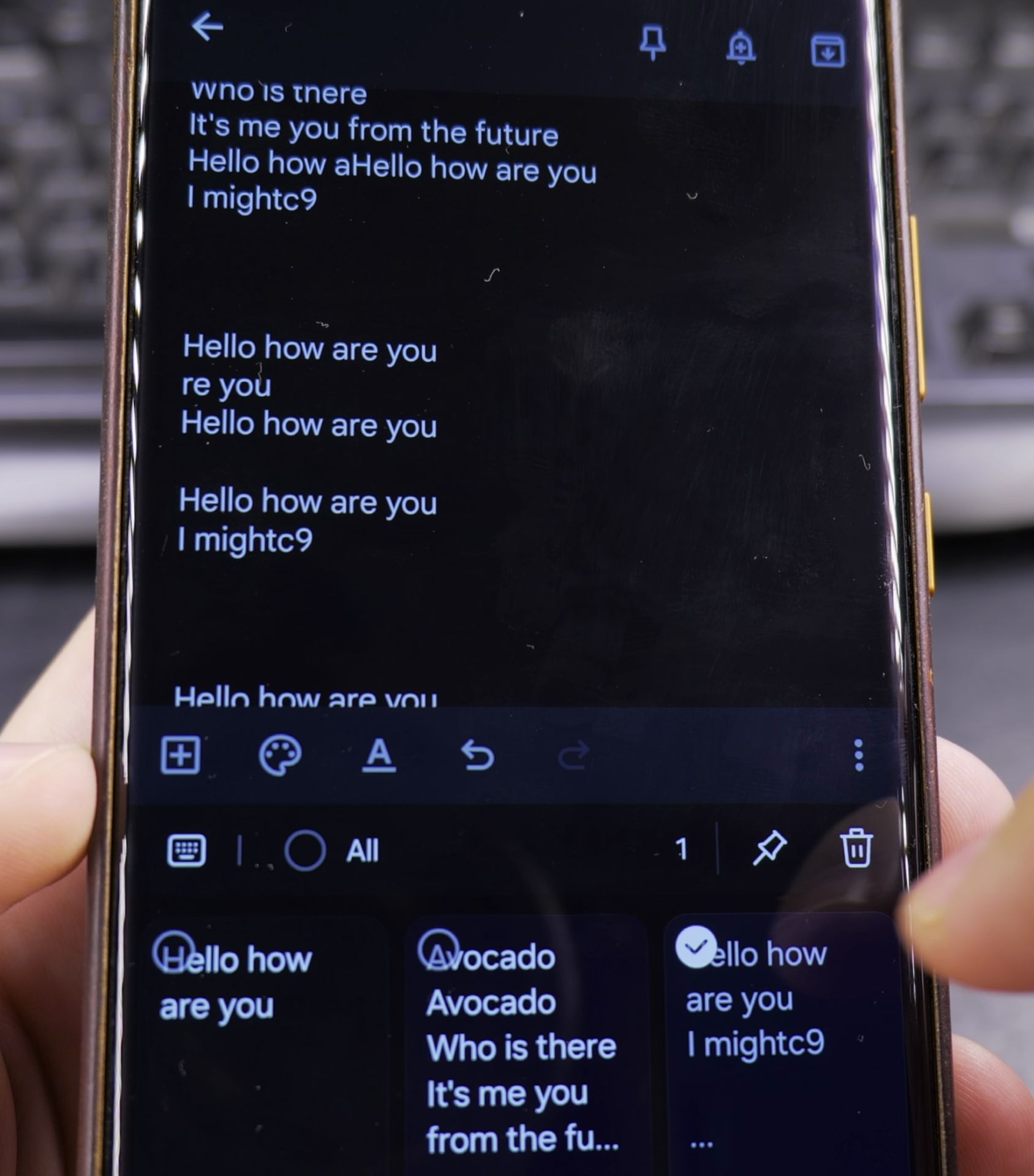
2. Long-press in the text area
Long-press in the text area.
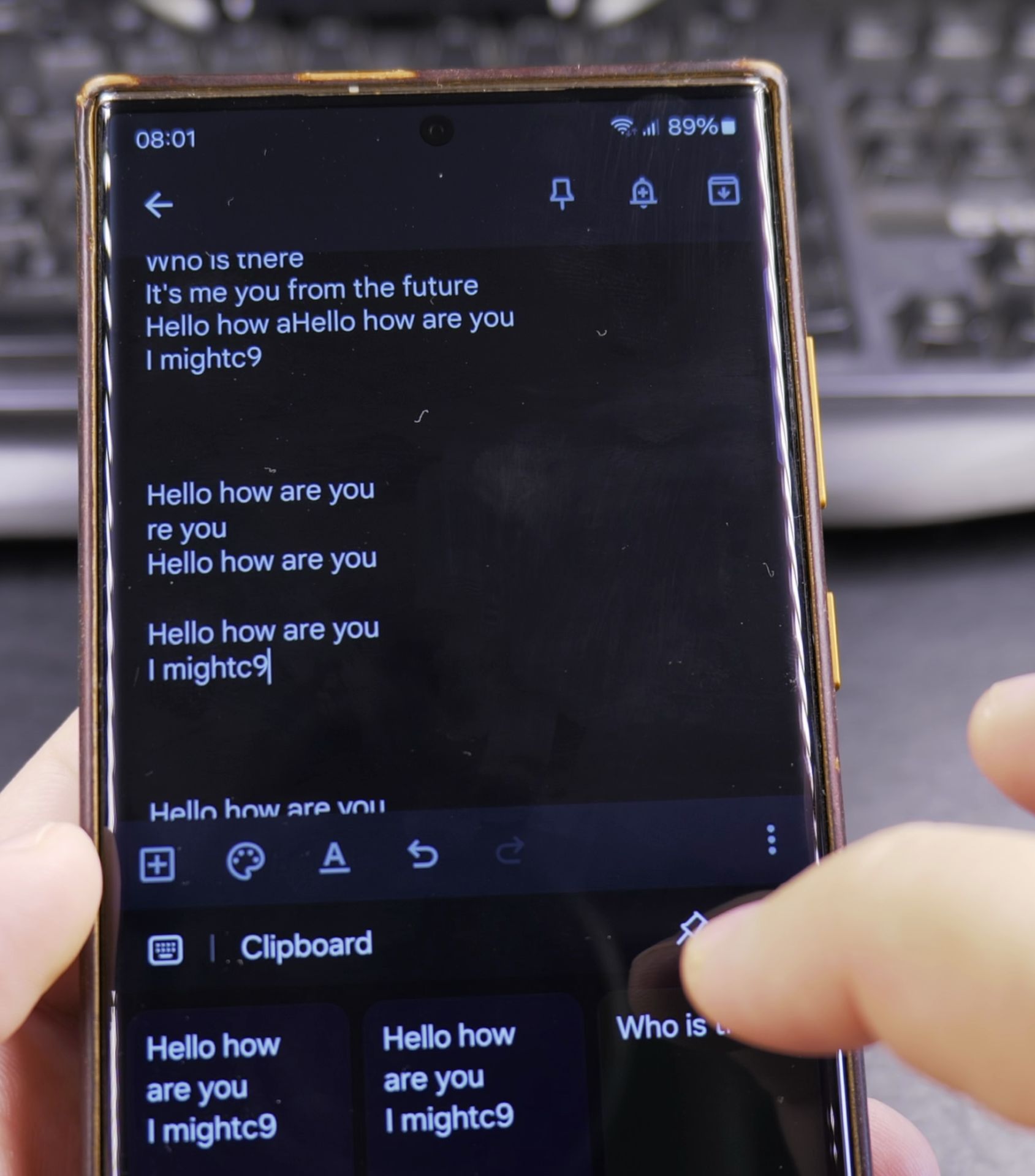
3. Tap “Clipboard” from the menu
Tap “Clipboard” from the menu.
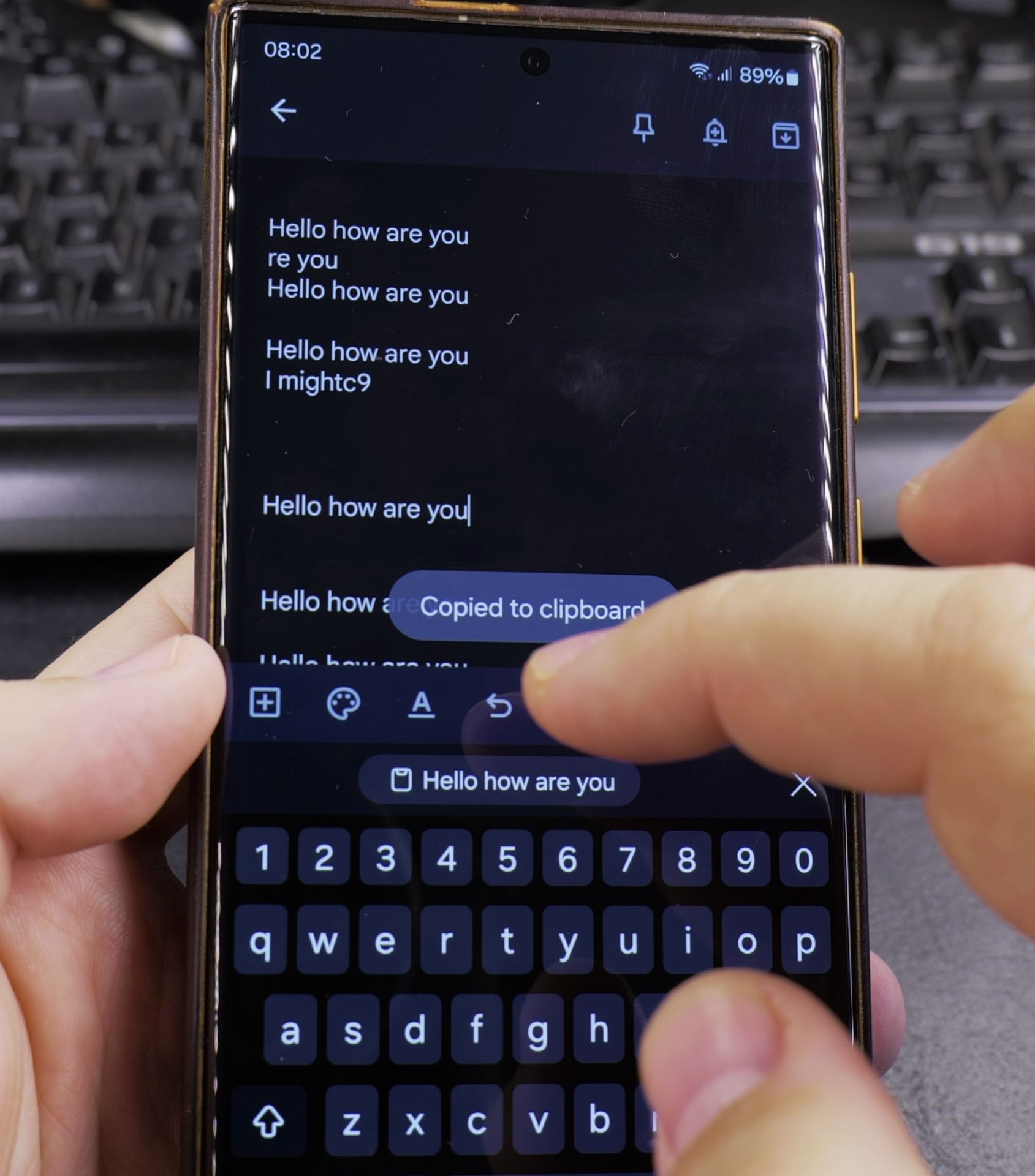
4. View your recent copied items
View your recent copied items.
How to Delete Clipboard Items
Delete Single Items
- Open the clipboard (steps above)
- Tap and hold an item
- Select “Delete” from the menu
- Confirm removal
Clear Entire Clipboard History
- Open the clipboard
- Tap the three-dot menu in top-right
- Select “Delete all clips”
- Confirm to erase everything
Clipboard Management Tips
Disable Clipboard History
- Go to Settings > General management
- Tap “Keyboard list and default”
- Select your keyboard (Samsung Keyboard)
- Turn off “Clipboard”
Secure Sensitive Data
- Clear clipboard after copying passwords
- Use private mode for sensitive copying
- Consider a password manager instead
Improve Clipboard Use
- Pin frequently used items
- Organize with clipboard labels
- Sync across devices if needed
Why Clear Your Clipboard?
Regular cleaning helps:
- Protect private information
- Remove outdated items
- Free up system resources
- Prevent accidental pasting
Final Thoughts
Managing your Samsung clipboard is easy once you know where to look. For best privacy, make clearing sensitive items a habit – especially after copying passwords or personal data.
Remember that some apps may have their own clipboard history too, so check those separately if needed. Keeping your clipboard clean is a simple way to maintain better privacy on your Android device.
Helpful Tips
Take your time and check the screen carefully after each tap so you can confirm the setting changed as expected. If an option appears in a slightly different spot on your device, watch the embedded video above for a closer look.
Related Guides
- Delete Files and Directories on Samsung Android – How to Delete Files and Directories on Samsung Android Devices.
- Delete and Recover Photos and Videos on Samsung Android – How to Delete and Recover Photos and Videos on Samsung Android.
- How to Change Google Gemini Voice on Samsung Galaxy Android – If you don't like the default voice of your Google Gemini assistant, you can choose from a range of friendly and natural…
- Samsung Android Guides – Browse more tutorials and practical guides in this section.


Leave a Reply