
Want to use your phone for contactless payments? I’ll show you how to turn on NFC and set up your preferred payment app in just a few taps.
Amazon links
As an Amazon Associate I earn from qualifying purchases:
- Phone Cases
- Mobile Tripods
- Usb-c charger
- Usb-c cable
- Docking stations
- Wireless car chargers
- Wireless charger stand
- SIM card removal tool
- SIM card holder
How to Enable NFC on Android
Quick Steps and Scenarios Overview
| What You Need to Do | Quick Jump |
|---|---|
| How to Enable NFC on Android | Jump to Step 1 |
| How to Set Your Default Payment App | Jump to Step 2 |
| NFC Payment Tips | Jump to Step 3 |
| Why Use NFC Payments? | Jump to Step 4 |
Follow these steps to activate NFC:
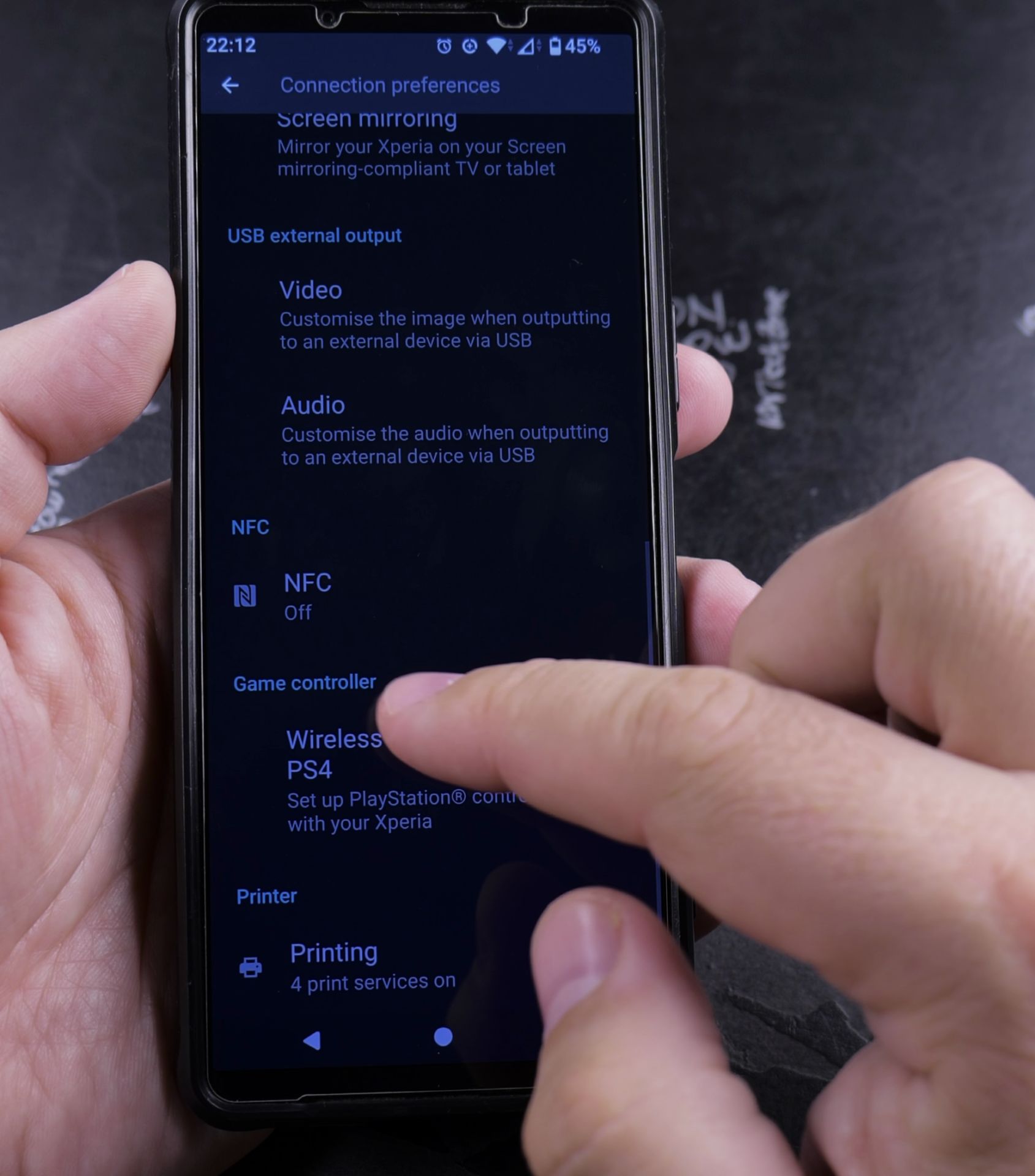
- Open Settings on your Android device
- Go to “Connected devices” or “Connections” (varies by model)
- Select “NFC” from the list
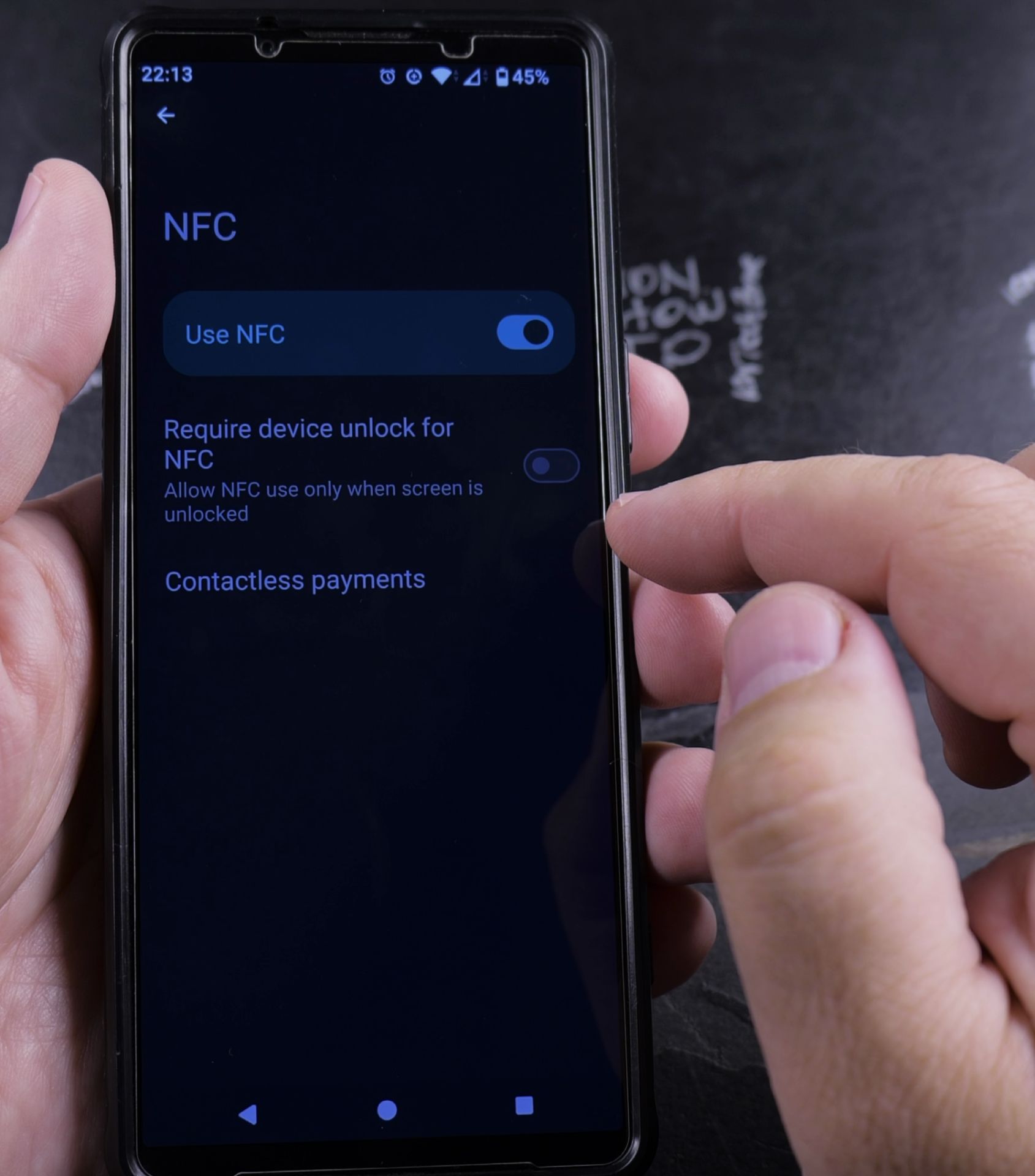
- Toggle the switch ON to enable NFC
Your phone is now ready for contactless payments and data sharing with other NFC devices.
How to Set Your Default Payment App
After enabling NFC, choose which app handles payments:
- Return to Settings
- Tap “Apps” or “Apps & notifications”
- Select “Default apps”
- Choose “Tap & pay”
- Pick your preferred payment app (Google Pay, Samsung Pay, etc.)
NFC Payment Tips
For best results:
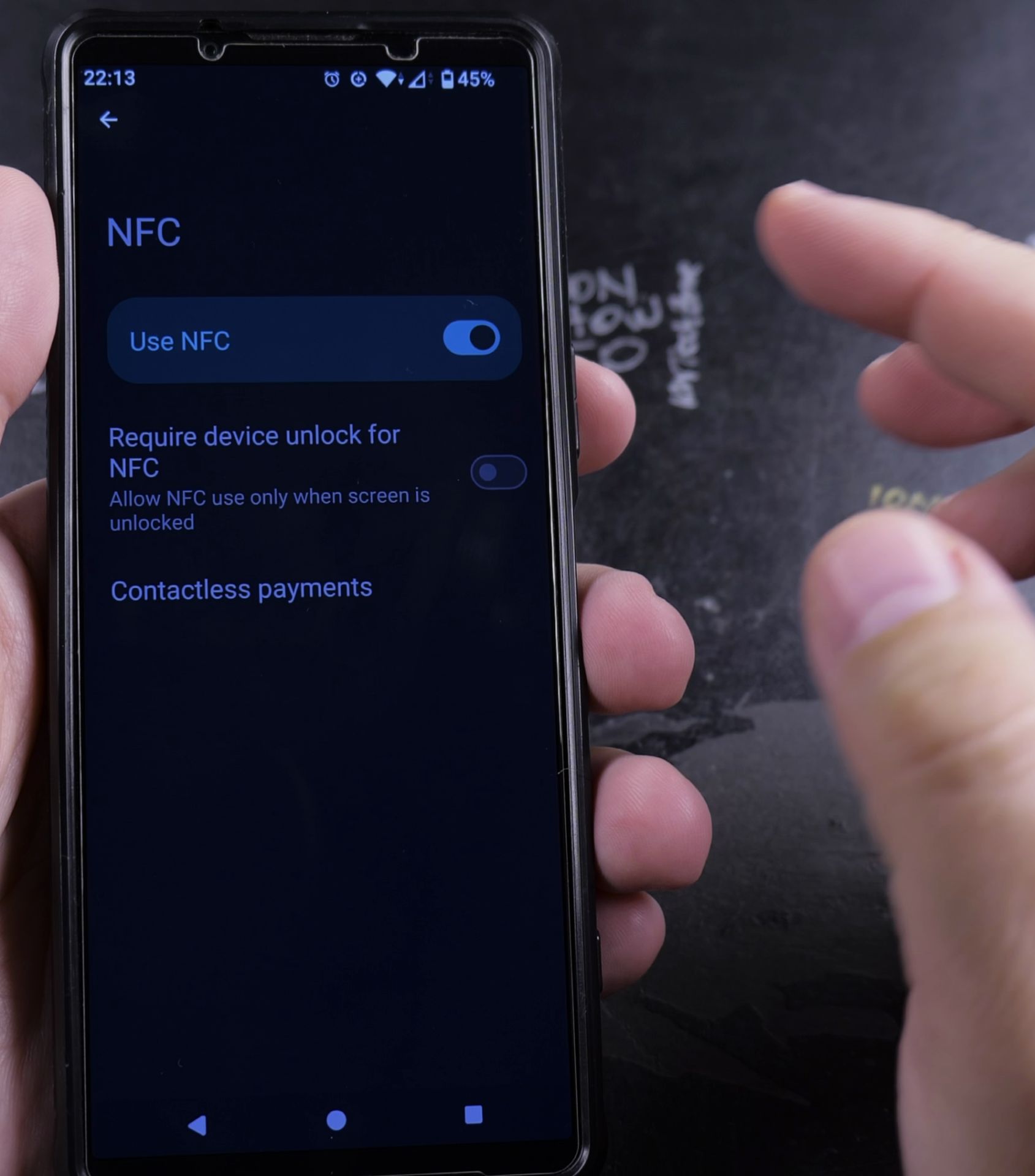
- Keep NFC enabled when making payments
- Hold your phone steady near the payment terminal
- Make sure your screen is unlocked
- Check your payment app is up to date
Troubleshooting
If payments aren’t working:
- Verify NFC is turned on
- Confirm your default payment app is set correctly
- Check your bank supports mobile payments
- Restart your phone if issues persist
Why Use NFC Payments?
Contactless payments are:
- Faster than chip cards or cash
- More secure with tokenized transactions
- Convenient when you forget your wallet
- Widely accepted at most payment terminals
Now you’re ready to tap and pay anywhere that accepts contactless payments. Just wake your phone, hold it near the terminal, and you’re done!
Helpful Tips
Take your time and check the screen carefully after each tap so you can confirm the setting changed as expected. If an option appears in a slightly different spot on your device, watch the embedded video above for a closer look.
Related Guides
- Android Enable NFC Change Default Payment App – How to Enable NFC and Change Your Default Contactless Payment App on Android.
- How to Fix Roblox Error 317 and Error 319 and Google Wallet NFC via Android Google Play Security Updates – If you get kicked out of Roblox Rivals or other Roblox games with 'Error Code: 319 (Roblox was not able to verify the…
- Add a Payment Card to Android Google Wallet – How to Add a Payment Card to Google Wallet on Android.
- Android & Mobile Guides – Browse more tutorials and practical guides in this section.


Leave a Reply