
Learn how to power on your Android phone even if the power button isn’t working.
I’ll show you the steps to turn on your device using different methods, including recovery mode and battery replacement.
Amazon links
As an Amazon Associate I earn from qualifying purchases:
- Phone Cases
- Mobile Tripods
- Usb-c charger
- Usb-c cable
- Docking stations
- Wireless car chargers
- Wireless charger stand
- SIM card removal tool
- SIM card holder
Quick Steps and Scenarios Overview
| What You Need to Do | Quick Jump |
|---|---|
| Method 1: Power On Using the Power Button | Jump to Step 1 |
| Method 2: Turn On Without the Power Button | Jump to Step 2 |
| Method 3: Replace the Battery (If Removable) | Jump to Step 3 |
| Final Tips | Jump to Step 4 |
Method 1: Power On Using the Power Button
This is the easiest way to turn on your Android phone:
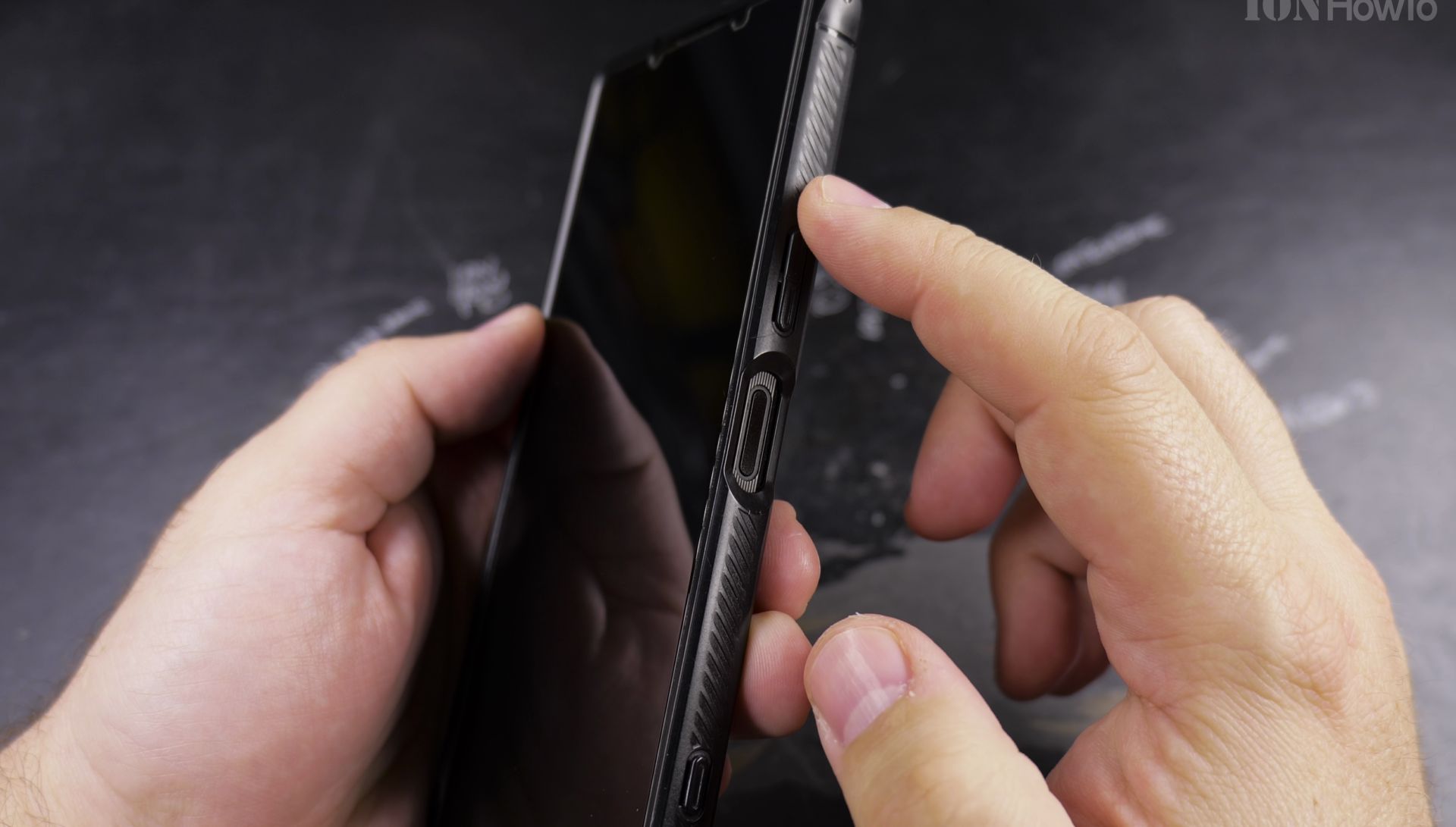
- Find the power button – It’s usually on the right or top edge of your phone.
- Press and hold the button for 2-3 seconds.
- Release when you see the manufacturer logo or feel a vibration.
If your phone doesn’t turn on, try charging it first – a dead battery could be the issue.
Method 2: Turn On Without the Power Button
If your power button is broken, try these steps:
Using Recovery Mode
- Press and hold the Volume Down + Power buttons (some phones use Volume Up instead).
- Keep holding until the recovery menu appears (usually 10-15 seconds).
- Use the Volume buttons to Go to “Reboot system now.”
- Press the Home button or wait for the phone to restart.
Note: Button combinations vary by brand. Check your phone’s manual if this doesn’t work.
Using a Charger
Some phones turn on automatically when plugged into a charger. Try:
- Connect your phone to a working charger.
- Wait a few minutes – if the battery was completely drained, it may take time.
- If the screen stays black, try holding the Volume Down button while charging.
Method 3: Replace the Battery (If Removable)
If your phone has a removable battery:
- Power off the phone (if possible).
- Remove the back cover and take out the battery.
- Wait 30 seconds, then reinsert the battery.
- Press the power button or plug in the charger to turn it on.
Final Tips
- If your phone still won’t turn on, try a different charger or cable.
- For unresponsive phones, contact manufacturer support – it could be a hardware issue.
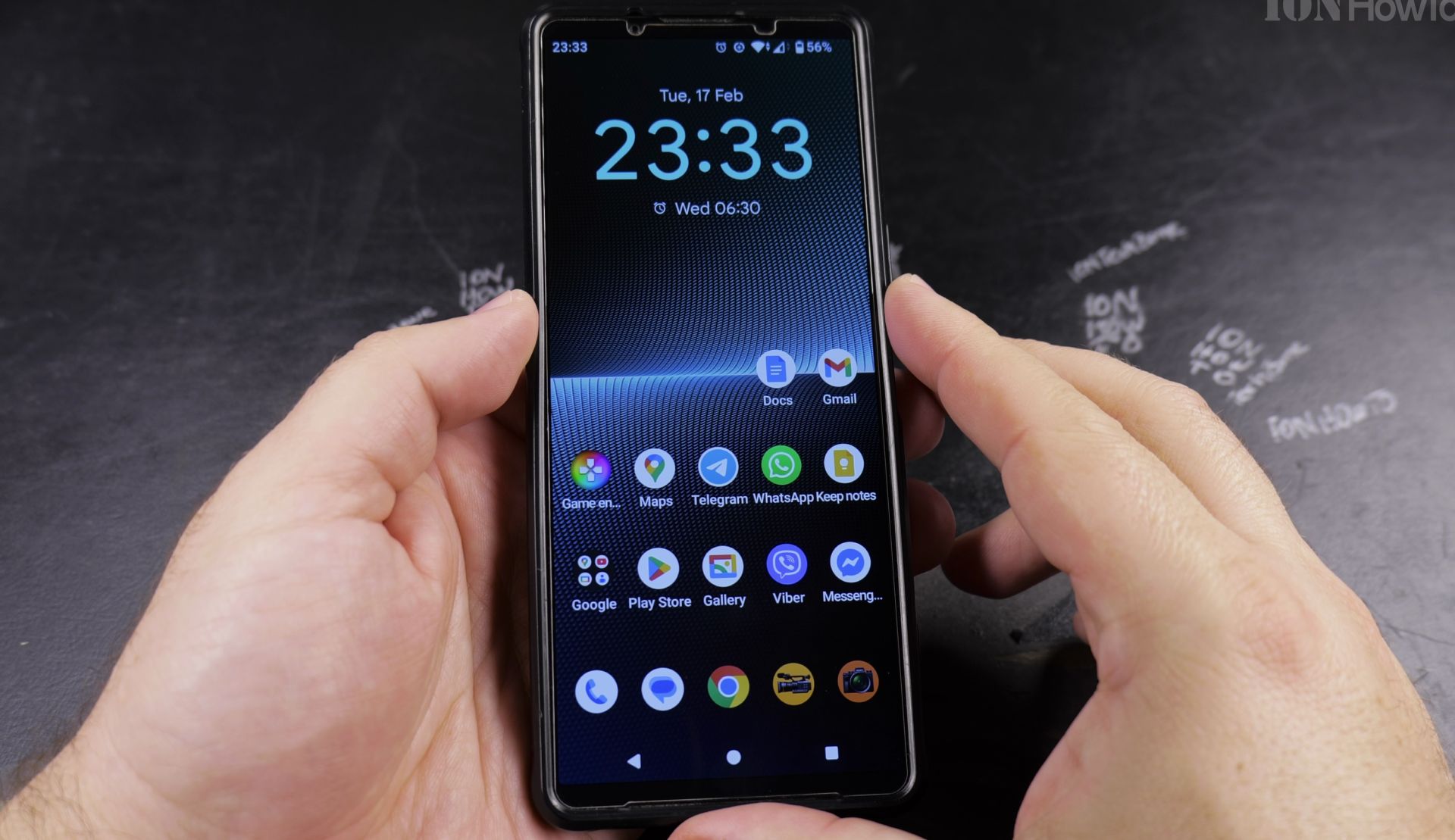
That’s it! Now you know how to turn on your Android phone, even without the power button. Let me know in the comments if you have any questions!
Helpful Tips
Take your time and check the screen carefully after each tap so you can confirm the setting changed as expected. If an option appears in a slightly different spot on your device, watch the embedded video above for a closer look.
Related Guides
- Android Battery Share Function – How to Use Battery Share on Android.
- Android Stop Charging at 80 Percent Battery Sony Xperia – Android Stop charging at 80 percent battery to keep the battery in good condition.
- How to Power Off Android Phone Google Pixel 11 Pro XL – In this step-by-step video guide I show you multiple ways to power off your Android phone.
- Android & Mobile Guides – Browse more tutorials and practical guides in this section.


Leave a Reply