

Sometimes, you might need to turn off the advanced calling features on your phone. If your calls are dropping or the sound quality is poor, switching off VoLTE (Voice over LTE) or 4G Calling can be a good troubleshooting step. This will make your phone use the older, but sometimes more stable, 3G or 2G network for calls.
Amazon links
As an Amazon Associate I earn from qualifying purchases:
- Phone Cases
- Mobile Tripods
- Usb-c charger
- Usb-c cable
- Docking stations
- Wireless car chargers
- Wireless charger stand
- SIM card removal tool
- SIM card holder
Learn how to find and turn off this setting. I’ll show you the steps on a Samsung Galaxy S23 Ultra running Android 15 with One UI 7.0. The menu might look a little different on your model, but the path is very similar.
Quick Steps and Scenarios Overview
| What You Need to Do | Quick Jump |
|---|---|
| How to Find the VoLTE Setting | Jump to Step 1 |
| The Steps to Turn Off 4G Calling | Jump to Step 2 |
| What Happens After You Turn It Off | Jump to Step 3 |
| When You Might Want to Turn It Back On | Jump to Step 4 |
How to Find the VoLTE Setting
The setting is tucked away in your connections menu. Here is how to get there.
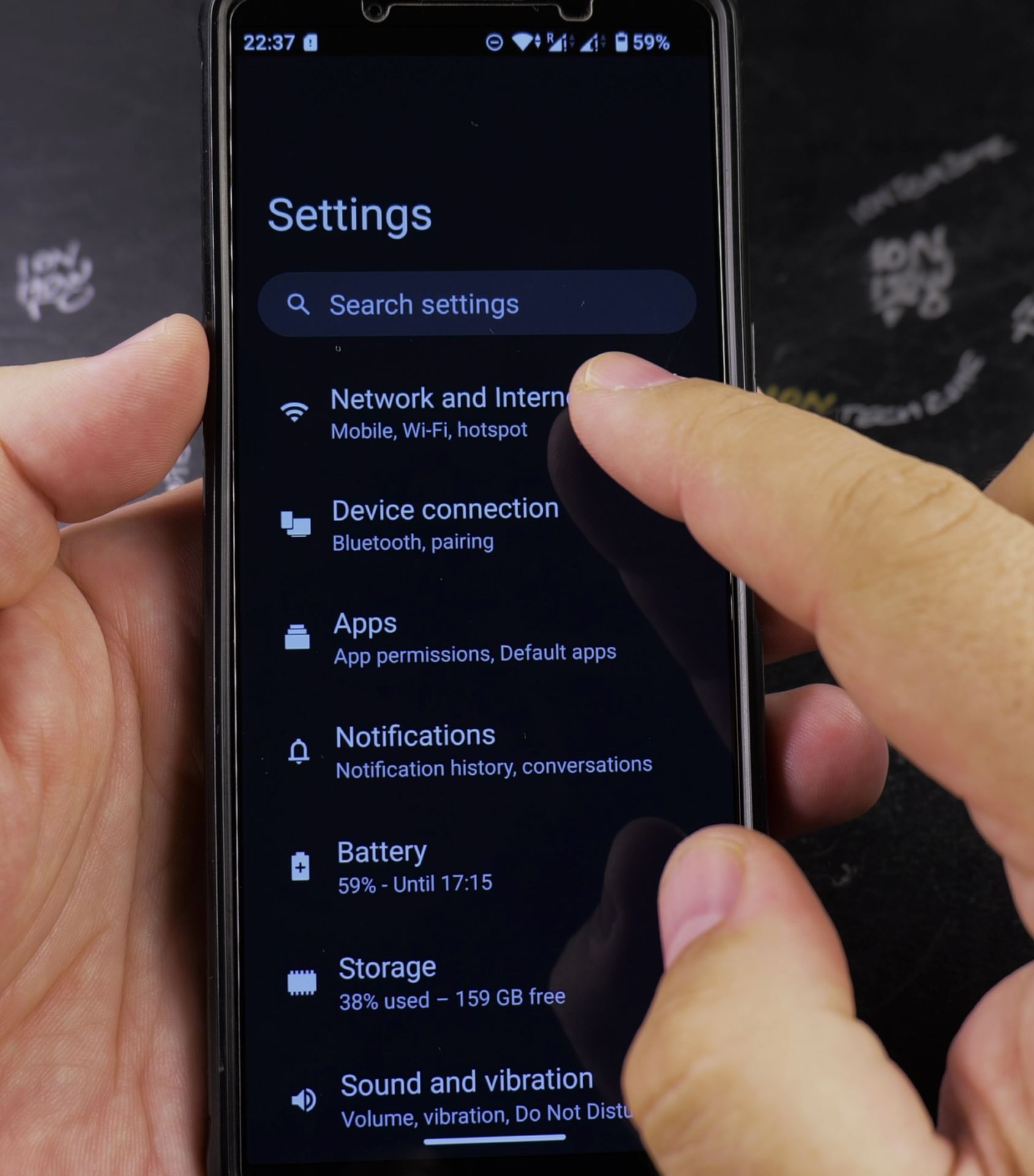
- Open the Settings app on your phone. It’s the gear icon.
- Scroll down and tap on Connections.
- Inside Connections, tap on Mobile networks.
The Steps to Turn Off 4G Calling
Once you’re in the Mobile Networks menu, follow these steps.
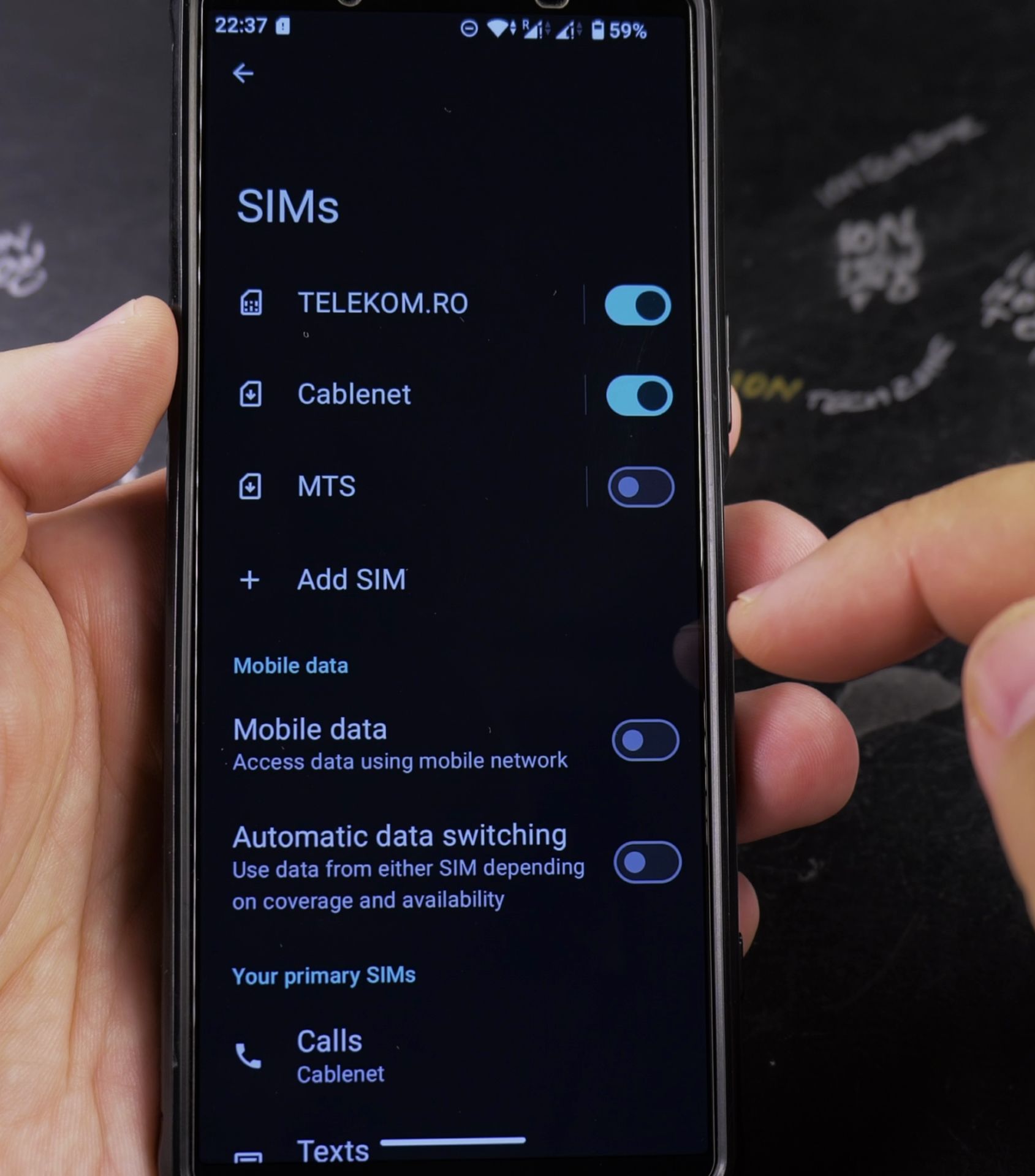
Step 1: Open Your SIM Card Settings
In the Mobile Networks menu, you will see an option for your SIM card. It might say SIM card manager or just show the name of your mobile carrier. Tap on it to open your specific SIM settings.
Step 2: Find the Calling Option
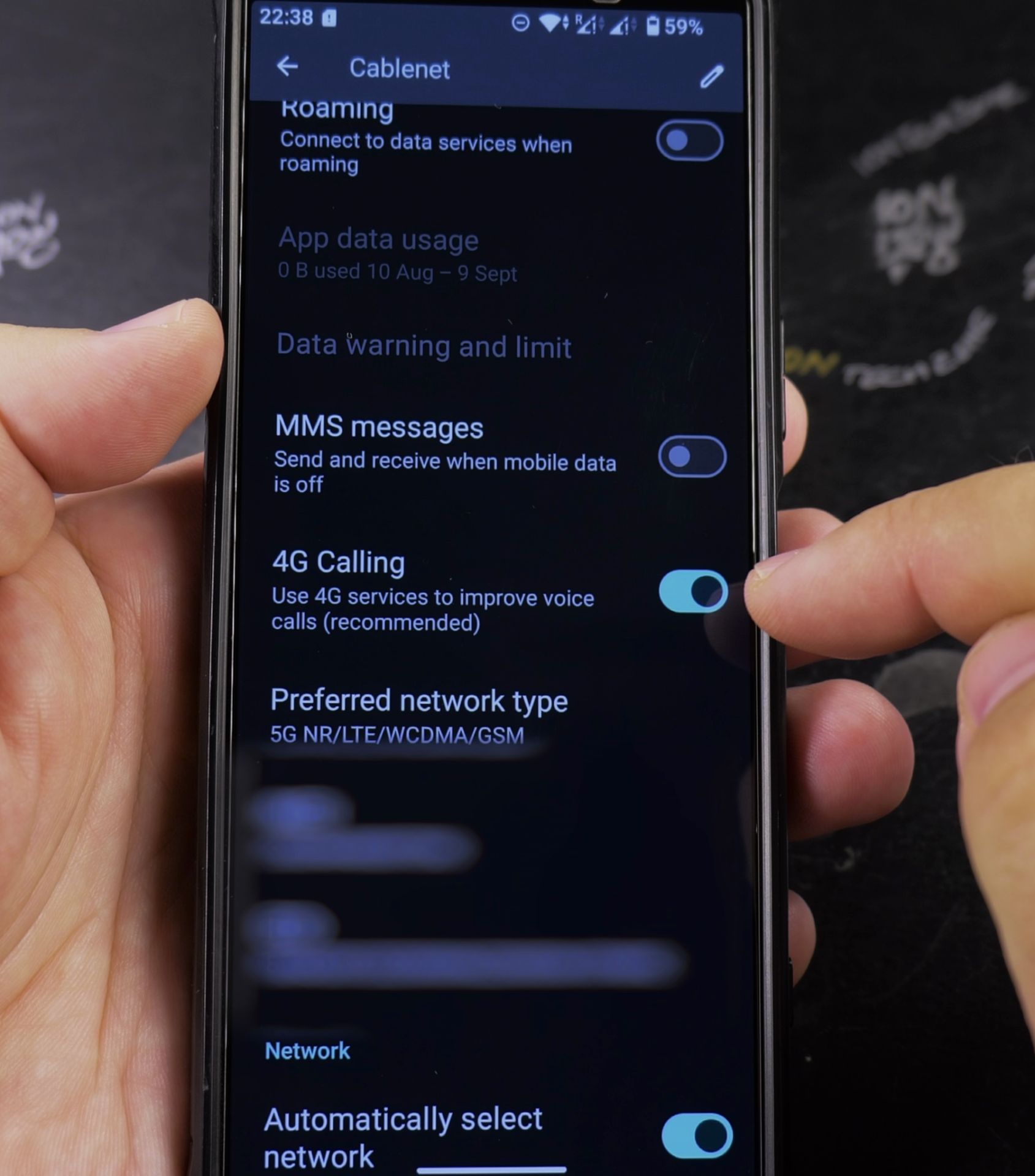
Look for the setting that controls calling over 4G. It can have a few different names depending on your carrier:
- VoLTE calls
- 4G Calling
- Wi-Fi Calling and 4G Calling
- Enhanced Calling
Step 3: Turn the Switch Off
Tap on the option to open it. You will see a toggle switch. Simply tap the switch to turn it OFF. The switch will turn gray or white.
That’s it! You can now press the back button and exit settings. The change saves automatically.
What Happens After You Turn It Off
Once VoLTE is off, your Samsung phone will no longer make voice calls over the 4G LTE data network. Instead, it will switch back to a 3G or 2G network just for the call. You might notice:
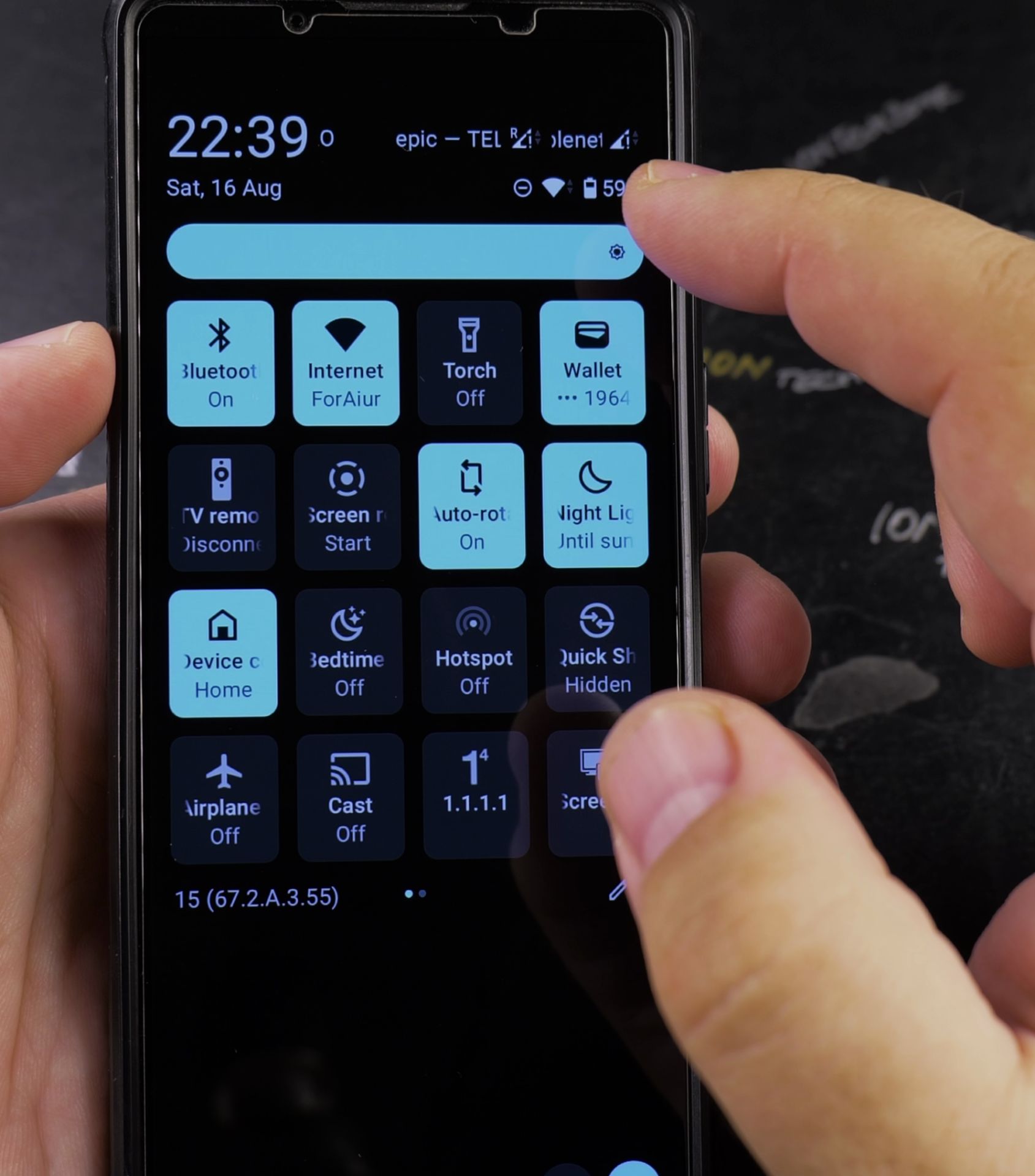
- A different icon: The network icon at the top of your screen (like “4G” or “LTE”) might change to “3G” only when you are on a call.
- Slightly slower call connection: It might take a second longer for the call to start connecting.
- Potential for lower call quality: Voice quality may not be as crystal clear as an HD VoLTE call, but it can often be more stable in areas with weak 4G signals.
Remember, turning this off only affects voice calls. Your mobile data for browsing the internet will still use 4G or 5G as normal.
When You Might Want to Turn It Back On
If your call problems get fixed or you switch to an area with strong 4G service, you might want the better sound quality of VoLTE back. Just follow the same steps and tap the switch to turn it ON again.
This simple setting change can often solve annoying call issues. It’s a useful trick to know for keeping your phone connected.
Helpful Tips
Take your time and check the screen carefully after each tap so you can confirm the setting changed as expected. If an option appears in a slightly different spot on your device, watch the embedded video above for a closer look.
Related Guides
- How to Turn Off VoLTE and 4G Calling on Android (Step-by-Step Guide) – While Voice over LTE (VoLTE) enables high-definition audio calls over 4G data networks, turning it off can resolve dropped…
- Enable VoLTE 4G Calling on Android – Enable VoLTE 4G Calling on Android.
- How to Change Google Gemini Voice on Samsung Galaxy Android – If you don't like the default voice of your Google Gemini assistant, you can choose from a range of friendly and natural…
- Samsung Android Guides – Browse more tutorials and practical guides in this section.


Leave a Reply