
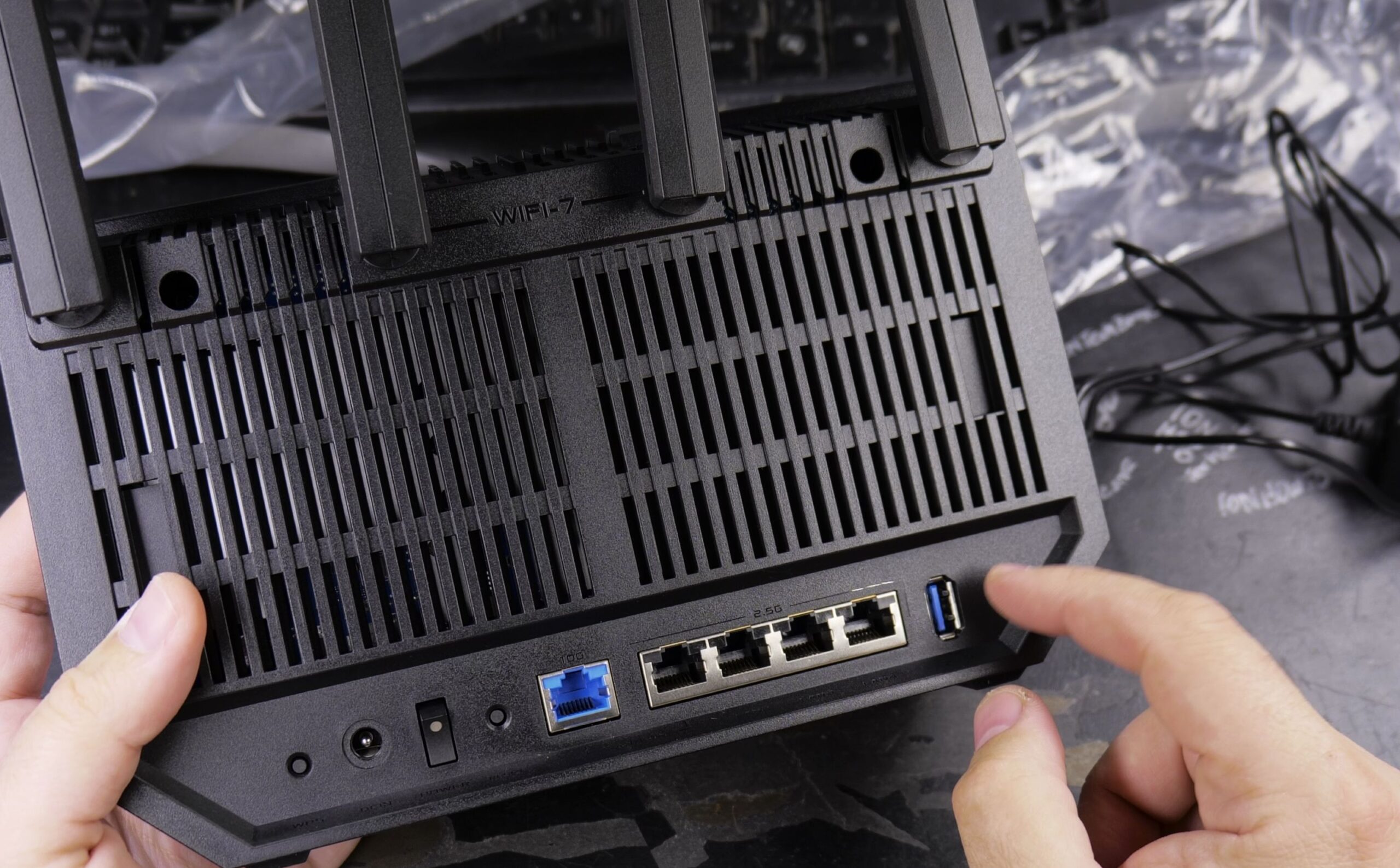
Setting up a modern Wi-Fi 7 router no longer requires a desktop computer or complicated cables. I’ll show you how to install and configure an ASUS RT-BE92U router directly from your iPhone in just a few minutes.
1. Unfold the Antennas and Connect Power and WAN Cables
Place the router on a flat, well-ventilated desk or shelf near your internet modem.
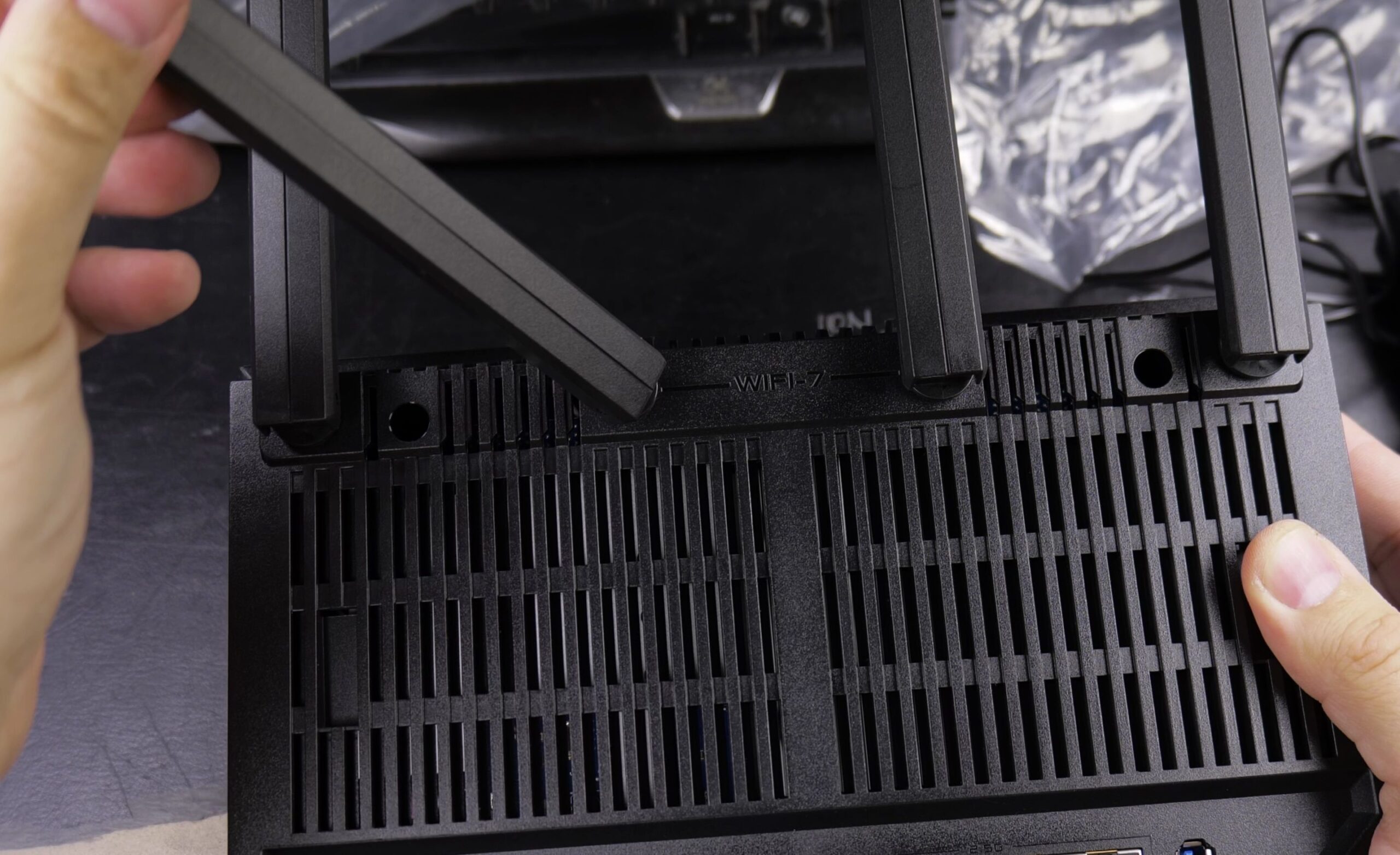
Rotate the right antennas counter-clockwise and the left antennas clockwise to stand them upright without stressing the joints.
Connect the blue or gray ethernet cable from your internet modem into the blue 2.5G WAN port on the back.
Plug the power adapter into the round DC jack and press the power button next to it.
2. Scan the Default Setup QR Code with Your iPhone
Wait roughly two minutes for the subtle front LED status lights to turn steady white.
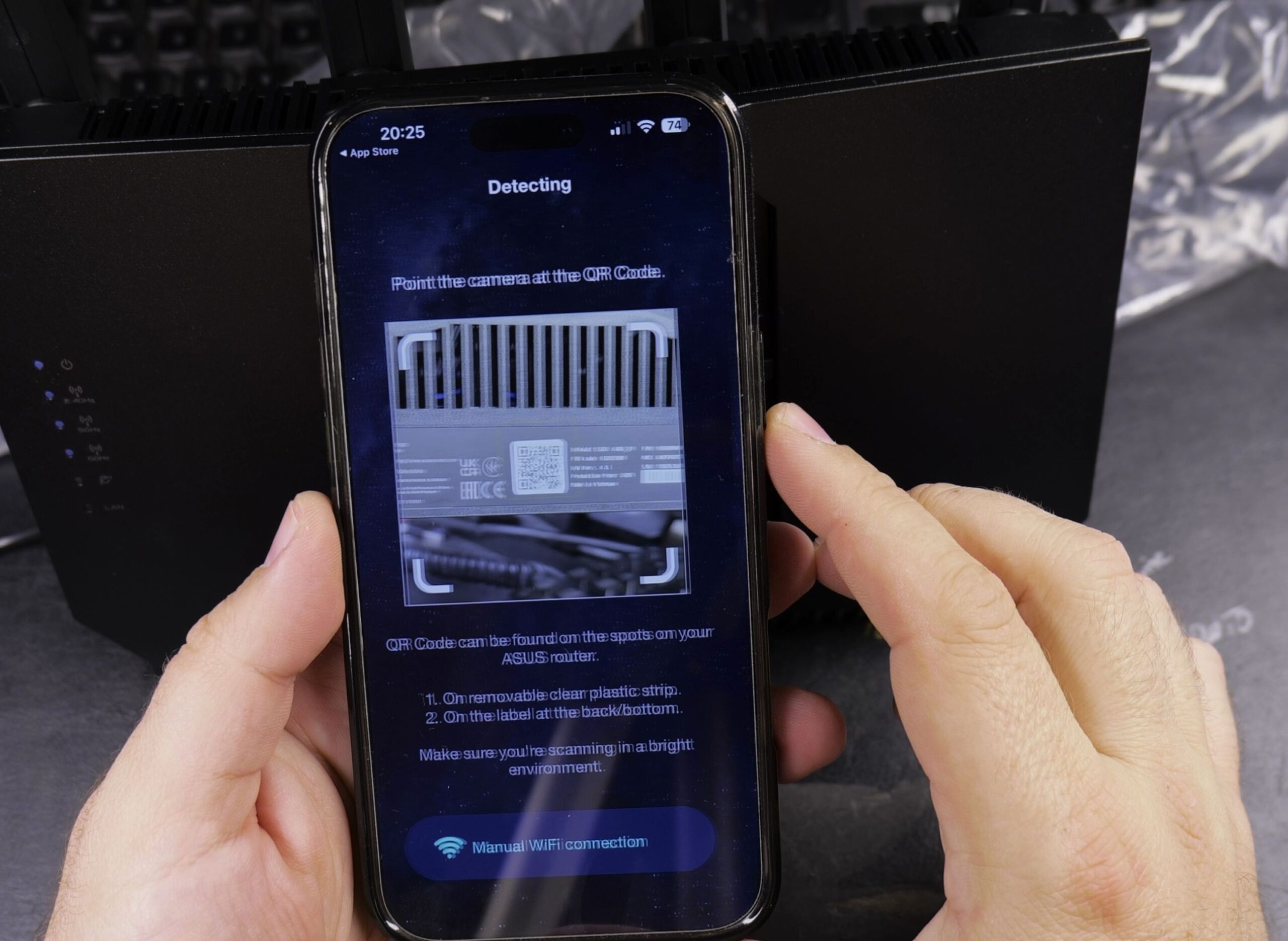
Open the Camera app on your iPhone and point it at the setup QR code on the bottom label of the router.
Tap the yellow prompt that appears on your screen to join the factory network automatically.
3. Open the ASUS Router App and Choose Wi-Fi 7 Series
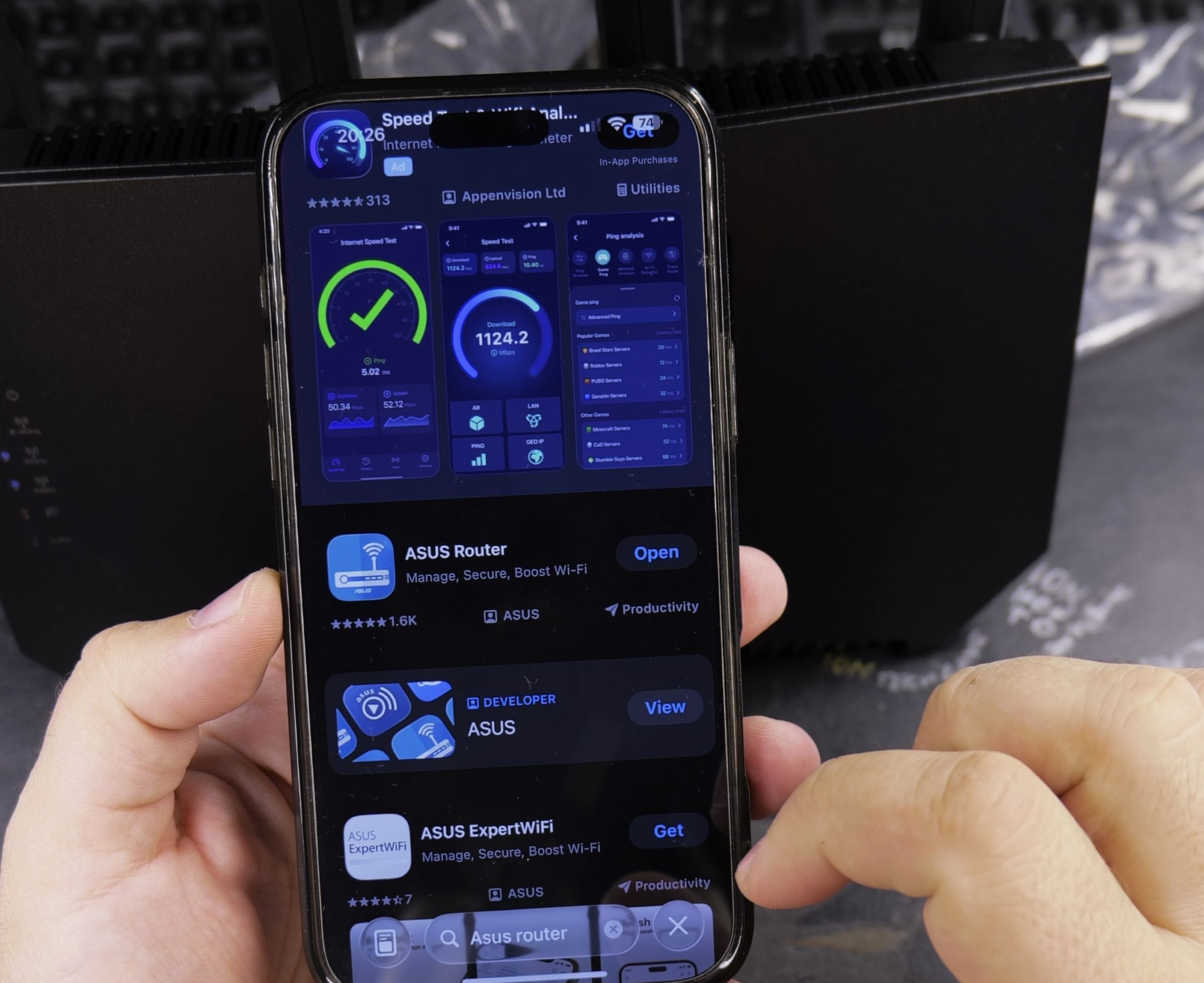
Download and open the free ASUS Router app from the App Store.
On the welcome screen, tap Set up a new network.
Select ASUS Wireless router series from the list, then tap Wi-Fi 7 Series.
The app will automatically detect your RT-BE92U router over the wireless connection.
4. Create Admin Login Credentials and Configure Your Wi-Fi Network
Enter a new administrator username and password for the router itself. Write this down in a safe notebook.
Choose your connection type. If your provider requires PPPoE, enter the username and password from your internet contract.
Type your personal wireless network name (SSID) and create a strong Wi-Fi password.
Tap Apply and wait for the router to restart its wireless radios with your new settings.
Helpful Tips
Your router admin password is completely separate from your Wi-Fi password. If you ever forget the admin login, you must press the red Reset button on the back with a paperclip to restore factory defaults.
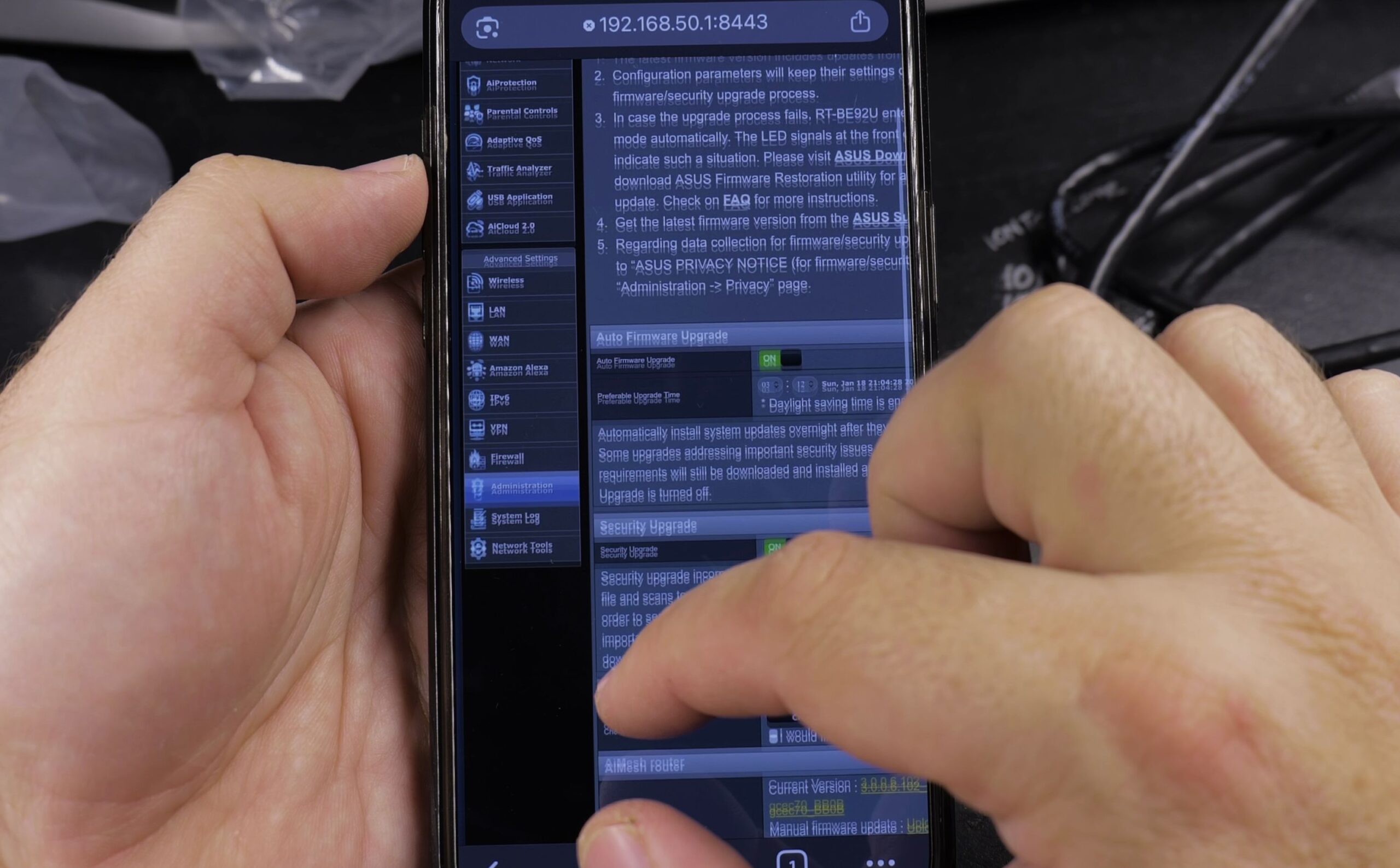
If you prefer using a web browser instead of the mobile app, open Safari on your iPhone and go to router.asus.com or 192.168.50.1 to access the identical setup wizard.
To upgrade your router with custom software, see our step-by-step tutorial on how to install Asus Merlin firmware on RT-BE92U router, or read our in-depth Asus Merlin firmware review. You can also browse our Wi-Fi Routers section for more guides.


Leave a Reply