
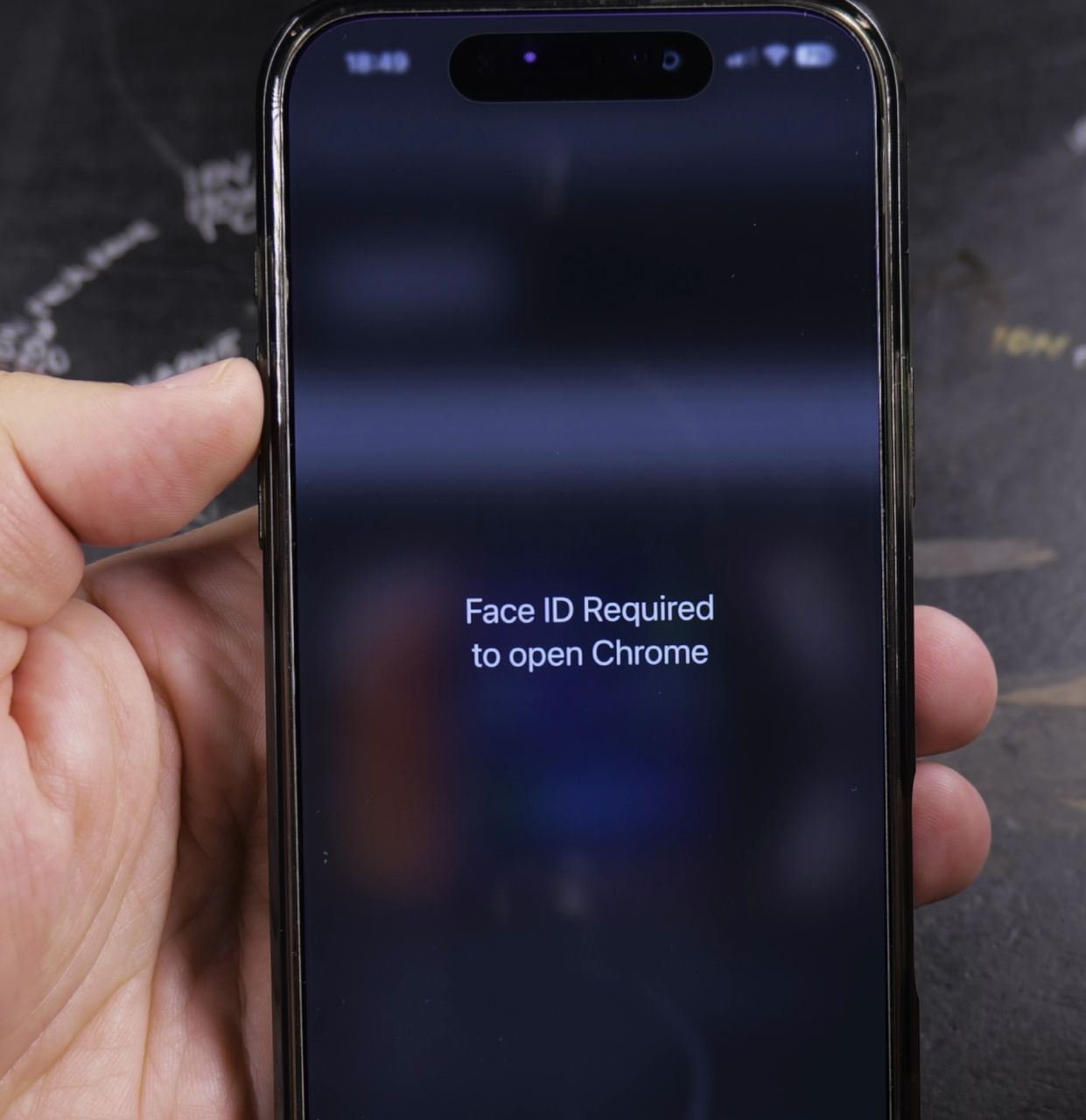
If an app on your iPhone repeatedly asks for Face ID every time you open it, you can remove the lock quickly. I’ll show you how to adjust the app’s security settings so it opens instantly without delays.
1. Locate the Locked App on Home Screen

Find the app icon on your Home Screen or inside an App Library folder.
2. Press and Hold the App Icon
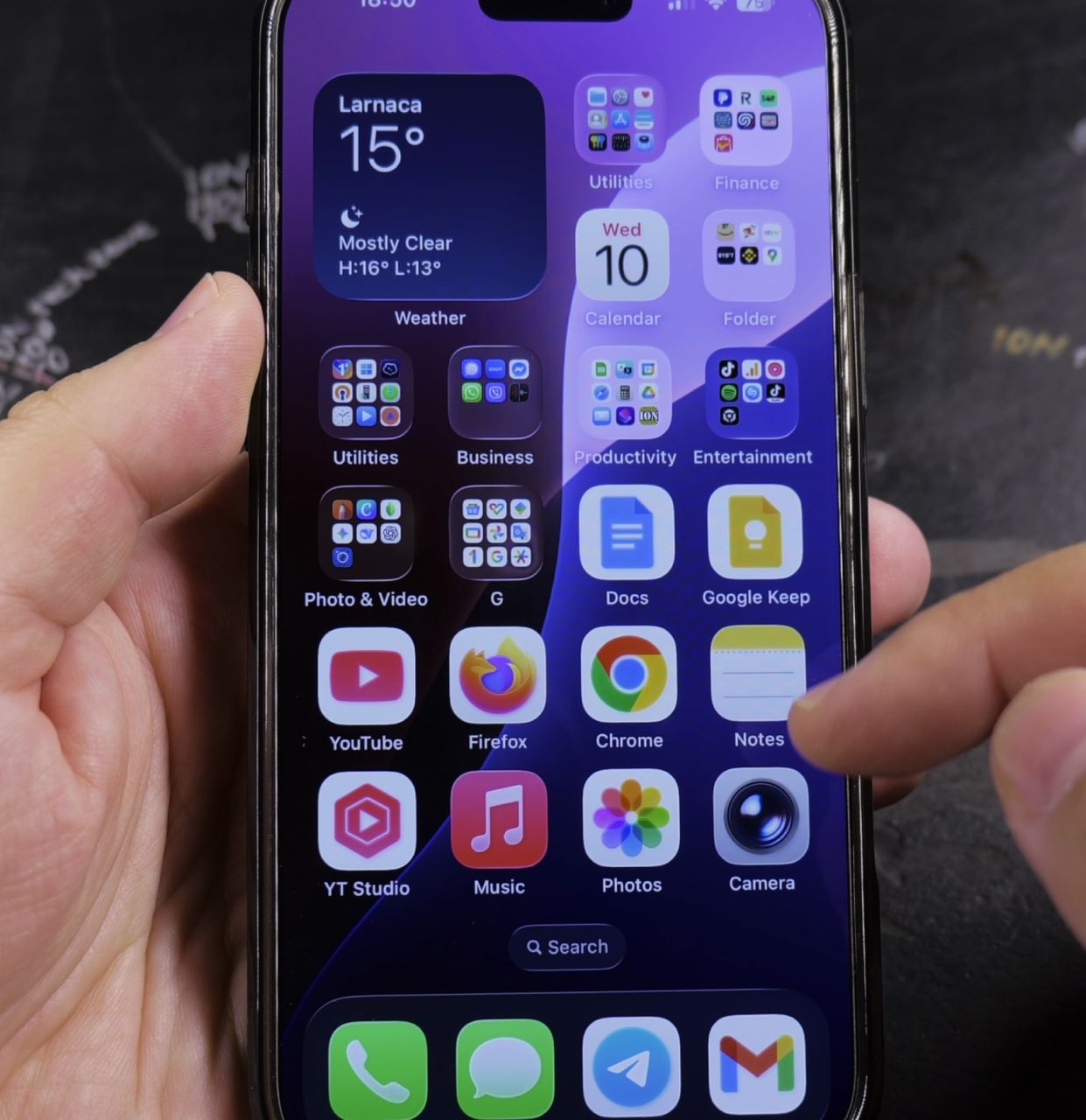
Press and hold your finger firmly on the app icon until the quick actions menu pops up.
3. Tap Don’t Require Face ID
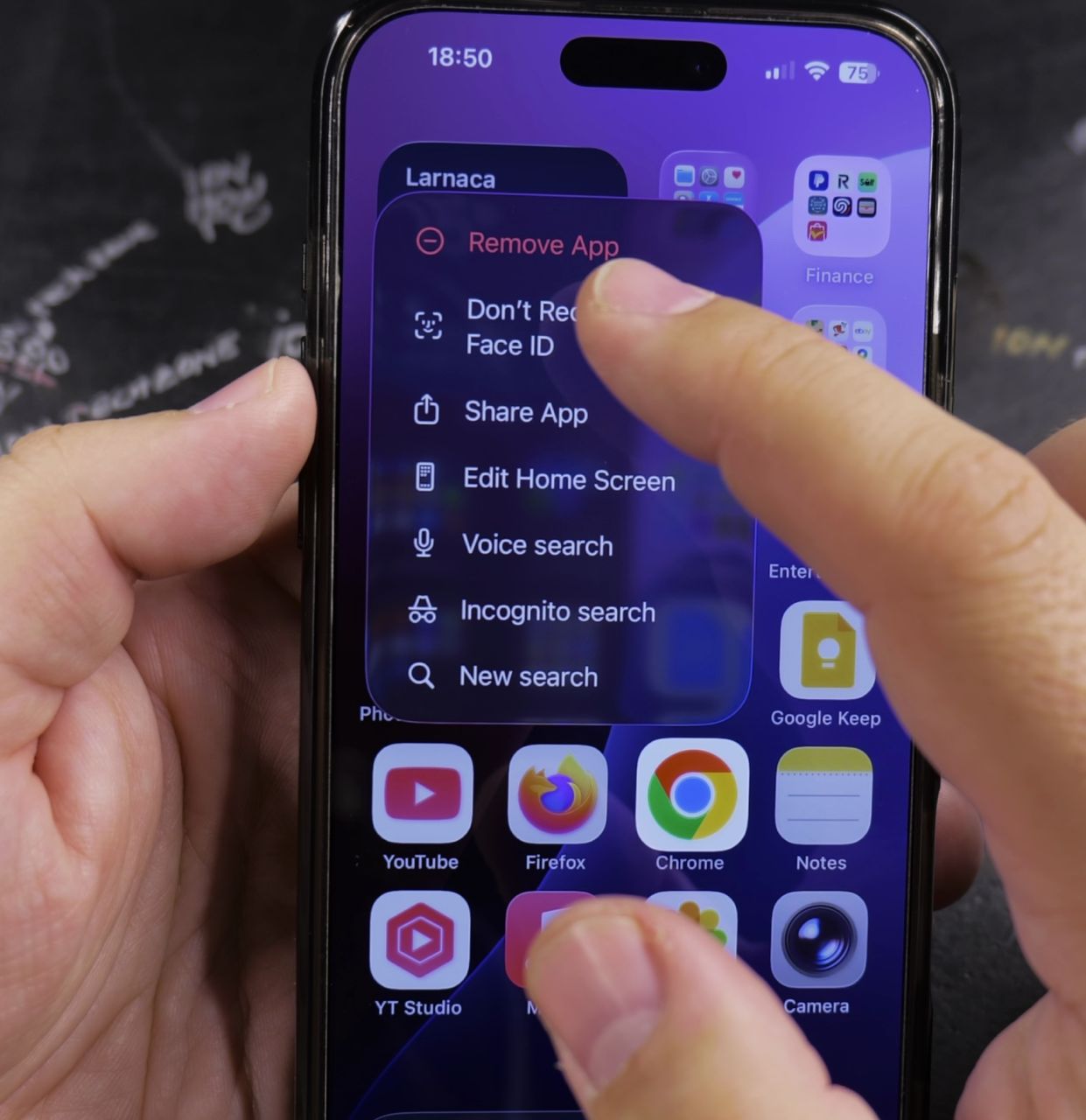
Tap the option labeled **Don’t Require Face ID** in the menu list.
4. Confirm with Face ID or Passcode
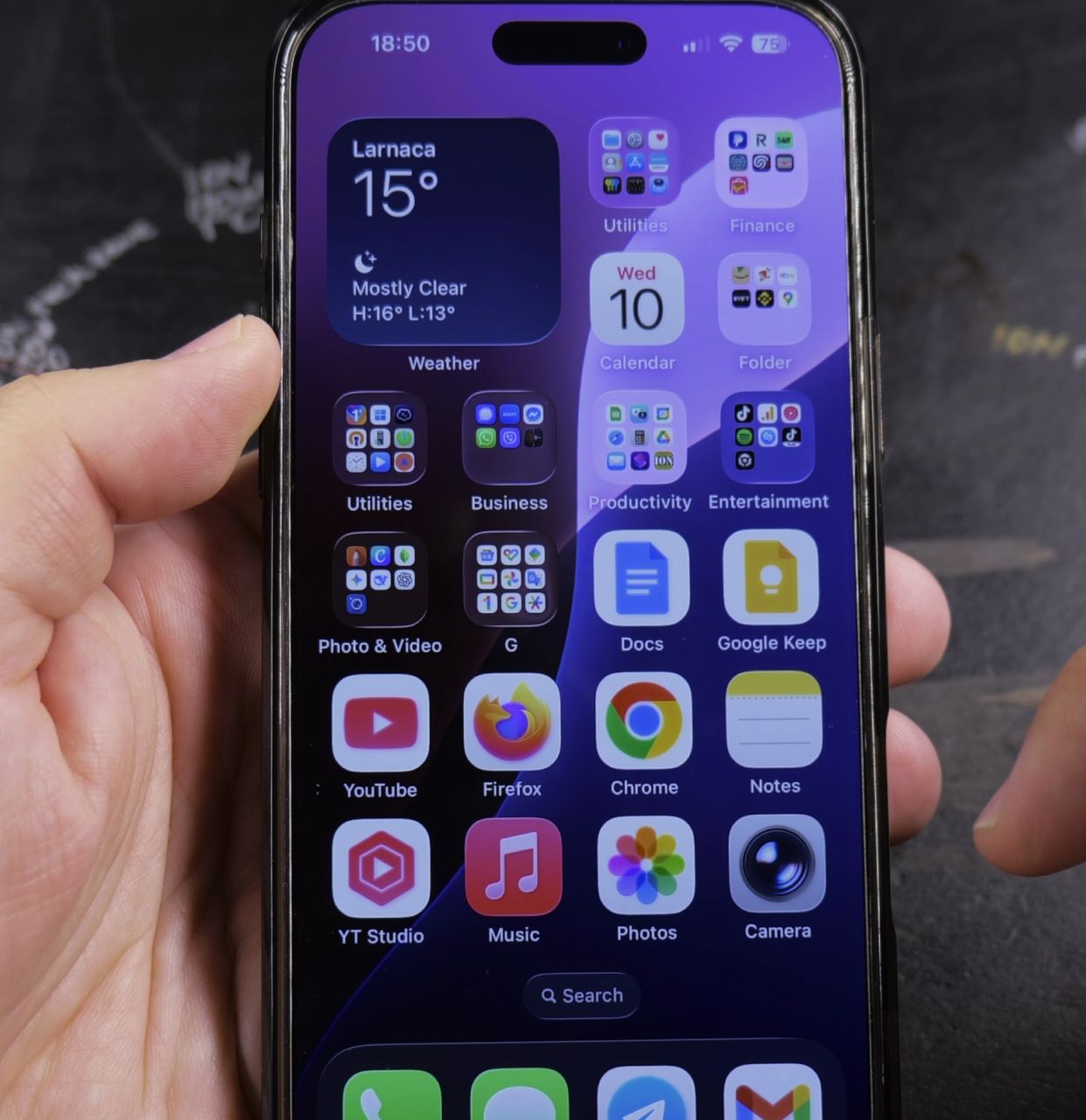
Look at your iPhone or type your passcode one last time to confirm and disable the requirement.
Helpful Tips
You can re-enable Face ID protection at any time by long-pressing the app icon and selecting **Require Face ID**. For more handy device tips, see our guide on Enabling App Tracking on iPhone or check our iPhone Guides hub.


Leave a Reply