
If your Android phone is acting sluggish or you are preparing to trade it in, backing up your memories before erasing it is essential. I’ll show you how to copy your photos to a portable SSD and factory reset your phone safely.
1. Connect Your External SSD
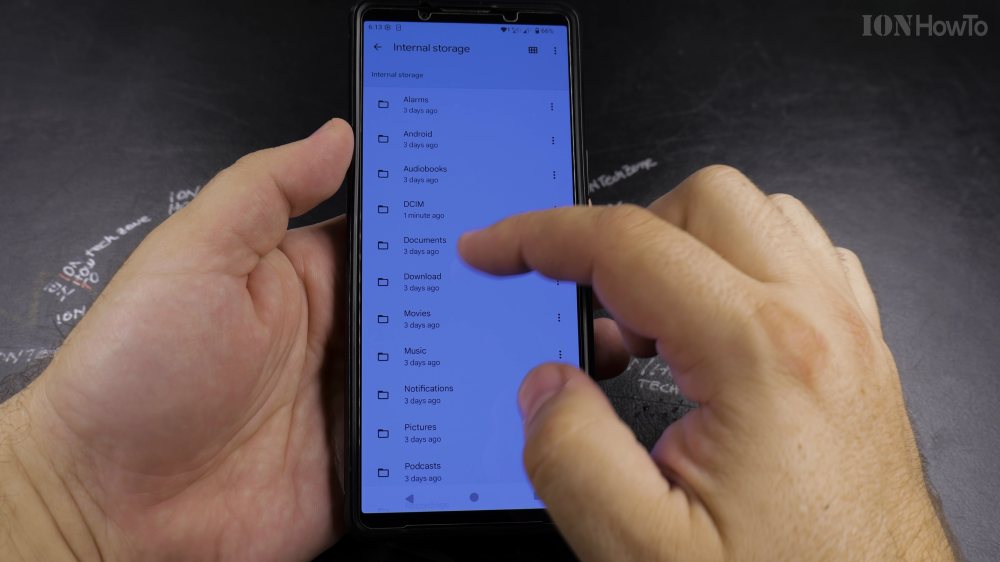
Plug your portable SSD drive directly into the USB-C port at the bottom of your Android phone.
2. Copy Photos in My Files
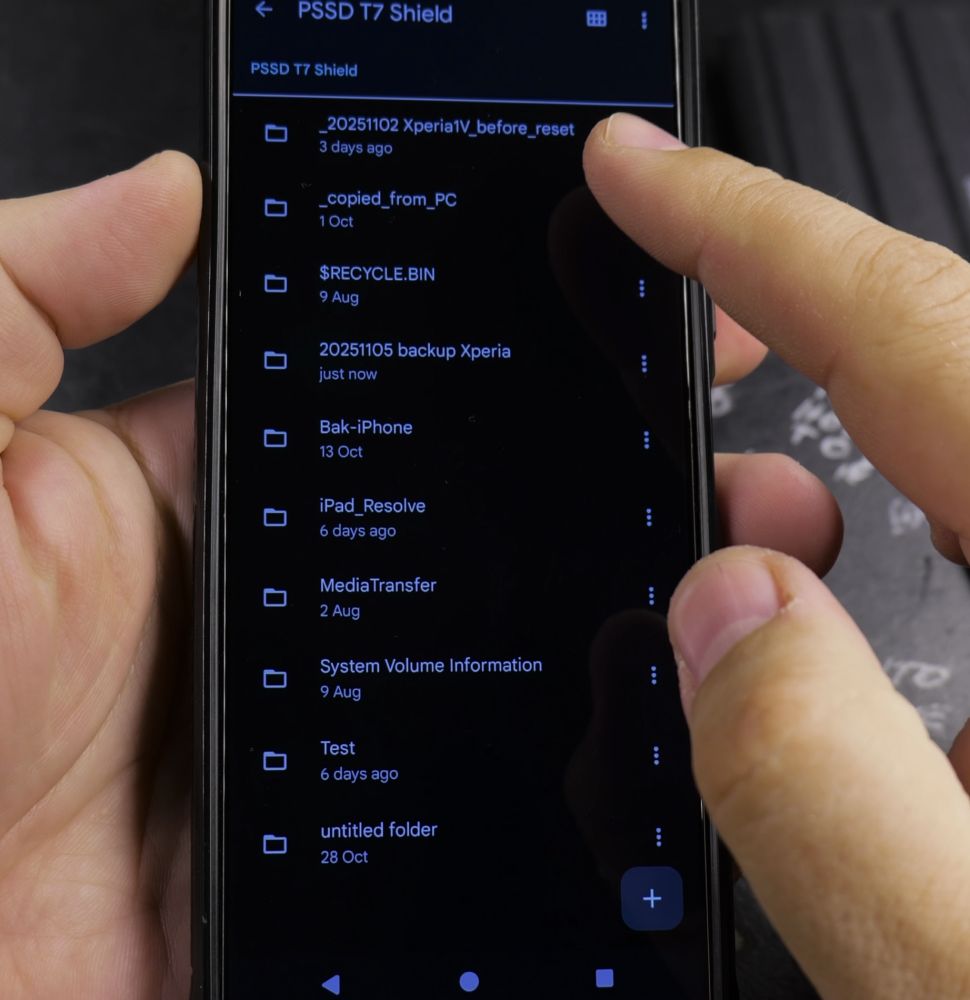
Open the **My Files** app, select your **DCIM** folder containing your photos and videos, and tap **Copy** to transfer them to your external USB drive.
3. Eject SSD Drive Safely
In My Files or Quick Settings, unmount the drive and unplug the cable once copying finishes.
4. Perform Factory Data Reset
Open **Settings**, tap **General management** > **Reset** > **Factory data reset**, review the accounts list, and tap **Delete all** to erase your device.
Helpful Tips
Always plug your phone into a charger before starting a factory data reset so the battery never runs out mid-erase. For more storage management tips, visit our Android Guides hub.


Leave a Reply