

If small app icons on your iPad are difficult to see or tap with your fingers, you can make them larger with a single setting. I’ll show you how to enlarge Home Screen app icons on your iPad in seconds.
1. Touch and Hold Wallpaper
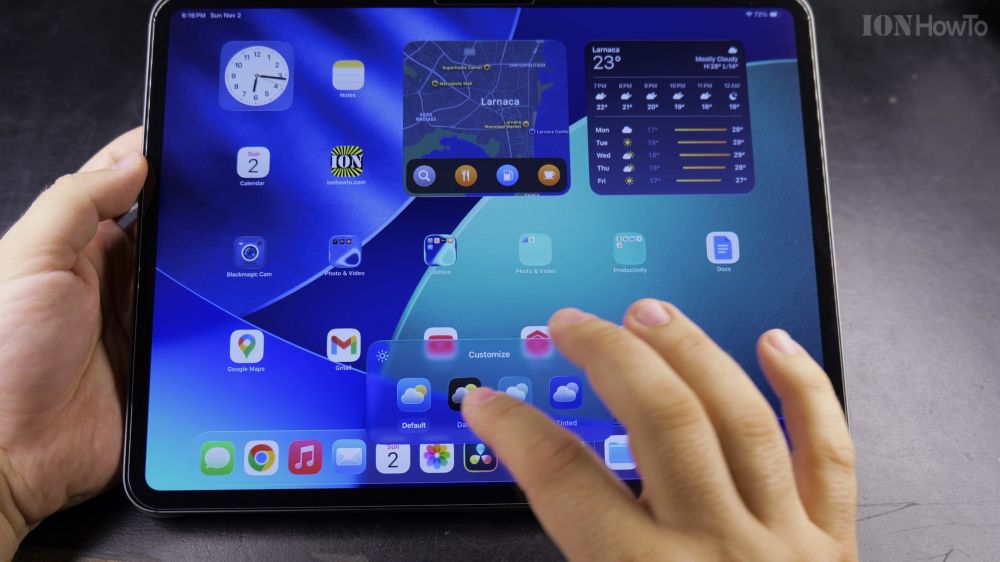
Press and hold your finger on any empty spot on your Home Screen until icons jiggle.
2. Tap Edit in the Top Corner
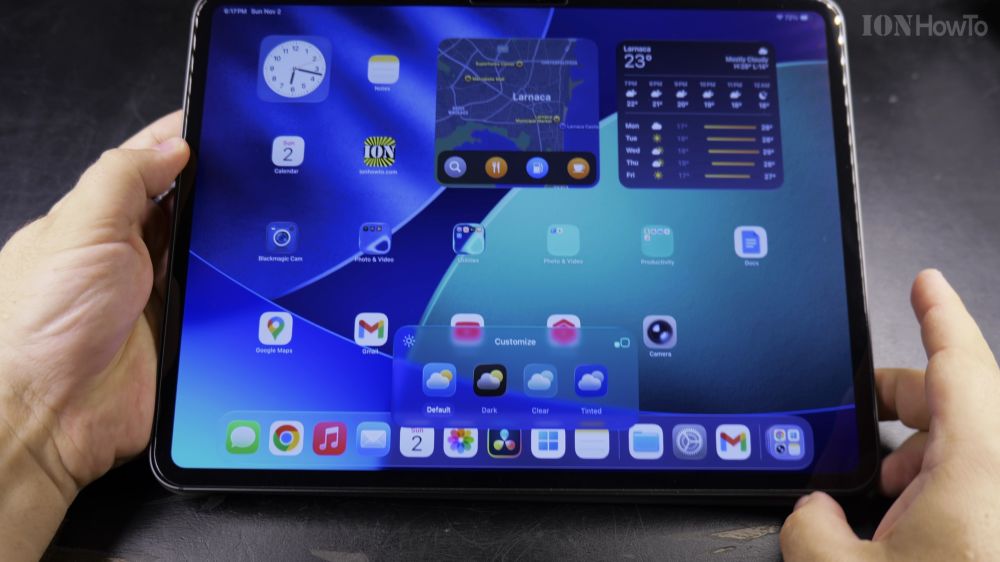
Look at the top-left corner and tap the **Edit** button.
3. Tap Customize
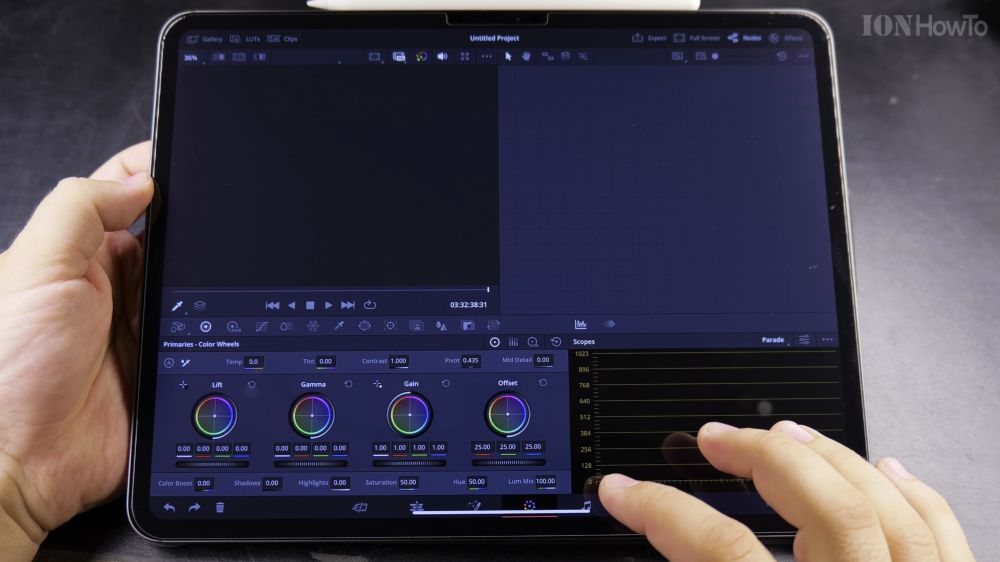
Tap **Customize** in the drop-down menu to open the icon appearance tray.
4. Tap the Large Option
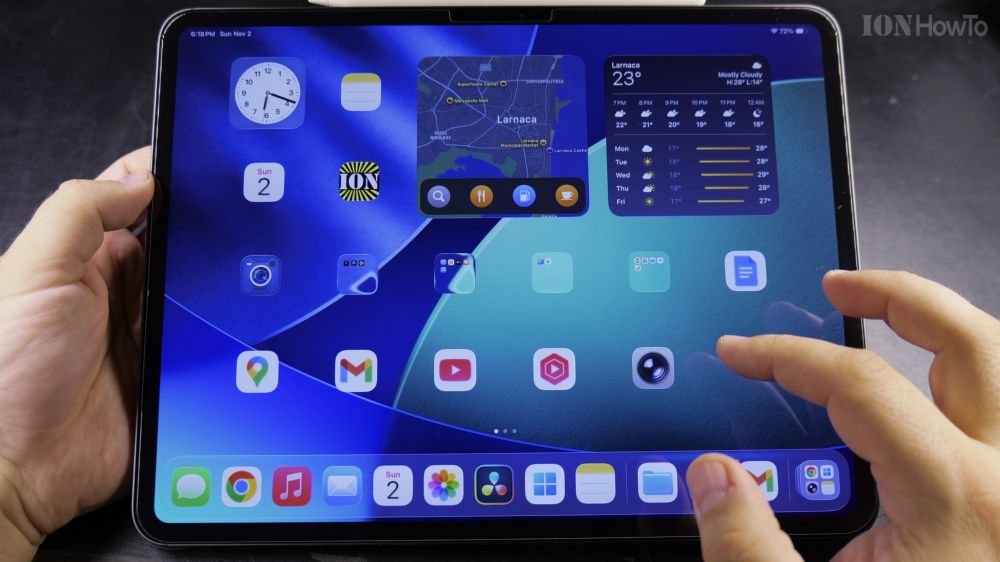
Tap the **Large** button on the bottom customization panel. The icons expand immediately. Tap anywhere on the background to save.
Helpful Tips
You can also pair Large icons with **Display Zoom** in Settings > Display & Brightness for even bigger text across all apps. For more tablet sizing tips, see our guide on Showing or Hiding App Labels on iPad or browse our Apple iPad hub.


Leave a Reply