
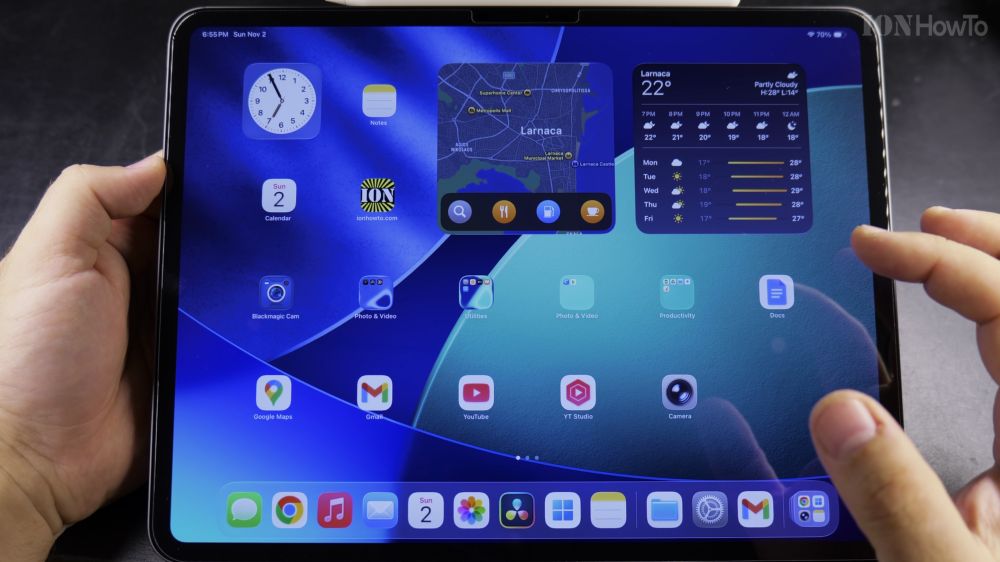
If typing on your iPad screen feels slow or tires your fingers, voice dictation lets you speak your words instead. I’ll show you how to turn on the microphone button in your settings and start talking to type in any app.
1. Open Settings and Tap General
Tap the gray **Settings** gear icon on your home screen. In the left sidebar, tap **General**.
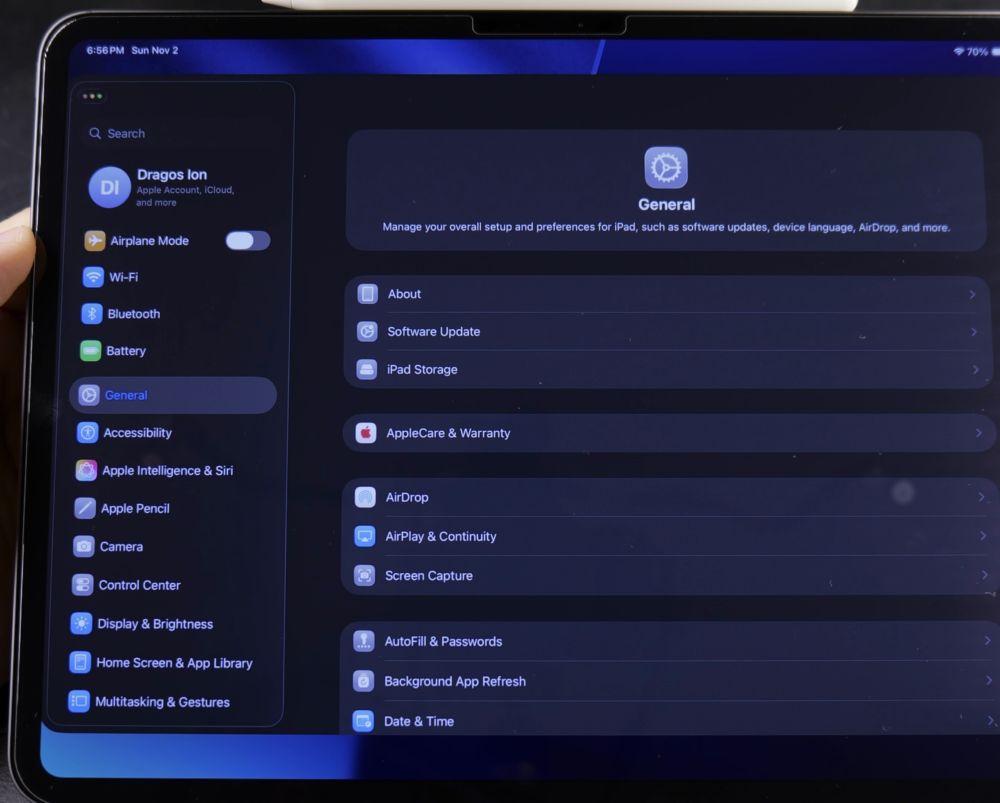
2. Open Keyboards Settings
On the right side of the screen, tap **Keyboard** (or **Keyboards**) to see your typing options.
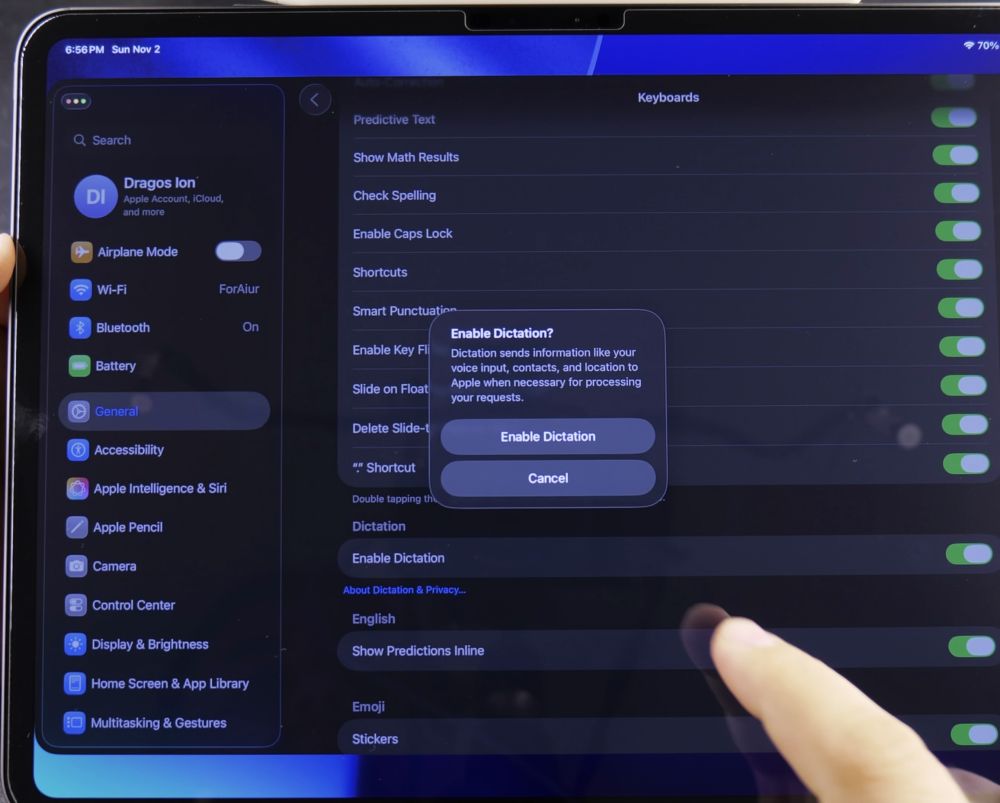
3. Turn On Enable Dictation
Scroll down to the **Dictation** section near the bottom. Tap the switch next to **Enable Dictation** so it turns green.
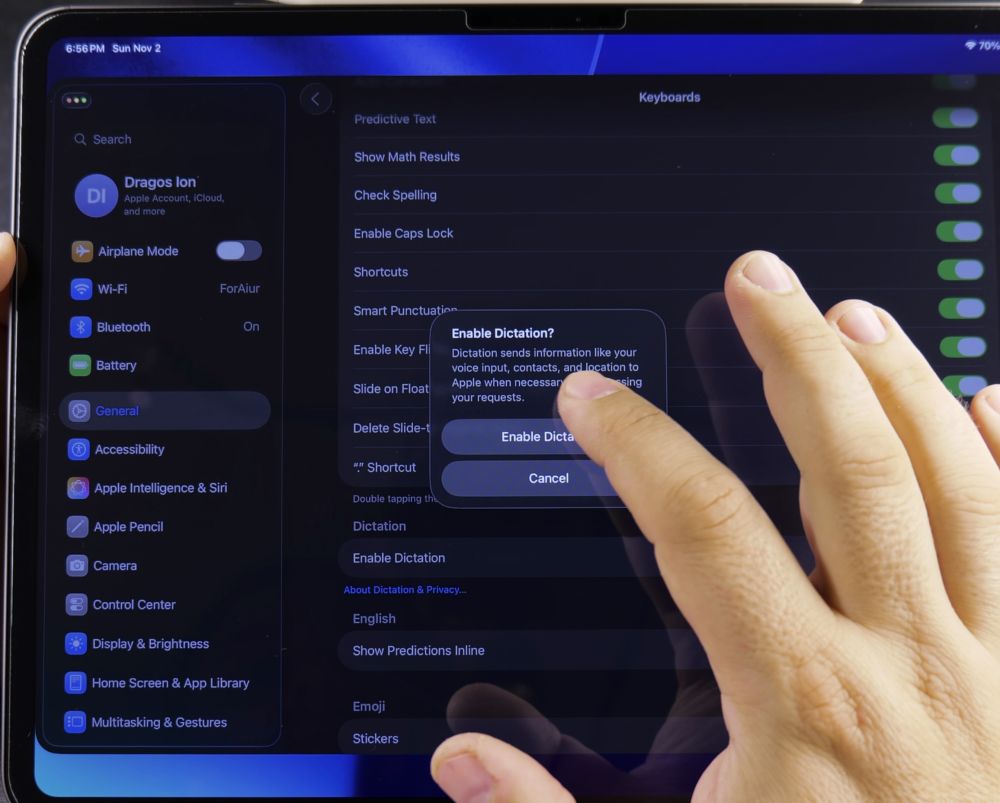
4. Confirm the Dictation Prompt
A small window will appear explaining that Apple processes your voice input. Tap the blue **Enable Dictation** button to confirm.
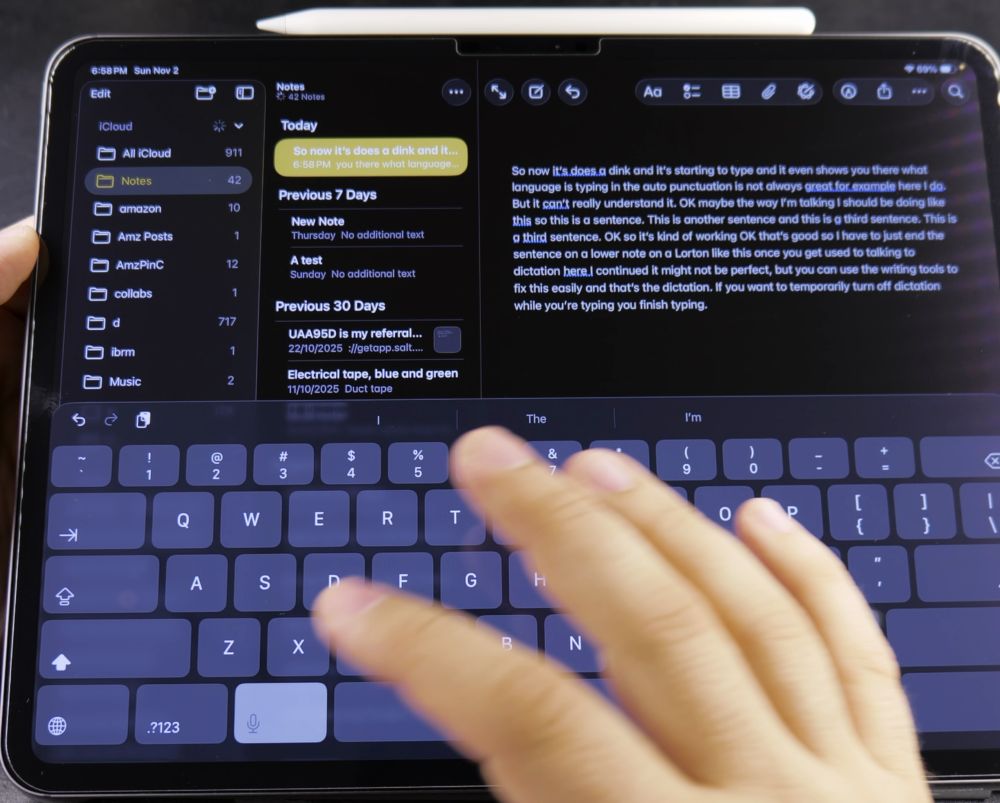
5. Test Voice Typing in Any App
Open the **Notes** app or Safari. Tap the text box to bring up the keyboard, then tap the small **Microphone** icon at the bottom of the keyboard to speak.
Helpful Tips
You can speak punctuation marks out loud, such as saying “comma” or “period”, and iPadOS will insert them directly into your sentence. For more helpful tablet shortcuts, explore our iPad Guides hub.


Leave a Reply