
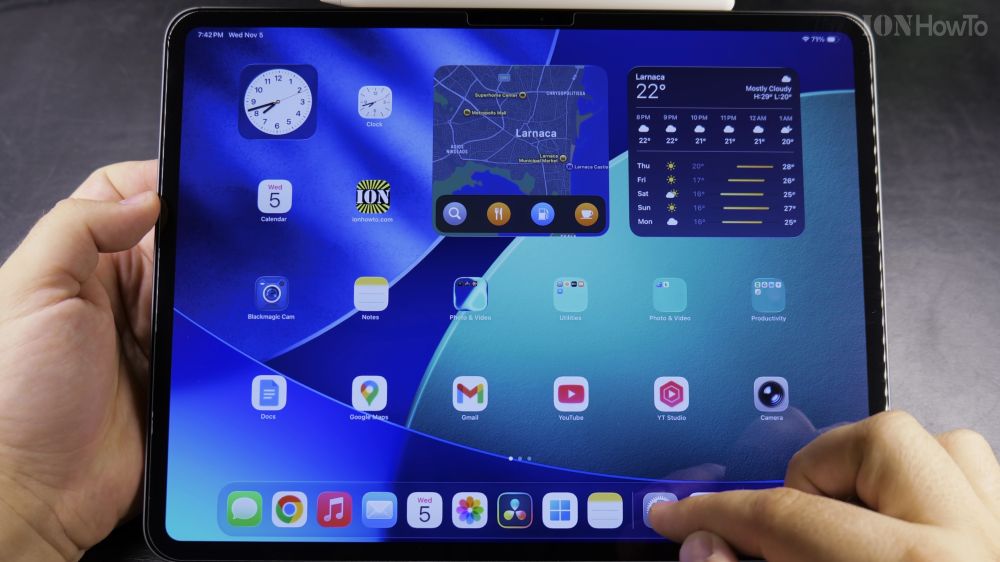
If swiping left on your iPad lock screen no longer opens the camera, the quick launch gesture may have been disabled in your settings. I’ll show you how to turn on Lock Screen Swipe to Open Camera so you never miss a quick photo.
1. Open Settings on Your iPad
Tap the gray gear icon on your home screen to open the **Settings** app.
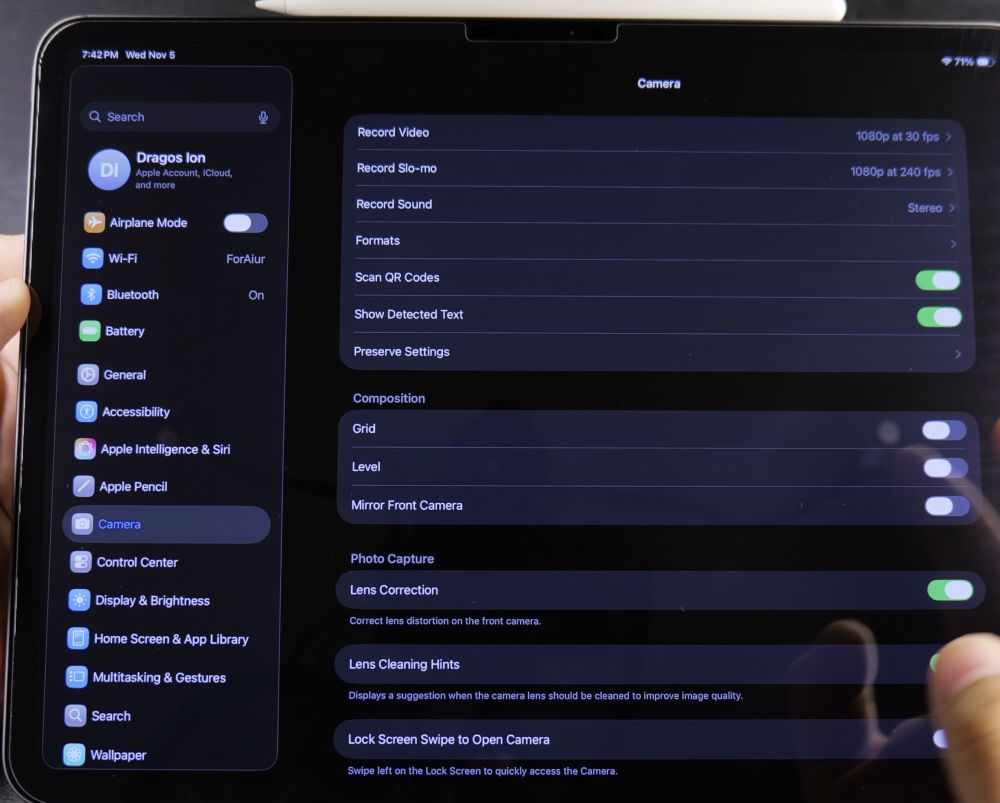
2. Tap Camera in the Sidebar
Scroll down the left navigation panel and tap **Camera**.
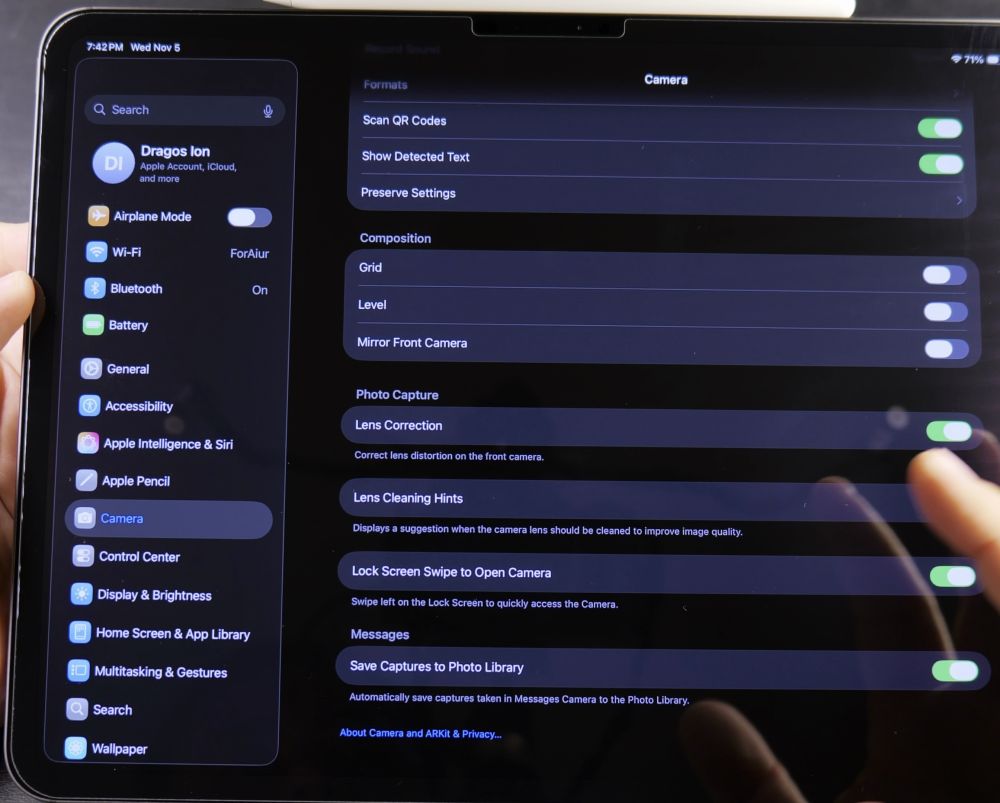
3. Find Lock Screen Swipe Option
On the right side of the screen, scroll down past Photo Capture until you see **Lock Screen Swipe to Open Camera**.
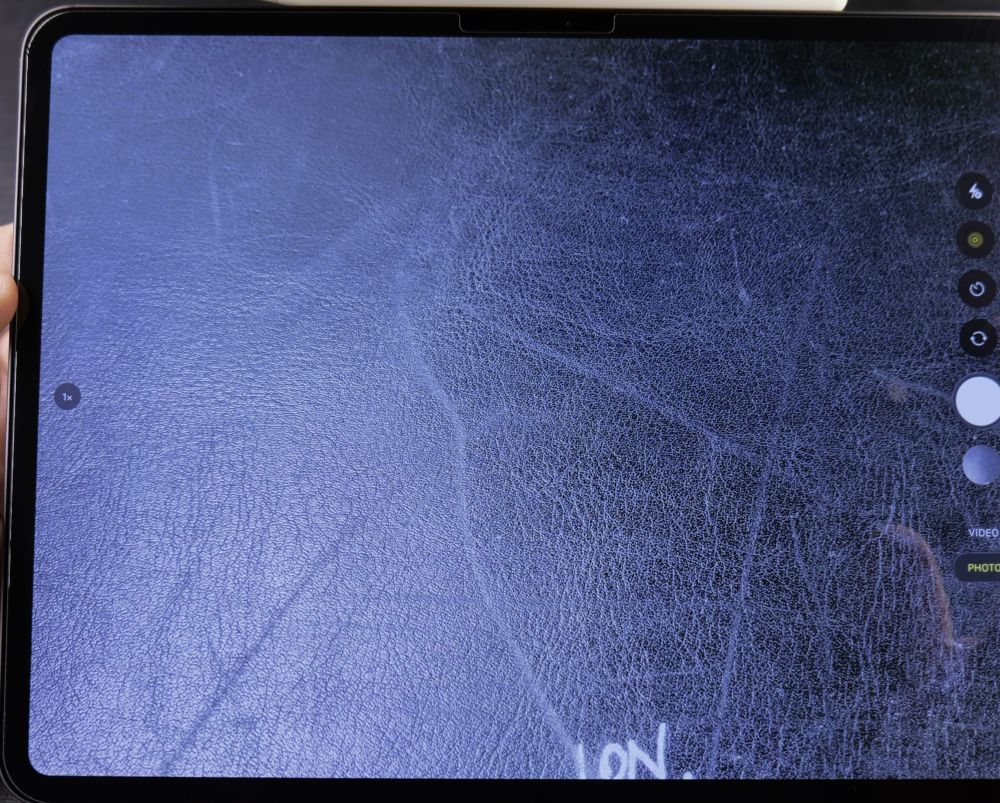
4. Turn On the Switch
Tap the switch next to **Lock Screen Swipe to Open Camera** so it turns **On** (green).
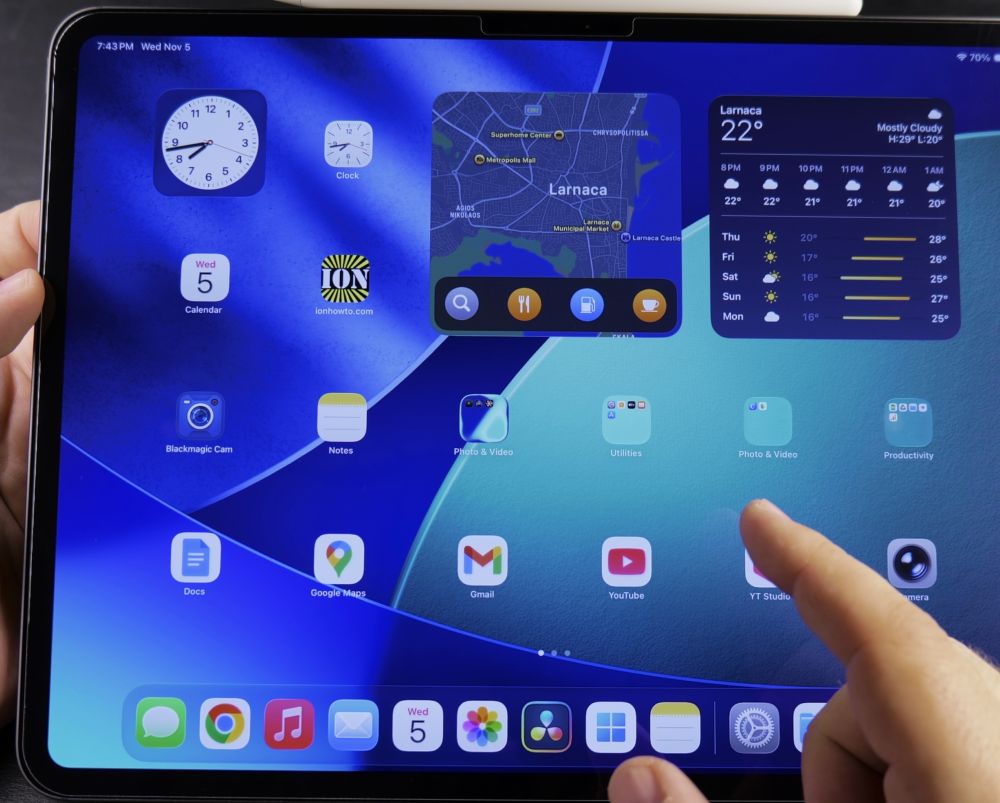
5. Test on Your Lock Screen
Press the top power button to lock your iPad, tap the screen to wake it, and swipe your finger from the right edge toward the left to open the Camera app immediately.
Helpful Tips
Anyone picking up your iPad can take photos using this shortcut, but your existing photos and private albums stay securely locked behind your passcode or Face ID. For more tablet shortcuts, explore our iPad Guides collection.


Leave a Reply