
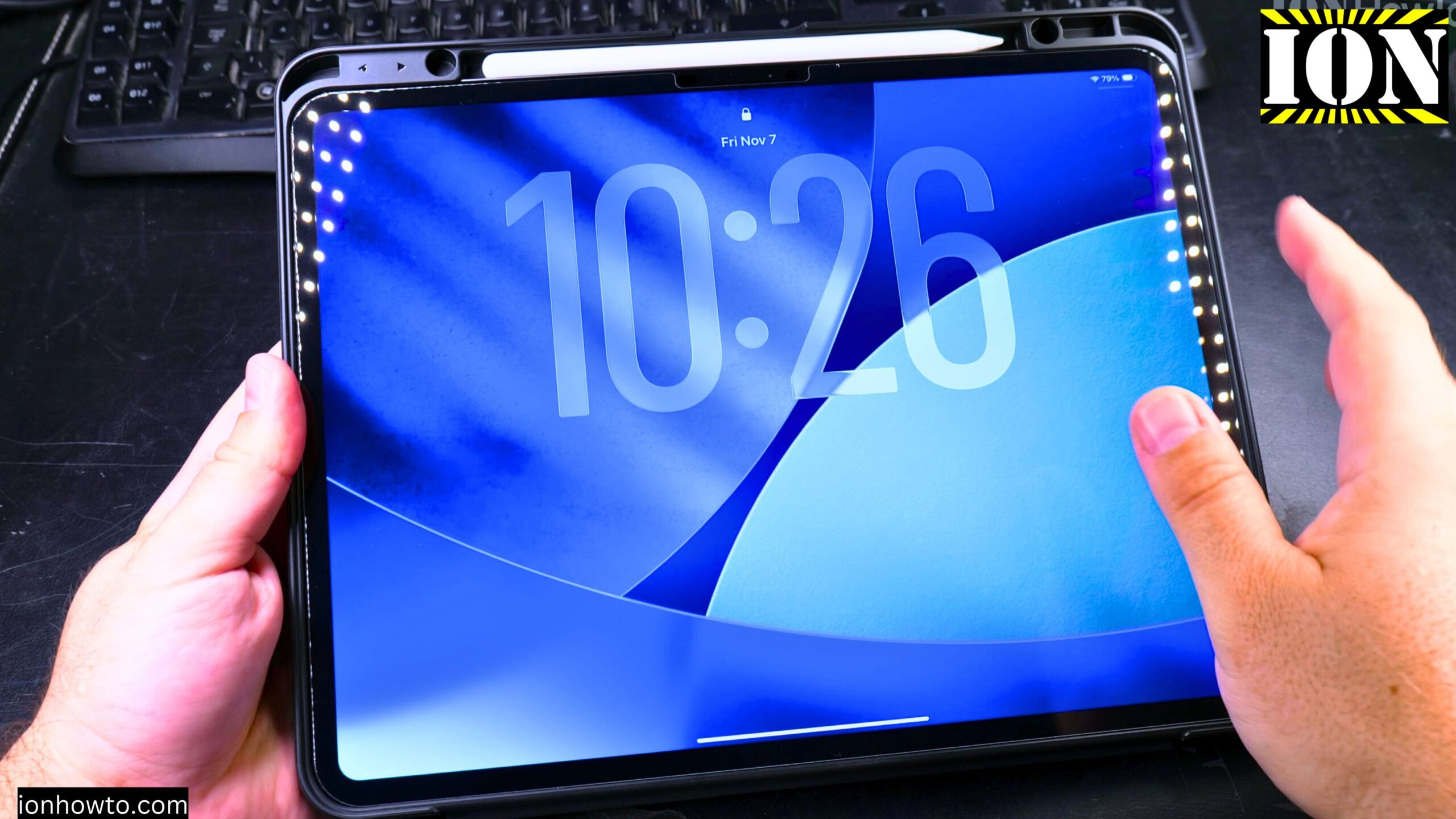
How to Eject an External SSD from a USB-C iPad Pro.
Learn how to safely eject an external SSD or hard drive from your iPad. This is the correct way to disconnect your USB storage from iPad Pro, iPad Air, or any iPad with a USB-C port.
I’m showing you this on iPadOS 26 on an iPad Pro M5 13-inch 2025 model. But the steps work the same on any modern iPad with USB-C.
Do You Actually Need to Eject?
Here’s a nice surprise: with iPads, you usually don’t need to go find an “eject” button like on a computer. As long as you close any apps that are using the drive, you can simply unplug it.
But there is one thing to watch for – the activity light on your drive.
How to Safely Remove Your SSD or Flash Drive
Here are the simple steps:
Step 1: Close any apps using the drive
- If you have the Files app open with that drive selected, close it
- Swipe it away or tap the Home button to make sure it’s fully closed
- Also close photo or video apps that might be saving to the drive
Step 2: Look at the activity light on your drive
- Most external SSDs and flash drives have a small blinking light
- When the light is blinking, the iPad is reading or writing data
- Wait for the light to stop blinking and turn off completely
Step 3: Unplug the drive
- Once the light is off, simply pull the USB-C cable out
- That’s it – no extra buttons or menus needed
What If You Have a Hub Connected?
If you’re using a USB hub with multiple devices plugged in, the same rule applies. Close any apps using the storage drive, wait for the light to stop blinking, then disconnect the drive. Your other devices like a mouse or keyboard don’t need the same care – you can unplug those anytime.
Why Bother Doing It This Way?
Following these steps helps prevent data corruption on your SSD or external hard drive. If you yank the drive out while it’s still saving a file, that file can get damaged or become unreadable. It’s a simple habit that keeps your files safe, whether you’re transferring videos, backing up photos, or managing project files.
Quick Recap
| What to do | Why |
|---|---|
| Close all apps using the drive | Stops new reads or writes |
| Wait for the activity light to turn off | Confirms no data is moving |
| Unplug the drive | Safe to remove |
One More Thing
This works the same way for:
- USB flash drives (both USB-A and USB-C types)
- External SSDs like the Samsung T7 Shield
- External hard drives with spinning disks
- Any USB storage plugged into your iPad
Learn how to do this every time you disconnect, and your files will stay safe. No eject button hunting needed – just close, wait for the light, and unplug.


Leave a Reply