
Fixing Fiber Internet Connection Problems: WiFi Connected But No Internet
Learn how to fix that frustrating home internet problem where your WiFi shows as connected, but you have no actual internet access. If your internet comes through a fiber optic line, this guide will help. I’ll show you the common setup and the simple steps to get you back online fast.
Understanding Your Fiber Internet Setup
Your Internet Service Provider (ISP) sends your internet through a fragile glass fiber cable. This is often called a GPON (Gigabit Passive Optical Network) connection. Here’s the typical setup, piece by piece:
- The Fiber Wall Box: This is a small box mounted on your wall. Inside, the main fiber line from outside your building is connected to a socket.
- The Fiber Patch Cord: A thin, usually green, cable connects the wall box to the next device. It’s crucial to handle this cord carefully. The data travels through a glass fiber inside, which can break if the cord is bent too tightly. Always keep bends loose and gentle.
- The GPON Converter Box: This box (often from brands like Huawei) is the translator. It converts the optical light signals from the fiber into electrical Ethernet signals that your router can understand, and vice-versa.
- The ISP Router/Modem: This is the router or modem provided by your internet company. The GPON converter plugs into it. In some setups, like the one shown in the video, this might be a device like a Mikrotik Hex Routerboard.
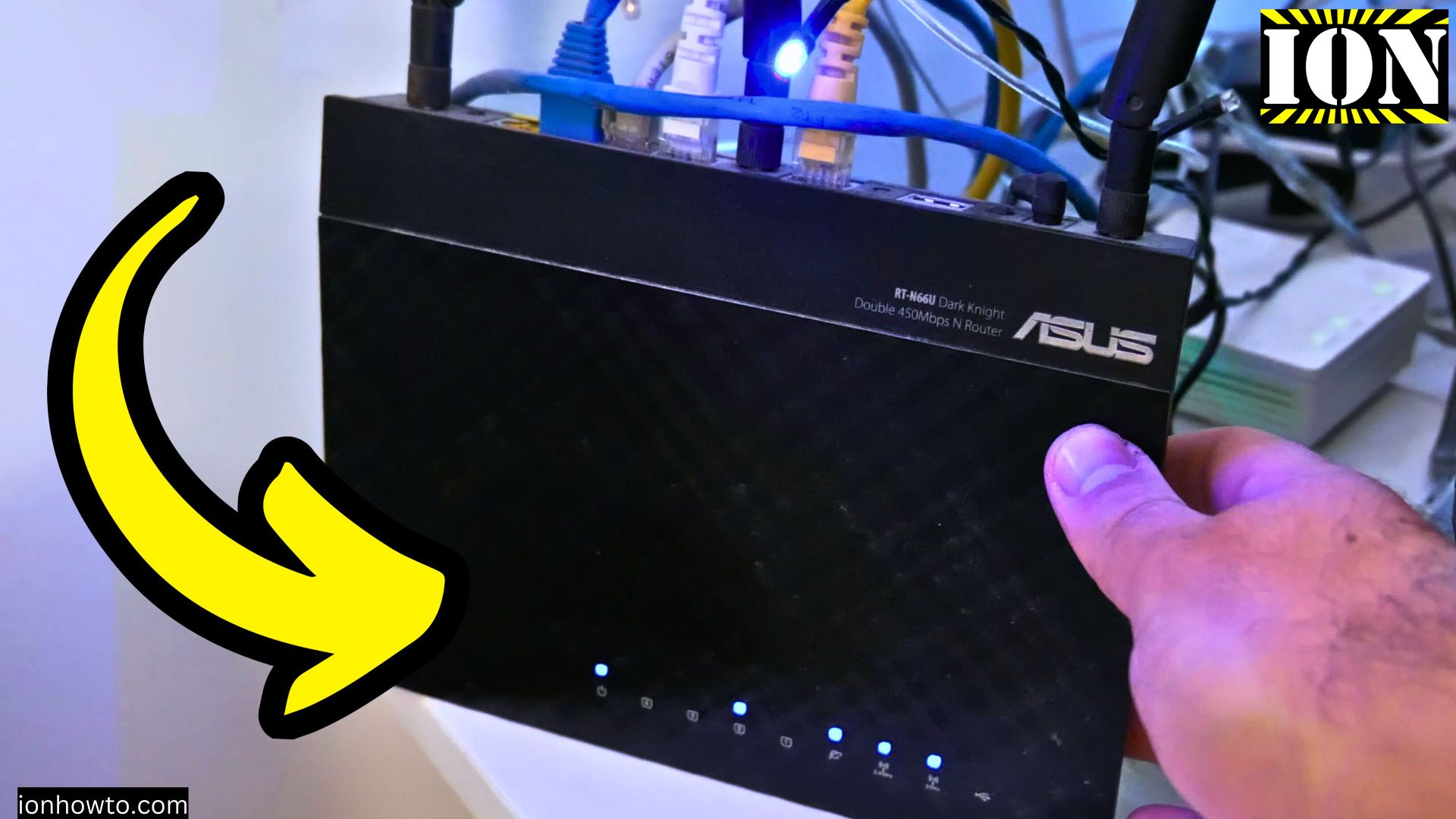
- Your Personal Router: Finally, you connect your own WiFi router to a port on the ISP’s device to create your home wireless network.
The First Fix: Restart Everything (The 90% Solution)
If your WiFi is connected but there’s no internet, the problem is likely with one of the boxes in the chain, not your device. A full restart fixes about 90% of these issues.
Follow these steps:
- Turn off the power to every box related to your internet connection. This includes:
- Your personal WiFi router.
- The ISP’s router or modem (like the Mikrotik).
- The GPON fiber converter box.
- Wait for 5-10 seconds. This gives the devices time to fully power down and clear their memory.
- Turn the power back on to all the devices. You can turn them on one by one or all at once.
- Wait a few minutes. Allow all the boxes to boot up, connect to each other, and establish a link with your ISP’s network.
- Check your router. The “Internet” or “WAN” light should typically be solid or flashing steadily. Now, check if your internet is working again on your phone or computer.
If Restarting Doesn’t Work
If you’ve powered everything off and on and still have no internet, here’s what to check next.
Check Your Fiber Connection
A damaged fiber patch cord is a common culprit after a power issue.
- Inspect the Cord: Look at the green fiber patch cord running from the wall box to the GPON converter. Make sure it has no sharp kinks, bends, or pinches.
- Check the Connectors: Ensure the cord is firmly plugged in at both ends—into the wall box and into the GPON converter. The connector has a small tab and only fits one way.
- Important: Never look directly into the end of a fiber optic connector. While the light is usually low-power and not dangerous, it’s best to avoid it.
If you suspect the cord is damaged, the good news is you can replace it. You only need to replace the short patch cord from your wall box to the converter, not the entire line coming into your home.
Contact Your Internet Service Provider
If the restart didn’t help and the fiber cord looks fine, the issue might be outside your home or require your ISP’s attention.
- Contact your ISP’s customer support.
- Explain that you have no internet, but your WiFi is connected.
- Tell them you have already performed a full power cycle of all your equipment (router, modem, fiber box).
- Follow their troubleshooting instructions. They may be able to reset the connection from their side or identify an outage in your area.
Quick Troubleshooting Summary
- Step 1: Power cycle (turn off and on) all devices: your router, the ISP modem, and the fiber converter box. Wait a few minutes.
- Step 2: Check the thin green fiber optic cord for damage and ensure it’s plugged in snugly.
- Step 3: If problems continue, call your ISP for support.


Leave a Reply