
Amazon links
As an Amazon Associate I earn from qualifying purchases:
- iPhone Accessories
- iPhone Charger
- iPhone Cases
- iPhone Screen protector
- iPhone Magsafe
- iPhone Wallet
- iPhone Usb c cable
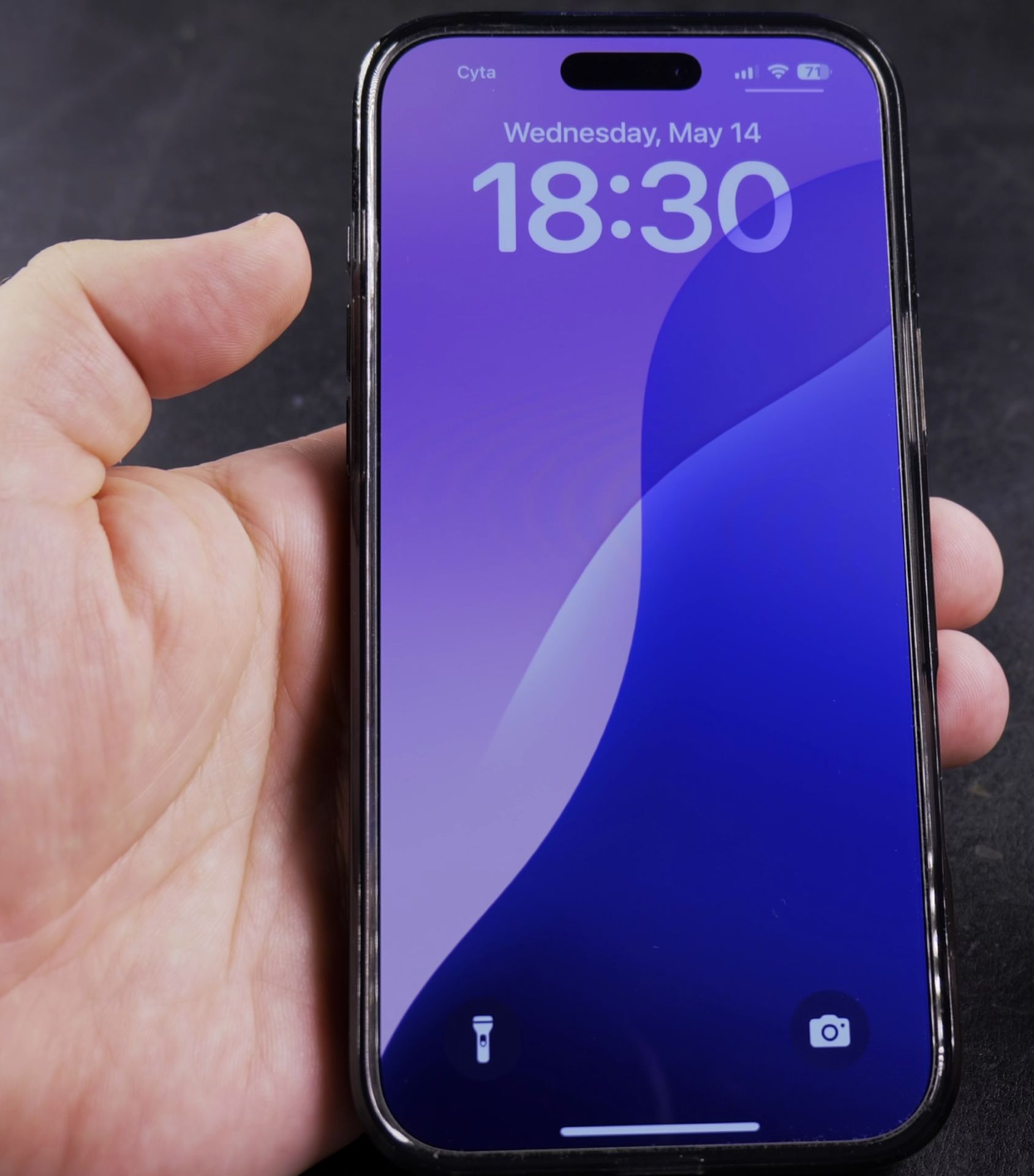
Learn how to enable and customize the Always On Display feature on your iPhone. This keeps your screen visible when locked, showing time, widgets, and notifications without fully waking your phone.
How to Turn On Always On Display for iPhone.
Quick Steps and Scenarios Overview
| What You Need to Do | Quick Jump |
|---|---|
| Which iPhones Support Always On Display? | Jump to Step 1 |
| How to Turn On Always On Display | Jump to Step 2 |
| Customization Options | Jump to Step 3 |
| Battery Saving Tips | Jump to Step 4 |
| How to Turn Off Always On Display | Jump to Step 5 |
Demonstrated on iOS 18.5 with iPhone 16 Pro Max Titanium Black 256GB (Global model A3296 – MYWV3ZD/A)
Which iPhones Support Always On Display?
This feature works on:
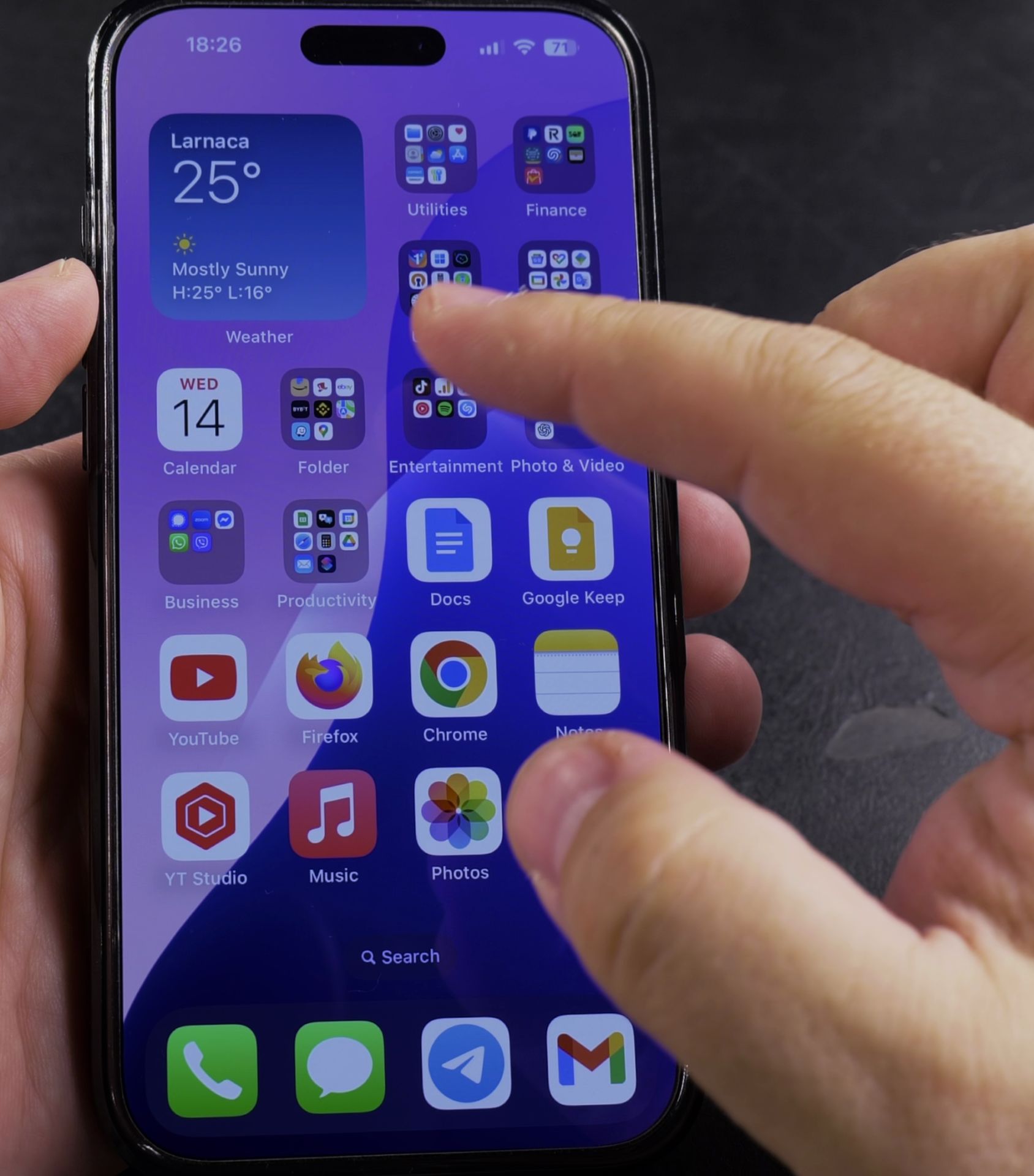
- iPhone 14 Pro/Pro Max
- iPhone 15 Pro/Pro Max
- iPhone 16 Pro/Pro Max
- And newer models running iOS 16 or later
How to Turn On Always On Display
Follow these steps to activate the feature:
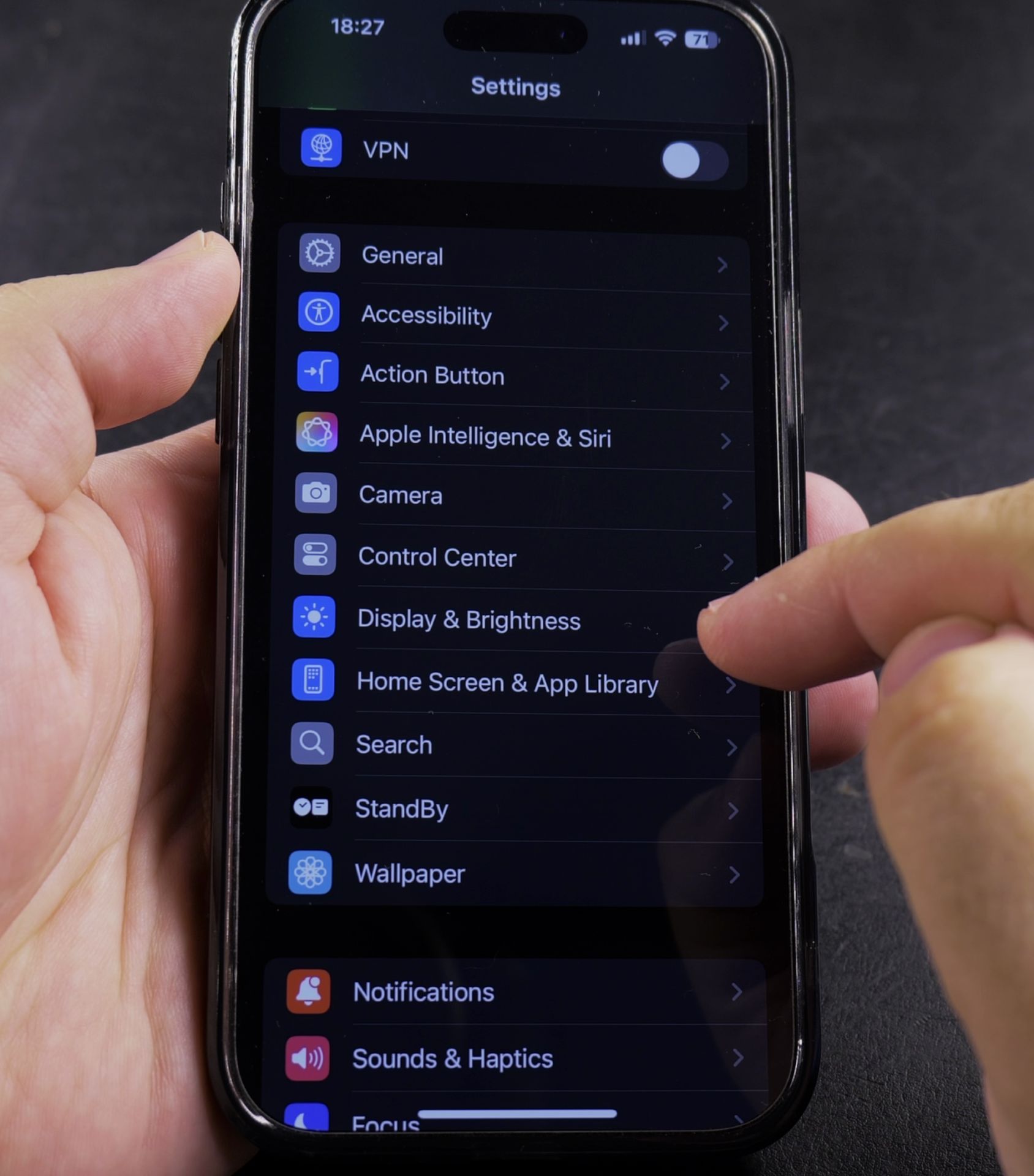
- Open Settings on your iPhone
- Tap Display & Brightness
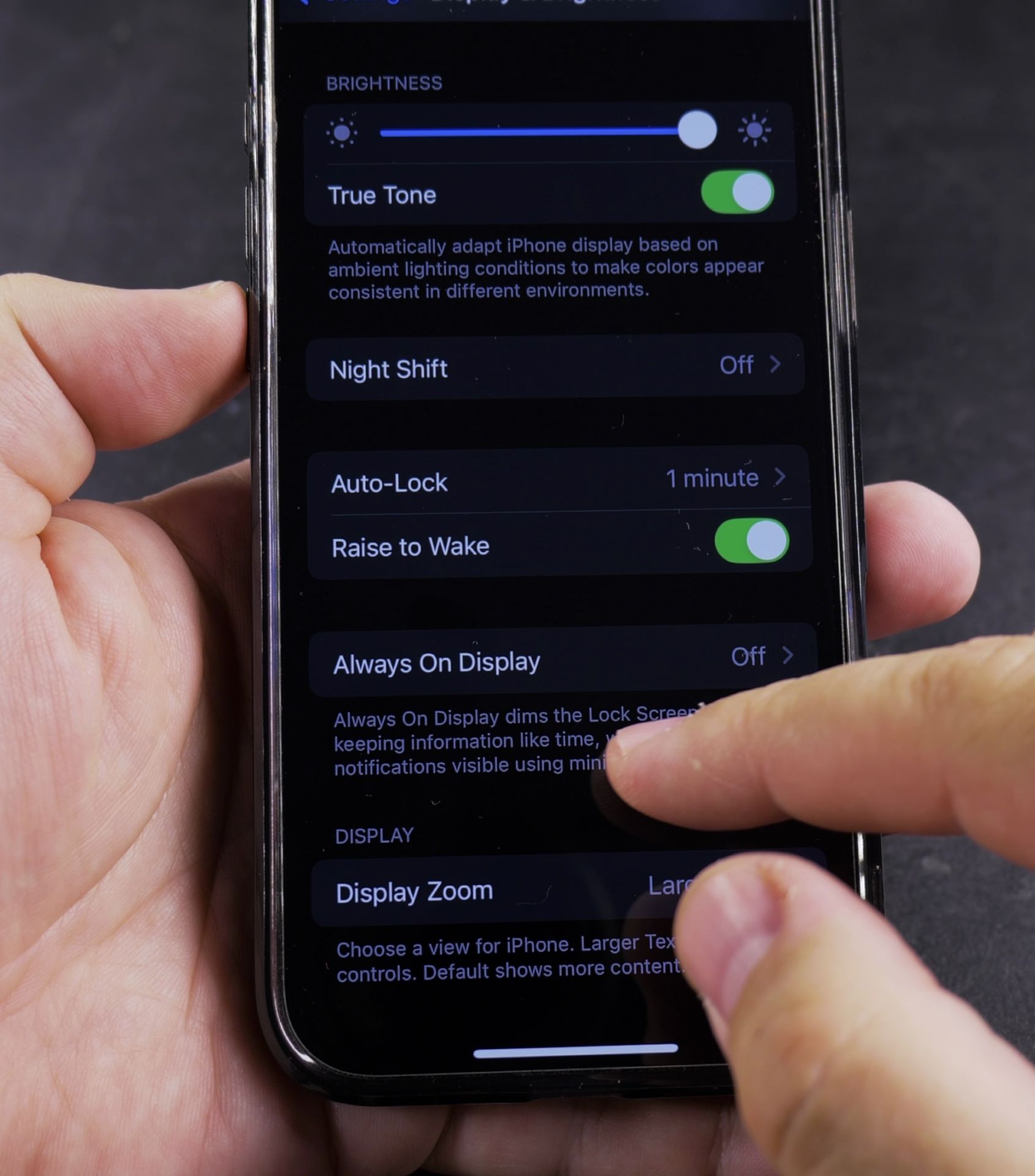
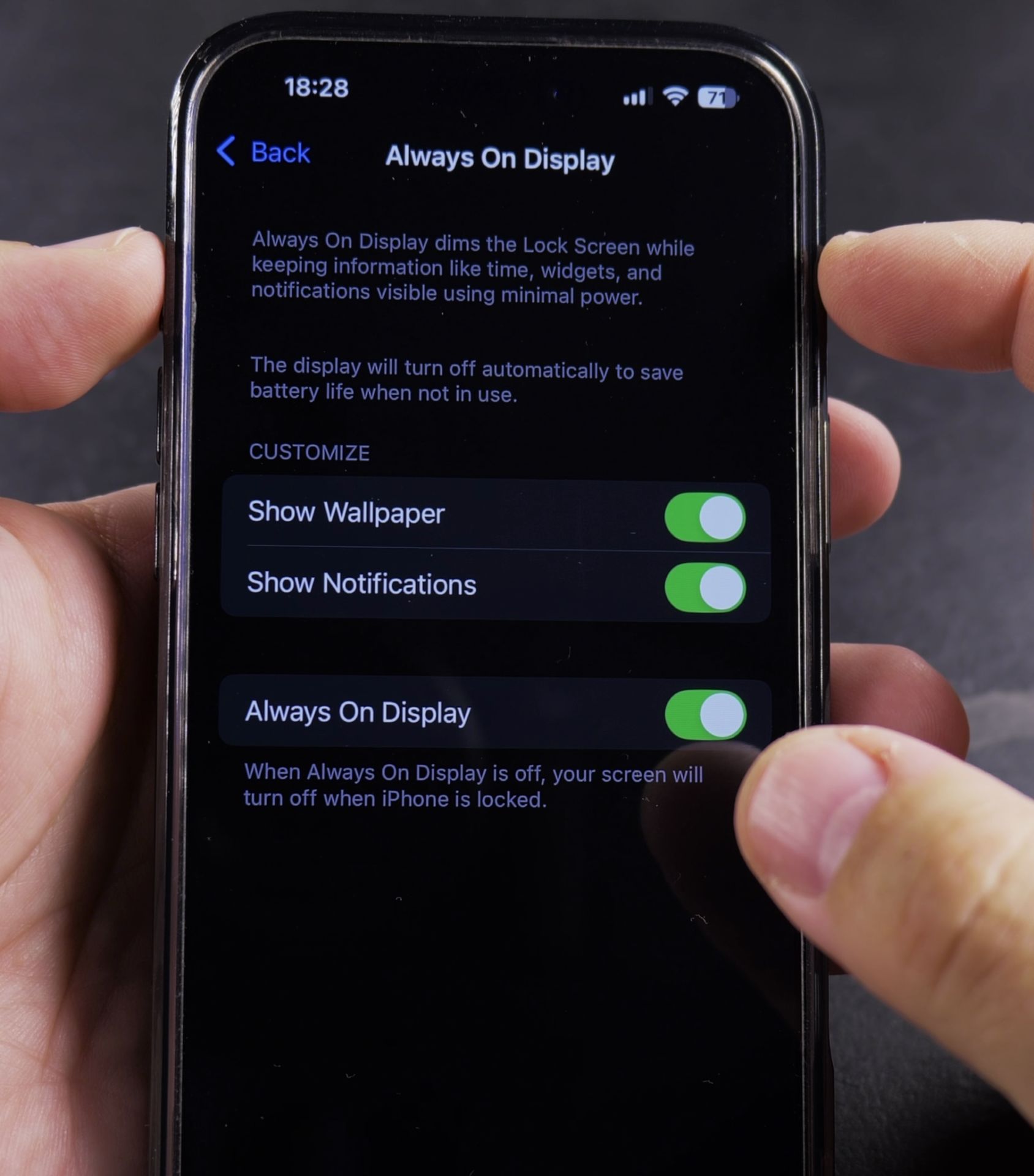
- Scroll down and select Always On Display
- Toggle on Always On Display
- Choose your preferred options below
Customization Options
You can personalize your Always On Display by:
- Showing/hiding your wallpaper
- Displaying notifications
- Showing widgets
- Adjusting the dimming level
- Setting a schedule (like turning off at night)
Battery Saving Tips
To minimize battery impact:
- Use dark mode wallpapers
- Turn off wallpaper display
- Set a schedule to disable at night
- Reduce the number of visible widgets
How to Turn Off Always On Display
If you want to disable it:
- Go to Settings > Display & Brightness
- Select Always On Display
- Toggle off the main switch
Troubleshooting Common Issues
If the feature isn’t working properly:
- Check your battery level (low power mode disables it)
- Make sure your iPhone isn’t face down or in a pocket
- Restart your iPhone
- Update to the latest iOS version
The Always On Display is a convenient way to check time and notifications at a glance. Try different settings to find what works best for your needs and battery life.
iPhoneTips, AlwaysOnDisplay, iPhoneHowTo, iPhoneSettings, iOSFeatures
Helpful Tips
Take your time and check the screen carefully after each tap so you can confirm the setting changed as expected. If an option appears in a slightly different spot on your device, watch the embedded video above for a closer look.
Related Guides
- iPhone How to Show App Labels Customize Home Screen – If the names beneath your iPhone app icons disappeared after updating, your icons were switched to the large view.
- How to Add Flashlight Button to iPhone Lock Screen – If your iPhone lock screen is missing the flashlight button in the bottom corner, you can put it back in seconds.
- How to Allow Siri on iPhone Lock Screen – How to Allow Siri and Apple Intelligence on iPhone Lock Screen.
- iPhone How-To Guides – Browse more tutorials and practical guides in this section.


Leave a Reply