
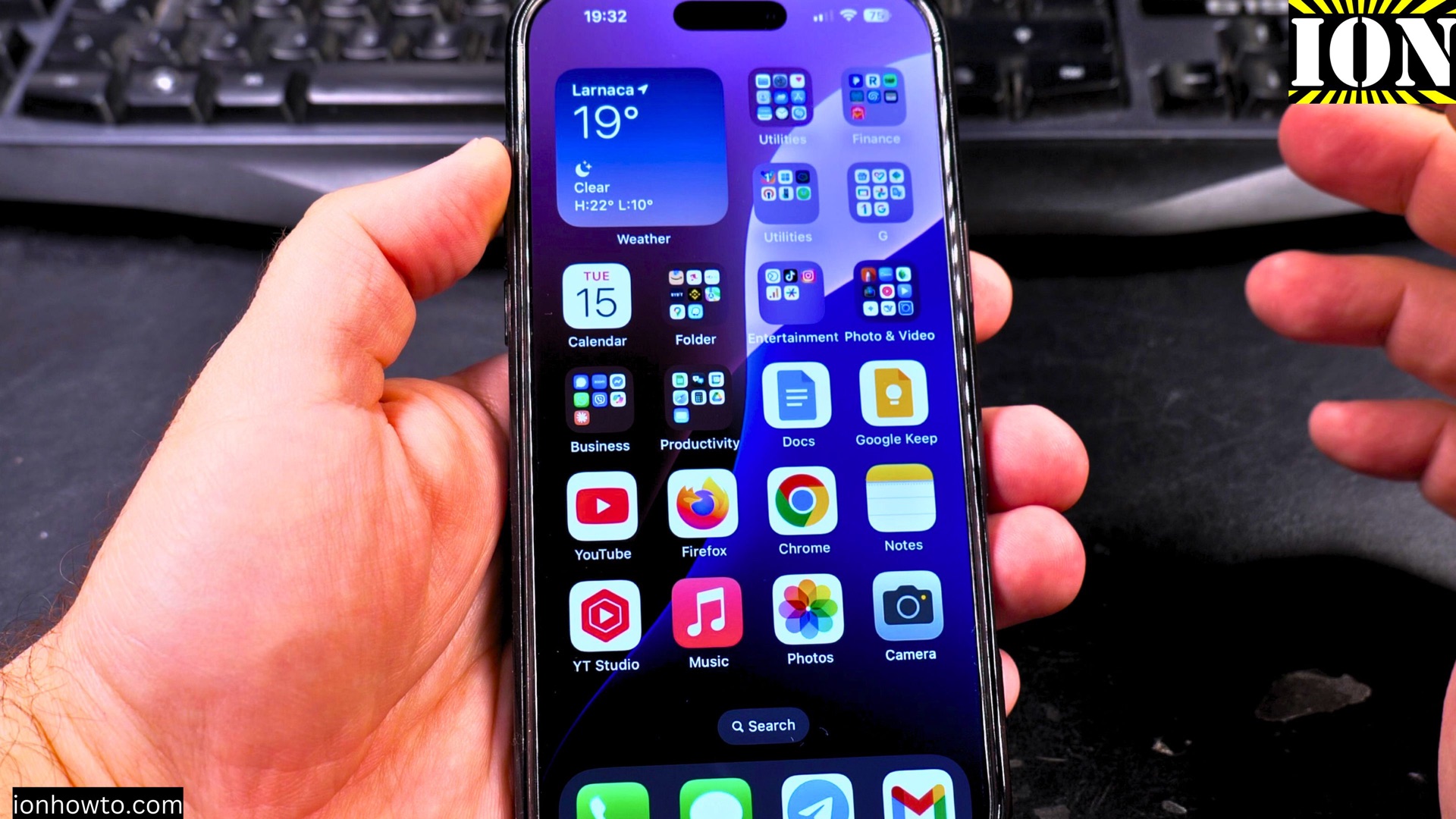
Tired of spelling out your complicated Wi-Fi password every time someone visits?
Amazon links
As an Amazon Associate I earn from qualifying purchases:
- iPhone Accessories
- iPhone Charger
- iPhone Cases
- iPhone Screen protector
- iPhone Magsafe
- iPhone Wallet
- iPhone Usb c cable
There’s a much easier way to share your Wi-Fi using a QR code. Here’s how to create and scan Wi-Fi QR codes on your iPhone.
How to Share Wi-Fi Password with QR Code on iPhone.
Quick Steps and Scenarios Overview
| What You Need to Do | Quick Jump |
|---|---|
| Why Use a Wi-Fi QR Code? | Jump to Step 1 |
| Method 1: Share Wi-Fi QR Code Using the Passwords App (iOS 18+) | Jump to Step 2 |
| Method 2: Create a Wi-Fi QR Code Using Shortcuts (Any iOS Version) | Jump to Step 3 |
| How to Scan a Wi-Fi QR Code on iPhone | Jump to Step 4 |
| Open the Camera app | Jump to Step 1 |
| Point it at the QR code | Jump to Step 2 |
(Tested on iOS 18.4.1 with iPhone 16 Pro Max Titanium Black 256GB – Global Model A3296 – MYWV3ZD/A)
Why Use a Wi-Fi QR Code?
- No need to type long passwords
- Works for both iPhone and Android users
- Guests can connect in seconds
- More secure than saying your password out loud
Method 1: Share Wi-Fi QR Code Using the Passwords App (iOS 18+)
- Open the Passwords app (it has a key icon)
- Find your Wi-Fi network under Wi-Fi Passwords
- Tap the network name
- Select Share Password
- Choose QR Code
- Let the other person scan the code with their camera
Tip: You can screenshot this QR code to save it for future use.
Method 2: Create a Wi-Fi QR Code Using Shortcuts (Any iOS Version)
If you don’t have iOS 18, use this method:
- Open the Shortcuts app
- Tap + to create a new shortcut
- Search for and add “Text” action
- Paste this exact format:
WIFI:T:WPA;S:YourNetworkName;P:YourPassword;;
(Replace “YourNetworkName” and “YourPassword” with your actual details)
- Add “Create QR Code” action
- Add “Show Result” action
- Run the shortcut to generate your QR code
How to Scan a Wi-Fi QR Code on iPhone
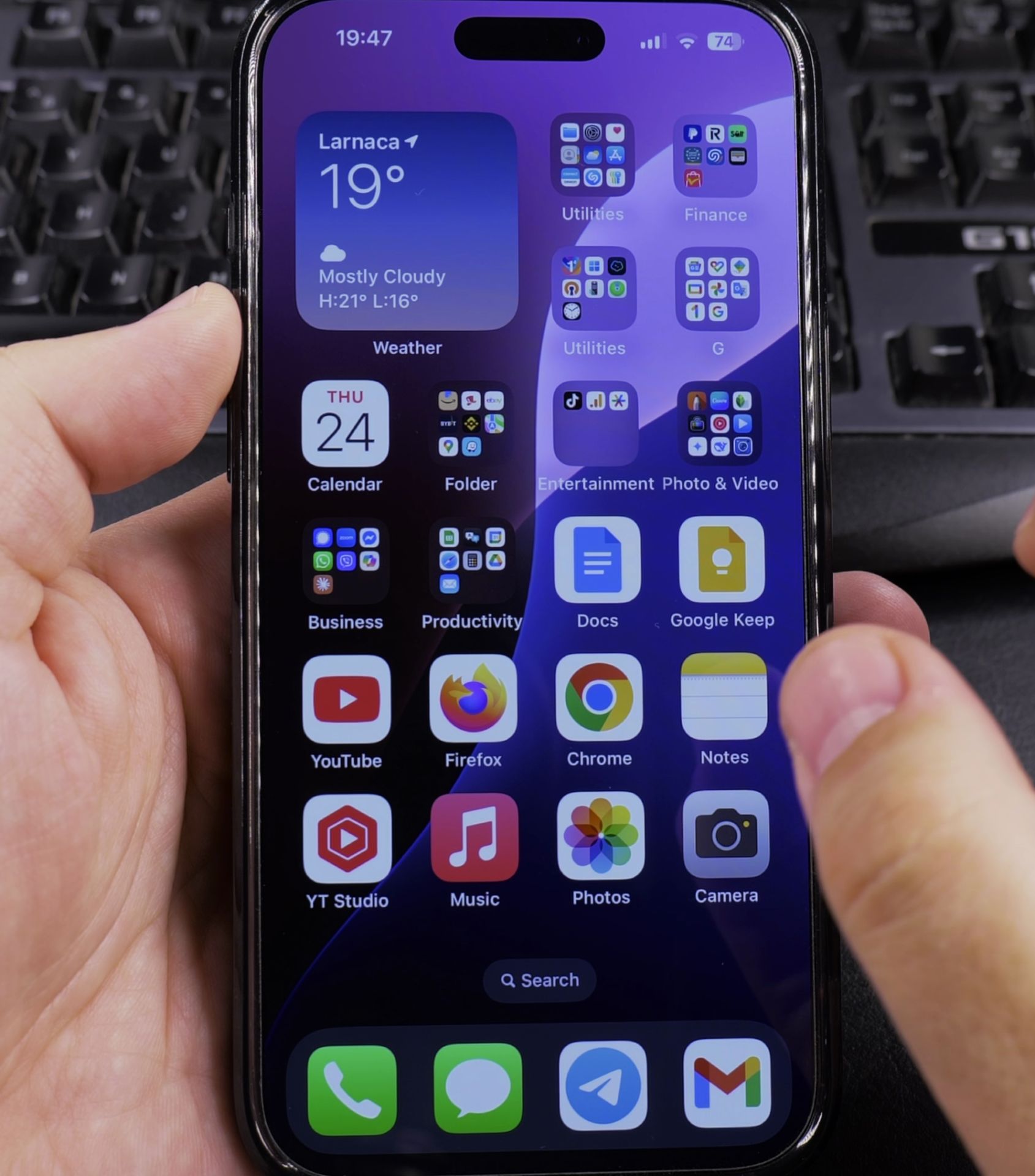
1. Open the Camera app
Open the Camera app.
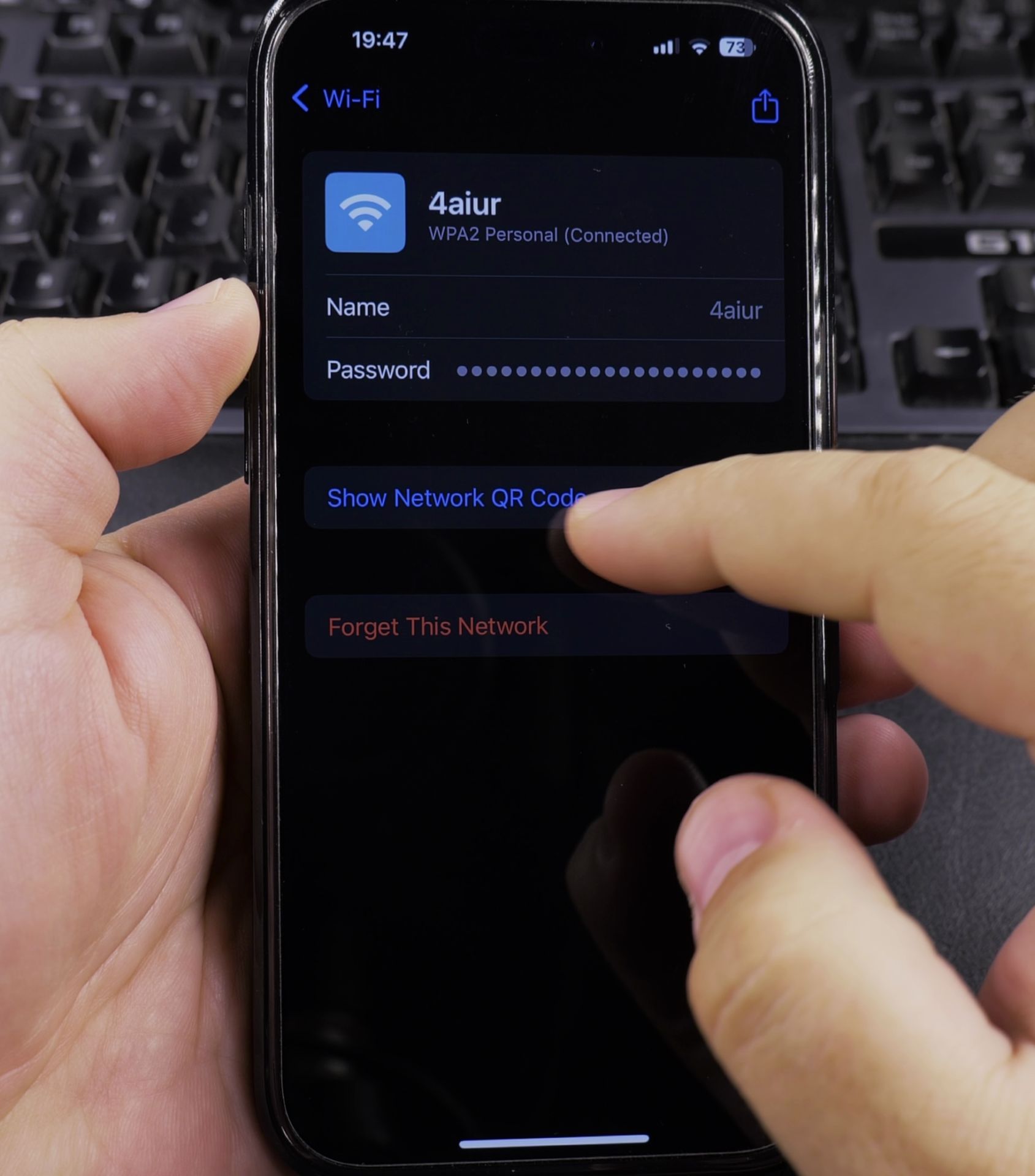
2. Point it at the QR code
Point it at the QR code.
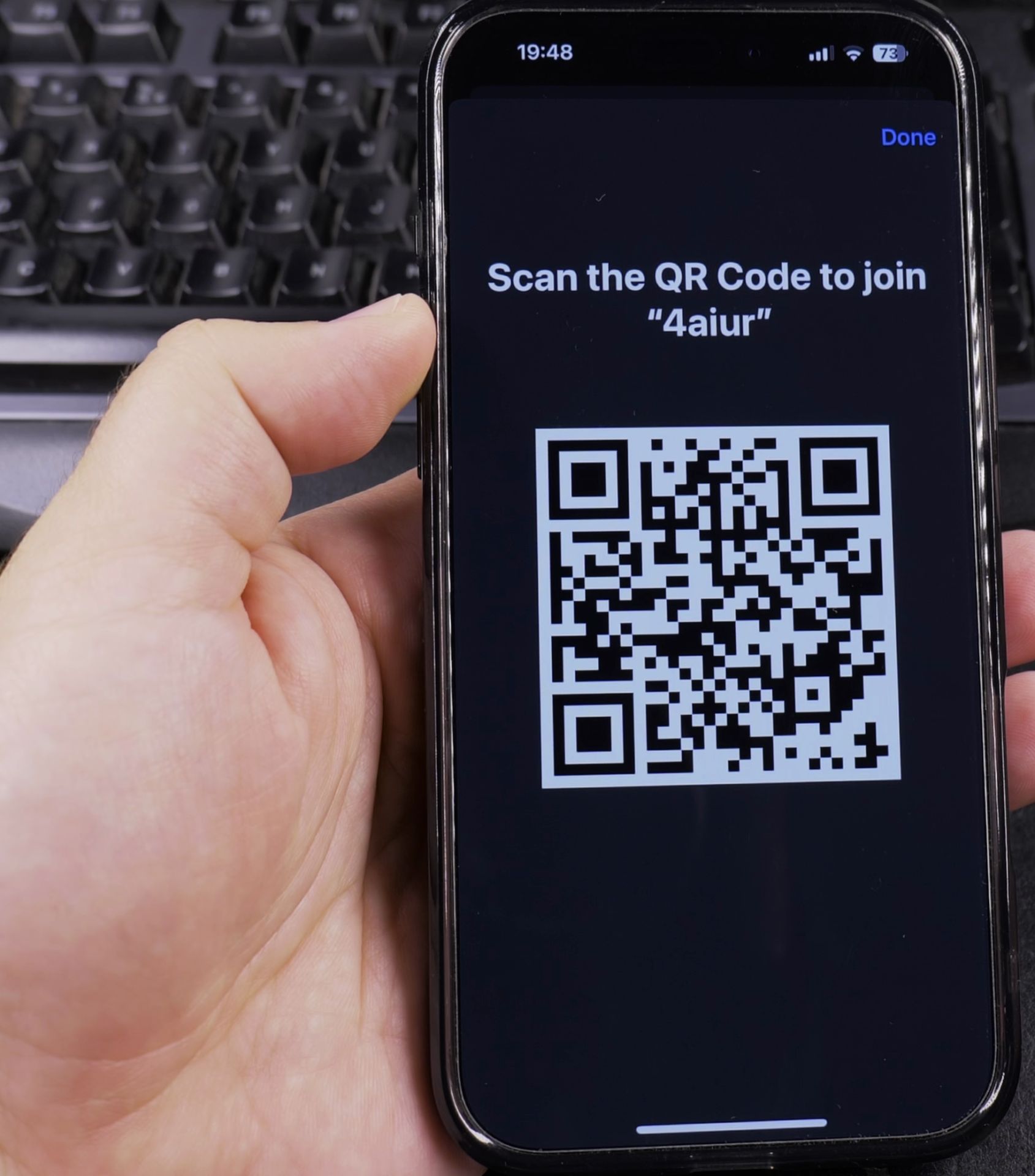
3. Tap the Wi-Fi notification that appears
Tap the Wi-Fi notification that appears. Your iPhone will connect automatically.
Important Notes
- The QR code method works for WPA, WPA2, and WEP networks
- For maximum security, don’t share QR codes publicly
- Android users can scan these codes too using their camera app
Troubleshooting Tips
If scanning doesn’t work:
- Make sure the QR code is well-lit and in focus
- Check if the network uses special characters that might need encoding
- Try increasing your screen brightness when sharing from your iPhone
Final Thoughts
Sharing Wi-Fi via QR code is by far the easiest method and no more spelling out complicated passwords letter by letter. If you use the new Passwords app in iOS 18 or the Shortcuts method, you’ll be sharing your Wi-Fi in seconds.
Tried this method? Let us know in the comments how it worked for you!
Helpful Tips
Take your time and check the screen carefully after each tap so you can confirm the setting changed as expected. If an option appears in a slightly different spot on your device, watch the embedded video above for a closer look.
Related Guides
- View Saved Wi-Fi Passwords on iPhone – How to View Saved Wi-Fi Passwords on iPhone.
- How to See Wi-Fi Passwords on iPhone – How to See Saved Wi-Fi Passwords on iPhone.
- Check Wi-Fi Calling on iPhone – How to Check if Wi-Fi Calling is Working on Your iPhone.
- iPhone How-To Guides – Browse more tutorials and practical guides in this section.


Leave a Reply