
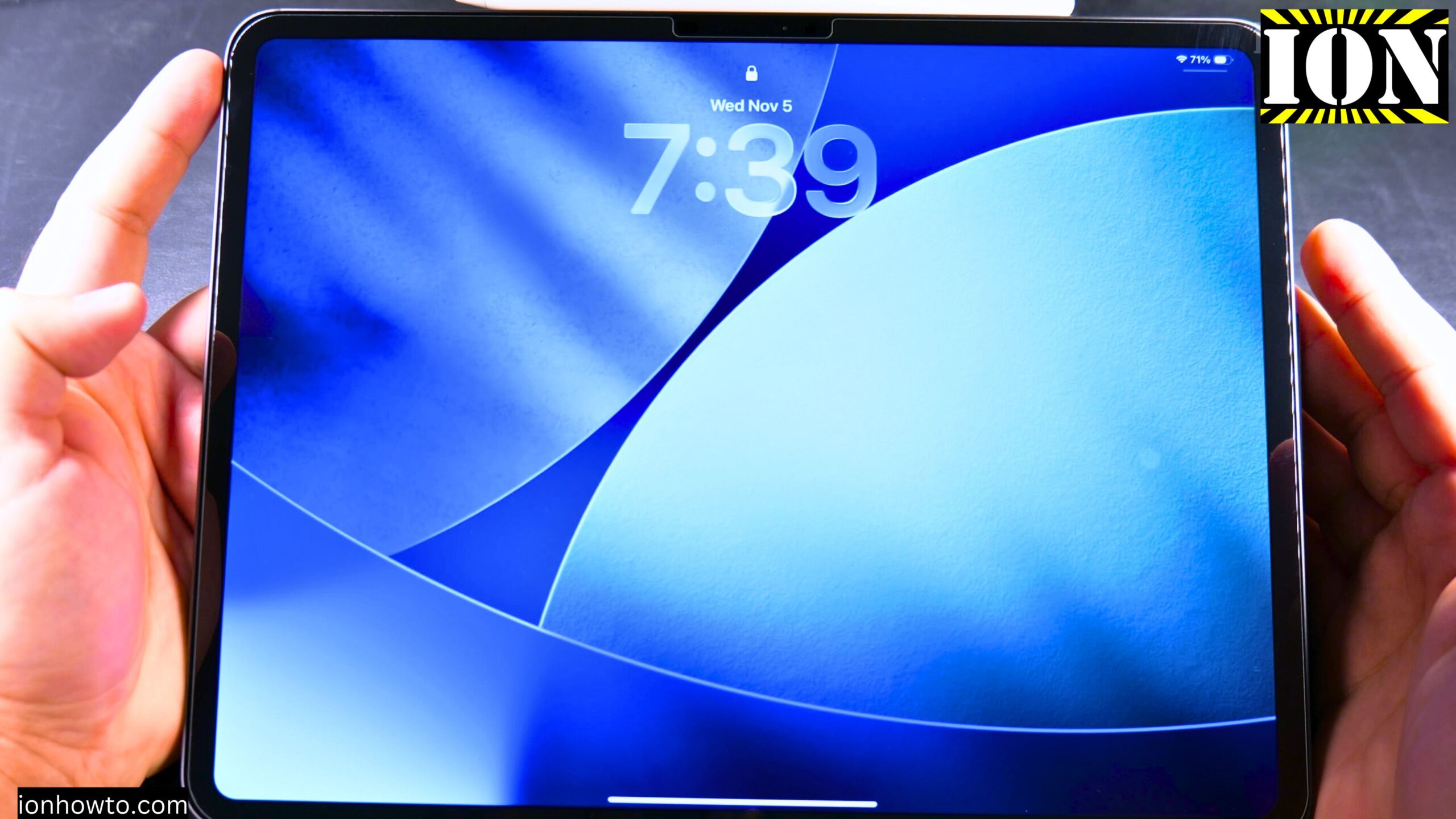
iPad Frozen Force Restart Not Working: Solution Is to Remote Erase via iCloud Find My.
Learn what to do when your iPad Pro M5 is frozen and a force restart is not working. If your iPad screen is unresponsive and the normal reset methods have failed, this guide shows you a solution.
This was shown on iPadOS 26 on iPad Pro M5 13 Inch 2025 model.
iPad Model Code MDYJ4TY/A Model A3360 iPad Pro 13 inch Wi-Fi 256GB Space Black Standard glass
EAN Barcode: 195950398168
Apple Pencil Pro Model MX2D3ZM/A A2538 manufacture date 05/2025.
EAN Barcode: 195949573125
iPad Frozen Force Restart Not Working Solution Video
What Happened to the iPad
The second day after getting the iPad Pro M5 13 inch, a few remote desktop apps were installed. At some point, there was a glitch or something. The iPad froze. It was completely stuck.
Usually you would do a force restart for the iPad. Normally when the iPad is stuck, you can press the power button on the side and the volume down all together and then you have the option to slide to power off or you can even do the option to force start the iPad.
On iPads, the buttons are on the side. There is volume down and volume up, and then the power button. So you have power button, volume down, volume up.
Pressing volume down, volume up, and long pressing the power button should show the slide to power off option. That did not happen. That option did not appear. So everything was really stuck.
The only thing that was working was the Control Center, but the iPad could be set to airplane mode. This was actually something bad because the fix for that was requiring it to be airplane mode off and connected to the internet.
What the Frozen iPad Looked Like
Apps were not opening. When pressing an app, it was getting a bit bigger just a bit and then going back like nothing happened. They would not open the app itself.
The apps themselves were not opening, but they were looking like they were going to open. Scrolling left and right worked. All that worked, but no apps were opening except for the Control Center.
There was one app in the corner. It was showing. It was one of the network apps or the virtual desktop apps. It was showing in the corner and trying to move it would move it a little bit but not enough to bring it in front.
This is suspected to be a bug with the multi-window mode, the desktop manager, the multi-window.
Options Before Doing a Remote Erase
If you have time and patience, you could try to wait until the battery is drained completely and then the iPad shuts down and you could try to see if it recovers after a restart.
You could also try to plug in the iPad and see if the iPad becomes responsive, especially if the screen is off. If the screen is off, maybe the iPad just needs to be charged.
In this case, the screen was on. This is pretty rare. If this happened to you, write a comment below because it is very interesting how this could happen.
Important Warnings Before You Start
Before you start, you will need to have Find My enabled on your iPad and know your Apple ID and password.
Using Remote Erase will delete all your data and settings, so it is a solution for when you have no other options left.
If you have important data on the iPad, do not do this. Try to take a backup of the iPad.
The key point here is that you lose your data if you do this. You do this at your own risk and you will lose the data on the iPad. If you do not have a backup of the iPad, then you have to do everything from zero. Set up everything including files, pictures, anything you might have is gone.
If they are not in iCloud and they are not copied somewhere else, usually there will be the backup settings and backup for iCloud should be enabled, but it depends on the iCloud plans that you might have.
Also, if you lost the iPad, it is better to leave it. Maybe someone finds it so you can even see the location of the iPad. An erased iPad cannot be tracked. So this might be a good idea not to do this if you lost it. But in this case, it is not lost. It is just frozen. It is stuck.
Step 1: Open the Find My App on Your iPhone
To do the remote wipe, go to the Find My app on the iPhone.
Step 2: Go to Devices
In the Find My app, go to Devices.
Make sure you select the correct device. You do not want to remote wipe the wrong device.
Step 3: Select the Frozen iPad
Tap on the device you want to wipe. This is the device. It even shows a picture there.
You can try to play a sound to confirm it is the right device.
Step 4: Choose Erase iPad
Scroll further down. You have the option to set the iPad into Lost Mode, but also you can erase it.
Tap Erase. It is going to give the information, it is going to warn that all the contents and settings will be erased.
When this iPad is connected to the internet, all the contents will be erased.
Step 5: Wait for the Erase to Start
After a few moments, the iPad will start to show the processing, the Apple logo, and then it is continued in the reset.
If it does not do that, make sure it is connected to the Wi-Fi. The iPad needs to connect to the internet because the Find My network iCloud will go to the iPad and say to erase, to start the erase process.
Step 6: Set Up the iPad Again
Once the erase is finished, you can set up the iPad, but you have to enter your account information because it is going to be locked to your username. It is going to be locked to your owner.
During the process, you can enter a phone number in case the iPad is lost. Someone could see a phone number where they could call you to give you the iPad back.
How to Restore Your Data
The way to get your data back is through a restore of a backup if you have a backup.
In this situation, there was not really anything valuable on the iPad. Most of the apps that matter on the iPad have a sync with the cloud option. So everything is there already when you restore it.
Final Thoughts
This seemed like a software bug. Hopefully it is going to be fixed. This was on iOS 26. The iPad Pro 13 inch M5 is the model.
I hope this helps you unfreeze your iPad Pro M5 13 inch or even 11 inch. If this happened to you, let me know what you were doing, how it happened. Maybe we find some pattern or something.
Related Guides and Helpful Resources
If you found this guide helpful, check out these related step-by-step tutorials and category resources on ION HowTo:
- Disable iPhone eSIM Instead of Deleting: Learn how to temporarily toggle off an electronic SIM without deleting cellular plans.
- Turn Off Siri Caller Name Announcement: Silence Siri from announcing incoming caller names aloud through headphones.
- How to Remove an Apple AirTag Speaker: Step-by-step guide to silencing an AirTag for specialized anti-theft item tracking.
- Apple iPhone Guides: Explore our full collection of tutorials and step-by-step articles in this category.


Leave a Reply