
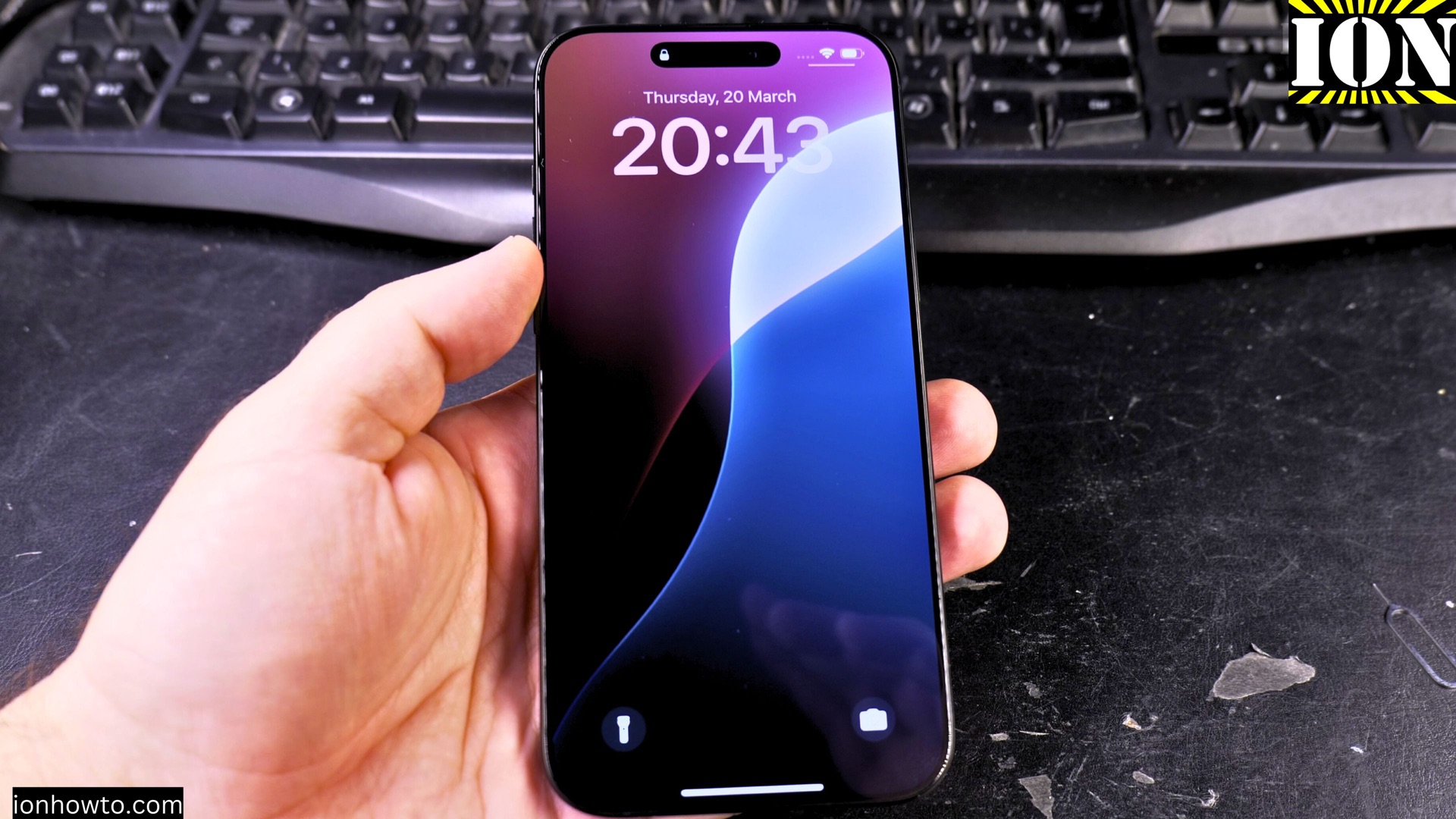
iPhone SIM Card PIN Locked? Here’s How to Enter Your PUK Code.
If your iPhone says “SIM Card PIN Locked” and asks for a PUK code, don’t worry. This is a common security feature that blocks your phone SIM card if you enter the wrong SIM PIN code too many times.
Amazon links
As an Amazon Associate I earn from qualifying purchases:
- iPhone Accessories
- iPhone Charger
- iPhone Cases
- iPhone Screen protector
- iPhone Magsafe
- iPhone Wallet
- iPhone Usb c cable
iPhone SIM Card PIN Locked Enter PUK to Unlock Video:
I’ll show you the steps to unlock your SIM card and get your phone working again.
What is a PUK Code?
First, it helps to know what a PUK code is. PUK stands for Personal Unblocking Key. It’s a unique 8-digit code that unlocks your SIM card after it has been locked by too many incorrect PIN attempts. Think of it as a master key for your SIM.
How to Find Your PUK Code
You cannot guess your PUK code. You need to get it from one of these places:
· Your original SIM card packaging: The PUK code is often printed on the card or holder that your SIM came on.
· Your mobile carrier’s website: Log into your account on your carrier’s app or website. It’s usually found in the section that manages your line or SIM details.
· Call your carrier’s customer service: This is the most reliable way. They will verify your account and then give you the PUK code.
Important: Your carrier is the only official source for your PUK code. Do not use codes from random websites or people promising you to give you your PUK code.
The Steps to Unlock Your SIM Card with the PUK Code
Once you have your 8-digit PUK code, follow these steps on your iPhone.
- Step 1: On the screen that says “SIM Locked” or “PUK Required,” tap “Enter PUK.”
- Step 2: Carefully type in the 8-digit PUK code.
- Step 3: You will then be asked to create a new SIM PIN. Choose a code that is different from your last one.
- Step 4: You will be asked to confirm the new SIM PIN by entering it again.
After this, your SIM card should be unlocked and ready to use. You might see the network bars return at the top of your screen.
A Very Important Warning
Be careful when entering the PUK code. You only have 10 attempts to enter the correct PUK code.
If you enter the wrong PUK code 10 times, your SIM card will be permanently locked and cannot be recovered. You will have to get a brand new SIM card from your mobile carrier.
How to Enable SIM PIN Code on iPhone
How to Prevent This in the Future
To avoid getting locked out again, you can either remember your PIN or turn the SIM PIN feature off.
To turn off the SIM PIN:
· Go to Settings > Mobile Service > SIM PIN.
· Toggle the SIM PIN switch off.
· You will need to enter your current SIM PIN one last time to disable it.
If you keep it on, make sure your new PIN is something you can remember easily.
How to Change SIM PIN Code on iPhone Video:
Need More Help?
If you’re still stuck, the best thing to do is contact your mobile carrier directly. They can provide your PUK code and walk you through the unlocking process.


Leave a Reply