
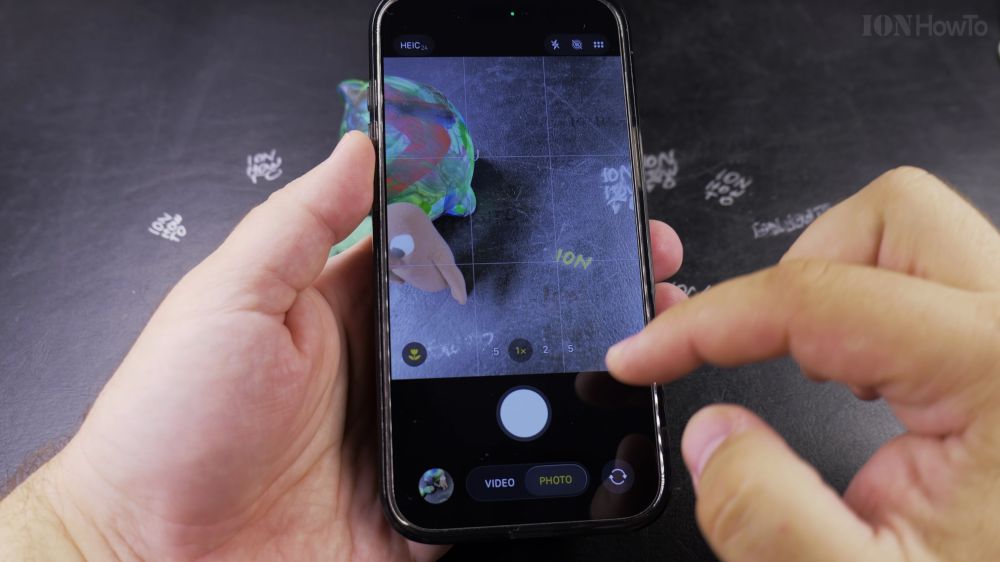
if taking a quick portrait of yourself or sharing scenery with friends, flipping cameras on your iPhone is instantaneous. I’ll show you how to switch between the rear camera and front selfie camera on iPhone in a single tap.
1. Open Camera
Tap the **Camera** app icon on your iPhone home screen or lock screen.
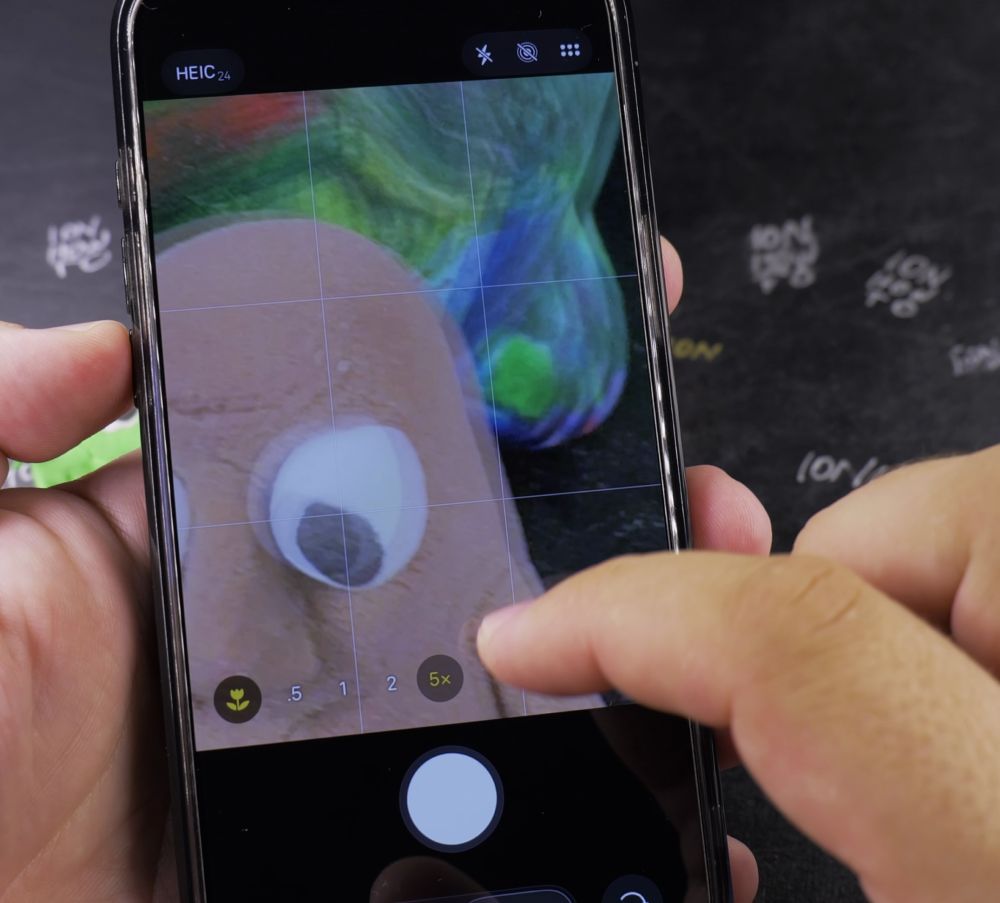
2. Locate the Flip Button
Look in the bottom-right corner of the screen (next to the large white shutter button).
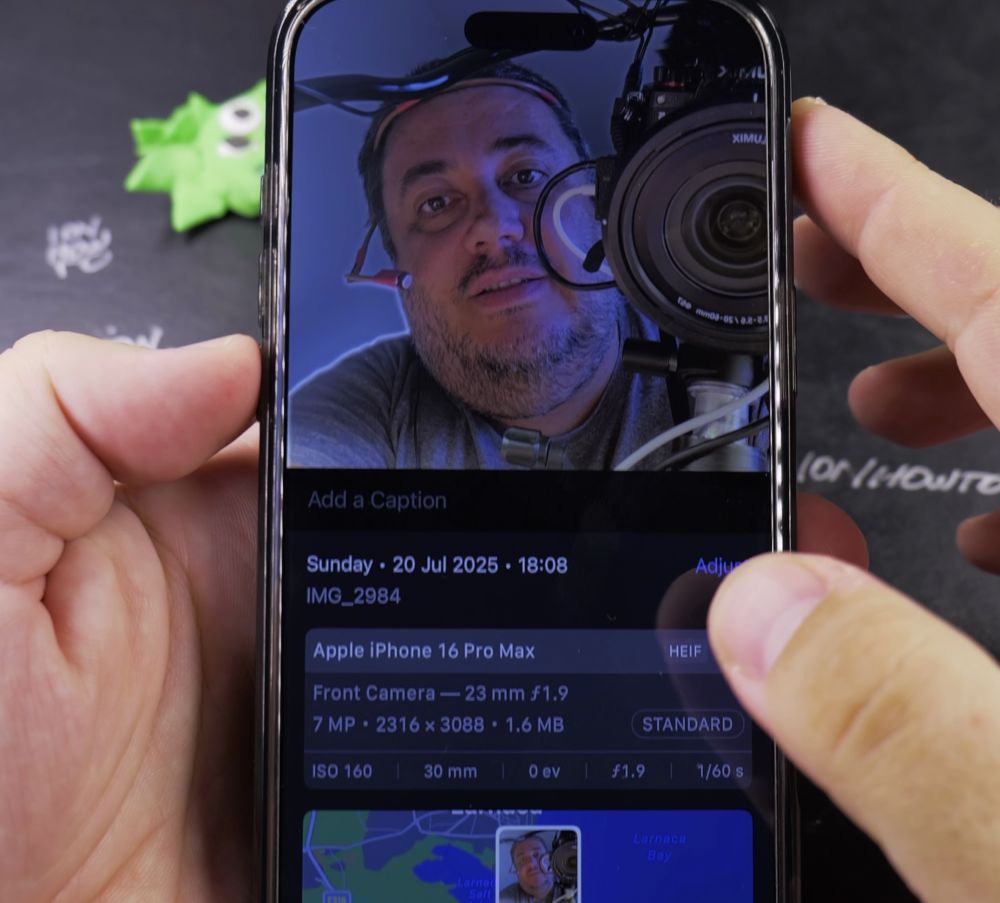
3. Tap the Flip Icon
Tap the button showing **two curved arrows inside a camera outline**.
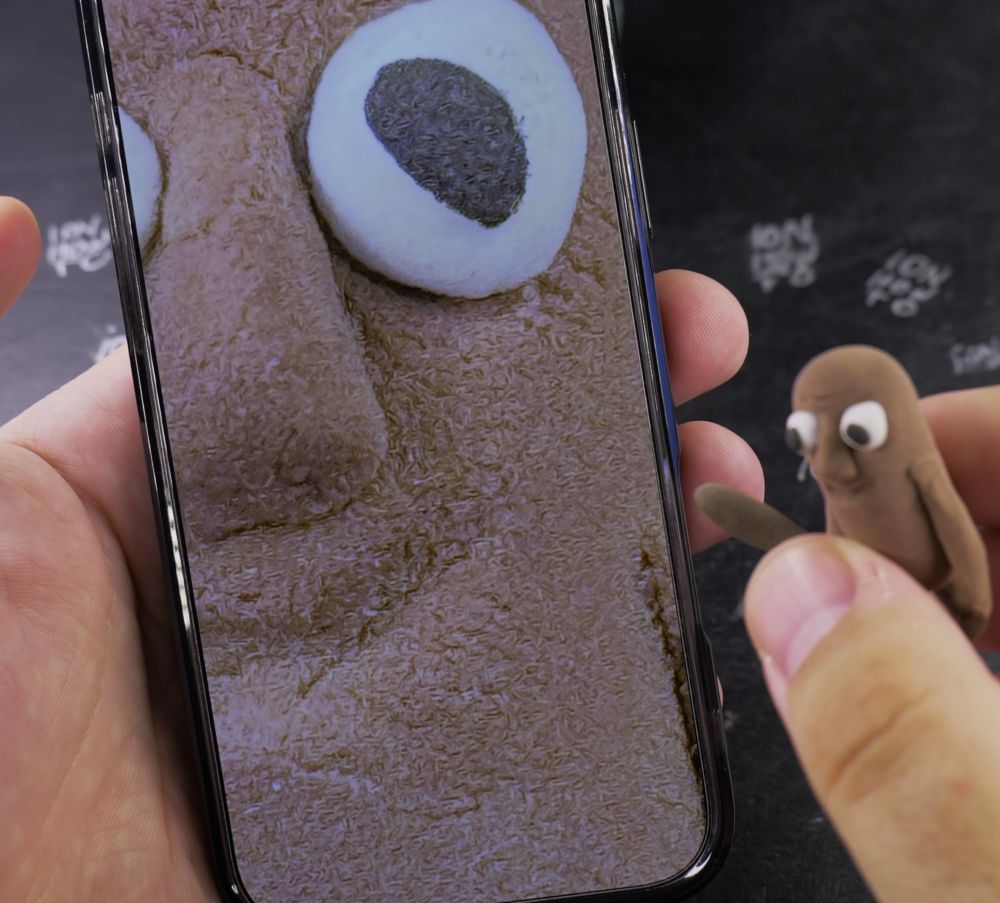
4. Adjust Your Framing
The screen flips immediately to the front TrueDepth selfie camera. Tap the small arrows above the shutter to widen the selfie angle for group shots.
5. Switch Back
To return to the rear main camera lenses, tap the camera flip button once more.
Helpful Tips
You can also tap the small arrows on the selfie screen to expand the field of view from 7MP close-up to full 12MP wide-angle. For more photo tricks, explore our iPhone Guides collection.


Leave a Reply