
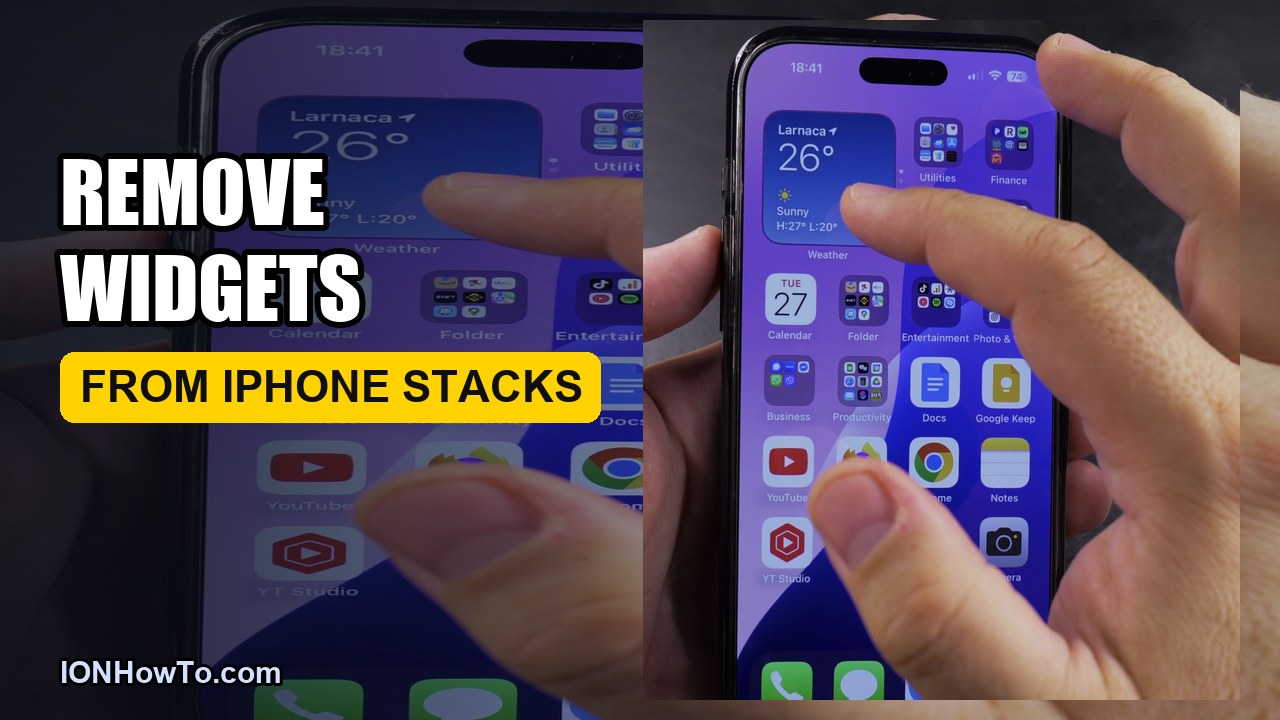
If your iPhone Home Screen widget stack keeps flipping to an app you never use, you can take that widget out in just a couple of taps.
I’ll show you how to delete a single widget from a stack, pull a favorite widget out so it stands alone, or shrink it back into a regular app icon.
Quick Steps
- Find the Widget Stack on Your Home Screen
- Long Press the Stack and Tap Edit Stack
- Remove a Widget or Drag One Out
- Turn a Single Widget Back Into an App Icon
1. Find the Widget Stack on Your Home Screen
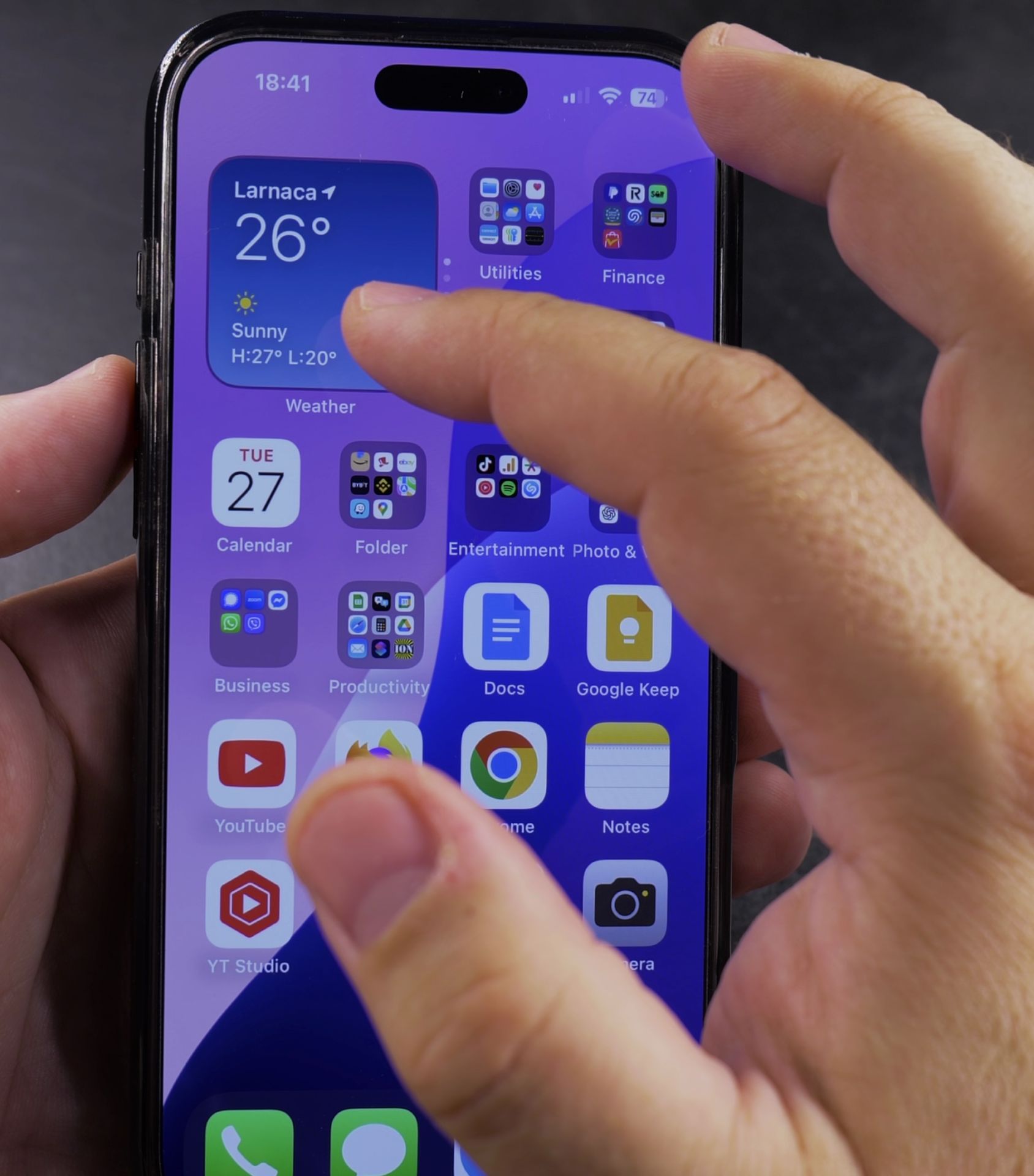
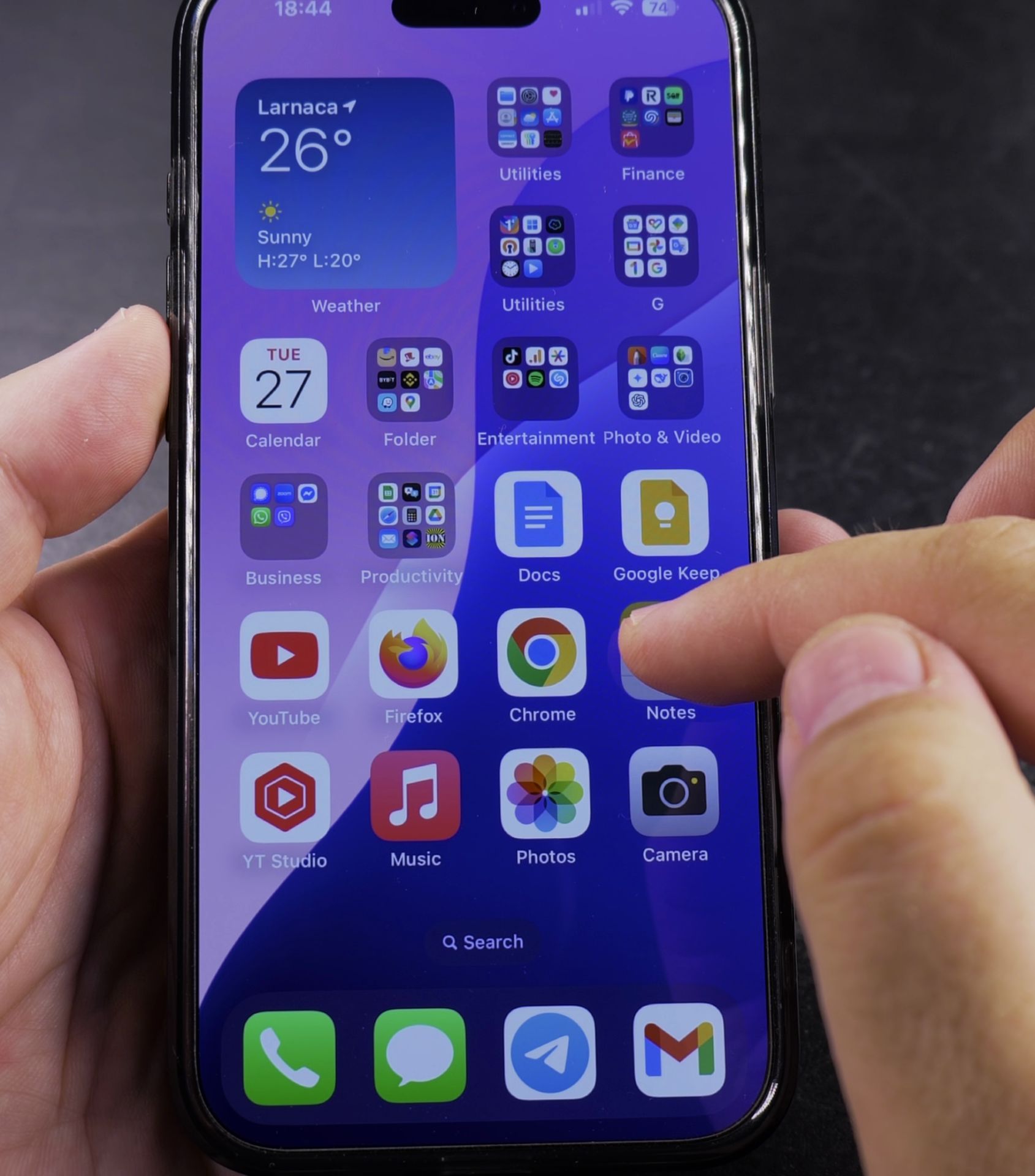
Look at your iPhone Home Screen and spot the widget with small dots along the side. Those dots mean several widgets are stacked together in one box.
2. Long Press the Stack and Tap Edit Stack
Press and hold your finger on the widget stack until a small pop-up menu appears. Tap Edit Stack to see every widget hidden inside that stack.
3. Remove a Widget or Drag One Out
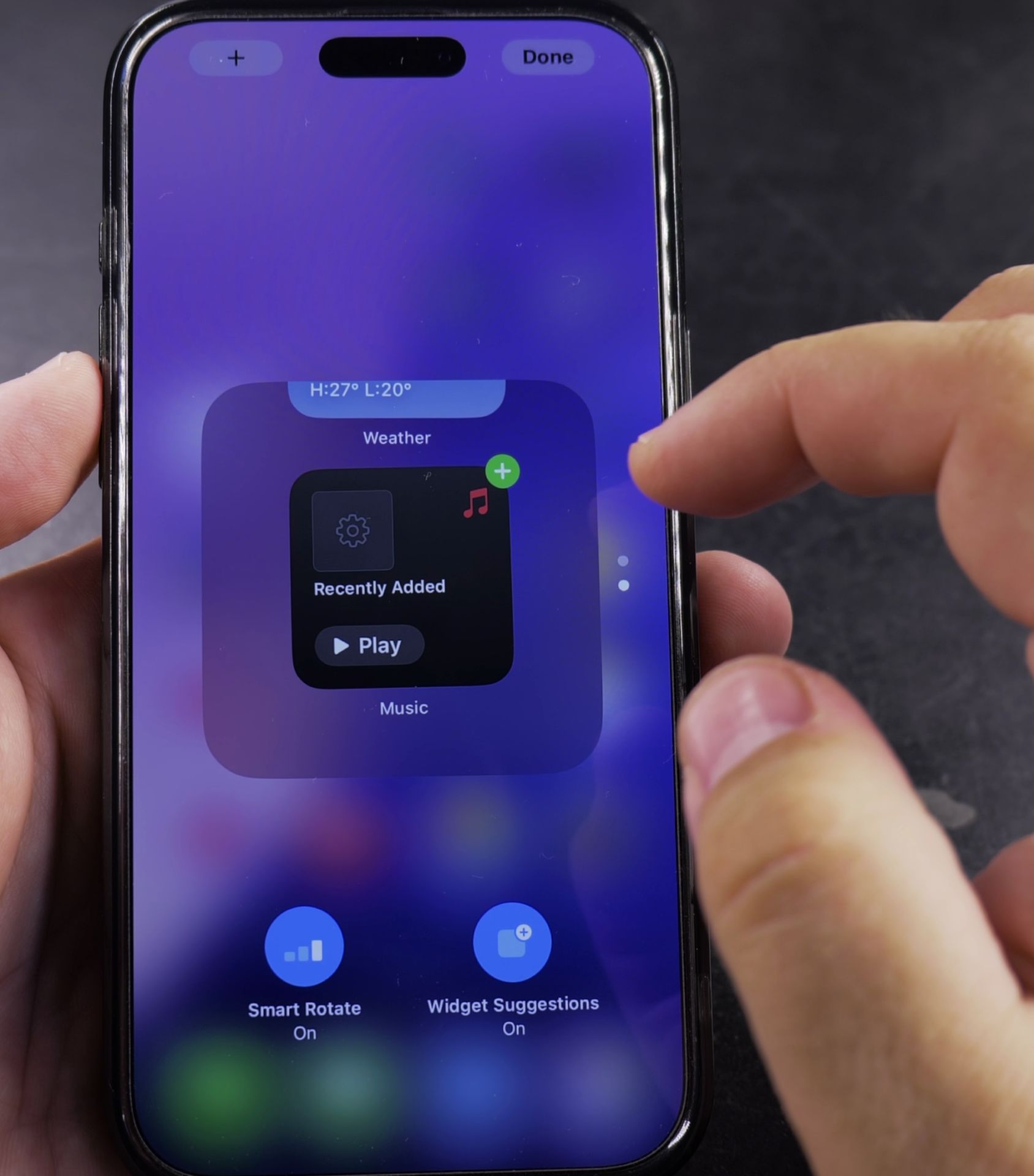
To delete a widget completely, tap the red minus – button in its corner and confirm Remove. If you want to keep a widget on its own, press and hold it until the screen jiggles, then drag it out onto an empty spot on your Home Screen.
4. Turn a Single Widget Back Into an App Icon
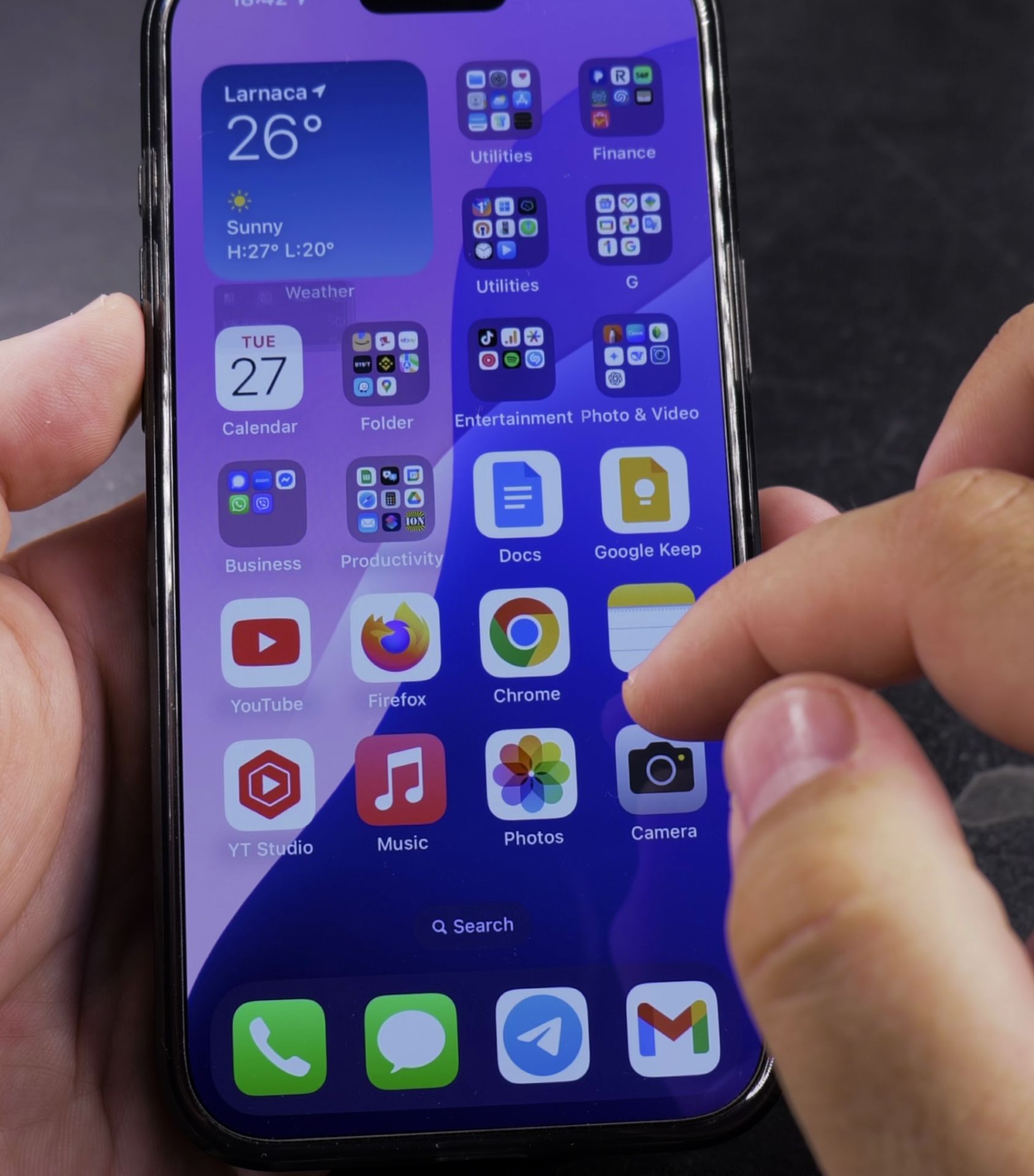
When only one widget is left, it becomes a regular standalone widget. If you prefer a smaller icon instead, long press that widget and choose the small app icon size from the menu.
Helpful Tips
- Removing a widget from your Home Screen never deletes the actual app or your data.
- You can turn off Smart Rotate inside Edit Stack if you don’t want your iPhone switching widgets on its own.
Helpful Accessories on Amazon
As an Amazon Associate I earn from qualifying purchases.
Related Guides
- How to Add an App Icon Back to the Home Screen on iPhone – If an application icon disappeared from your iPhone Home Screen even though the app is still installed on your device, it is…
- Remove Website Shortcut from iPhone Home Screen – How to Remove Website Shortcuts from iPhone Home Screen iOS 18.5.
- Add Website Shortcut to iPhone Home Screen – How to Add a Website Shortcut to iPhone Home Screen iOS 18.5.
- iPhone How-To Guides – Browse more tutorials and practical guides in this section.


Leave a Reply