
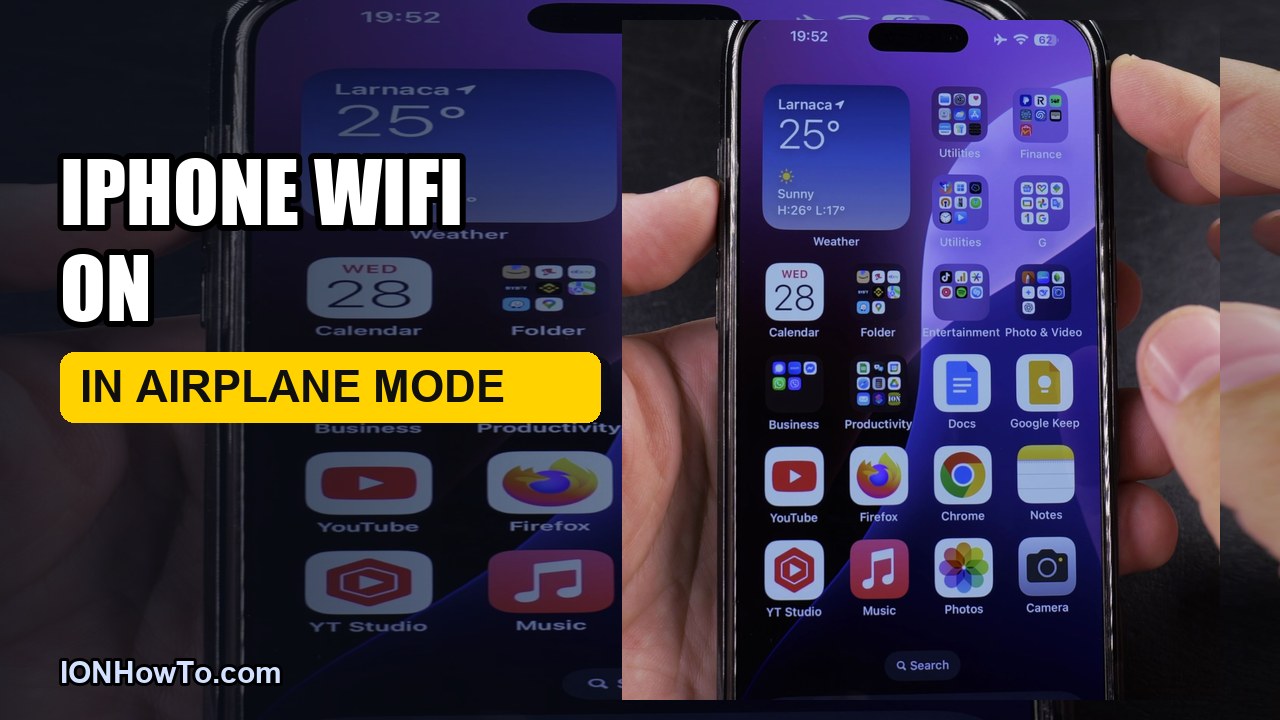
When you put your iPhone in Airplane Mode for a flight or to avoid roaming fees, WiFi turns off automatically at first.
You can turn WiFi back on in seconds without turning off Airplane Mode, and I’ll show you the quick Control Center trick.
Quick Steps
- Open Control Center and Tap Airplane Mode
- Tap the WiFi Icon to Turn WiFi Back On
- Pick a WiFi Network While in Airplane Mode
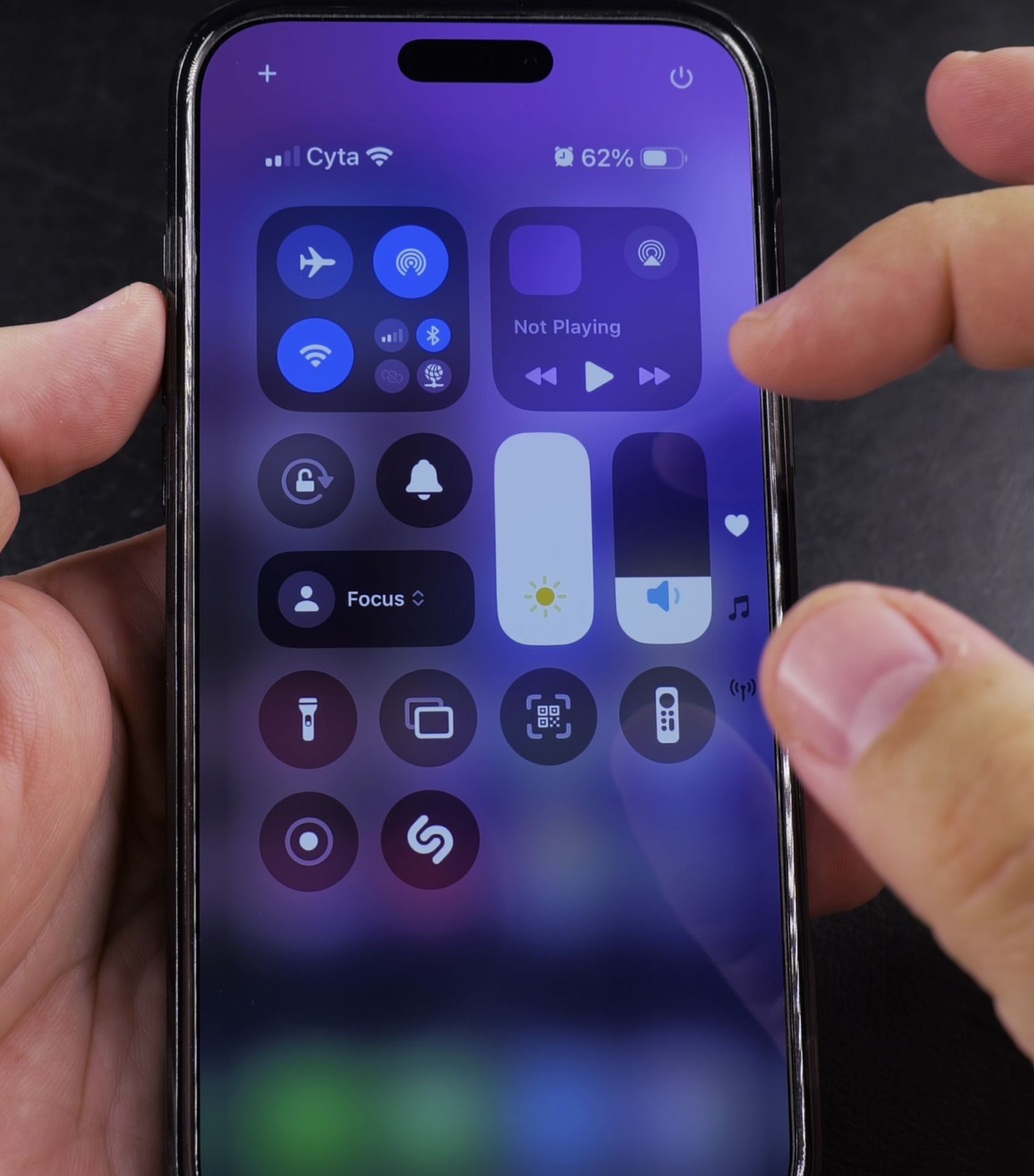
1. Open Control Center and Tap Airplane Mode
Swipe down from the top-right corner of your iPhone screen (or swipe up from the bottom on older iPhones with a Home button) to open Control Center. Tap the orange Airplane icon to turn Airplane Mode on.
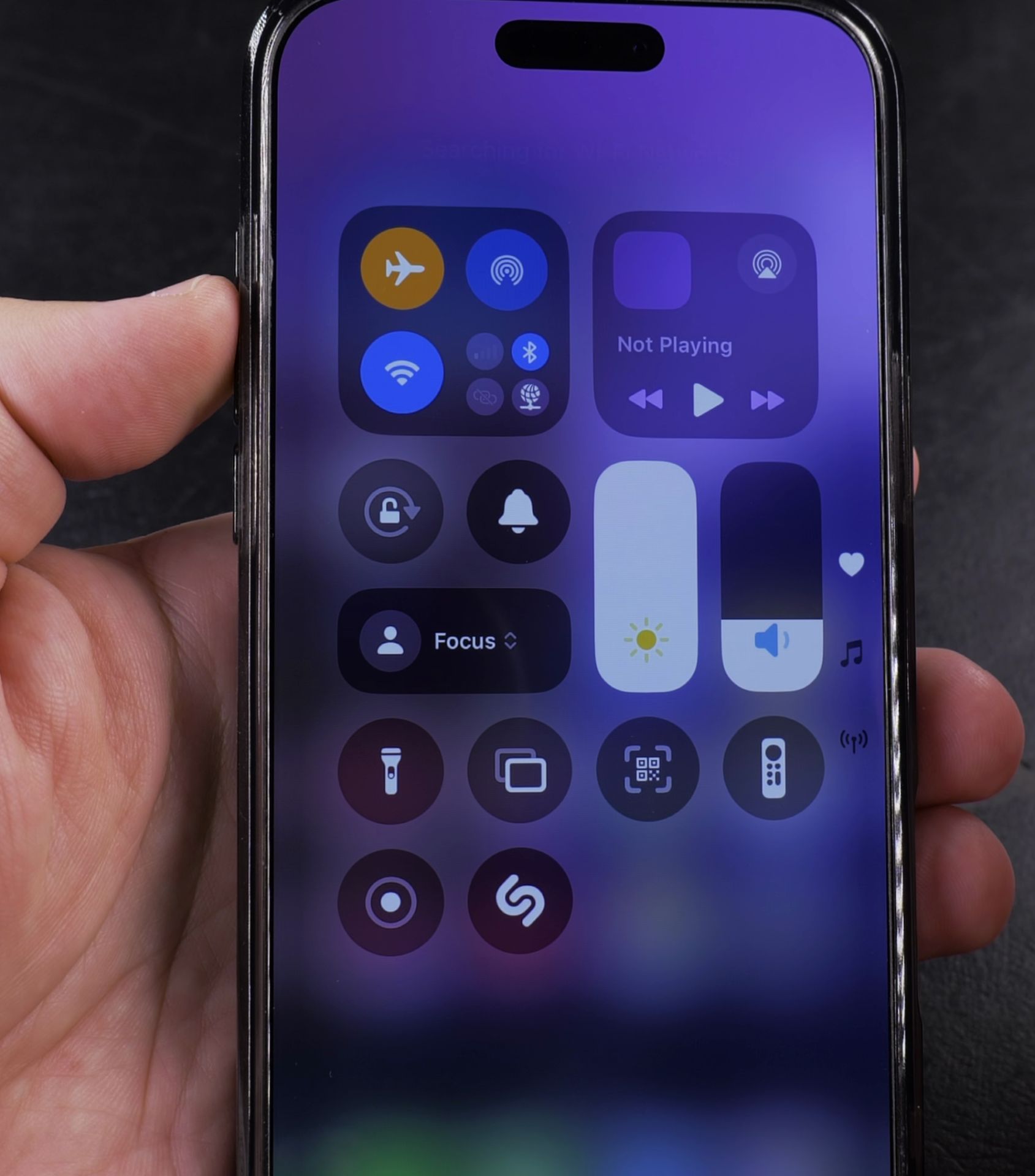
2. Tap the WiFi Icon to Turn WiFi Back On
Right next to the Airplane icon in Control Center, tap the Wi-Fi icon so it lights up blue or white. Your cellular signal stays completely off, while WiFi turns back on.
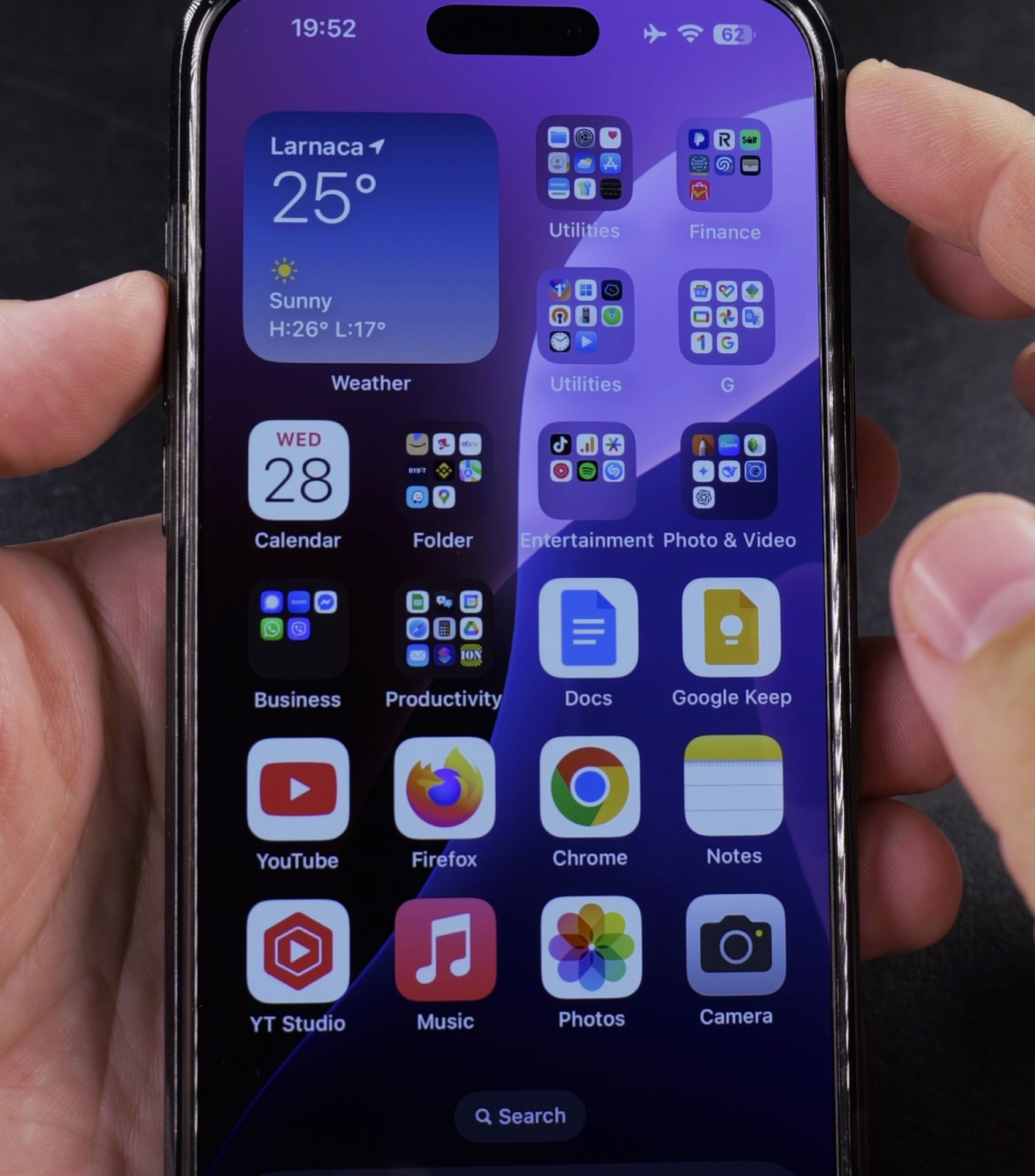
3. Pick a WiFi Network While in Airplane Mode
Press and hold the Wi-Fi icon in Control Center (or open Settings > Wi-Fi) to view nearby networks. Tap the in-flight or local WiFi network you want to join, and your iPhone will stay safely in Airplane Mode.
Helpful Tips
- Your iPhone remembers if you left WiFi on or off the last time you used Airplane Mode.
- If you want WiFi to turn off automatically next time you enable Airplane Mode, turn WiFi off once while Airplane Mode is active.
Helpful Accessories on Amazon
As an Amazon Associate I earn from qualifying purchases.
Related Guides
- iPhone How to Show App Labels Customize Home Screen – If the names beneath your iPhone app icons disappeared after updating, your icons were switched to the large view.
- How to Add an App Icon Back to the Home Screen on iPhone – If an application icon disappeared from your iPhone Home Screen even though the app is still installed on your device, it is…
- Customize iPhone Home Screen Widgets Apps Folders – How to Customize iPhone 16 Pro Max Home Screen Widgets, Apps, Folders & More.
- iPhone How-To Guides – Browse more tutorials and practical guides in this section.


Leave a Reply