
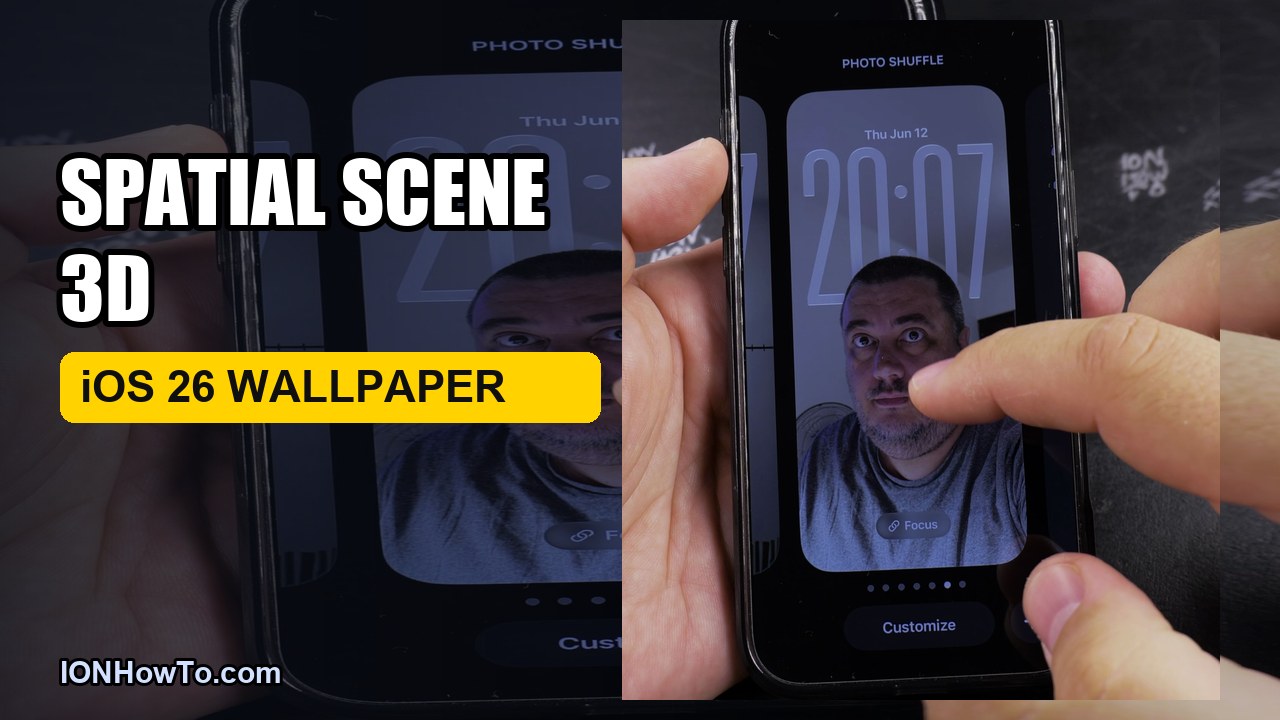
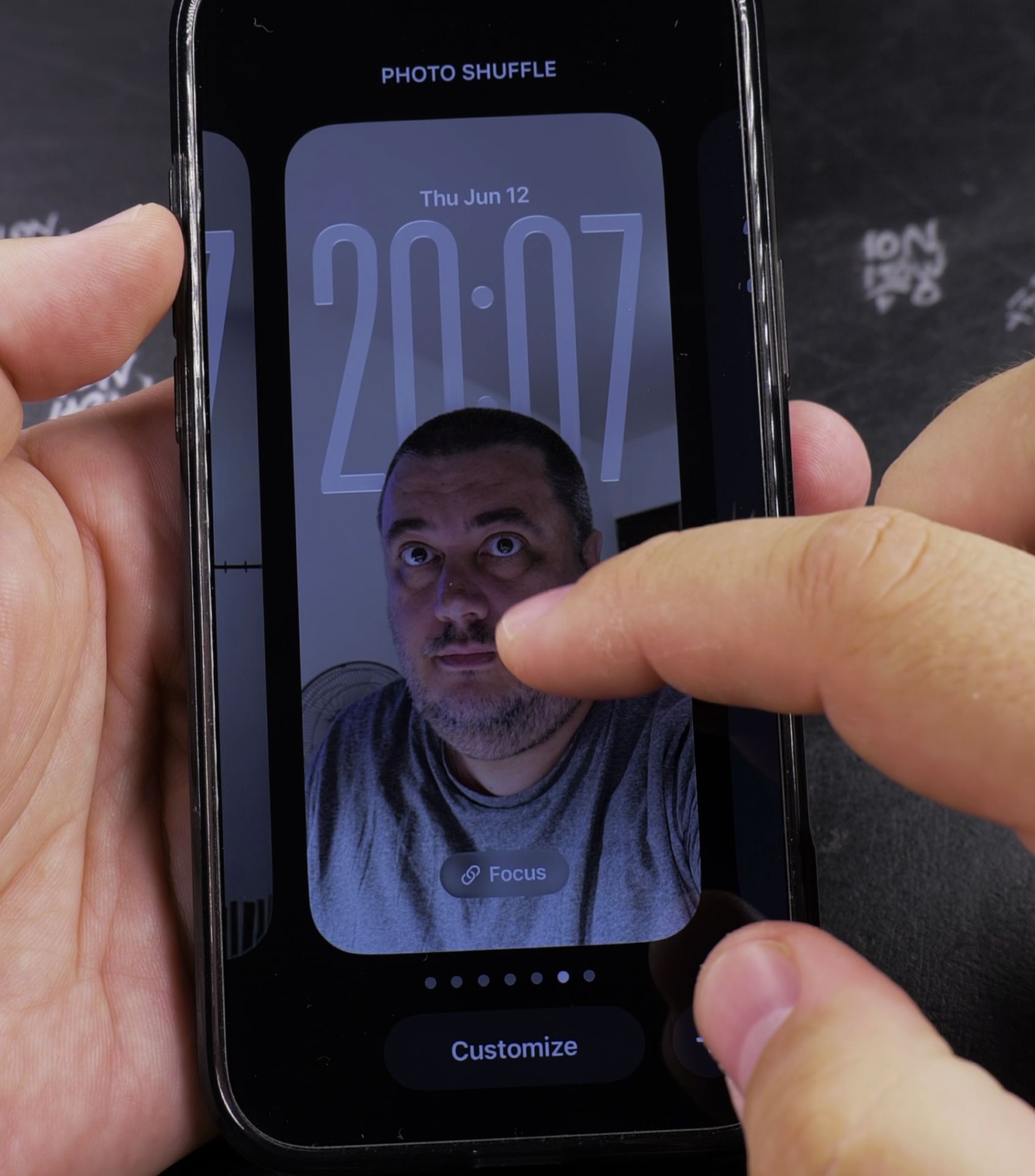
Your iPhone Lock Screen in iOS 26 can make a regular photo pop out with a subtle 3D motion effect as you tilt your phone.
I’ll show you how to pick a photo, adjust the framing with pinch to zoom, and turn on the **Spatial Scene** effect in just a few taps.
Quick Steps
- Long Press Your Lock Screen to Customize
- Pick a Photo and Pinch to Zoom
- Turn On the Spatial Scene 3D Effect
- Save and Set as Wallpaper Pair
1. Long Press Your Lock Screen to Customize
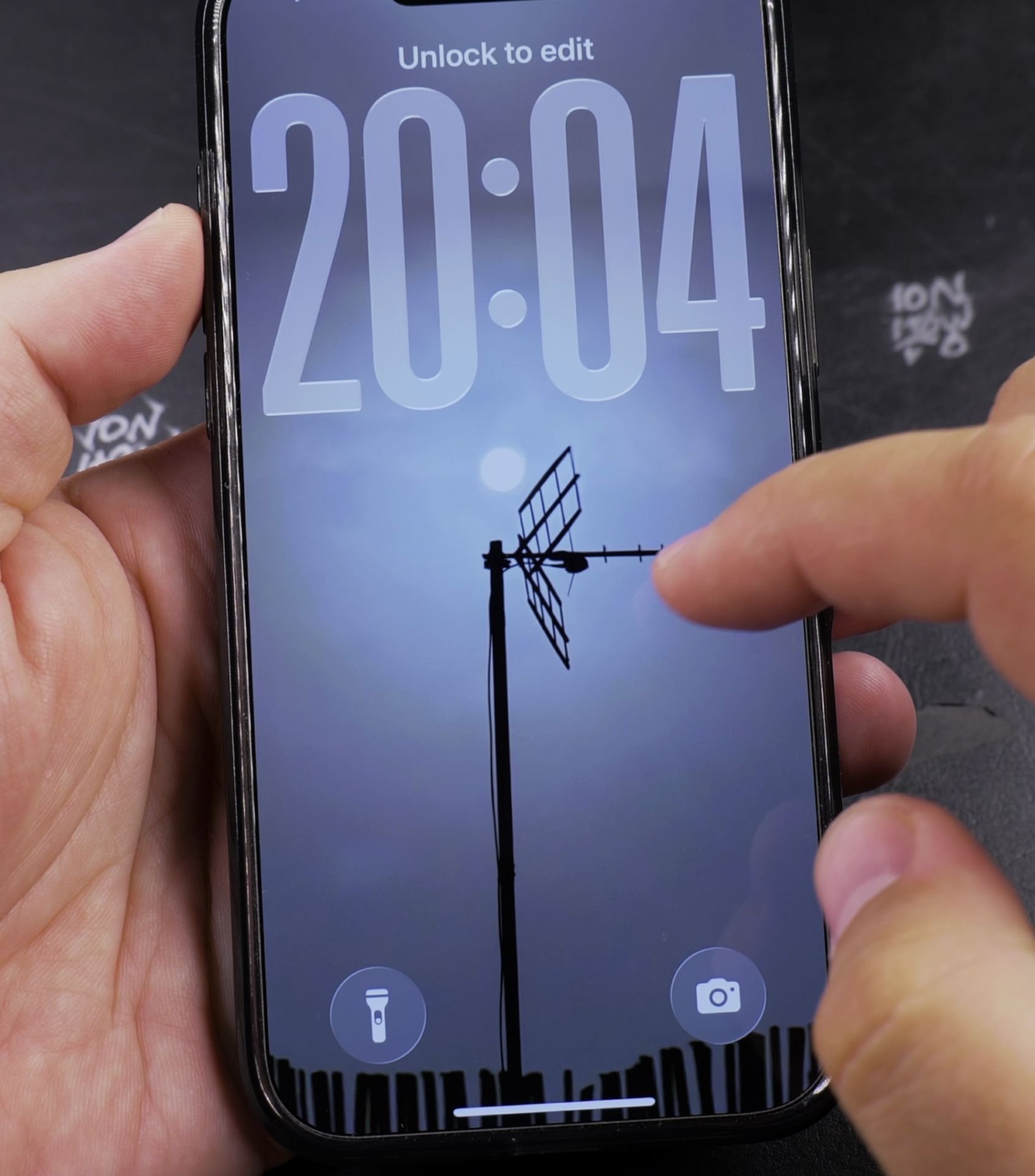
Unlock your iPhone with Face ID or your passcode while staying on the Lock Screen. Press and hold anywhere on the empty wallpaper until the Customize button and blue + button appear at the bottom.
2. Pick a Photo and Pinch to Zoom
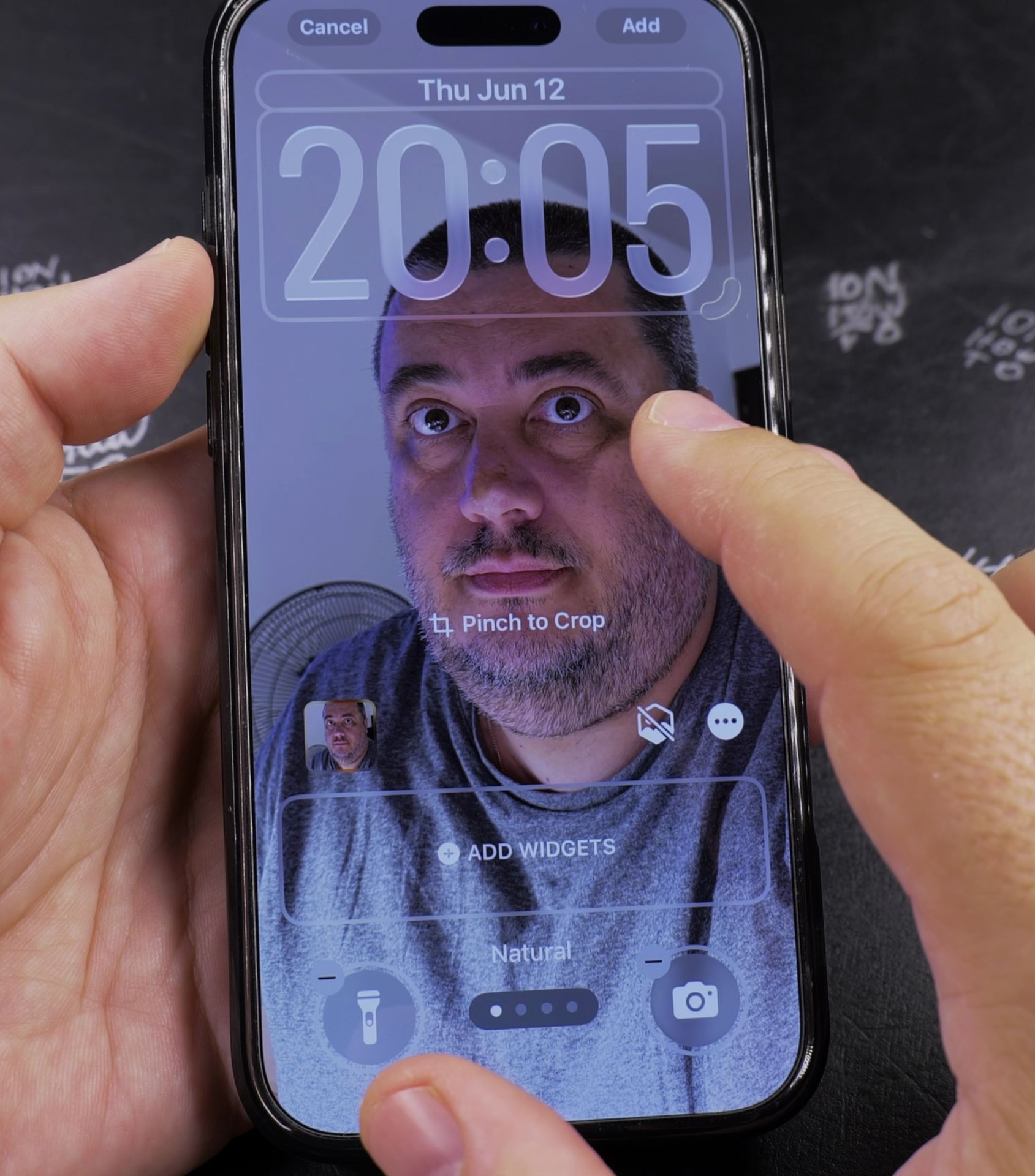
Tap the blue + button in the bottom-right corner to create a new wallpaper, then tap Photos. Choose a clear photo of a person, pet, or subject, then use two fingers to pinch in or out until the subject sits nicely near the clock.
3. Turn On the Spatial Scene 3D Effect
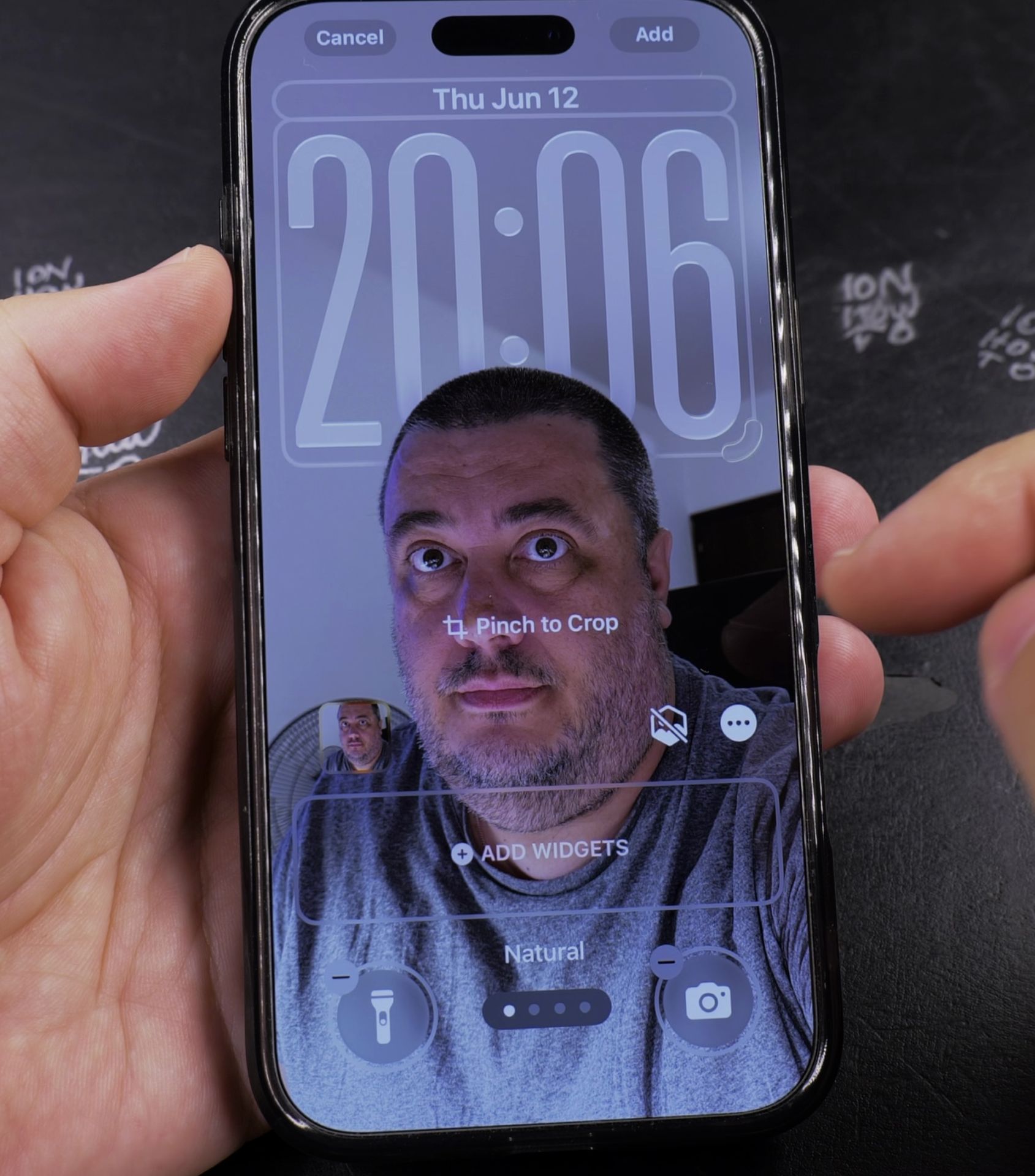
Look for the Spatial Scene button on the preview screen and tap it. Your iPhone takes a moment to process the photo and separates the subject from the background so it gently shifts when you tilt your phone.
4. Save and Set as Wallpaper Pair
Tap Add in the top-right corner when the framing looks right. Choose Set as Wallpaper Pair to use the matching look on both your Lock Screen and Home Screen, or tap Customize Home Screen if you prefer a solid color behind your apps.
Helpful Tips
- Photos of people, pets, or objects with a clear background work best for the 3D depth effect and let the clock tuck slightly behind the subject.
- If the motion feels distracting later, long press the Lock Screen, tap Customize, and tap the Spatial Scene icon again to turn it off.
Helpful Accessories on Amazon
As an Amazon Associate I earn from qualifying purchases.
Related Guides
- How to Enable Swipe to Open Camera on iPad Lock Screen – If swiping left on your iPad lock screen no longer opens the camera, the quick launch gesture may have been disabled in your…
- Reduce Clock Transparency on iPad Lock Screen – How to Reduce Clock Liquid Glass Transparency on iPad Lock Screen.
- How to Allow Siri on iPhone Lock Screen – How to Allow Siri and Apple Intelligence on iPhone Lock Screen.
- iPhone How-To Guides – Browse more tutorials and practical guides in this section.


Leave a Reply