
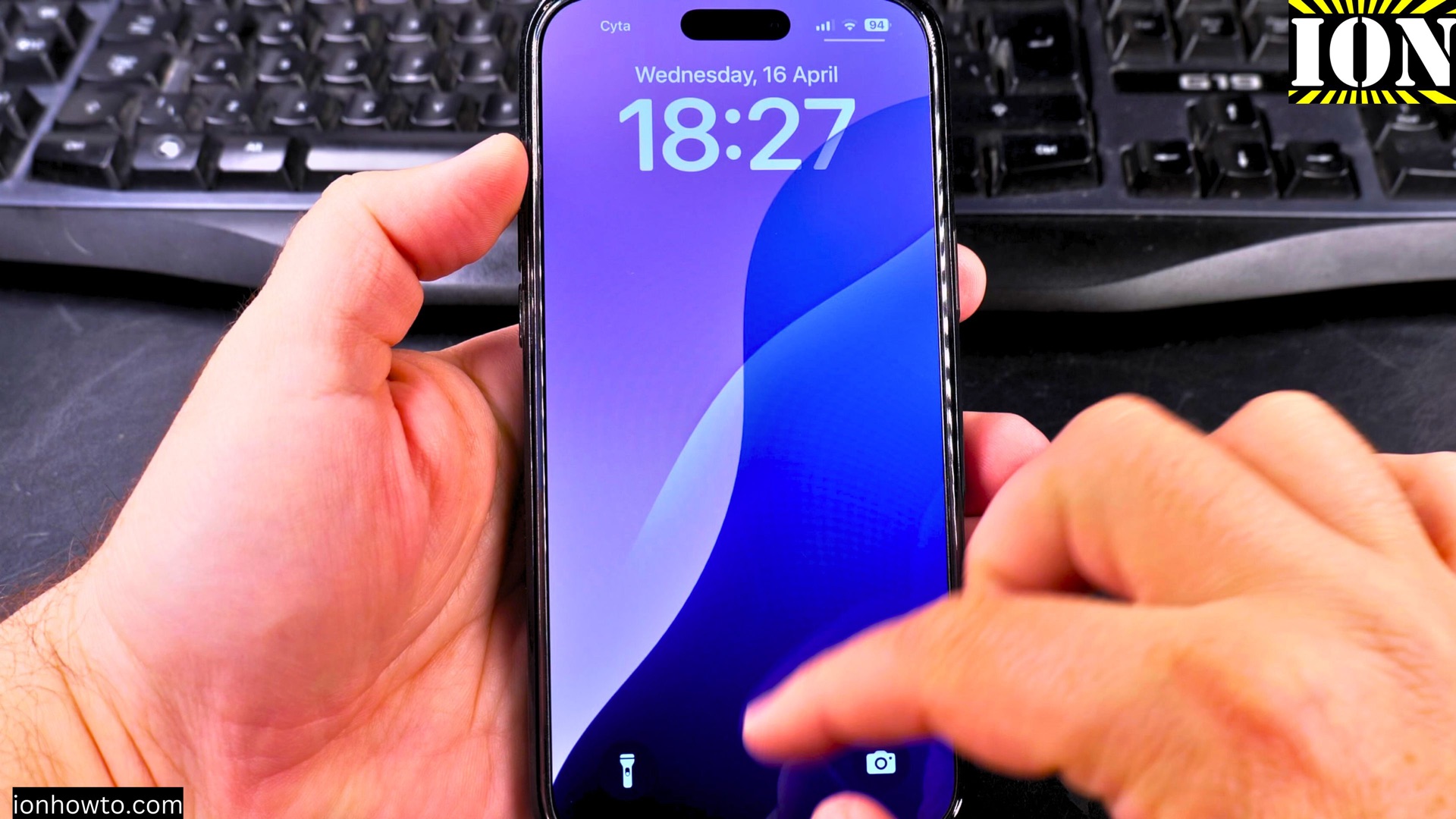
How to Change Lock Screen Clock Size and Font Style in iOS 26.
Why Customize Your Lock Screen Clock?
Your iPhone’s lock screen is the first thing you see when you wake up your device. With iOS 26, Apple gives you more control over how your clock looks. Learn how to change the clock size, pick different fonts, and create a lock screen that fits your style.
Amazon links
As an Amazon Associate I earn from qualifying purchases:
- iPhone Accessories
- iPhone Charger
- iPhone Cases
- iPhone Screen protector
- iPhone Magsafe
- iPhone Wallet
- iPhone Usb c cable
iPhone iOS 26 Change Lock Screen Clock Size and Font Style Video.
I’ll show you the steps using iOS 26 Beta on an iPhone 16 Pro Max. These instructions should work for most iPhones running iOS 26.
How to Change the Lock Screen Clock
Step 1: Access Lock Screen Settings
- Press and hold any blank area on your lock screen
- Tap “Customize” when the options appear
- Select “Lock Screen” to begin editing
Step 2: Adjust the Clock Size
- Tap on the clock to select it
- Pinch outward to make the clock bigger
- Pinch inward to make it smaller
- Drag the clock up or down to reposition it
Step 3: Change the Clock Font Style
- With the clock selected, tap “Font”
- Scroll through the available options:
- Bold (default)
- Thin
- Rounded
- Classic
- Tap your preferred style to apply it
Advanced Customization Tips
Save Multiple Lock Screen Designs
- After customizing your clock, tap “Done”
- Tap the “+” icon to create a new lock screen
- Set up a different clock style for each one
- Swipe between them anytime
Revert to Default Settings
If you want to start over:
- Go to your customized lock screen
- Tap “Reset” in the top-right corner
- Confirm to return to default settings
Troubleshooting
If you don’t see these options:
- Make sure you’re running iOS 26 or later
- Check that your iPhone supports these features
- Restart your phone if changes aren’t applying
Final Thoughts
The new lock screen customization options in iOS 26 let you make your iPhone truly yours. Whether you want a giant bold clock or a subtle thin font, you now have more control than ever.
Try different combinations and save your favorites. The best part? You can switch between them whenever you want.
Have a favorite clock style? Let me know in the comments what look you prefer on your lock screen. For more iOS 26 tips, check out my guides on widget customization and notification management.


Leave a Reply