
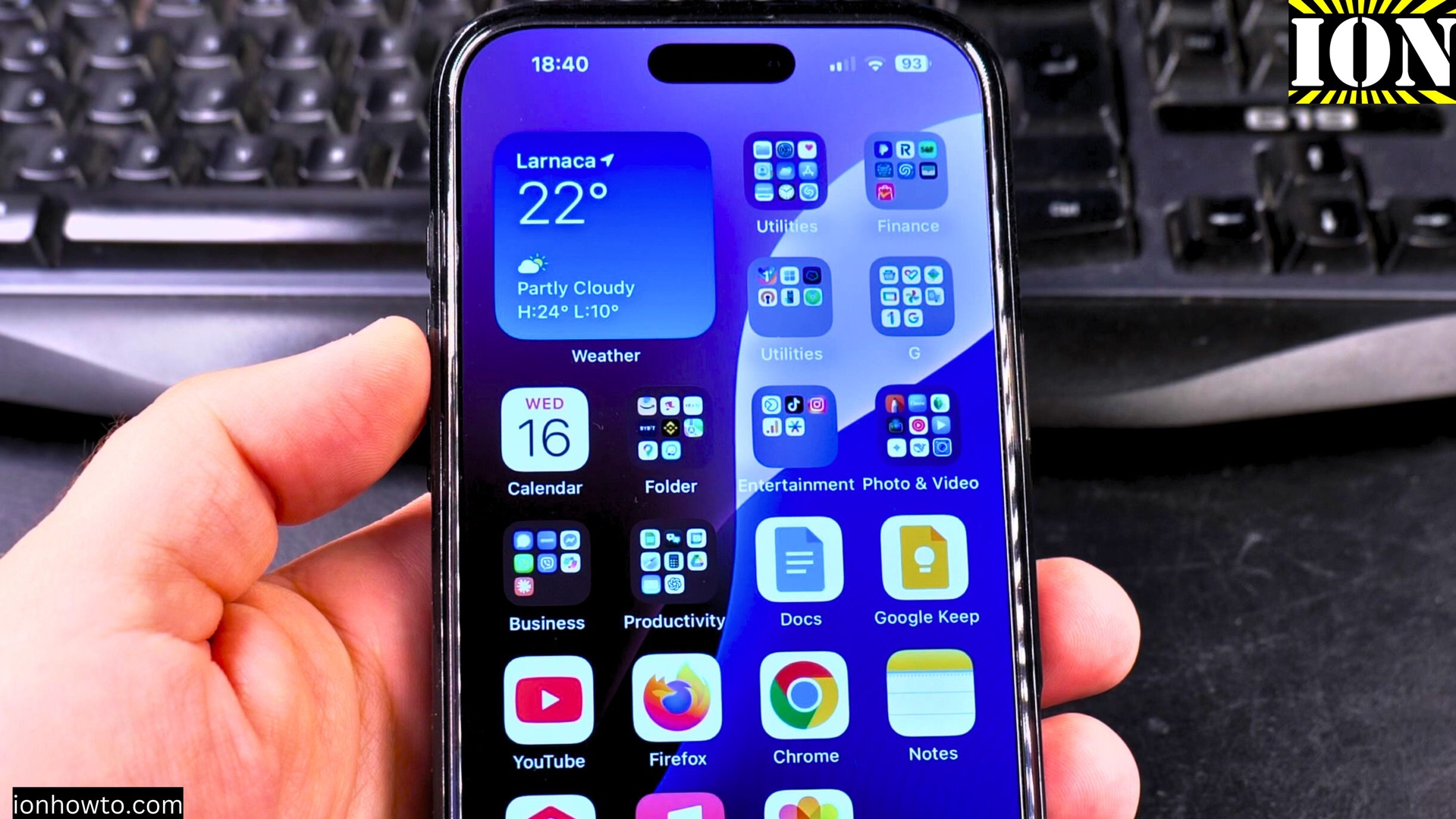
How to Turn Off Auto Dubbing on the YouTube App.
Why You Might Need to Disable Auto Dubbing
If your YouTube videos suddenly play with translated audio or an automated voiceover, you might have accidentally enabled auto dubbing. This feature automatically translates videos into your preferred language using synthesized voices. While it can be helpful, some users prefer the original audio.
Amazon links
As an Amazon Associate I earn from qualifying purchases:
- iPhone Accessories
- iPhone Charger
- iPhone Cases
- iPhone Screen protector
- iPhone Magsafe
- iPhone Wallet
- iPhone Usb c cable
How to Turn Off Auto Dubbing on YouTube for Videos
Learn how to disable this feature on both mobile (iPhone and Android) and desktop versions of YouTube. I’ll show you the steps to switch back to the original audio track.
How to Disable Audio Auto Dubbing on YouTube Shorts
How to Turn Off Auto Dubbing on iPhone & Android
Follow these steps to disable auto dubbing in the YouTube mobile app:
- Open the YouTube app on your iPhone or Android device.
- Tap your profile picture in the top-right corner.
- Select Settings > Captions & Audio.
- Under Audio Translation, toggle off “Auto-translate audio.”
- If you see a language setting, choose “Original” or your preferred language.
If your videos still play with dubbed audio, check the video player settings:
- While watching a video, tap the three-dot menu (⋮).
- Go to Audio Track (or Captions & Audio).
- Select Original Audio instead of a translated version.
How to Disable Auto Dubbing on Desktop
If you’re using YouTube on a computer, follow these steps:
- Open YouTube in your browser and click your profile picture.
- Go to Settings > Playback & Performance.
- Under Audio Translation, disable “Auto-translate audio.”
- Alternatively, while watching a video, click the gear icon (Settings).
- Select Audio Track and choose Original.
Keeping Subtitles Without Dubbing
Some users want subtitles without dubbed audio. Here’s how to manage that:
- While watching a video, tap the CC (Captions) button.
- Choose your preferred subtitle language.
- Make sure Audio Translation is turned off in settings.
This way, you’ll see subtitles in your language while still hearing the original audio.
Final Thoughts
Auto dubbing can be useful, but if you prefer the original audio, these steps should help you disable it. YouTube is still improving this feature, so future updates might make it easier to switch between original and translated audio directly from the player.
For now, adjusting your settings ensures you hear videos as intended. If you still have issues, double-check your language preferences in both YouTube and your device settings.
Let me know in the comments if you have any questions.


Leave a Reply