
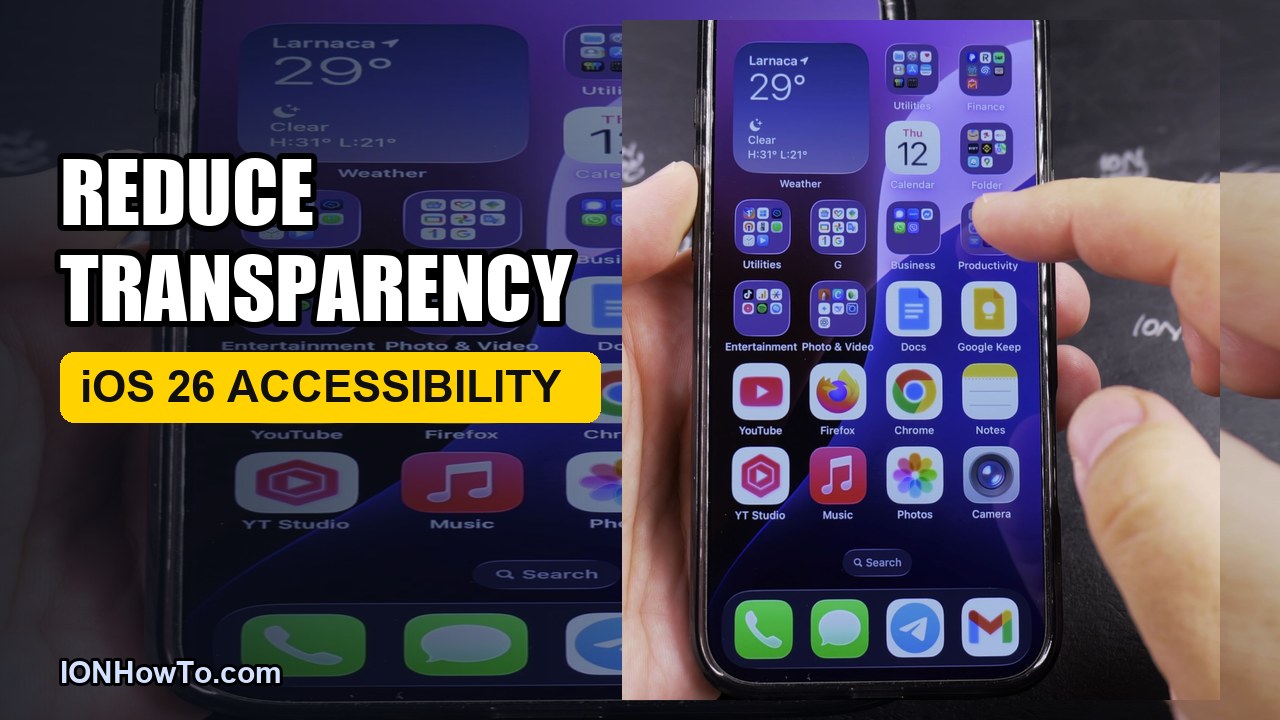
If the new Liquid Glass look in iOS 26 makes buttons and menus hard to read against your background, turning on one simple setting clears things up right away.
In this step-by-step guide, I’ll show you how to reduce transparency on your iPhone so folders, the Lock Screen, and Control Center look solid and easy on the eyes.
Quick Steps
- Check How Transparency Looks Before Changing Settings
- Open Settings and Go to Accessibility
- Open Display & Text Size and Turn On Reduce Transparency
- Check Your Clearer Control Center and Folders
1. Check How Transparency Looks Before Changing Settings
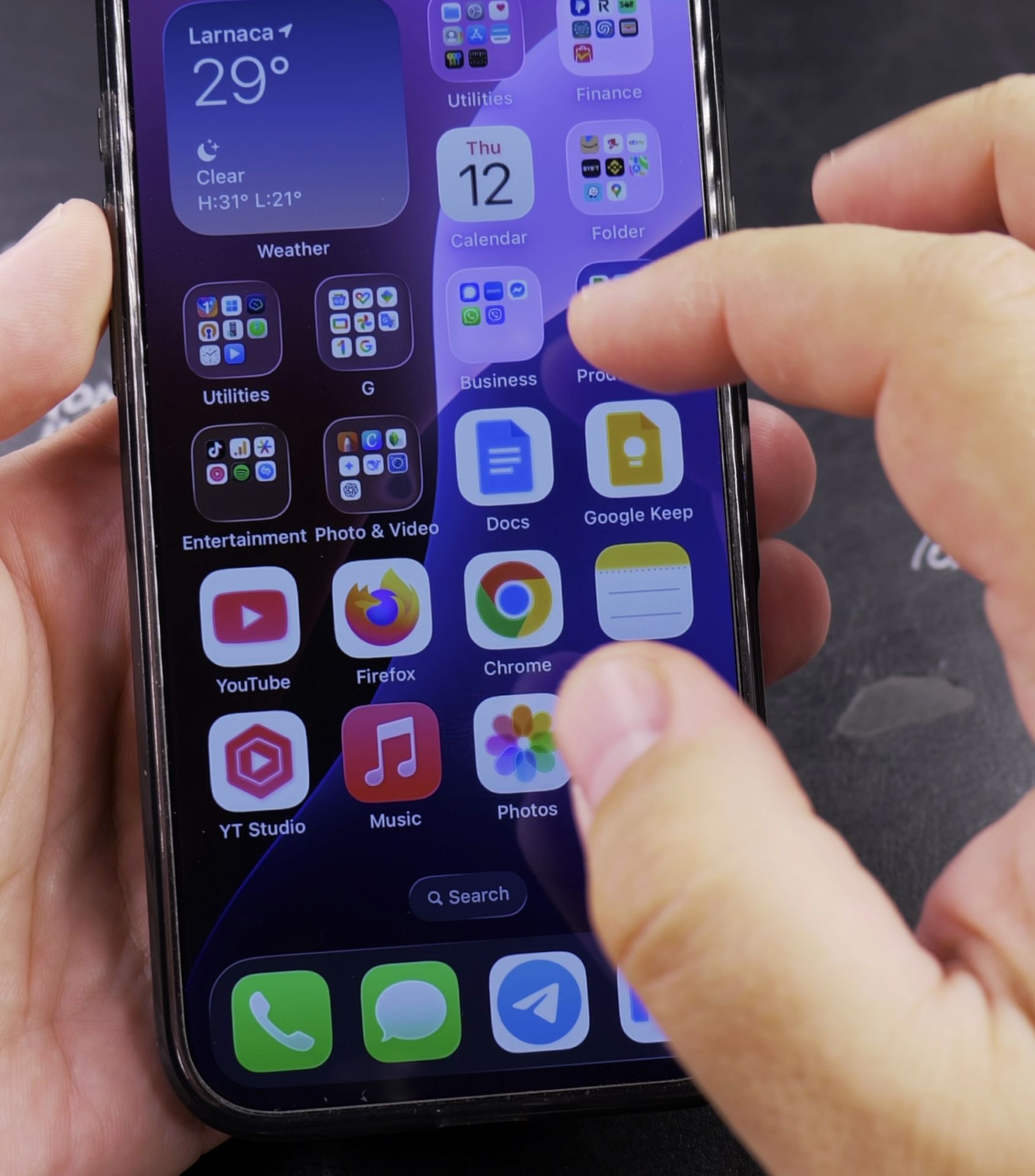
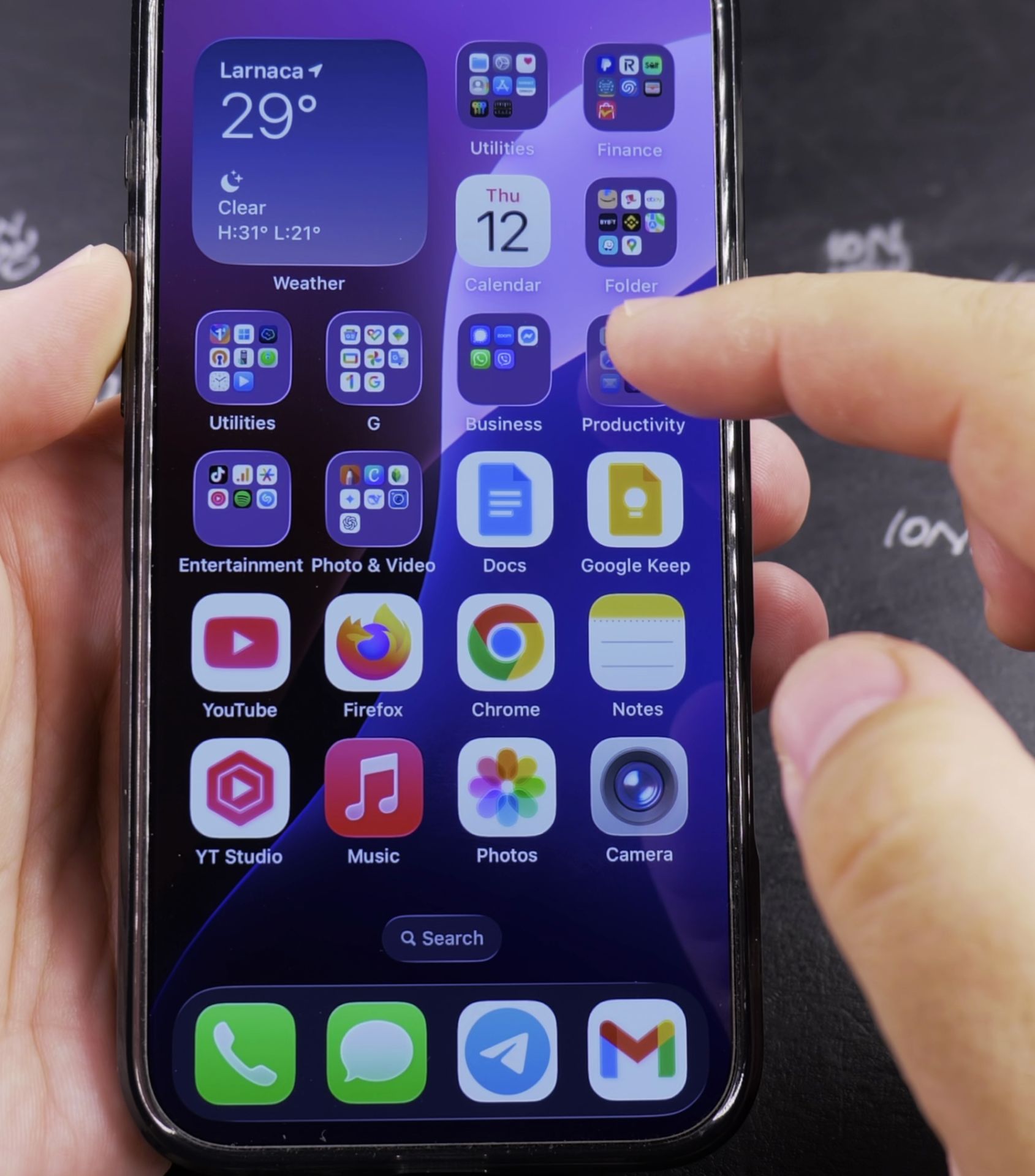
Swipe down from the top-right corner to open Control Center, or look at your app folders on the Home Screen. In iOS 26, the background colors bleed through the buttons, which can make small icons harder to tell apart.
2. Open Settings and Go to Accessibility
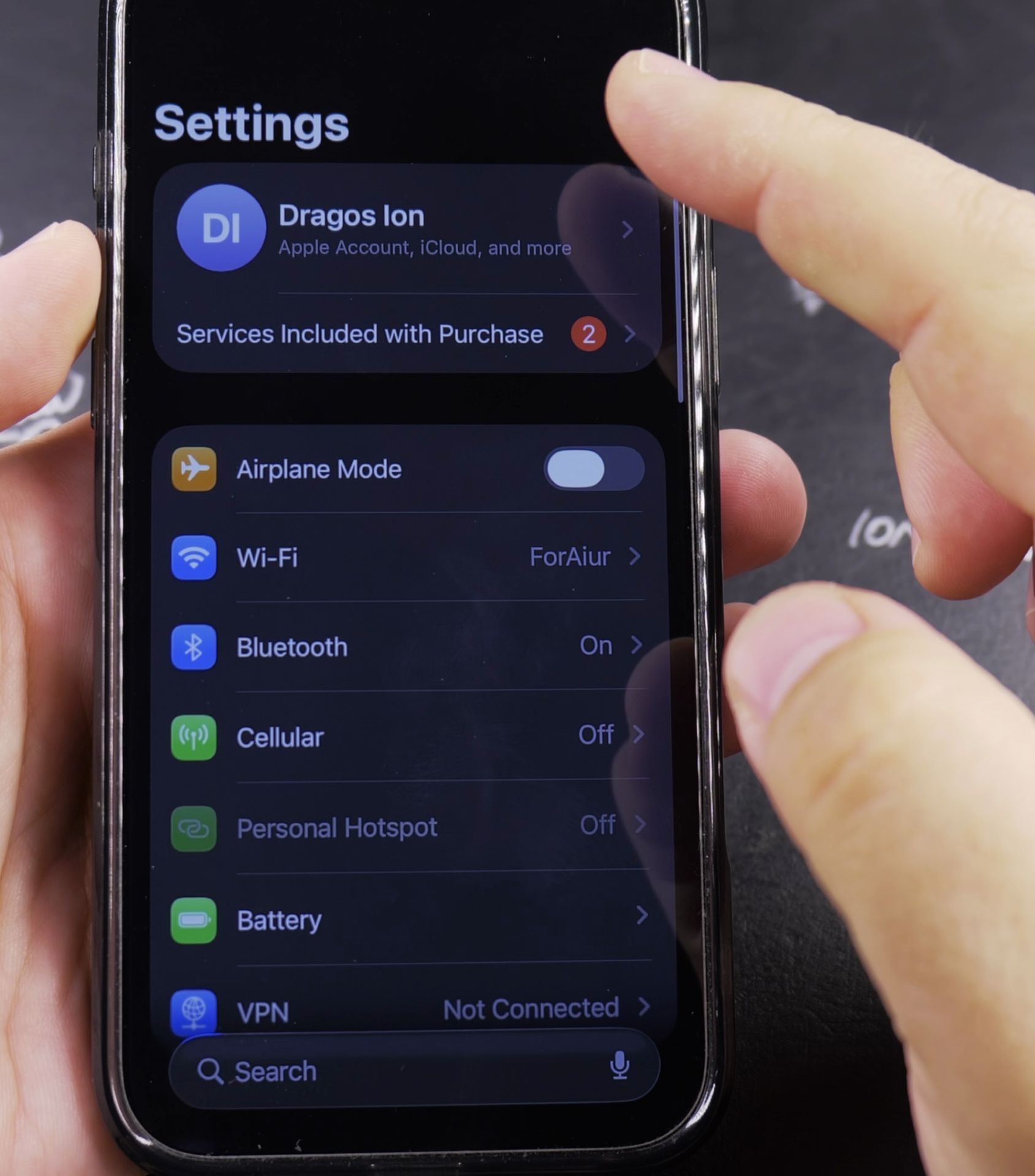
Tap the gray gear Settings icon on your Home Screen. Scroll down past the top sections and tap Accessibility.
3. Open Display & Text Size and Turn On Reduce Transparency
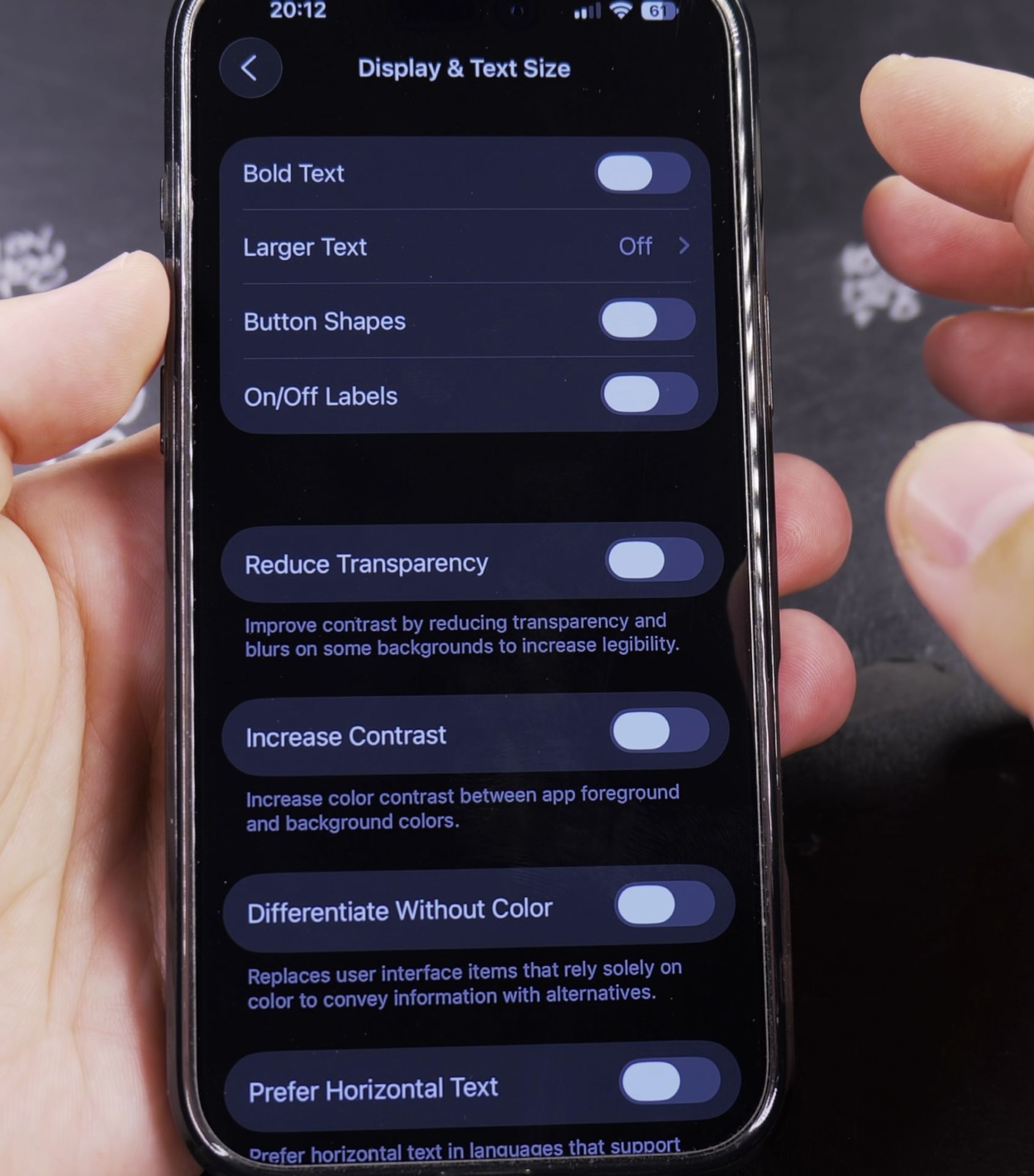
Under the Vision group at the top, tap Display & Text Size. Scroll down slightly and tap the switch next to Reduce Transparency so it turns green.
4. Check Your Clearer Control Center and Folders
Return to your Home Screen and swipe down to open Control Center again. You’ll notice the background behind your buttons and open folders is now much more solid, making every icon easy to read.
Helpful Tips
- You can turn Reduce Transparency off again anytime by following the exact same steps if you ever want the glass look back.
- If text still feels light, look right below Reduce Transparency in Display & Text Size and turn on Increase Contrast for sharper borders.
Helpful Accessories on Amazon
As an Amazon Associate I earn from qualifying purchases.
Related Guides
- Reduce Clock Transparency on iPad Lock Screen – How to Reduce Clock Liquid Glass Transparency on iPad Lock Screen.
- iPhone iOS 26 vs Android 15 Compared – Learn how the latest versions of iOS and Android stack up in this comparison of iOS 26 and Android 15.
- iPhone How to Show App Labels Customize Home Screen – If the names beneath your iPhone app icons disappeared after updating, your icons were switched to the large view.
- iPhone How-To Guides – Browse more tutorials and practical guides in this section.


Leave a Reply