
Amazon links
As an Amazon Associate I earn from qualifying purchases:
- iPhone Accessories
- iPhone Charger
- iPhone Cases
- iPhone Screen protector
- iPhone Magsafe
- iPhone Wallet
- iPhone Usb c cable
When you need to share your phone number but couldn’t remember it? Or maybe you just got a new iPhone and need to check what number is assigned to it? Finding your own phone number on an iPhone is simple once you know where to look.
This guide works on all iPhone models including the iPhone 16 Pro Max (iOS 18.4.1), iPhone 15, and older versions.
How to Find Your Phone Number on iPhone.
Quick Steps and Scenarios Overview
| What You Need to Do | Quick Jump |
|---|---|
| Method 1: Check Your Number in Settings | Jump to Step 1 |
| Method 2: When Your Number Doesn't Show in Settings | Jump to Step 2 |
| Alternative Ways to Find Your Number | Jump to Step 3 |
| Why Can't I See My Phone Number? | Jump to Step 4 |
Method 1: Check Your Number in Settings
This is the easiest way to find your phone number:
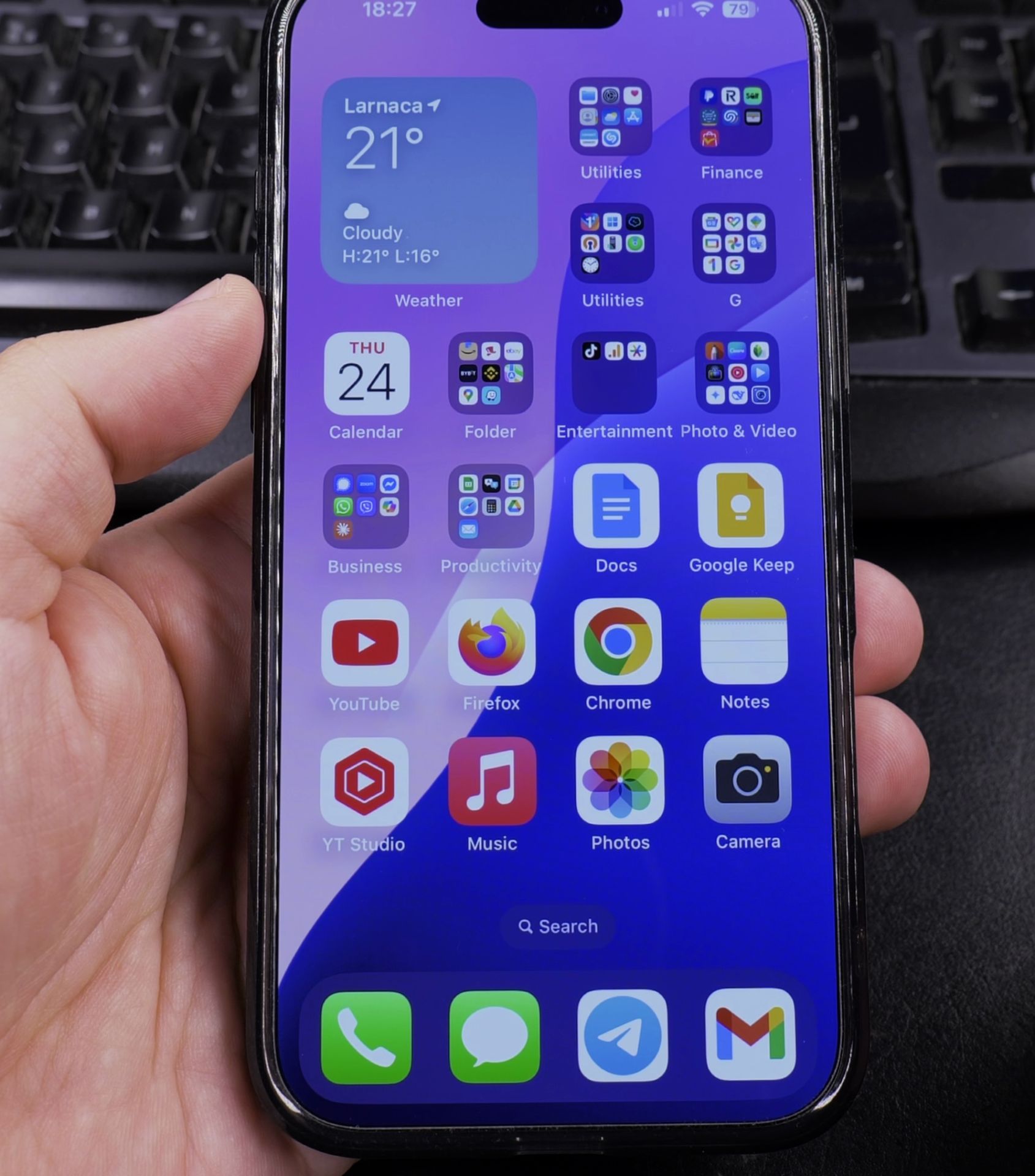
- Open the Settings app on your iPhone
- Scroll down and tap Phone
- Your phone number will be displayed at the top under “My Number”
If you see a number here, that’s your current active phone number.
Method 2: When Your Number Doesn’t Show in Settings
Sometimes your number might not appear in Settings. Here’s what to do:
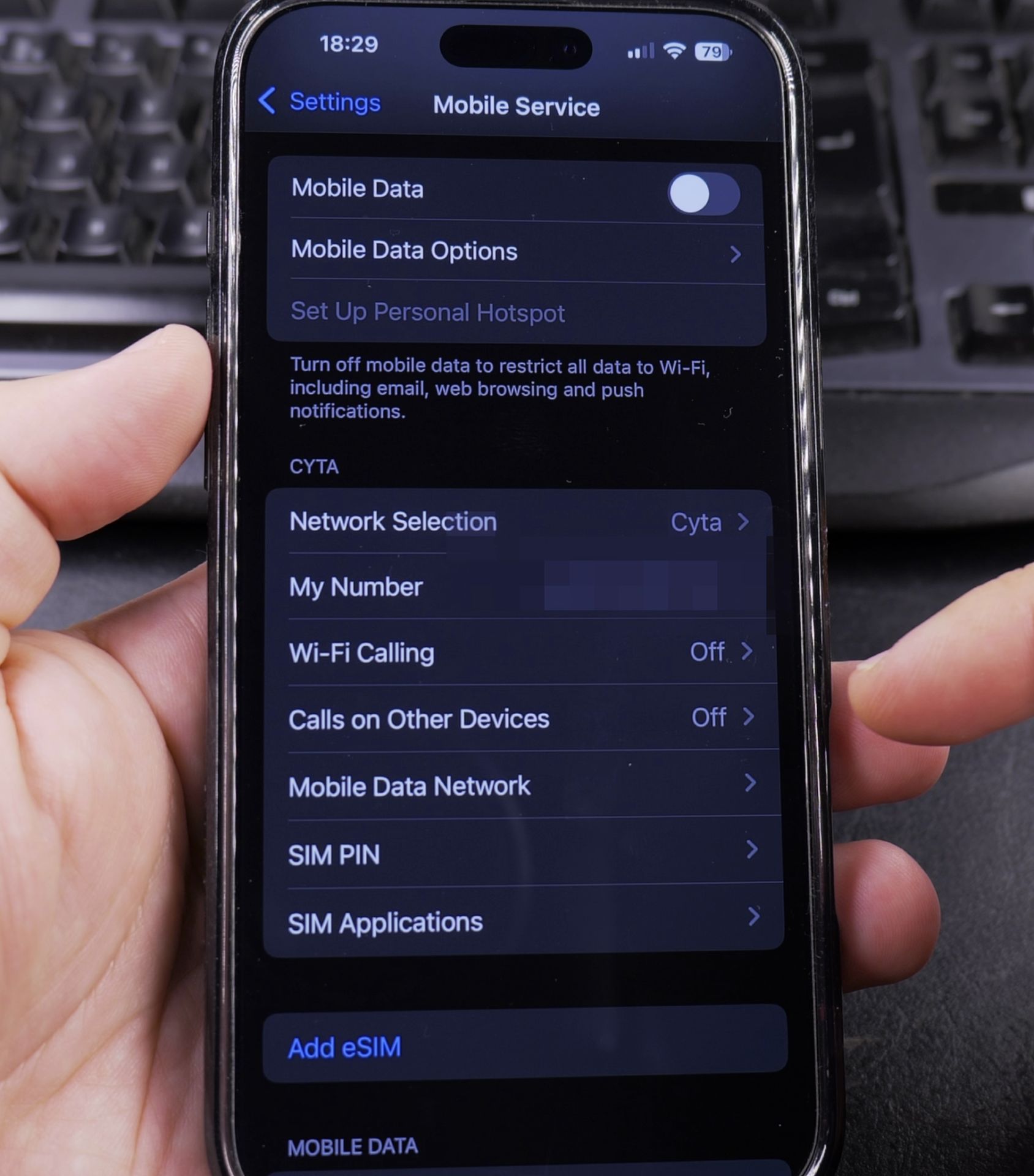
- Restart your iPhone
- Remove and reinsert your SIM card
- Check with your carrier that the number is properly assigned to your SIM
Alternative Ways to Find Your Number
If the above methods don’t work, try these:
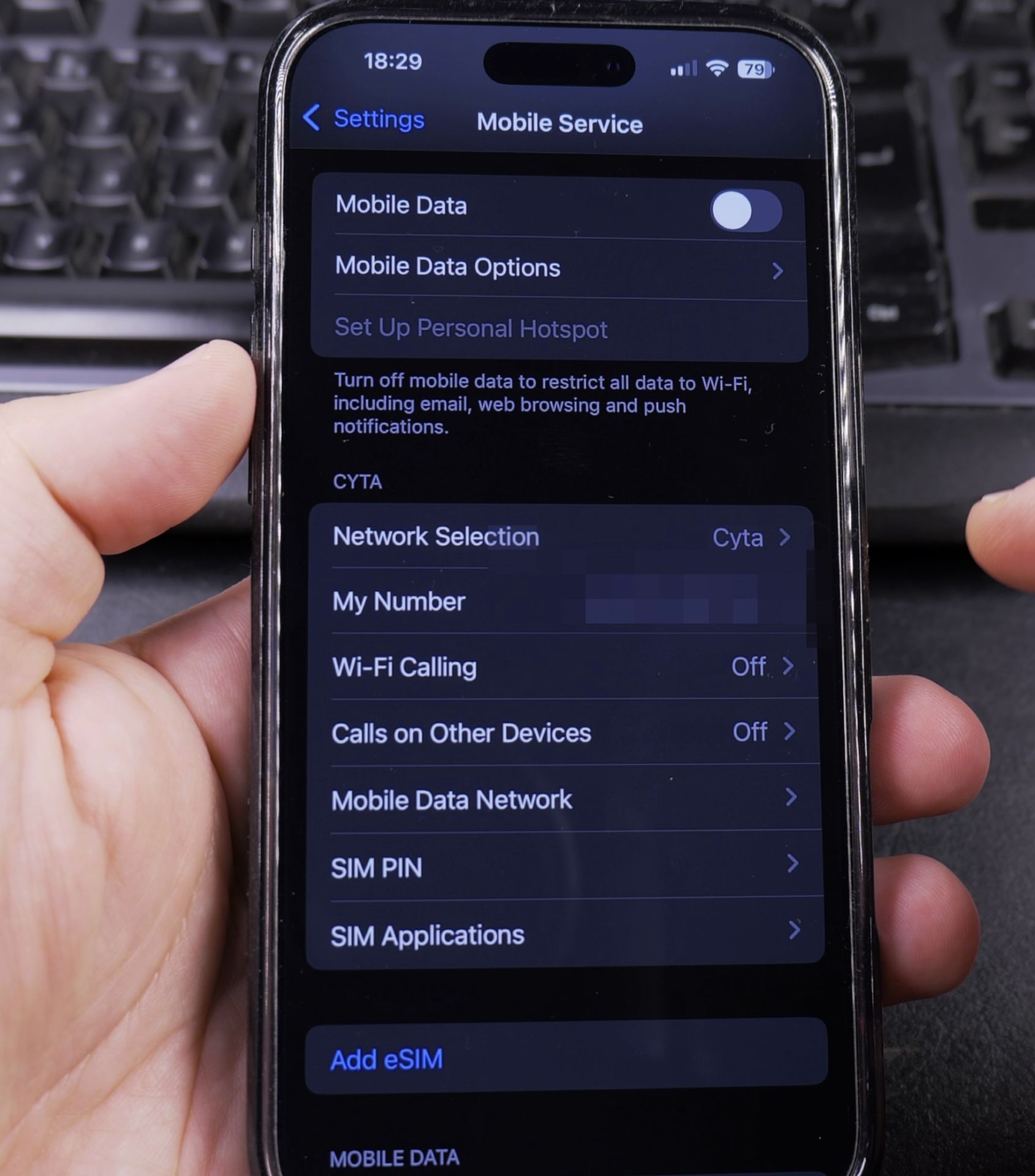
Call someone else’s phone:
- Call a friend or family member – your number will show on their caller ID
Check your carrier account:
- Log in to your mobile provider’s website or app
- Your number will be displayed in your account details
Dial a special code:
- Open the Phone app and dial *#100#
- Some carriers will display your number (may not work with all providers)
Why Can’t I See My Phone Number?
There are a few reasons your number might not show up:
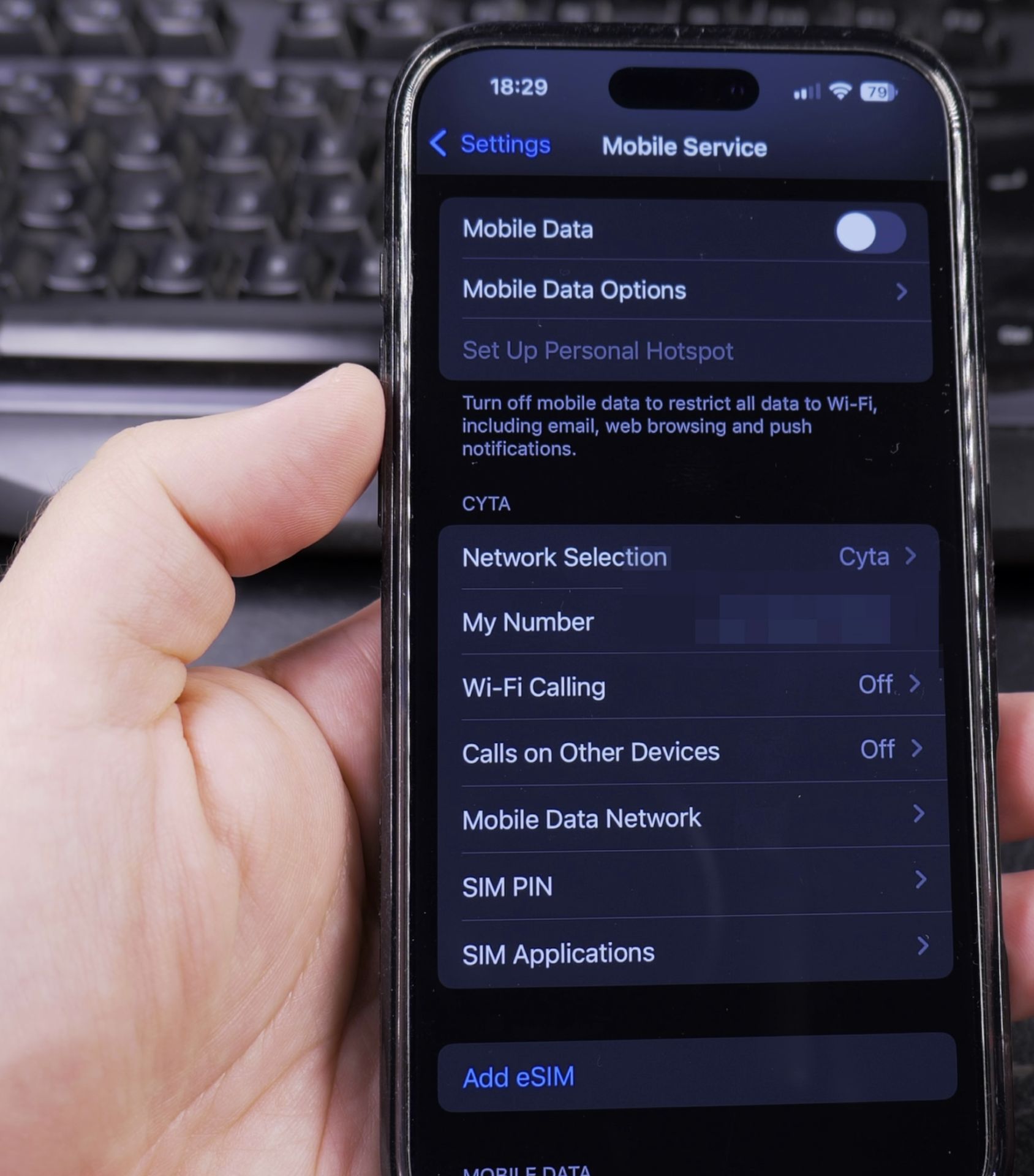
- The SIM card isn’t properly activated
- You’re using an eSIM that wasn’t fully set up
- There’s a temporary carrier issue
Final Thoughts
Now you know multiple ways to find your phone number on iPhone. The Settings app is usually the quickest method, but if that doesn’t work, the alternatives should help.
Having trouble finding your number? Try contacting your mobile provider – they can always tell you what number is assigned to your SIM card.
Did this help you Find your phone number? Let us know in the comments!
Helpful Tips
Take your time and check the screen carefully after each tap so you can confirm the setting changed as expected. If an option appears in a slightly different spot on your device, watch the embedded video above for a closer look.
Related Guides
- How to Remove Phone Number from iPhone iMessage and FaceTime – If you changed your mobile carrier or don't want your personal cell number visible in group chats, you can remove it from…
- How to Block Phone Number on iPhone – How to Block a Phone Number on iPhone iOS 26 Guide.
- iPhone How-To Guides – Browse more tutorials and practical guides in this section.


Leave a Reply