
Amazon links
As an Amazon Associate I earn from qualifying purchases:
- iPhone Accessories
- iPhone Charger
- iPhone Cases
- iPhone Screen protector
- iPhone Magsafe
- iPhone Wallet
- iPhone Usb c cable
Tired of the default Gmail notification sound on your iPhone? You can change it to something more distinctive or pleasant. Here’s how to customize your Gmail alerts directly in the app.
How to Change Gmail Notification Sound on iPhone.
Quick Steps and Scenarios Overview
| What You Need to Do | Quick Jump |
|---|---|
| How to Change Gmail Notification Sound | Jump to Step 1 |
| Open the Gmail app on your iPhone | Jump to Step 1 |
| Tap your profile picture in the top | Jump to Step 2 |
| Select Settings from the menu | Jump to Step 3 |
| Choose the email account you want | Jump to Step 4 |
| Tap Notifications | Jump to Step 5 |
This guide works for all iPhones running iOS 15 or later, including the iPhone 16 Pro Max (iOS 18.4.1) and older models.
How to Change Gmail Notification Sound
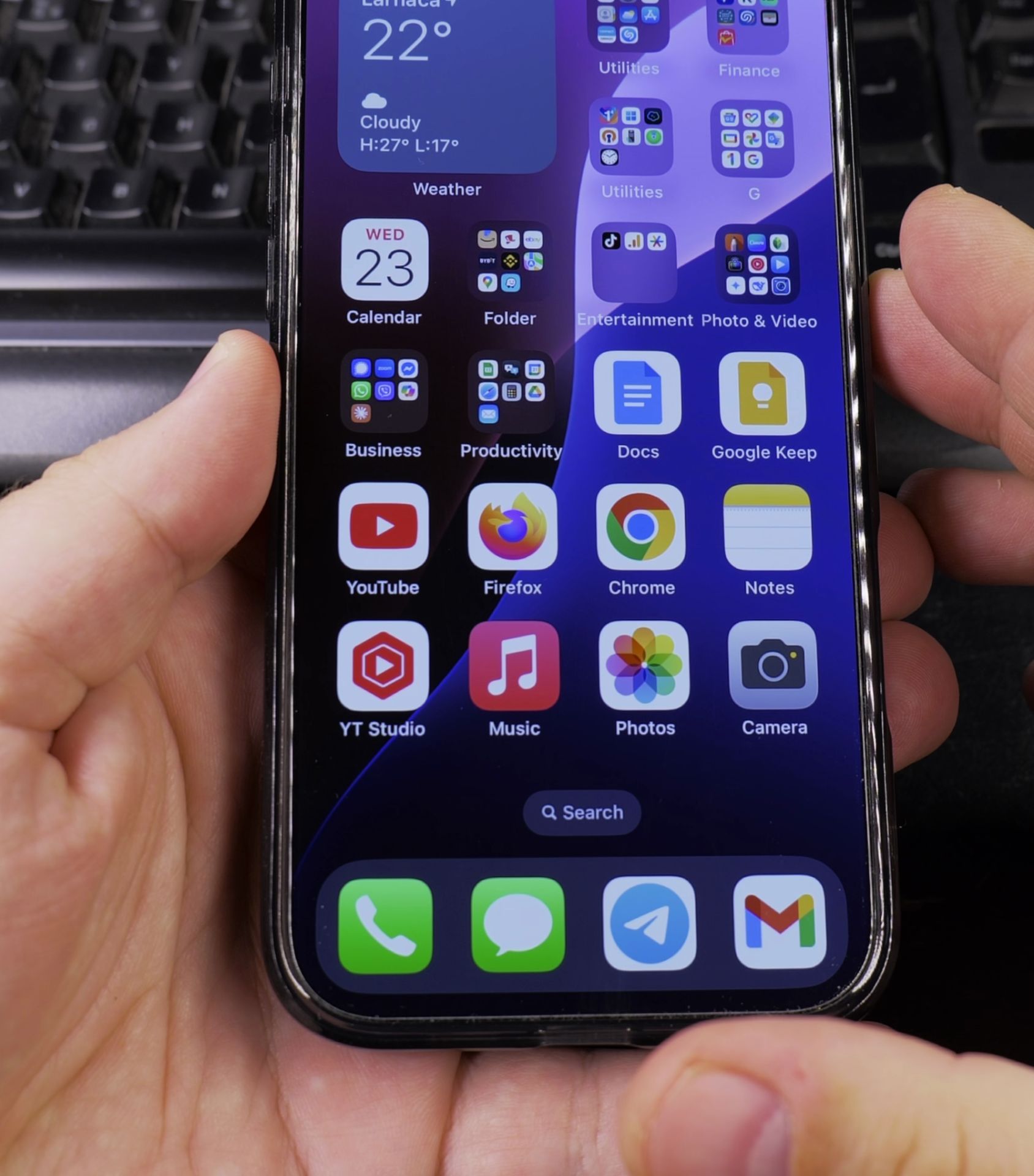
1. Open the Gmail app on your iPhone
Open the Gmail app on your iPhone.
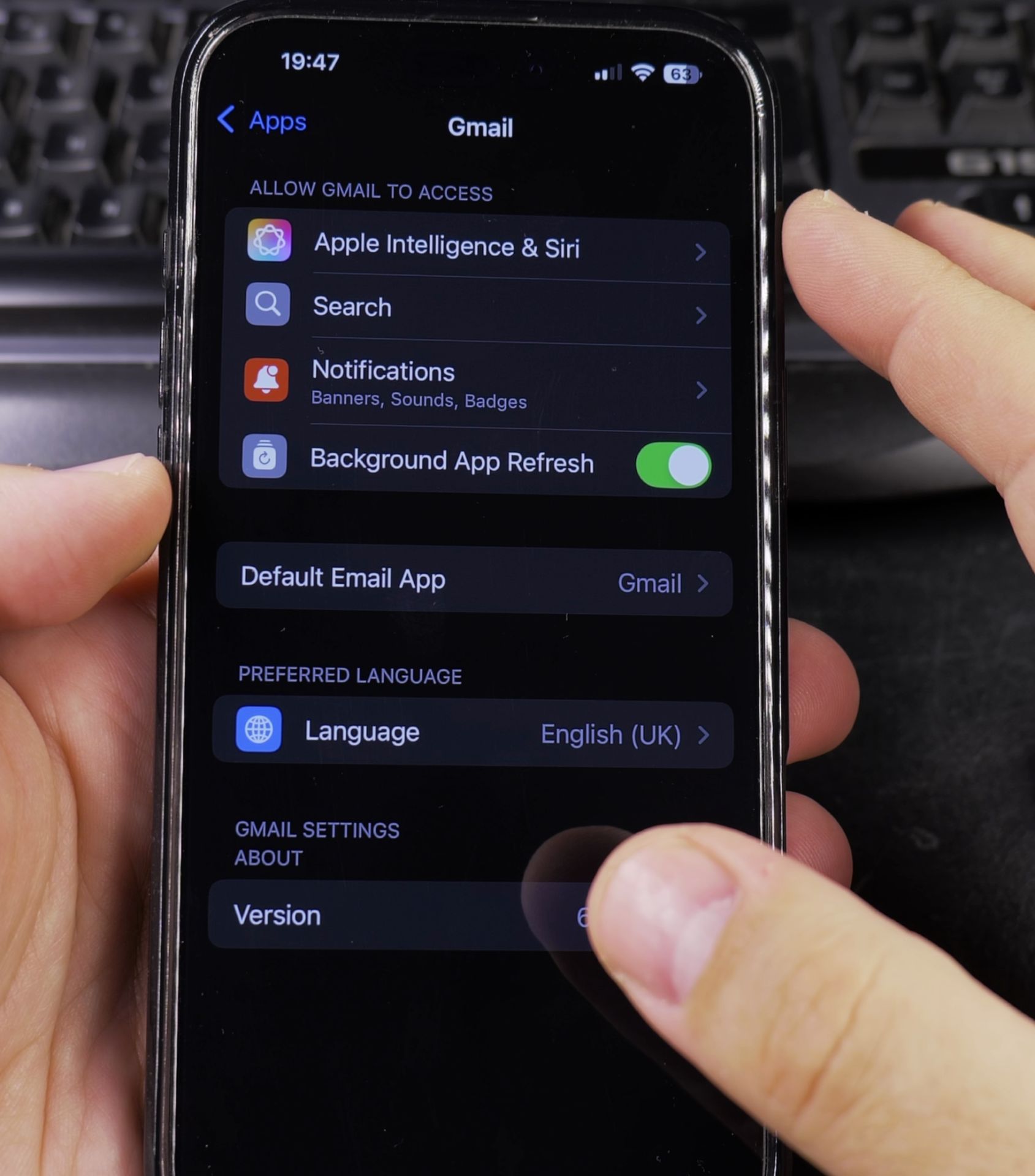
2. Tap your profile picture in the top
Tap your profile picture in the top right corner.
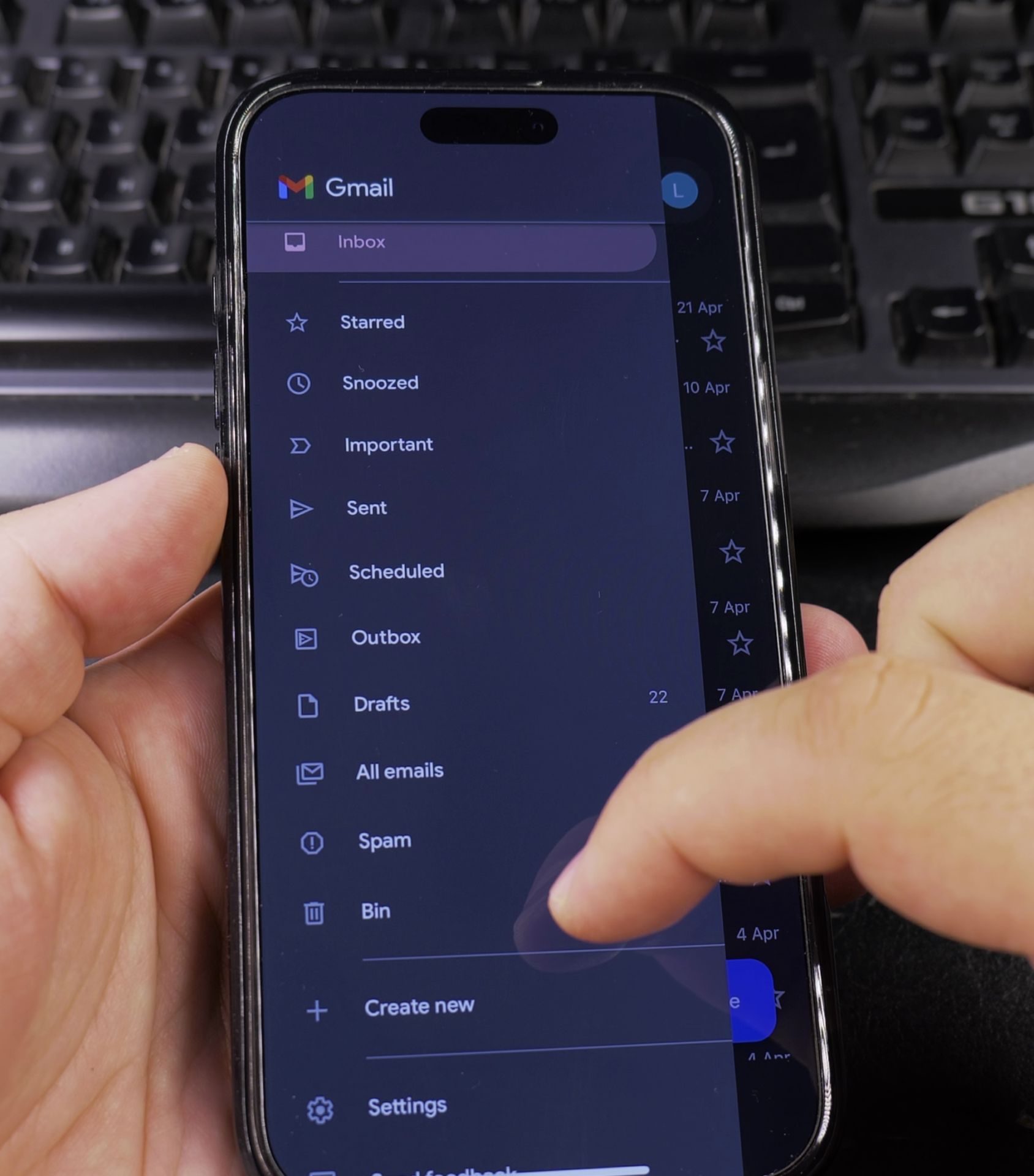
3. Select Settings from the menu
Select Settings from the menu.
4. Choose the email account you want
Choose the email account you want to customize (if you have multiple).
5. Tap Notifications
Tap Notifications.
6. Select Notification sound
Select Notification sound.
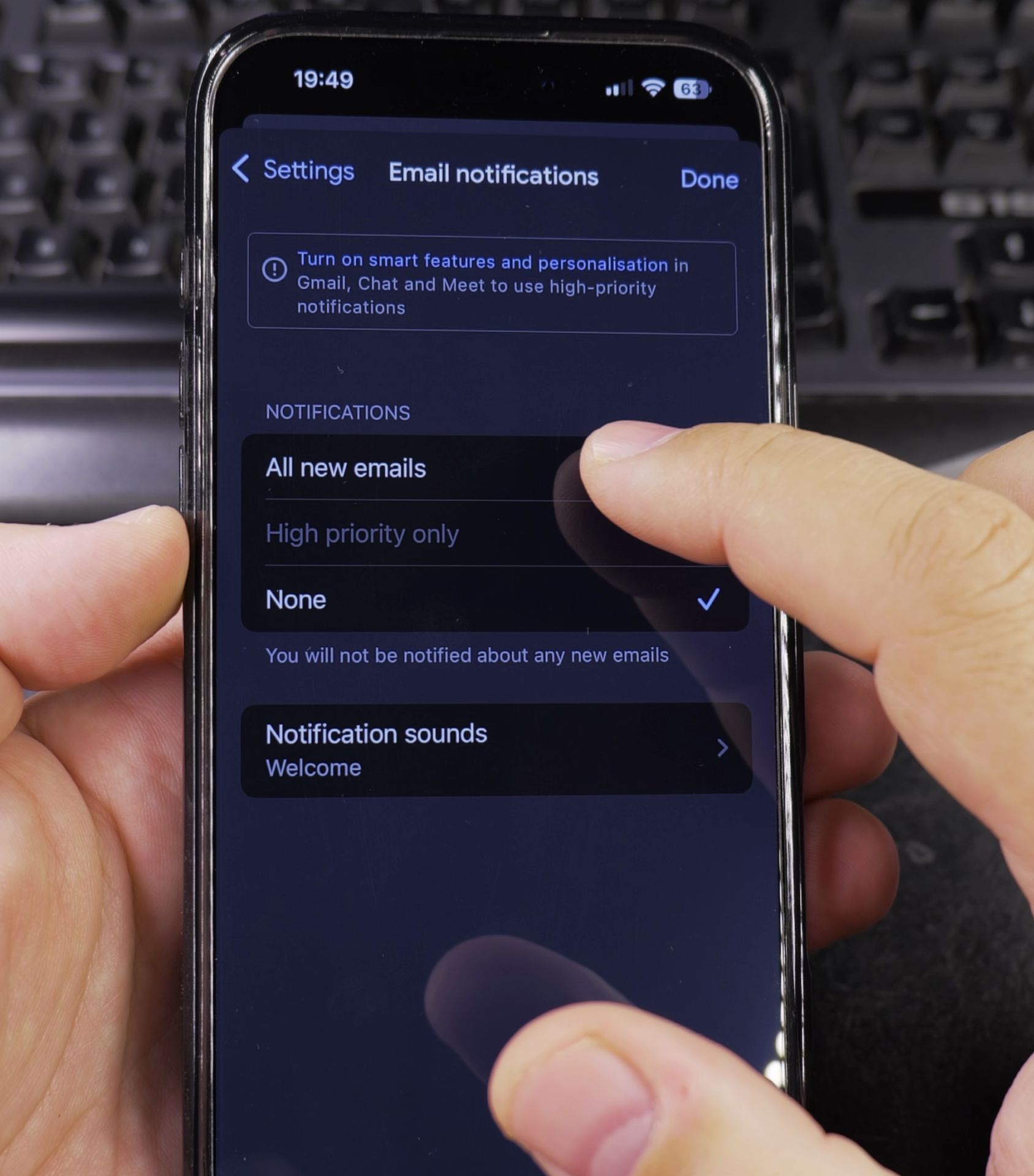
7. Browse through the available sounds and tap
Browse through the available sounds and tap to preview them.
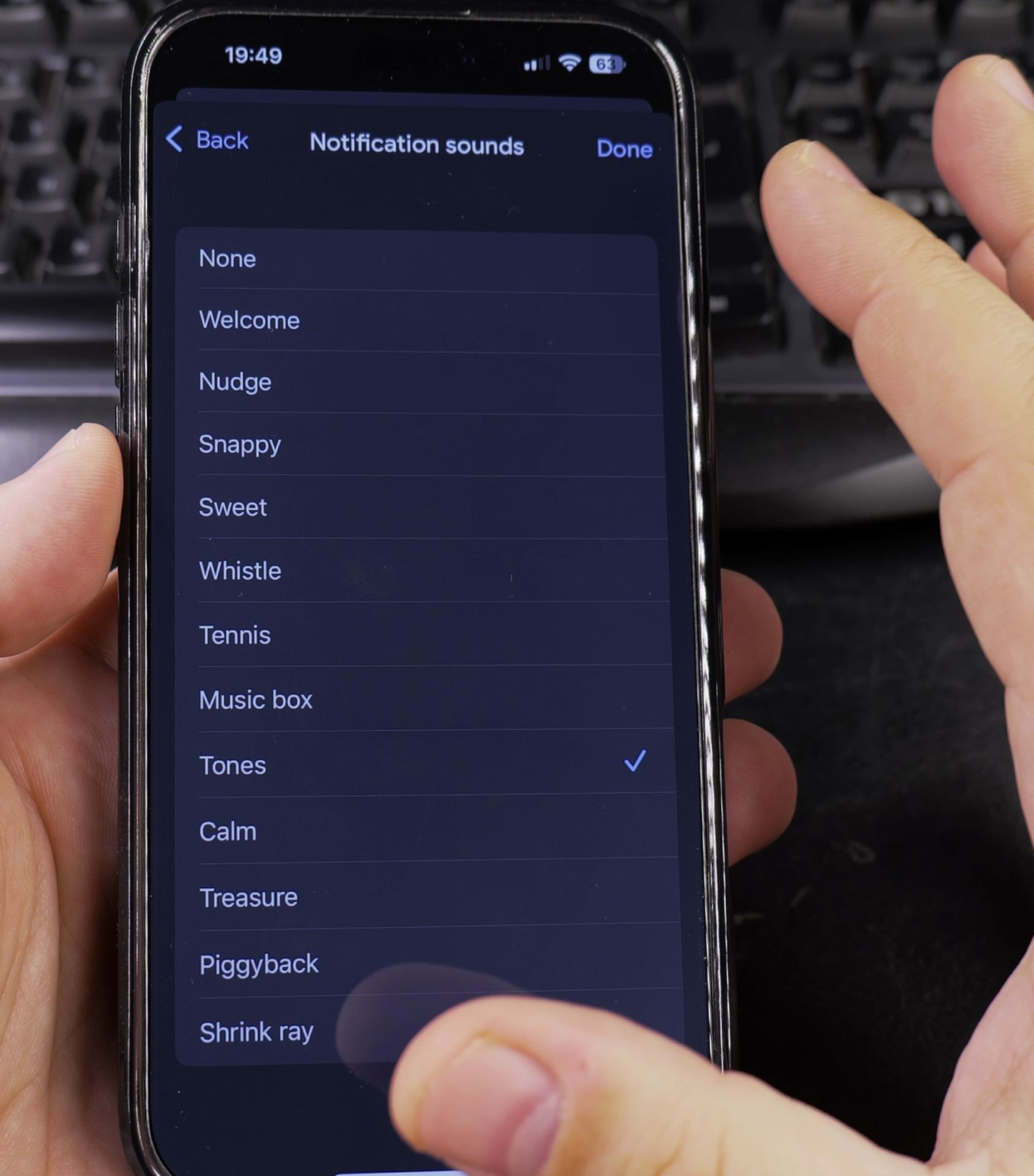
8. Select your preferred sound
Select your preferred sound.
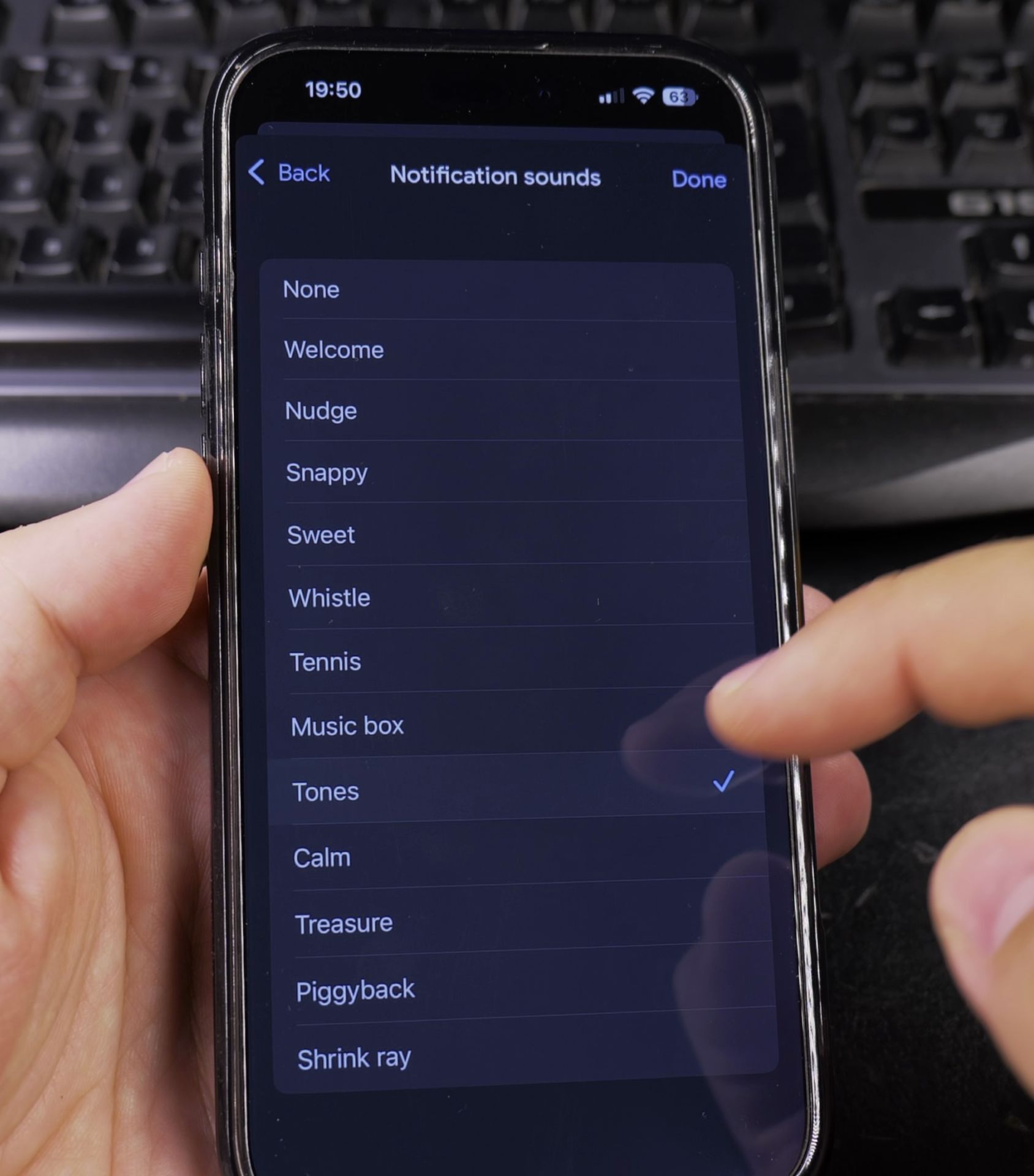
9. Tap the back arrow to save
Tap the back arrow to save your choice.
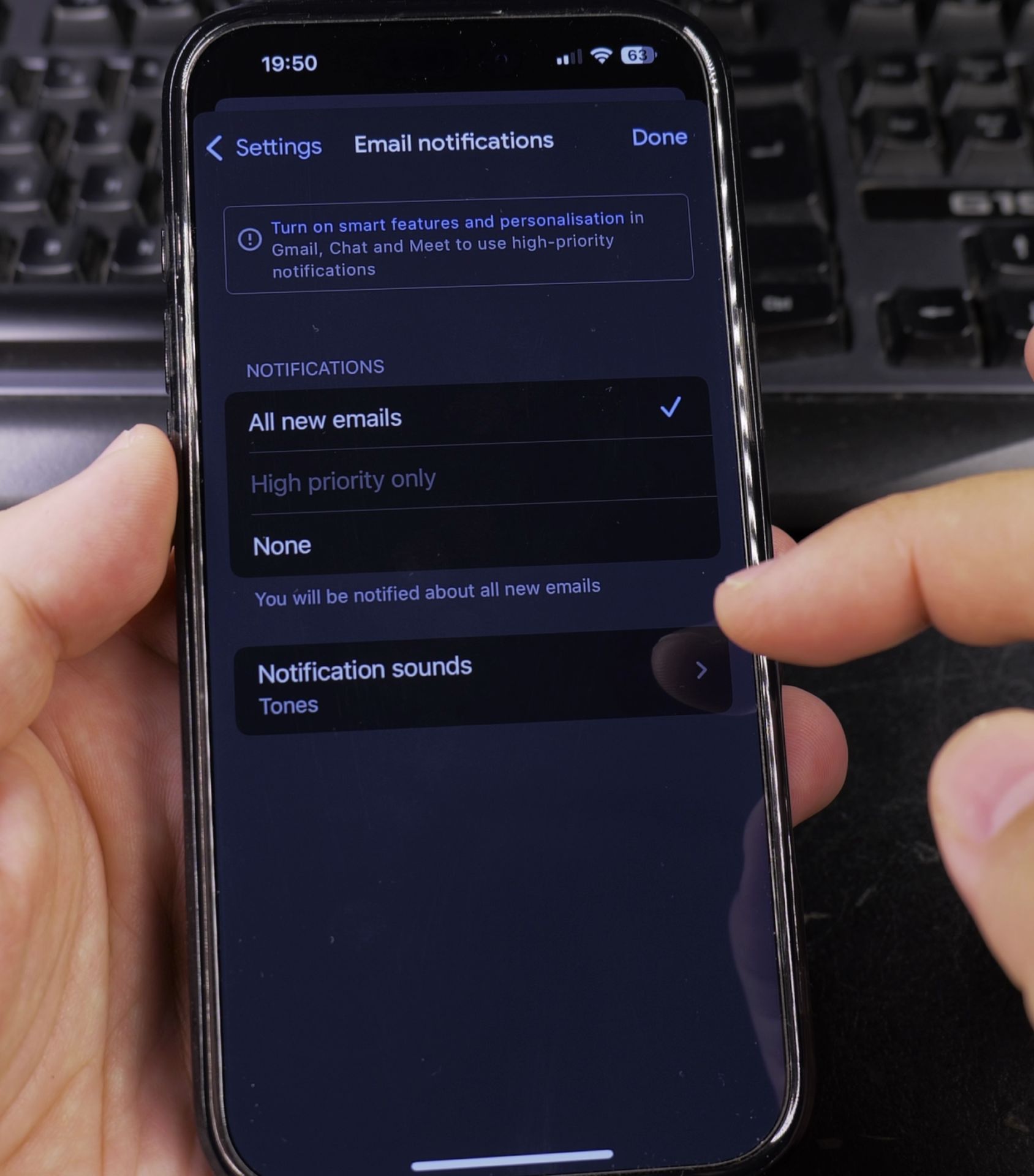
How to Make Gmail Notifications Louder
If you’re missing email alerts:
- Follow steps 1-5 above to reach Notification settings
- Toggle on Vibrate for extra alert options
- Then adjust your iPhone’s system volume using the side buttons
Important Notes About Gmail Notifications
- Gmail uses its own notification system separate from iPhone Mail app
- You can set different sounds for different Gmail accounts
- Some sounds may be quieter than others – test them first
- Ensure notifications are enabled in both Gmail and iPhone Settings
Troubleshooting Notification Issues
If you’re not hearing alerts:
- Check iPhone Settings > Notifications > Gmail (ensure alerts are on)
- Verify the Gmail app isn’t in Low Power Mode
- Restart your iPhone if sounds suddenly stopped working
Why Change Your Gmail Alert Sound?
- Distinguish work from personal emails at a glance
- Choose a more pleasant tone than the default
- Select a louder sound if you keep missing important emails
Now you have personalized email alerts that match your preferences. If you want something subtle or impossible-to-miss, Gmail offers several options to choose from.
Still not getting notifications? Make sure background app refresh is enabled for Gmail in your iPhone settings.
Did this help you customize your Gmail alerts? Let us know which notification sound you chose!
Helpful Tips
Take your time and check the screen carefully after each tap so you can confirm the setting changed as expected. If an option appears in a slightly different spot on your device, watch the embedded video above for a closer look.
Related Guides
- How to Change WhatsApp Notification Sound on iPhone – If you have the same old WhatsApp notification sound?
- How to Change Telegram Notification Sound on iPhone – Do you want to give your Telegram notifications a fresh new sound?
- Get the Best Sound Quality in iPhone Apple Music – How to Get the Best Sound Quality in Apple Music on iPhone.
- iPhone How-To Guides – Browse more tutorials and practical guides in this section.


Leave a Reply